
Why Your Brand New Android Phone Feels Slow and How to Fix It
Unlock your new Android phone's full potential by tackling common culprits like outdated software and conservative settings. Discover simple, powerful tweaks to banish unexpected lag and achieve buttery-smooth performance.
I just got a brand new Android phone, and it already feels a bit sluggish. It's frustrating, isn't it? You expect a new device to be lightning-fast, but sometimes, right out of the box, the experience isn't as snappy as you'd hoped. This isn't the typical slowdown that happens after years of use; this is something that can happen within days or weeks of unboxing. From my experience and research, this unexpected lag often stems from a few common culprits: outdated software, conservative default settings, and a bunch of pre-installed software running amok in the background. While high-end flagship models might handle this better, even they can benefit from a little tweaking to unlock their full potential. Let me walk you through the main reasons and the simple fixes that can make your new phone feel truly new again.
🔄 The Outdated Software Surprise
One of the first things I realized is that new phones often don't ship with the latest software. The version of Android installed was likely finalized months before the phone hit the shelves. This creates two immediate problems. First, I'm missing out on the latest performance enhancements and optimizations from both Google and the phone's manufacturer. Second, if that initial software has any bugs—especially ones affecting speed, animations, or battery drain—I'm stuck with them until I update.
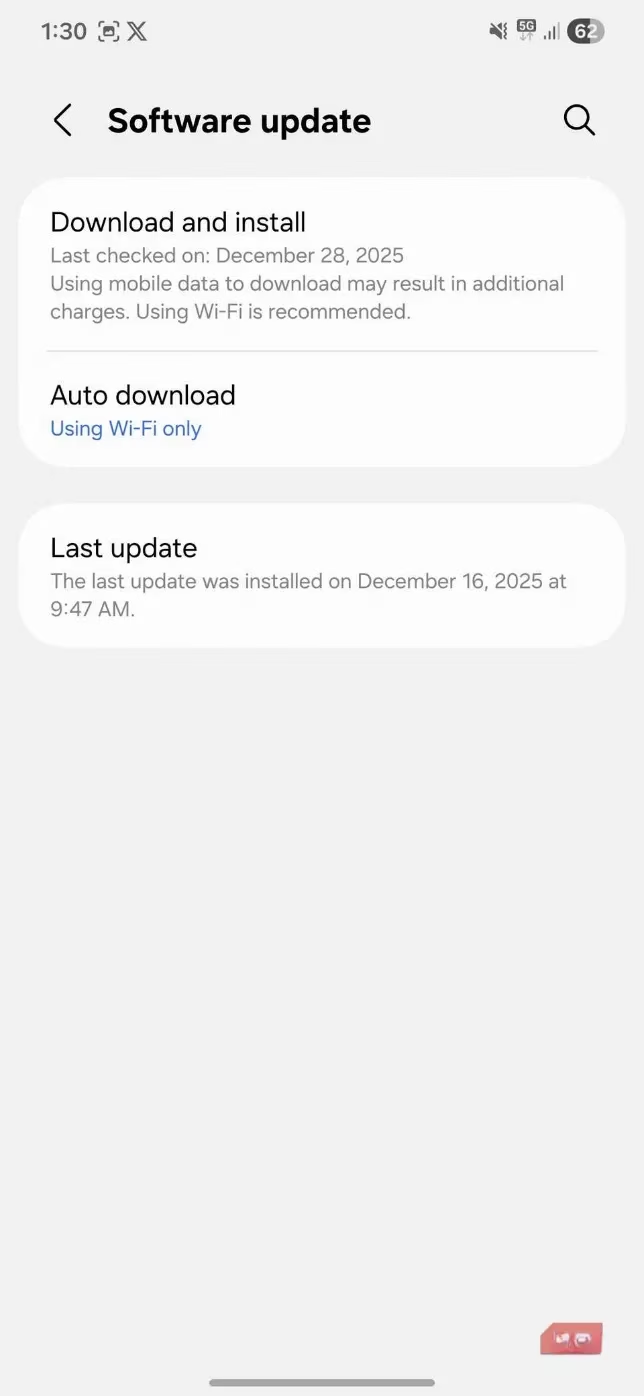
The remedy is straightforward but crucial. I head straight to Settings > Software Update and check for any available updates. Installing these is non-negotiable for peak performance. This isn't a one-time task; making it a habit to check regularly is key to maintaining speed and security.
App updates are equally vital. Those pre-installed apps? They're probably outdated too. An outdated app can be inefficient and buggy. I open the Google Play Store, tap my profile icon, and select "Manage apps & device" to update everything. Even better, I enable automatic updates so I never have to think about it again.
⚙️ Unlocking Hidden Performance Modes
By default, most Android phones, especially from brands like Samsung, are configured for a balance between speed and battery efficiency. This "Optimized" mode aims to keep the device cool and extend battery life, which is great for everyday use. But if I'm after raw, responsive speed—for gaming, multitasking, or just a snappier feel—this setting holds the phone back.
I discovered that many phones have hidden high-performance modes. On my Samsung, I go to Settings > Device Care > Battery > More battery settings > Performance profile. Here, I can switch from "Optimized" to "High" or even "Maximum" performance.
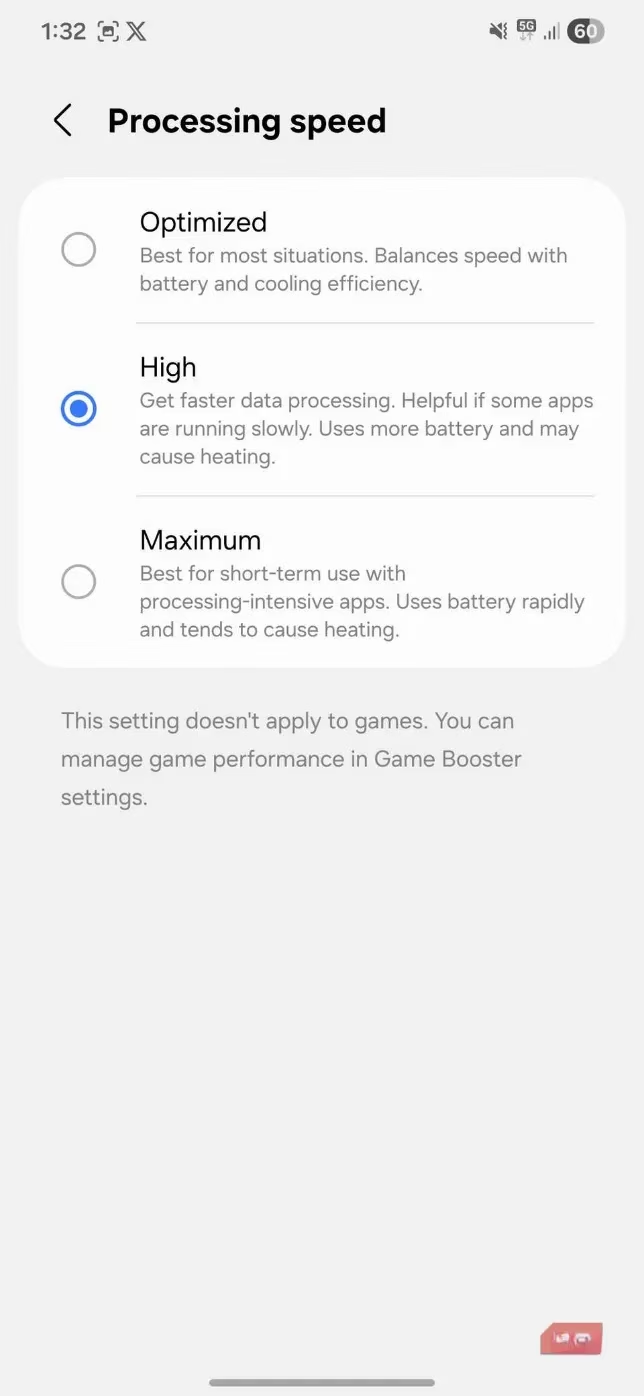
The difference is night and day. Apps launch quicker, animations are buttery smooth, and switching between tasks feels instantaneous. I can even add a quick settings toggle for easy switching between modes depending on my needs—power mode for work, balanced for leisure.
🗑️ The Bloatware Burden
This is a major culprit for sluggishness. Bloatware refers to all those pre-installed apps I never asked for. Manufacturers include their own apps (like duplicate browsers, calendars, or app stores), and mobile carriers are notorious for adding even more. These apps aren't just icons taking up space; they actively consume resources.
The negative impact of bloatware includes:
-
RAM Consumption: Running services in the background, eating into precious memory.
-
Battery Drain: Waking the device and performing background tasks.
-
Storage Clutter: Filling up storage with apps I'll never use.
-
Background Activity: Sending unnecessary notifications and updating when I don't want them to.
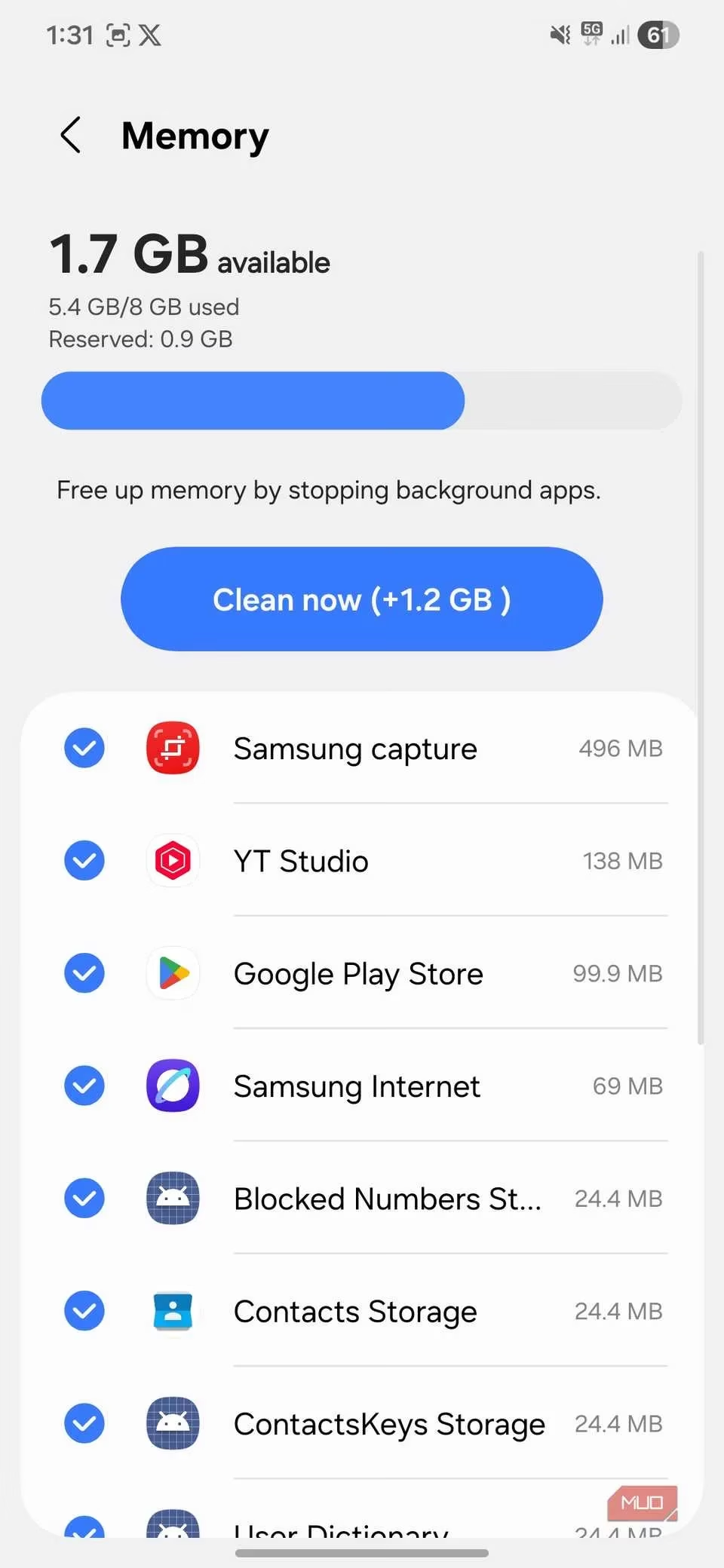
The frustrating part is that I often can't fully uninstall them. However, I can disable them. I go to Settings > Apps, select the unwanted app, and tap "Disable." This stops it from running or updating. For a more thorough cleanup, there are safe methods (using ADB commands) to remove these apps without needing to root the phone. Once I clear out this digital clutter, my phone feels noticeably lighter and more responsive.
🔍 Identifying Rogue Apps
After setting up my new phone, I naturally install my favorite apps. But not all apps are well-behaved. Sometimes, a single poorly coded or resource-hungry app can drag down the entire system's performance.
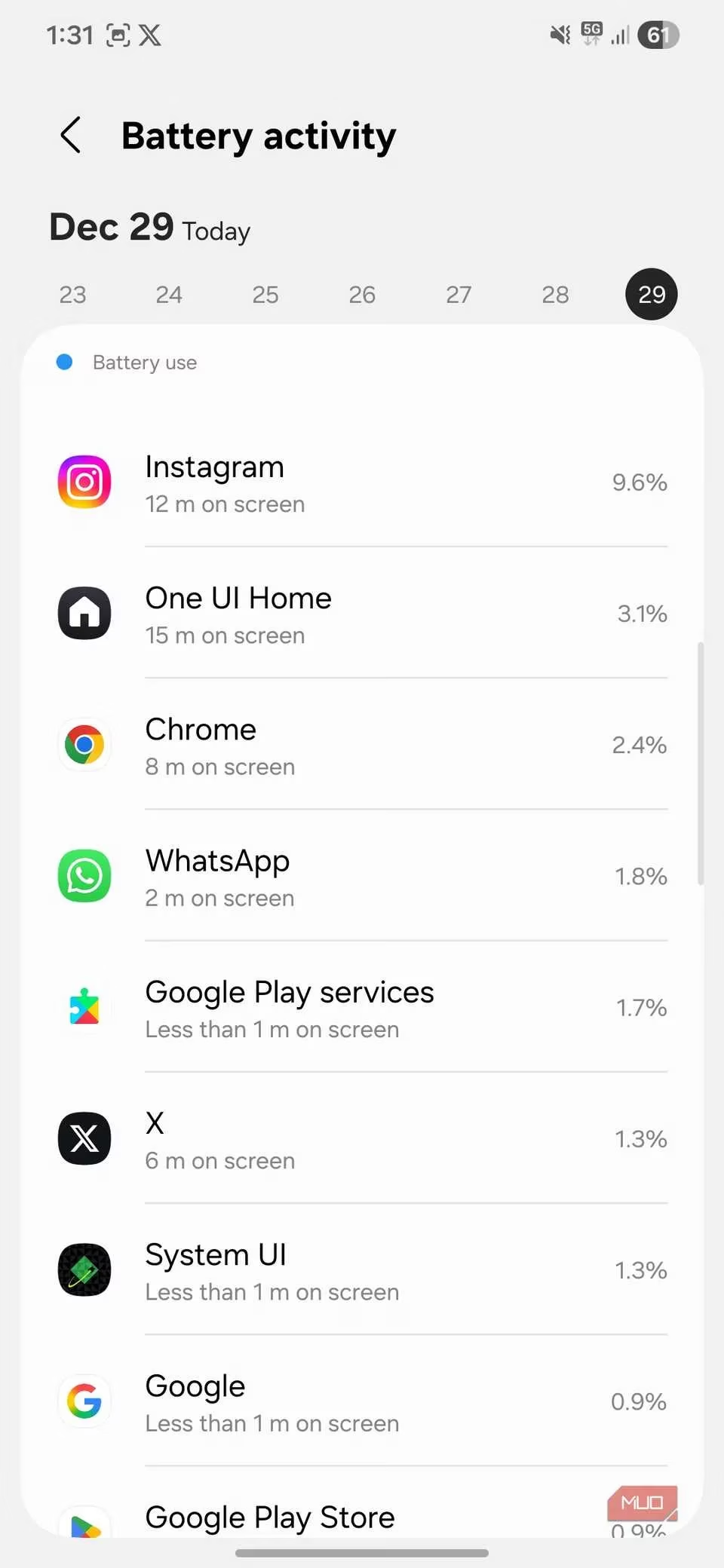
The easiest way to spot these offenders is through the battery and memory usage monitors.
-
Battery Check: I navigate to
Settings > Battery > Battery Usage. If I see an app I rarely use near the top of the list, it's a major red flag. It's likely running excessively in the background. -
RAM Check: I go to
Settings > Device Care > Memory(or similar) to see which apps are consuming the most RAM.
If I identify a problematic app, my best course of action is to uninstall it and look for a more efficient alternative. Keeping my app ecosystem lean and mean is essential for long-term performance.
📝 My Performance Optimization Checklist for 2026
To keep my new Android phone running fast, here's my personal maintenance routine:
| Task | Frequency | Action |
|---|---|---|
| Check System Updates | Weekly | Settings > Software Update |
| Update All Apps | Enable Auto-Update | Google Play Store > Settings |
| Review Performance Mode | As Needed | Settings > Battery > Performance Profile |
| Audit & Disable Bloatware | Once, after setup | Settings > Apps > [Select App] > Disable |
| Monitor Battery/RAM Hogs | Monthly | Settings > Battery & Settings > Memory |
| Clear Cached Data | Occasionally | Settings > Storage > Cached Data |
In conclusion, a slow new Android phone is usually a fixable problem, not a defective one. The lag often stems from the device's initial state—outdated software, balanced power settings, and unnecessary pre-loaded apps. By proactively managing these areas, I've been able to transform a sluggish experience into a smooth and powerful one. Taking these steps ensures that my phone lives up to its promised potential from day one and stays that way. Remember, a little optimization goes a long way in the modern mobile landscape of 2026.