
Why I Dumped My Stock File Manager for Material Files in 2026
Material Files for Android offers intuitive navigation, per-folder sorting, and power user features missing from stock file managers.
I still remember the exact moment I decided to abandon the file manager that came with my phone. It was a rainy Tuesday in 2026, and I was trying—for the hundredth time—to move a bunch of photos from a deeply nested WhatsApp folder to my SD card. Tap, tap, back, back, back… the process felt like walking through a labyrinth designed by someone who\u2019d never actually used a phone. Android\u2019s stock file browsers have improved over the years, sure, but even in 2026 they feel like toys compared to what a real power user needs. That afternoon, I finally said enough. I downloaded Material Files, and I haven\u2019t looked back since.
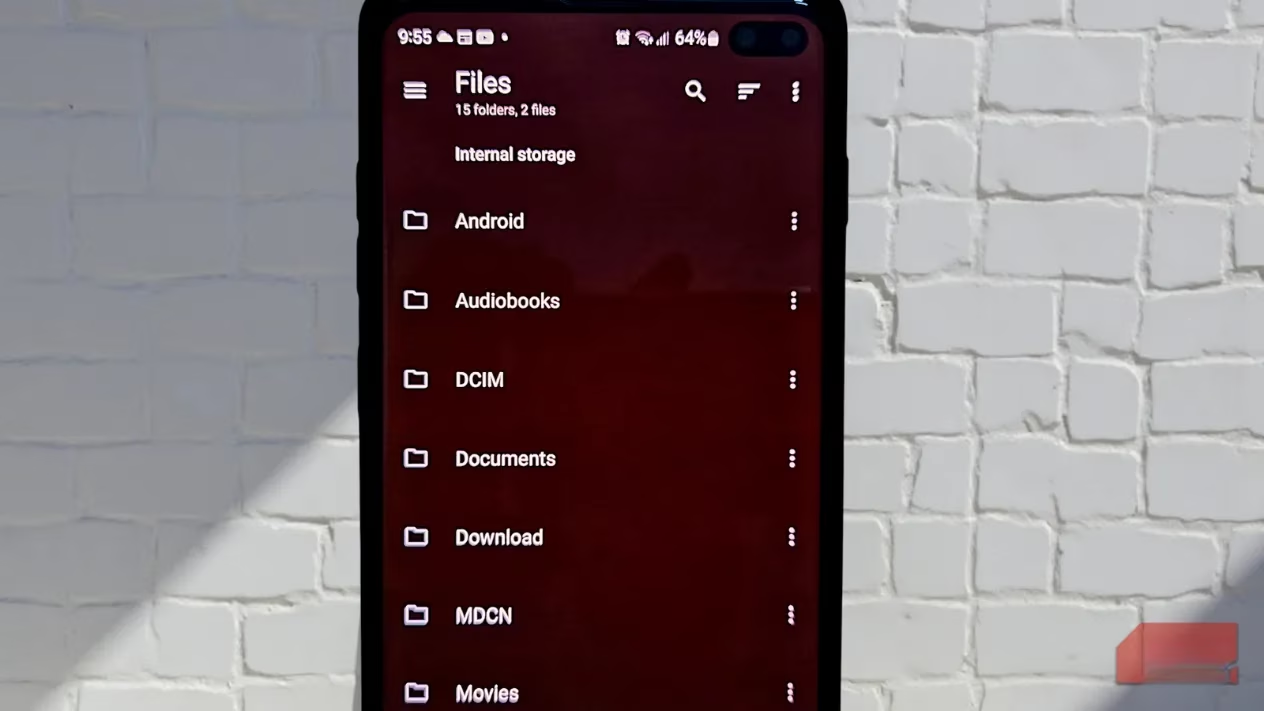
Let me set the scene. I\u2019m not a developer, just someone who likes to keep things organized. My phone is my secondary computer: I manage work documents, family photos, ROM backups, and even run a small media server off it. The default file manager—whether it\u2019s Samsung\u2019s My Files or the Google Files app—could never keep up. Breadcrumb navigation? Forget it. Network storage integration? Hidden behind convoluted menus or outright missing. I was trapped in a cycle of frustration until I found the tool that changed everything.
The Navigation That Finally Makes Sense
The first thing that hit me when I opened Material Files was the breadcrumb trail at the top of the screen. Instead of mashing the back button like a caveman, I could see my exact path: Internal storage > Documents > Projects > 2026. Tapping any folder name in that chain instantly jumped me back to that level. It\u2019s such an obvious idea, yet most stock managers still ignore it. That alone saved me a dozen taps every session.
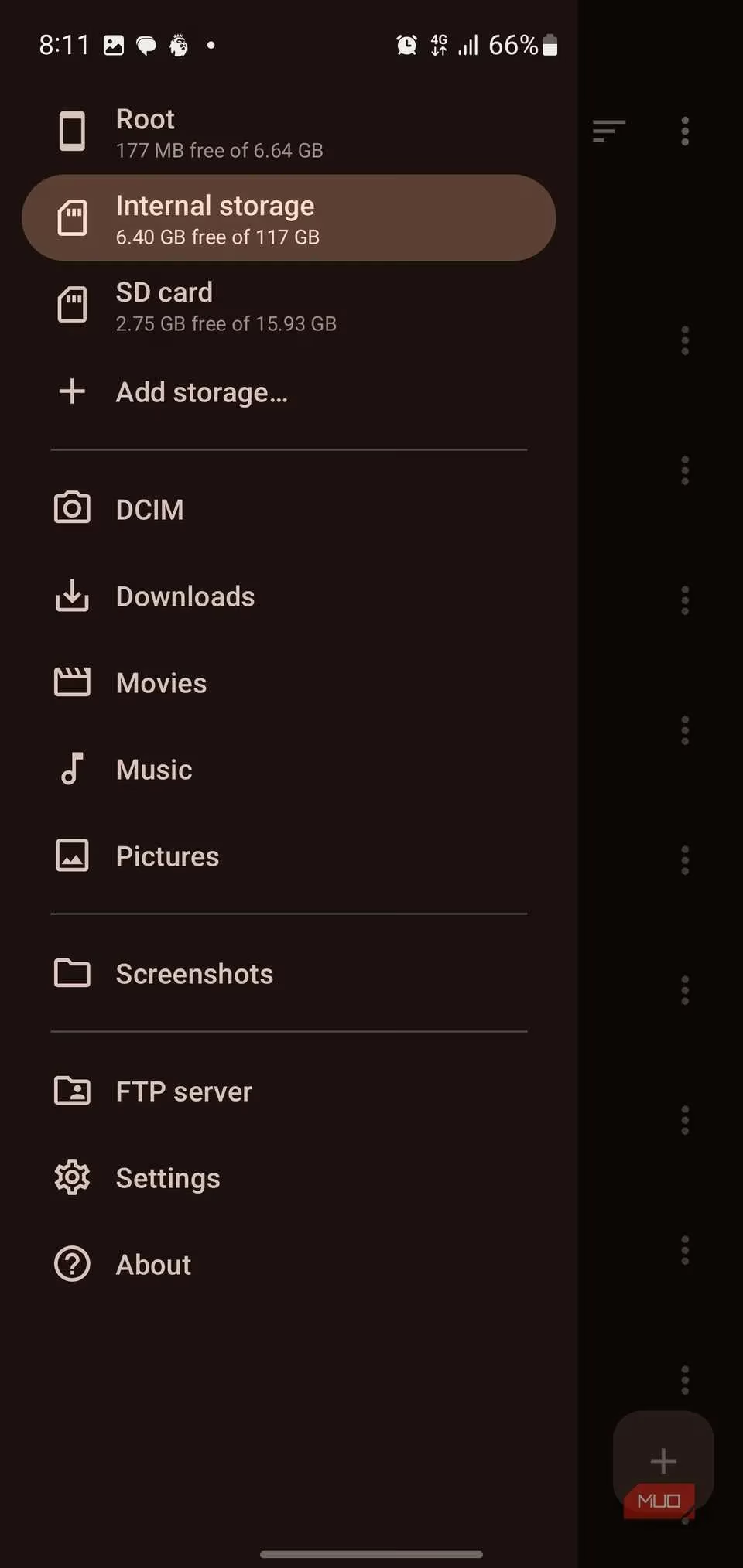
The sidebar drawer is another marvel of common sense. It lists every storage location—internal, SD card, and any network drives I\u2019ve added—with a clear display of how much free space remains. Favorites like DCIM, Downloads, Movies, and Music sit right there, each wearing a cute little icon. I didn\u2019t need to dig through a generic tree; everything I access daily was one tap away.
Sorting That Remembers How I Work
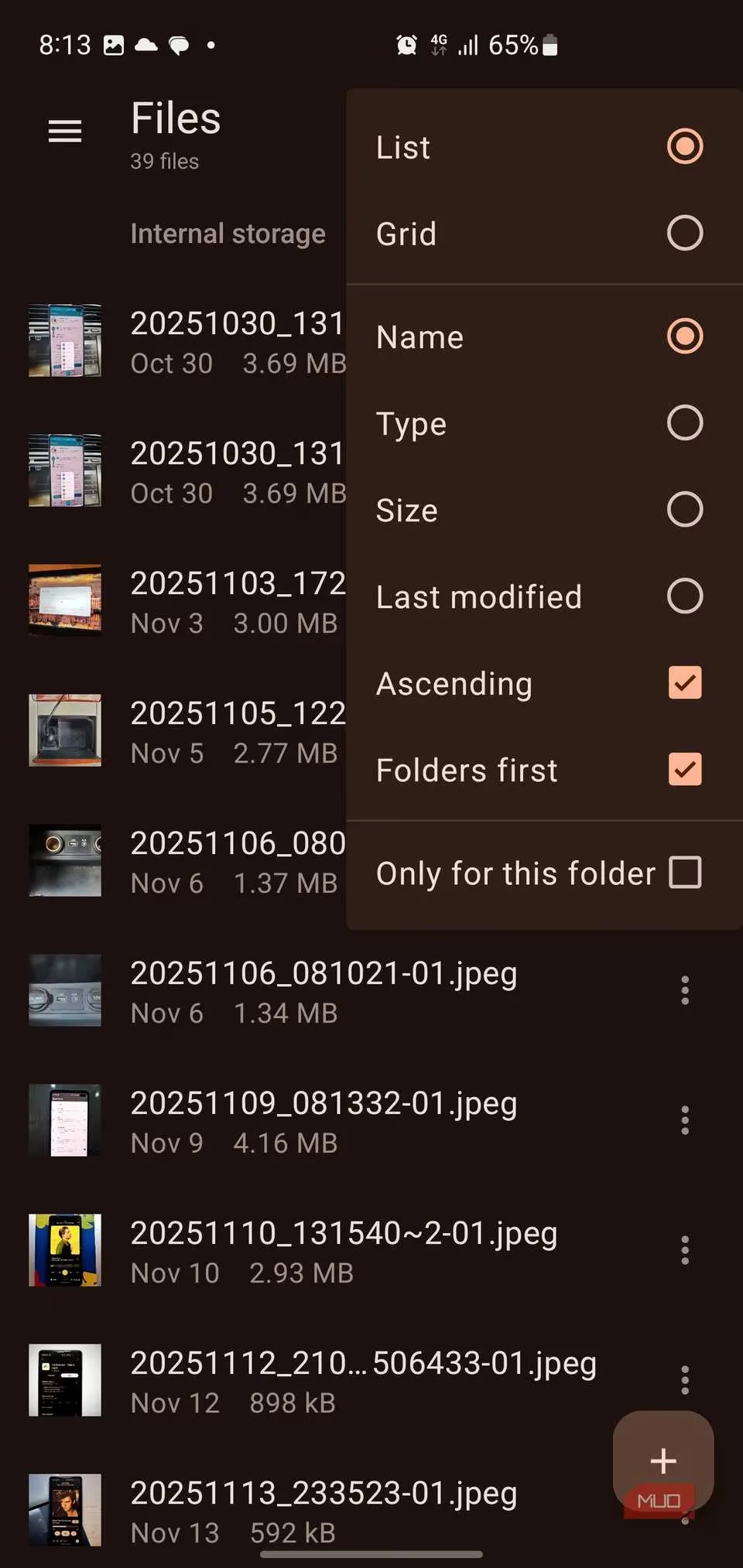
Not all folders are created equal. My photo archive wants a grid; my expense spreadsheets want a detailed list. Material Files gets this. Tap the sort icon, and a polished menu appears: switch between list and grid views, sort by name, type, size, or modification date, ascending or descending. And here\u2019s the kicker—it can remember your choice per folder. Once I set my \u201cPictures\u201d directory to grid and my \u201cTax\u201d folder to list sorted by date, the app never forgot. That per-folder memory is a huge sanity saver when you\u2019re bouncing between dozens of directories.
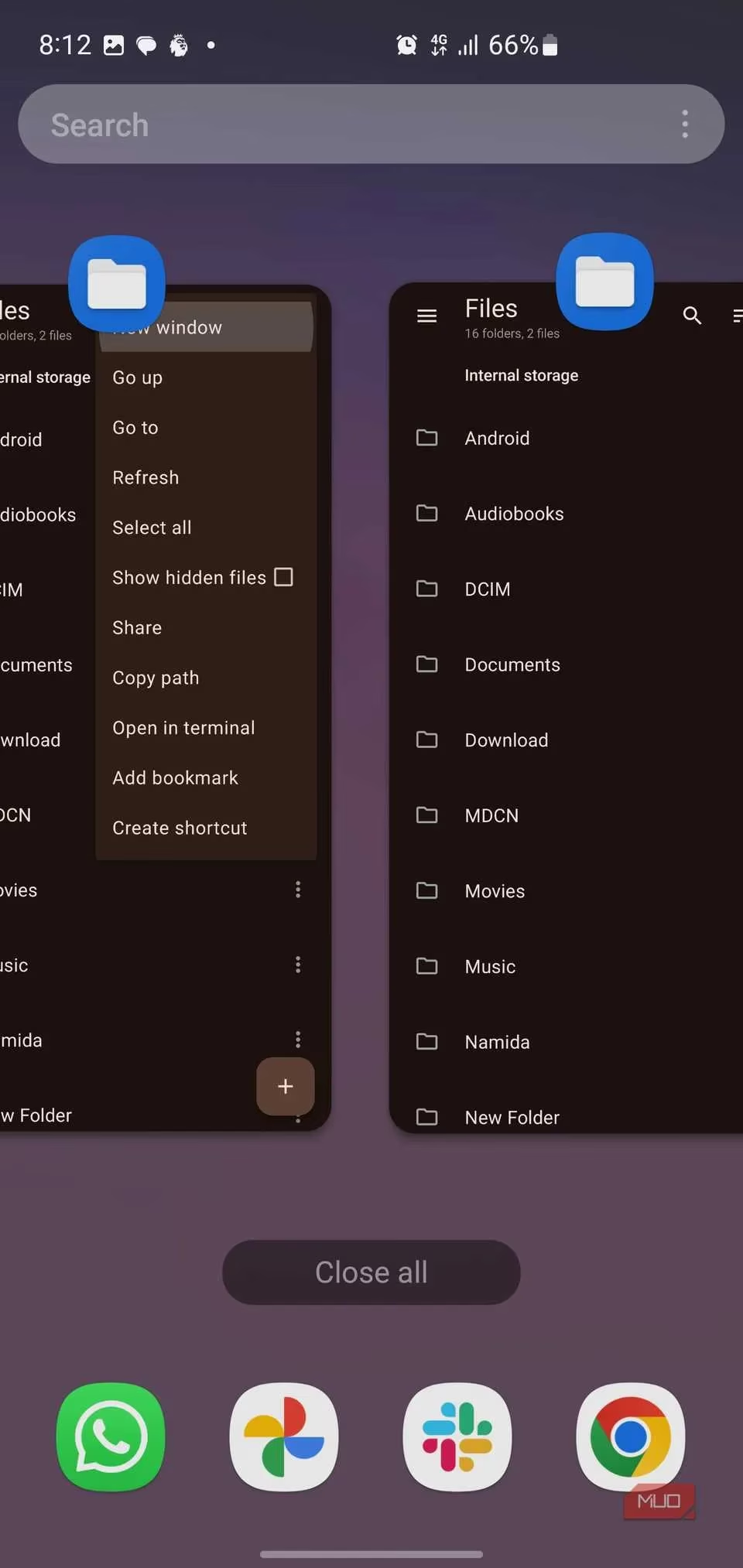
The floating action button in the bottom-right corner makes creating new files and folders effortless. But the real power lives in the long-press menu. Beyond the usual copy, move, delete, and share, I found Copy path, Open in terminal, Add bookmark, and even Create shortcut. Yes, I can drop a folder shortcut directly onto my home screen. That one feature has streamlined my morning routine: a tap on my \u201cMorning Reports\u201d folder, and I\u2019m instantly where I need to be.
Doing Two Things at Once (Finally!)
I used to juggle two phones or a laptop just to move files between internal storage and my SD card. Material Files has built-in multi-window support. Via the menu, I can open a second instance\u2014and both run side by side, flawlessly. One side shows my camera backup folder, the other my external storage. Drag, select, copy, done. There\u2019s no slowdown, no confusion about which window is active. It\u2019s like having a miniature dual-pane file commander in my pocket.
Bringing My NAS and Phone Together
This part genuinely felt like magic. Under \u201cAdd Storage,\u201d Material Files gave me options for FTP, SFTP, SMB, and WebDAV. I punched in my home NAS credentials (SFTP, port 2222) and within 60 seconds my entire media library appeared in the file tree just like a local drive. I\u2019ve transferred 10GB video files over a shaky Wi-Fi connection without a single hiccup. No more uploading to a cloud service just to move something from my phone to my server.
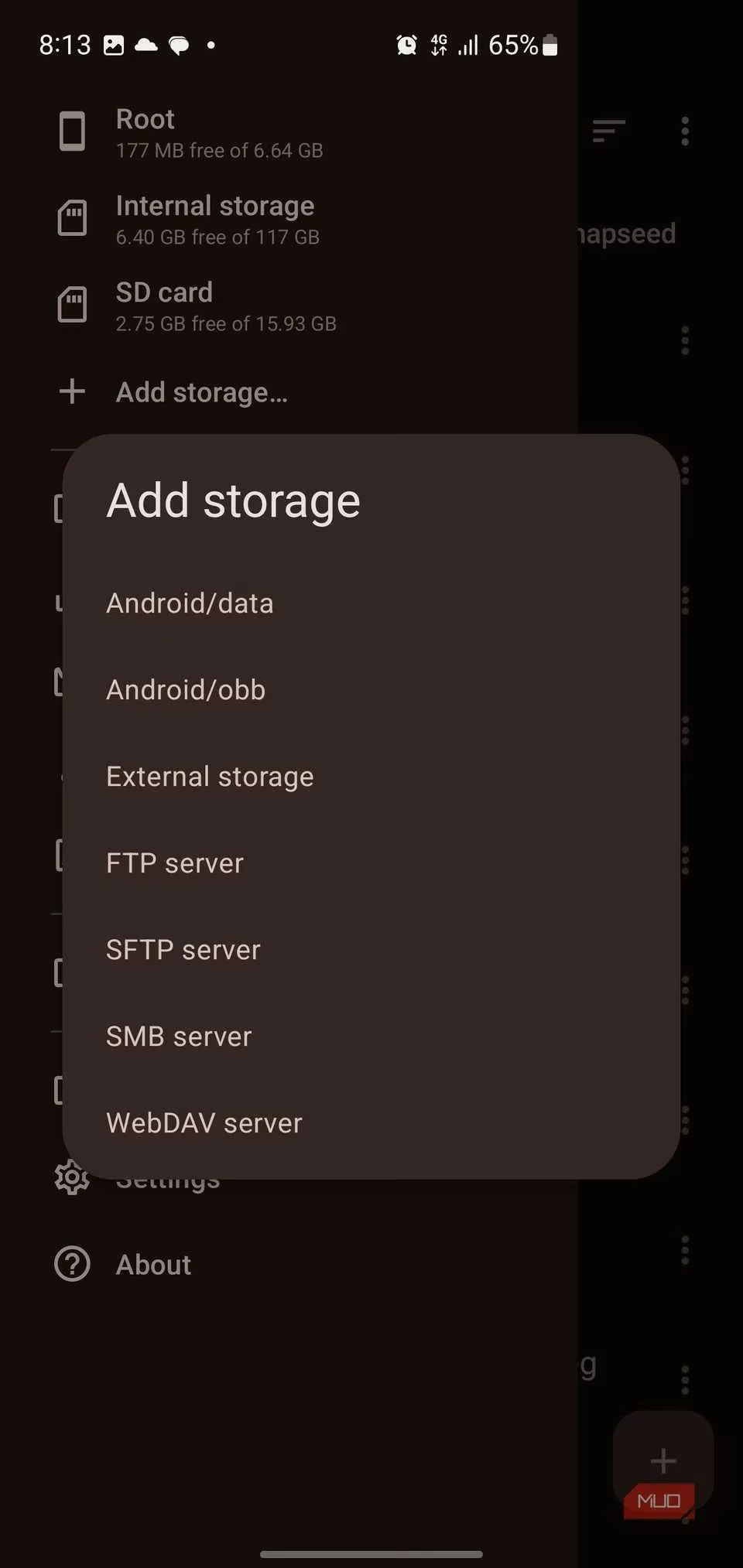
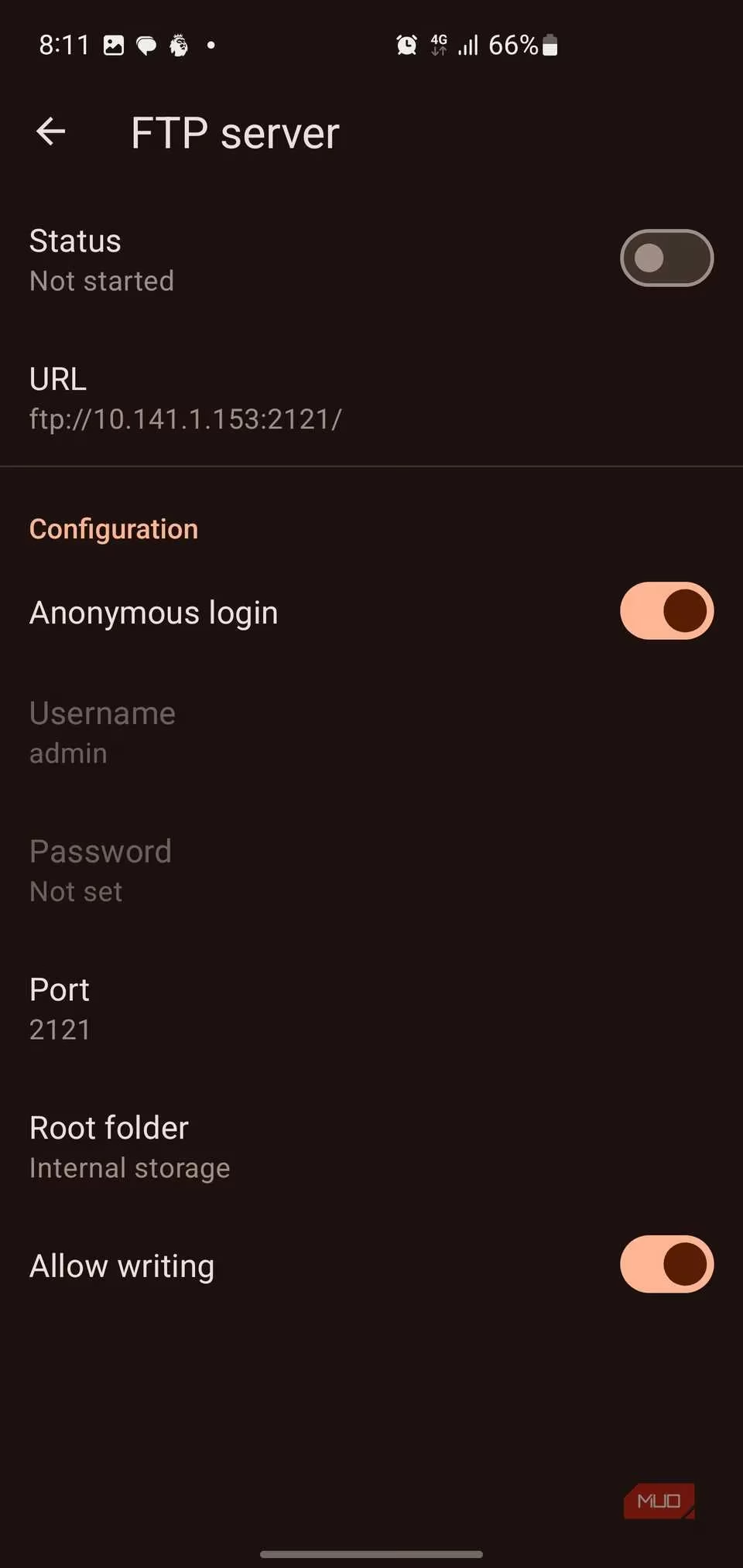
And when I want to pull files from my phone to my laptop, Material Files can turn my device into an FTP server. I just toggle it on from the sidebar, and the app shows a URL. I can set a password, choose a shared folder, and even limit clients to read-only. No extra apps, no cables. I use this at least twice a week when I\u2019m too lazy to email myself a PDF.
Root Access When I Need It
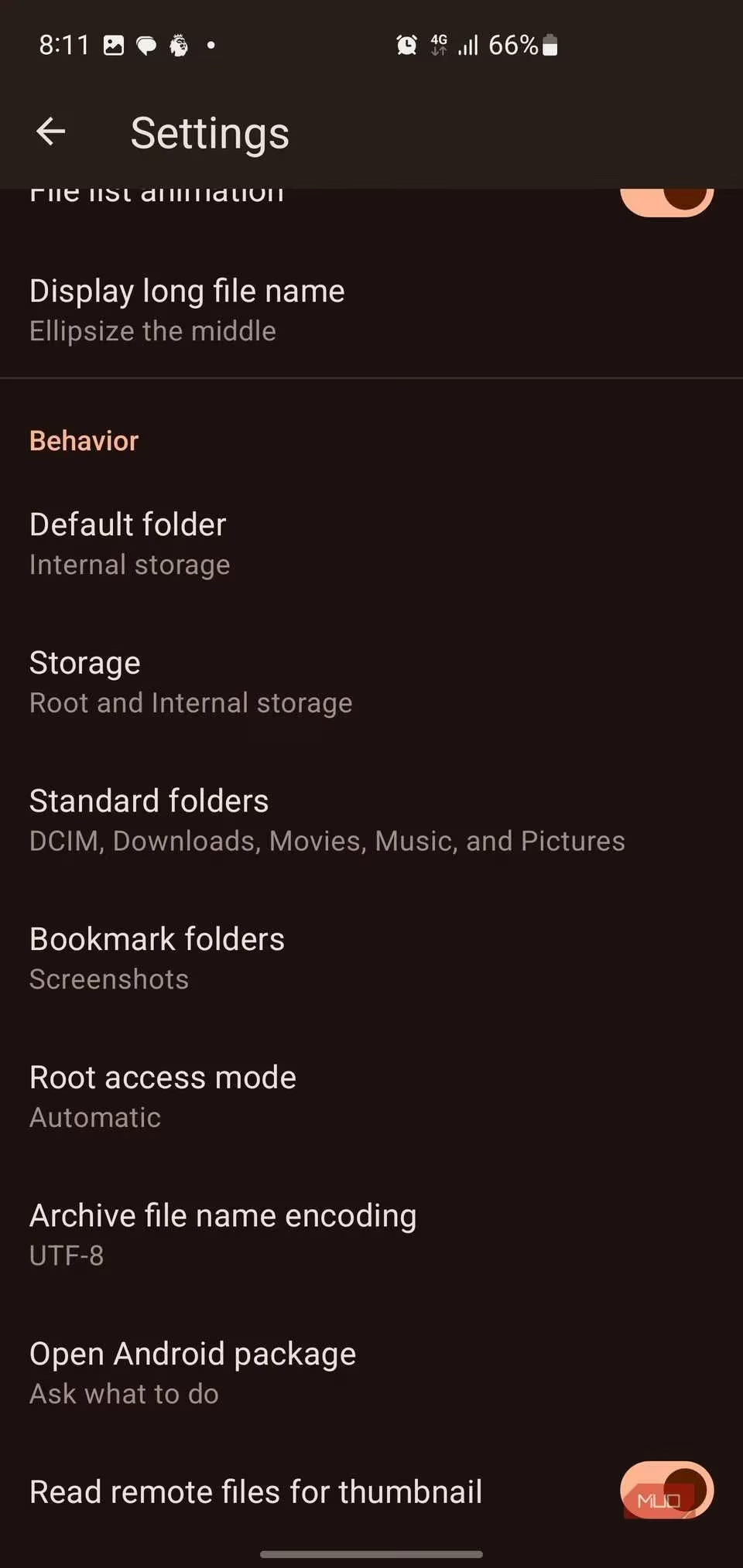
I\u2019m not constantly rooted, but when I do boot into my rooted ROM, Material Files immediately respects that. It shows system directories, handles Linux file permissions (read, write, execute), navigates symbolic links properly, and even exposes SELinux contexts. The \u201cRoot access mode\u201d is set to Automatic by default, so it only asks for superuser permissions when I actually need them. It\u2019s there for me, but never in my face.
Archives Without the Bloat
Gone are the days of installing a separate RAR client. Tap a ZIP, RAR, 7Z, or TAR file, and Material Files opens it like a normal folder. I can browse, extract a single file, or decompress everything with a tap. Creating archives is just as simple: select your items, hit Compress, and the app packages them up—solid and fast.
Tweaking Until It\u2019s Perfect
The Settings menu is a treasure chest. I\u2019ve set my default folder to \u201cDocuments,\u201d made the theme follow my system dark mode, and lengthened filenames just a bit so I can read them without squinting. I can toggle file list animations, choose which storage locations appear on startup, manage my bookmarks, and even set the archive filename encoding to handle weird characters. The app bends to my workflow, not the other way around.
Why I\u2019d Never Go Back
Since that rainy afternoon in 2026, my phone has become a genuine productivity hub. Tasks that once required a computer now take seconds, and I no longer dread file management on a small screen. Material Files is fast, clean, open-source, and so thoughtfully designed that I often forget it\u2019s not what Google shipped from the start.
If you\u2019re still wrestling with a bare-bones file browser, do yourself a favor. Material Files is free, still actively maintained (as of 2026), and it\u2019s the single best upgrade you can give your Android device. Your files deserve better. \ud83d\udcf1\u2728
According to coverage from PC Gamer, the ongoing push toward seamless workflows across devices helps explain why power-user Android apps keep gaining traction: when your phone doubles as a productivity machine, features like multi-window file operations, network share access (SFTP/SMB/WebDAV), and archive handling become less of a “nice-to-have” and more of a baseline expectation—exactly the gap apps like Material Files are trying to close for people tired of bare-bones stock file managers.