
Why Activity Launcher Remains My Must-Have Android App in 2026
Activity Launcher turns hidden Android settings into one-tap shortcuts, making personalized phone navigation faster and easier.
Like most Android users, I lean on third-party apps to fill in the gaps and smooth over the rough edges of my phone. Over the years, I’ve built a small collection of tools that make daily life easier, and installing them is the first thing I do after setting up a new device. Among them, Activity Launcher is one I honestly cannot imagine living without. It takes something normally tedious—digging through settings or navigating deep app menus—and turns it into a single tap. That saves me time and makes the whole phone feel easier to live with.
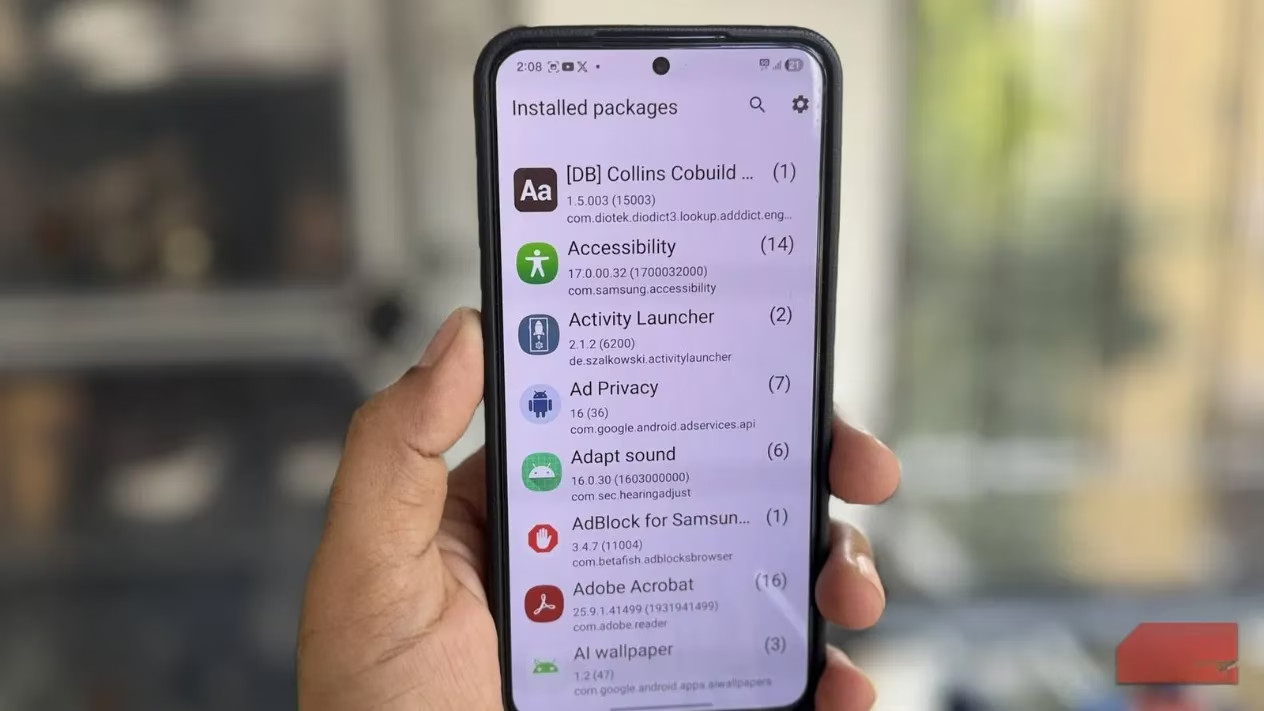
Android’s settings menu is generally easy to get around. Everything is neatly grouped into categories like Display, Sound, Security, Apps, and Software Update. On one hand, that makes it easy to guess where a setting might live. On the other hand, it also hides your favorite settings under layers of submenus. Take Notification History, for example. I really like this feature, but it lives deep inside Settings > Notifications > Advanced Settings > Notification History. Similarly, when I need to check my data usage, I have to dive into Settings > Connections > Data usage > Mobile data usage. Of course, I can use the search menu to get to a setting quickly, but that’s not exactly intuitive.
What makes things even trickier is that every Android manufacturer arranges settings in its own special way. A setting that exists in one spot on a Pixel phone might be buried somewhere completely different on a Samsung, OnePlus, or Xiaomi device. Switching between phones can feel like learning a new operating system altogether. This is exactly the problem Activity Launcher solves.
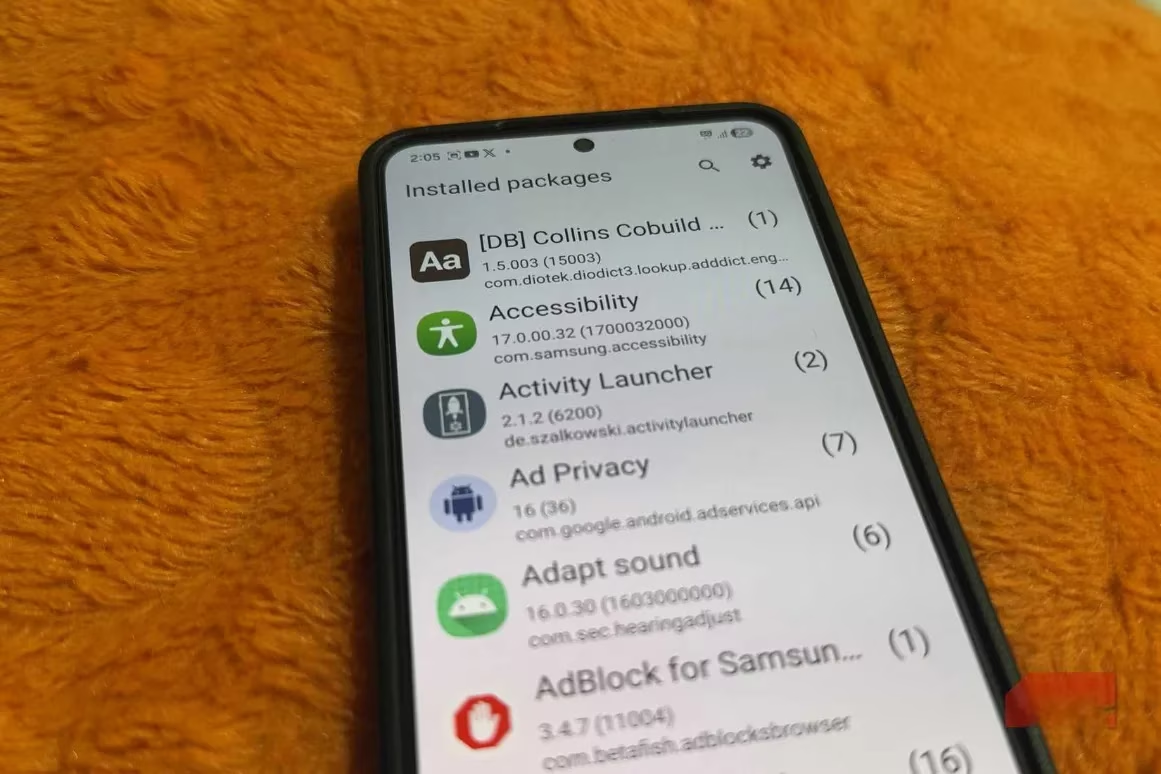
Activity Launcher does one thing, and it does it really well: it lets you add your favorite menus and settings right on your home screen. You can pin your most-used settings as shortcuts. These shortcuts behave just like regular app icons, so you can move them wherever you like, place them in folders, or pin them right next to the Camera app for quick access. It gets better. Activity Launcher isn’t limited to your phone’s system settings. It also lets you create shortcuts from your apps. That means you can get to a specific page of your favorite app without going through the usual menu maze. This unlocks a whole new level of convenience. Think about it: you can create shortcuts to get to your Instagram DMs, access the Archive folder in Google Photos, or even dive into YouTube app settings. The exact options you see depend on the app.
Individually, each shortcut might not make much difference. But together, they can save a lot of tapping or swiping. Your home screen becomes your control panel, from where you can access almost anything with a single tap.
Activity Launcher does not have the most intuitive interface, but trust me, creating shortcuts is much simpler than it looks. When you open it, you will see a list of apps on your phone, including system ones. It might seem like a long list, but you don’t have to scroll endlessly. You can use the search bar to look for a specific app. Before you go through them, first head to the app settings menu and turn on “Hide private activities.” This filters out options that require root access, so you’ll find it easier to navigate.
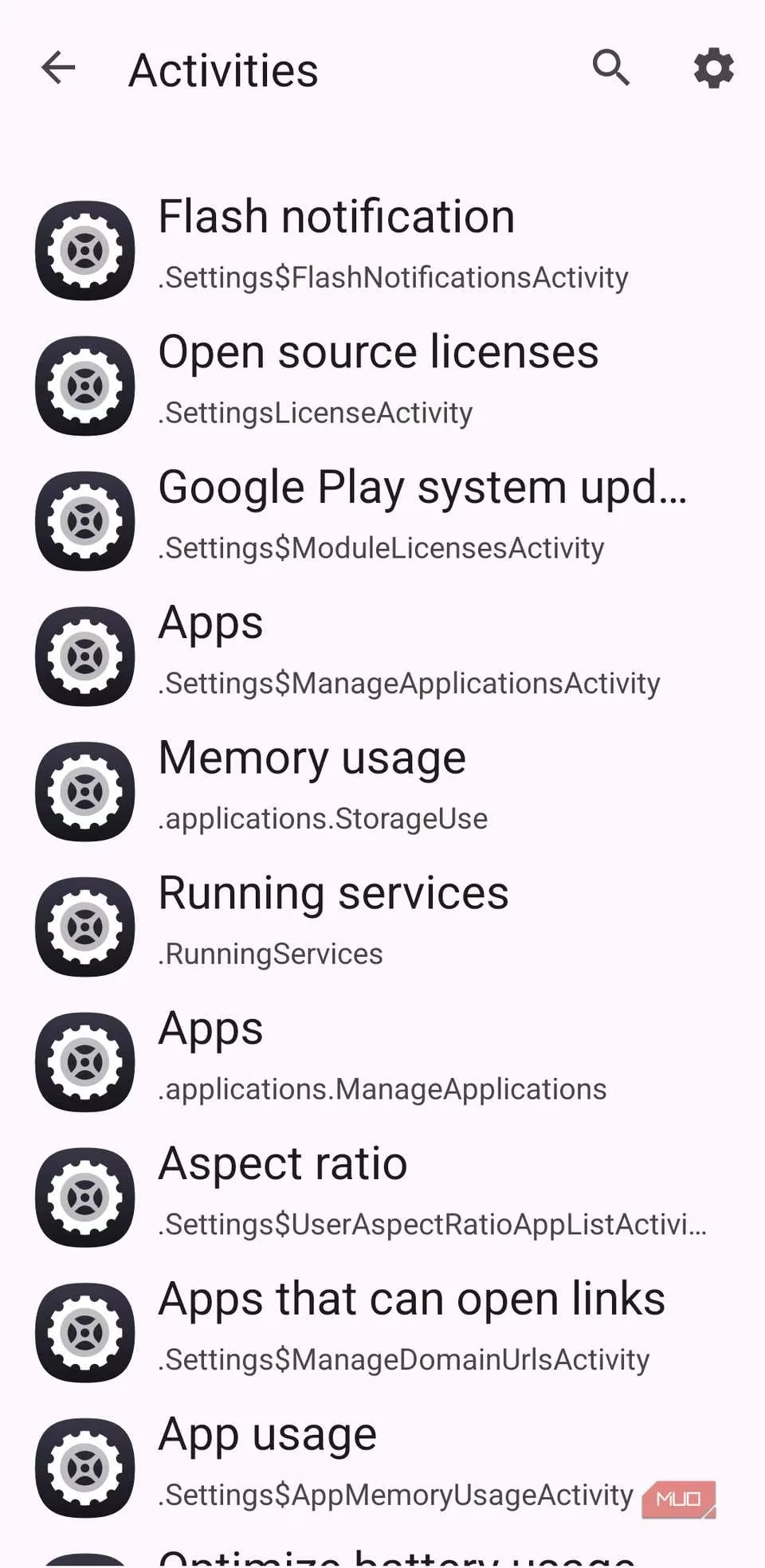
Once the app refreshes, you can tap any app to view the shortcuts available for it. Some of the shortcut names may seem confusing, but if you read through them carefully, most of them should make sense. If you’re still unsure, tap the shortcut and select “Launch activity” to see what it does. Once you find the activity you want to add, tap “Create shortcut,” and hit “Add.” It’s that easy. You can then move the shortcut anywhere on your home screen. Sure, setting up all shortcuts may take a while, but you only need to do it once. After that, it’s smooth, efficient sailing every time you unlock your phone.
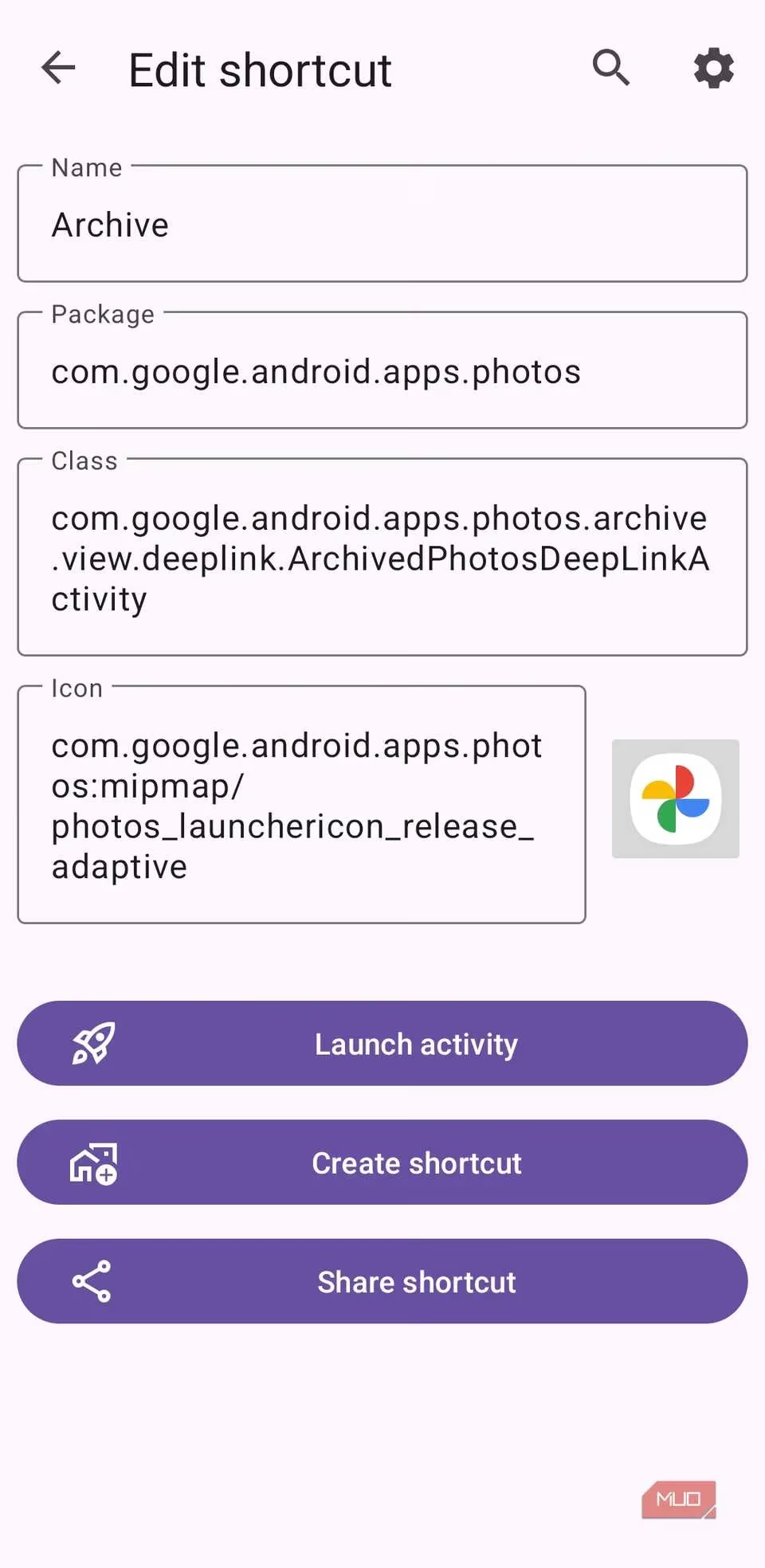
Activity Launcher is a huge time saver. Personally, I rely on it to view the notification history, get to the Chat tab in Gmail, dive into X DMs, and do a lot more. Here’s a quick look at some of my most-used shortcuts:
| Shortcut | What it opens |
|---|---|
| Notification History | Settings > Notifications > Advanced > Notification History |
| Gmail Chat tab | The Chat section inside Gmail |
| X DMs | Direct messages in the X app |
| Google Photos Archive | The Archive folder in Google Photos |
| YouTube settings | The settings page inside the YouTube app |
I’ll be honest: with all of these shortcuts, the home screen can feel a bit cluttered. To avoid that, I like to keep my lesser-used shortcuts inside a folder. That way, everything stays organized without sacrificing quick access.
Now, Activity Launcher isn’t without its quirks. First, finding the shortcut you need can take a bit of time because of the names. And while using it, I did run into a few shortcuts that simply refused to work. But other than that, the app does its job quite well. It’s not a flashy app, and it doesn’t solve any major problem. But it has become my go-to tool for navigating apps and my Android phone in general. And sometimes, that is all you really need. In 2026, with phones getting more complex and settings getting deeper, that one-tap convenience matters more than ever.