
Whispers in the Drive: How Symlinks Breathed Life Back into My Windows
Discover the power of symbolic links in Windows to efficiently relocate data, reduce system clutter, and enhance performance without reinstallation.
I recall the slow, weary sighs of my Windows machine, its once-vibrant hum now a labored groan, as if the very soul of the system had been buried under mountains of digital debris. In 2025, with every click and scroll, I felt the weight of accumulated years—photos like scattered leaves, project folders as dense as ancient forests, and app data piling up like unread letters in a forgotten attic. The urge to wipe it all clean, to reinstall and start anew, tugged at me like a siren's call. But deep down, I knew that wasn't the answer; the real culprit wasn't a failing heart, but a cluttered one, where the C drive gasped for breath under the burden of my creations. Instead of tearing down the walls, I learned to shift the foundations, to let the data flow to new lands while the old paths remained, ghostly and unchanged. This journey, a dance of redirection, taught me that renewal often lies not in destruction, but in gentle redirection—a lesson etched in the quiet magic of symbolic links.
💡 The Weight of Accumulation
My C drive had become a crowded marketplace, where every byte jostled for space, slowing the pulse of Windows to a crawl. It wasn't the operating system's fault; no, it was the sheer volume of life I'd poured into it—gigabytes of memories, terrabytes of work, all crammed into one fragile vessel. Like a river choked with silt, the flow stagnated, and I almost succumbed to the drastic ritual of reinstallation. But then, a revelation: why rebuild when I could simply relocate? The heaviest folders—my photo libraries, project archives, and sync services—could be moved to the spacious D drive, a verdant meadow untouched by the city's chaos. Yet, moving them raw would shatter the delicate web of paths that programs relied on, leaving games orphaned and editors staring at empty canvases. That's when I discovered symlinks, ethereal bridges that span drives without a ripple, allowing the old addresses to whisper to the new homes.
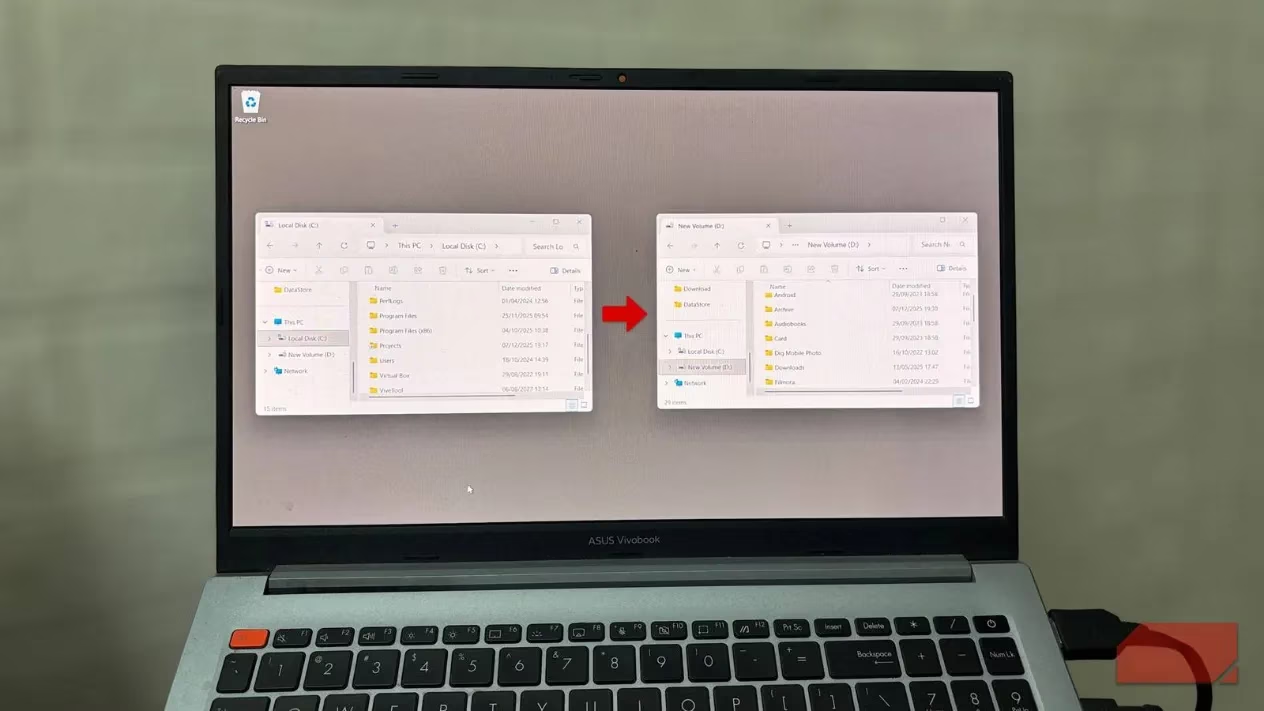
Symlinks are not mere shortcuts; they are like phantom reflections in a digital mirror, where the image remains while the substance shifts elsewhere. Imagine a tree whose roots have been transplanted to richer soil, yet its branches still stretch skyward from the same spot, untouched and unaware. Or picture a ghostly bridge that spans a chasm, invisible to travelers who cross it, believing they tread on solid ground. In Windows, this magic is woven through the mklink command, a simple incantation that transforms paths into portals. When I moved my Projects folder from C to D, the programs still called out to C:\Projects, but through the symlink, their pleas were answered from D:\Projects, as if nothing had changed. The system drive sighed in relief, its load lightened, while the data thrived on the new drive, free and unburdened.
🚀 Crafting the Ethereal Paths
The process, though straightforward, felt like a ritual of digital alchemy. First, I moved the folder itself—say, Projects—to the D drive, leaving behind an empty shell on C. Deleting that empty husk was crucial, like clearing a stage for the phantom to appear. Then, with Command Prompt opened as an administrator, I spoke the words: mklink /D "C:\Projects" "D:\Projects". In that moment, a symlink was born, a spectral folder at the original path that mirrored the real one on D. Opening it in File Explorer revealed the same files, yet they lived on another drive, like echoes in a canyon. Changes made here flowed directly to D, seamless and silent. For single files, it was even simpler: mklink "C:\Notes\summary.txt" "D:\Archive\summary.txt", creating a lone sentinel that guards the path while the essence resides afar.
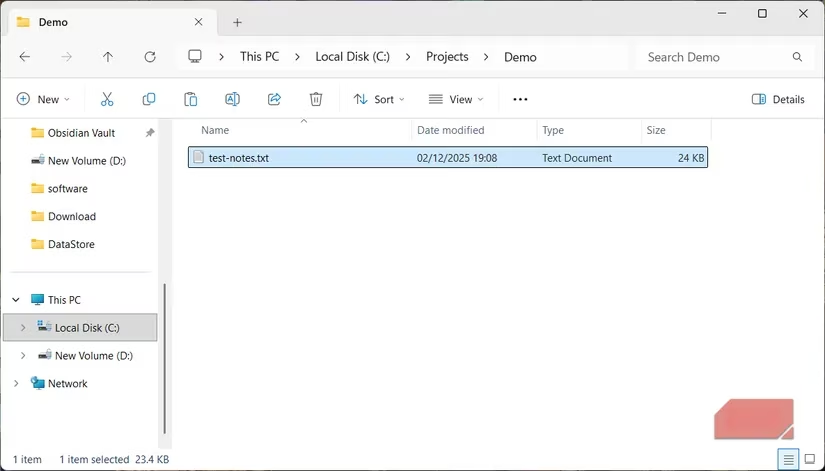
Here's a quick guide to the steps I followed, with a touch of whimsy:
-
Step 1: Move the Folder – Like relocating a library to a sunlit hill, shift it to D drive. 🏞️
-
Step 2: Clear the Stage – Delete the empty folder on C, a blank canvas for the phantom. 🎭
-
Step 3: Cast the Spell – Run
mklink /D "old_path" "new_path"in Command Prompt. ✨ -
Step 4: Witness the Mirage – The folder reappears, but the data breathes freely on D. 🌈
Deleting the symlink only banishes the ghost, not the treasure; the real files stay safe on D. But if I delete through the link, it's as if I'm reaching through the veil to touch the substance—effortless and direct. This approach saved me from the nuclear option of reinstallation, which often masks the true ailment: a system drive drowning in its own abundance. By redistributing the load, Windows revived, its performance soaring like a bird freed from a cage.
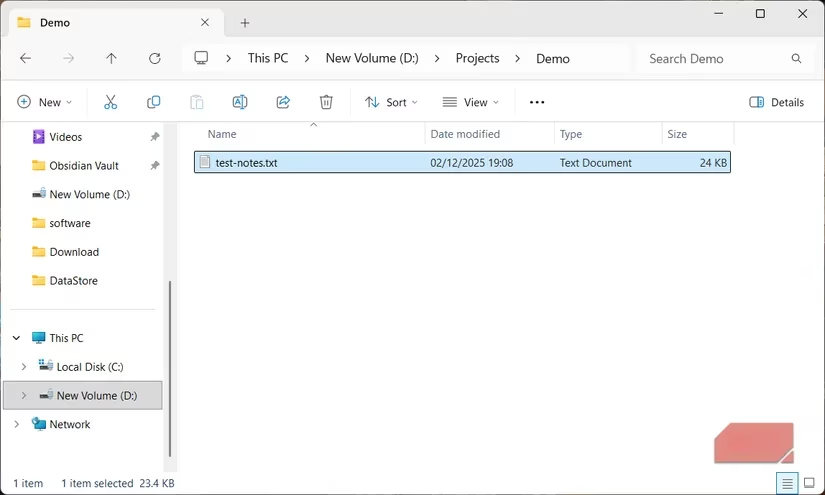
Now, my PC hums again, a symphony of efficiency, and I realize that the slow sighs were not cries for rebirth, but for redirection. In this dance of symlinks, I found a third metaphor: it's like a river diverted to a new course, its waters still singing the same song, while the old bed lies dry and peaceful. The clutter is gone, the paths remain, and Windows breathes with the ease of a sleeper in a spacious room. As I look back, the lesson echoes—sometimes, the wisest renewal is not in tearing down, but in gently guiding the flow, letting the ghostly bridges carry us forward. 😌