
Transform Your Android Phone into a Tablet: A Hidden DPI Trick That Changes Everything
Unlock Android's tablet UI with Developer Options for a stunning, efficient interface transformation—experience clarity and productivity now!
Ever feel like your Android phone's interface is just too... ordinary? You know, the same old grid of icons, the cramped menus, the feeling that you're not quite getting the most out of that beautiful, expansive screen? Well, buckle up, because there's a hidden gem buried deep within Android's developer settings that can completely transform your user experience. It's a trick that forces your phone into a tablet-style UI, and let me tell you, it's a total game-changer. At first glance, you might think it's just a gimmick, but trust me, it's far from it. This isn't about making things look weird; it's about unlocking a level of efficiency and visual clarity that feels like you've upgraded your device without spending a dime.
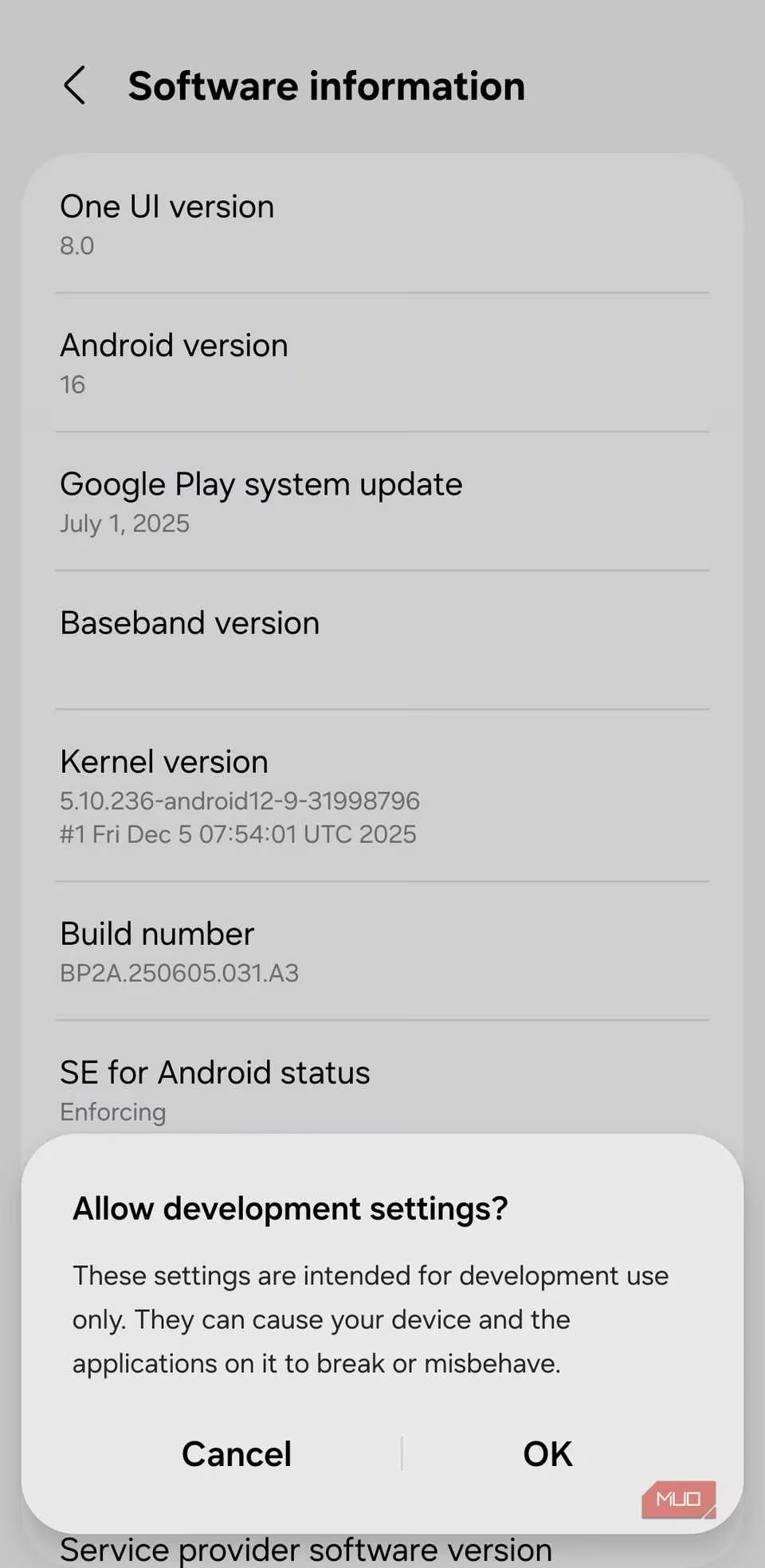
The magic happens in the Developer Options menu. Sure, it sounds like a place only for coders and tinkerers, a digital "Here Be Dragons" zone. But nestled among the scary-sounding toggles is the key: the Minimum width or Smallest width setting. Don't let the jargon scare you off! 🤓 This is essentially a DPI (dots per inch) setting that tells Android how to scale everything on your screen. Your phone's default value is set for easy, one-handed use, but tablets crank this number way up, which triggers a completely different, more spacious layout.
Here’s the lowdown on how to get started:
-
Enable Developer Options: Go to
Settings > About Phoneand tap on "Build Number" seven times. You'll see a toast message confirming it's unlocked. -
Navigate to the Setting: Head back to the main Settings menu, find Developer Options, and search for "Minimum width".
-
Note Your Default: Before you change anything, write down the default number (commonly 360, but it varies). You'll need this to revert back if you want.
-
Time to Experiment: This is where the fun begins! Increase that number. Start with a modest jump, say to 420 or 450. Hit enter, and boom—your screen refreshes instantly.
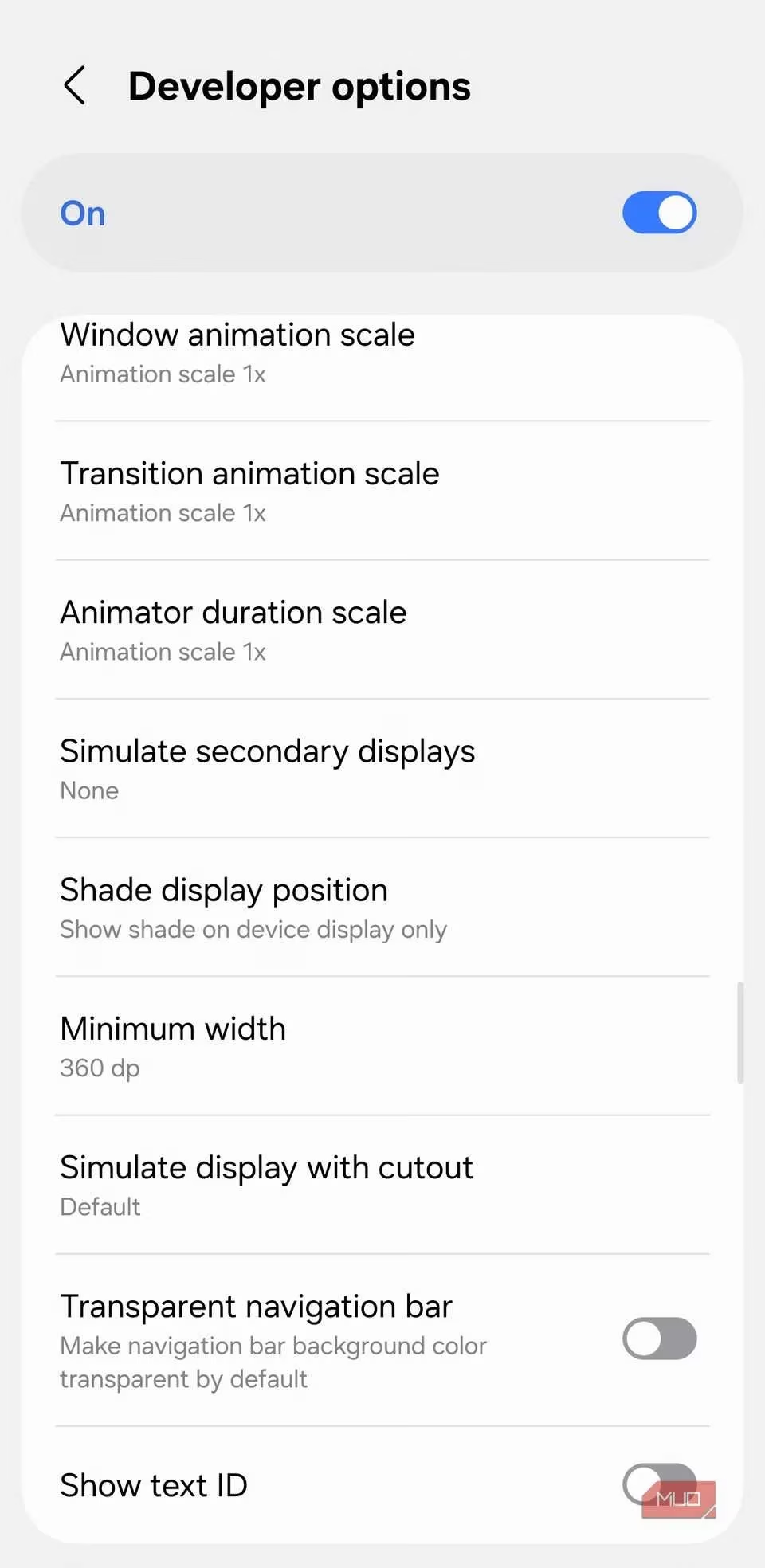
The immediate effect is that everything on screen gets a bit smaller and denser. More content fits on the display at once. But the real magic happens when you push the value high enough (often above 600-700, depending on your screen) to trigger the tablet UI paradigm. Suddenly, your phone starts behaving like a mini-tablet, and the benefits are seriously impressive.
Why You'll Love the Tablet UI Mode
Once you cross that threshold, your apps get a major glow-up. It's not just about things being smaller; it's about them being smarter and more organized.
-
Split-Screen Bliss: The Settings app becomes a two-pane masterpiece, with categories on the left and details on the right. No more endless back-and-forth navigation!
-
App Overhauls:
-
Messages: Shows your conversation list on one side and the open chat on the other. It's a productivity win.
-
Files/My Files: Displays folders and file previews simultaneously. Finding that one photo becomes a breeze.
-
Calendar: Gains a much more informative and desktop-like layout.
-
-
Web Browsing Revolution: This is, hands down, one of the coolest perks. Chrome switches to a proper desktop-style interface with tabs on top and loads sites in desktop mode by default. Goodbye, mobile-optimized sites that hide features!
-
Multitasking Mastery: On many phones, this mode activates a handy taskbar at the bottom of the screen, just like on a Samsung Galaxy Tab. Swiping up reveals your recent apps, making switching between them faster than ever. Talk about a power user move!
Fine-Tuning Your New Power Setup ⚙️
The tablet UI looks great out of the gate, but a couple of tweaks can make it perfect.
-
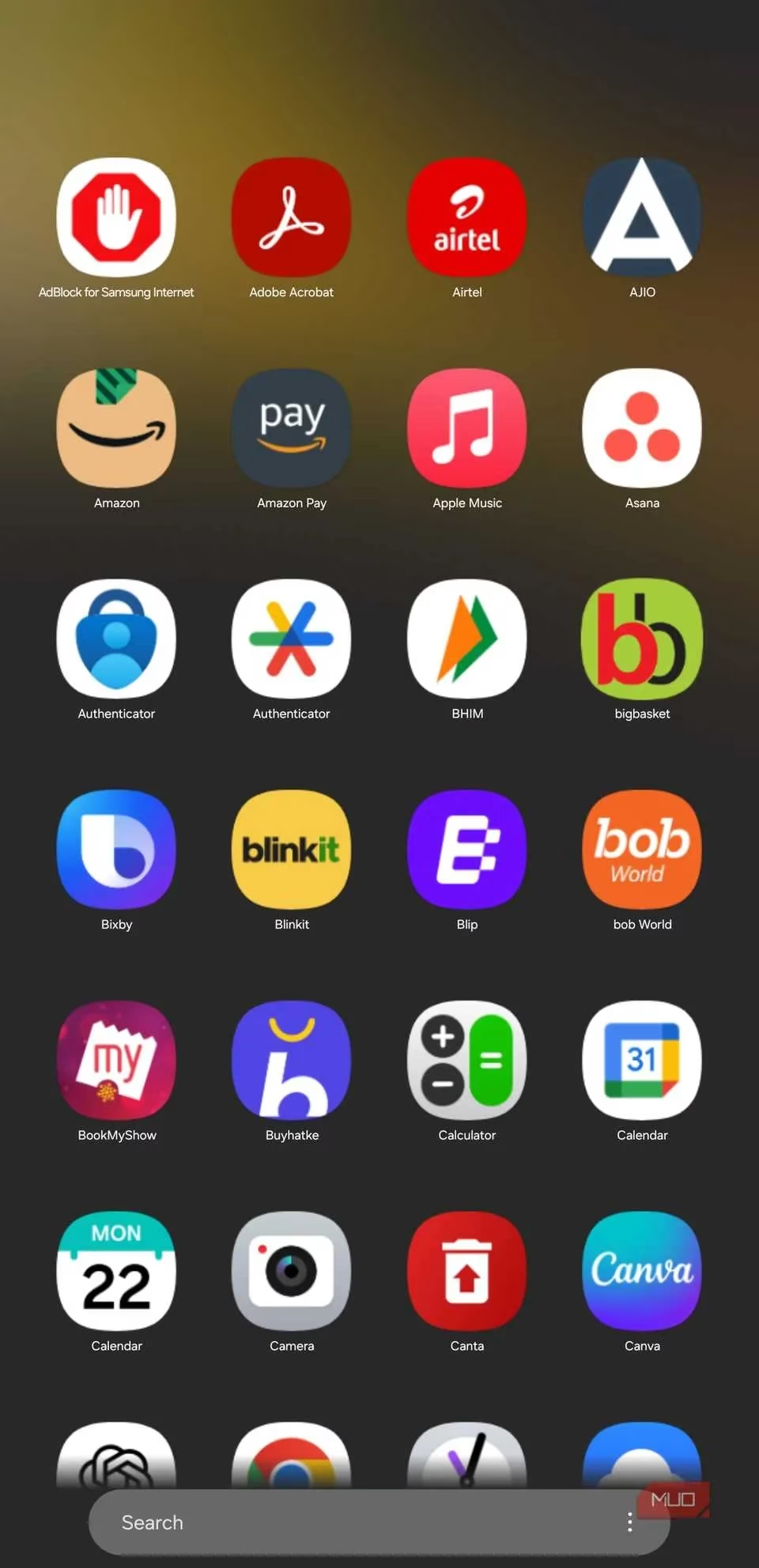
Home Screen Grid: With everything scaled down, your default 4x5 or 5x5 grid will look empty. Crank it up! Try a 6x6 or even 7x7 grid to make use of all that new screen real estate. It feels just right.
-
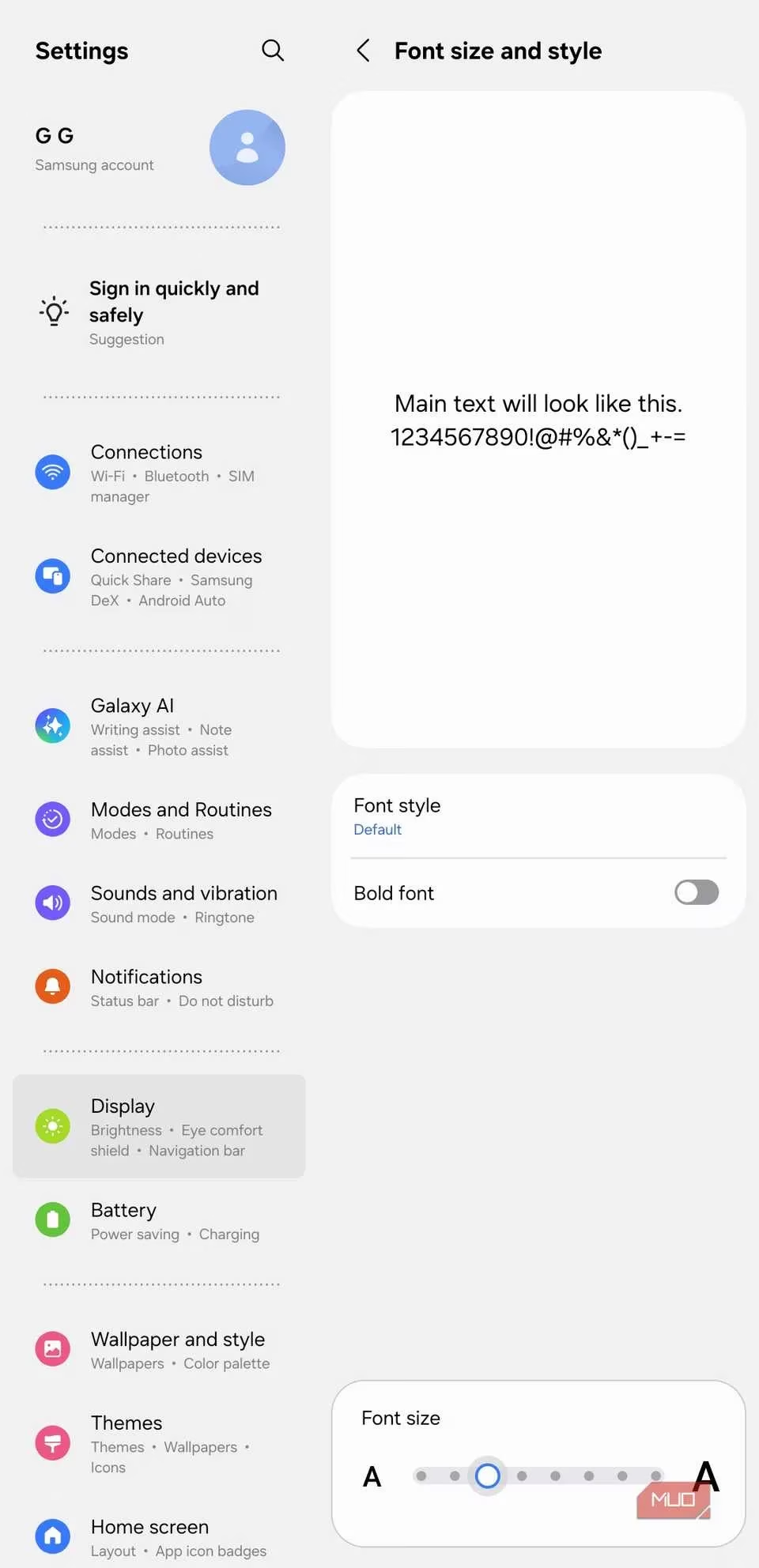
Font Size: Some text might become a tad too small for comfort. No problemo! Head to
Settings > Display > Font sizeand bump it up a notch. The goal is readability without squinting. -
Widgets & Quick Settings: Consider resizing your widgets to fit the new density. You can also customize your Quick Settings panel to prioritize the toggles you use most in this new, efficient layout.
The Reality Check: It's Not All Sunshine and Rainbows ☁️
As much as I'm loving this setup, let's keep it 100—it's not a flawless experience for everyone.
-
App Compatibility is Hit or Miss: The biggest caveat. Only well-optimized apps (like Chrome, Instagram, and Google's suite) will give you those beautiful split-view layouts. Many third-party apps will simply scale down, making buttons tiny and sometimes harder to tap. You miss out on the layout benefits for those apps.
-
Screen Size is King: This trick is absolute fire on larger phones (think 6.7 inches and up). It feels natural and unlocks their true potential. On a smaller device, however, it can be more of a compromise. Everything gets very small, touch targets shrink, and using it for long periods might strain your eyes.
-
Don't Go Overboard: Remember that default number you wrote down? Keep it safe. If you enter an extreme value (like 1200), you might render your UI unusably tiny and have a tough time navigating back to fix it. Proceed with cautious curiosity!
The Bottom Line
In 2025, with phone screens being absolute behemoths, using the default phone UI sometimes feels like a waste. This hidden DPI tweak is a legit way to future-proof your interaction. It turns your device into a powerhouse for productivity and media consumption. For power users and anyone who feels constrained by the standard mobile layout, spending five minutes in the Developer Options is a no-brainer. It's like discovering a secret room in your house that's full of awesome stuff. Give it a shot, tweak it to your liking, and you might just find, like I did, that there's no going back to the old way. Once you get a taste of that tablet-style efficiency on your pocket-sized powerhouse, the standard view just feels... basic.