
This Rarely-Known Dual Monitor Tool Is So Lightweight It Feels Like a Digital Swiss Army Knife
Dual Monitor Tools fixes all dual-screen annoyances with a 50MB RAM footprint—lightweight, safe, free.
Hey everyone, it's your friendly neighborhood productivity junkie here, and I have to confess something right off the bat: I am absolutely obsessed with dual monitors. Ever since I built my first PC back in 2020 and slapped a second screen onto my desk, my workflow has been on a whole other level—like trying to fill a swimming pool with a firehose instead of a garden hose. But in 2026, even with all the fancy OS updates and widgets, there's still a handful of minor annoyances that come with the dual-screen life. My cursor going AWOL in the rift between displays, wallpapers that stretch like taffy, and app windows that act like confused ghosts—these were my daily bread. That is, until I stumbled upon a tiny, ancient-looking program called Dual Monitor Tools that promised to fix them all without hogging a single gig of my precious RAM.
Now, let me be clear: I'm not someone who installs random .exe files from sketchy corners of the internet. When I first visited the Dual Monitor Tools website, I was convinced I'd time-traveled back to 1998. Seriously, the page looks like a forgotten relic from the GeoCities era, complete with that charmingly raw HTML that makes you double-check your antivirus subscription. My inner security alarm screamed louder than a metal concert. But after some digging and seeing countless forum posts asking "Is this thing safe?" I decided to roll the dice. I scanned the installer with Malwarebytes and, surprise—clean as a whistle! Under that retro hood lies a perfectly safe, featherlight piece of software that turned out to be a digital Swiss Army knife for my dual-screen life.
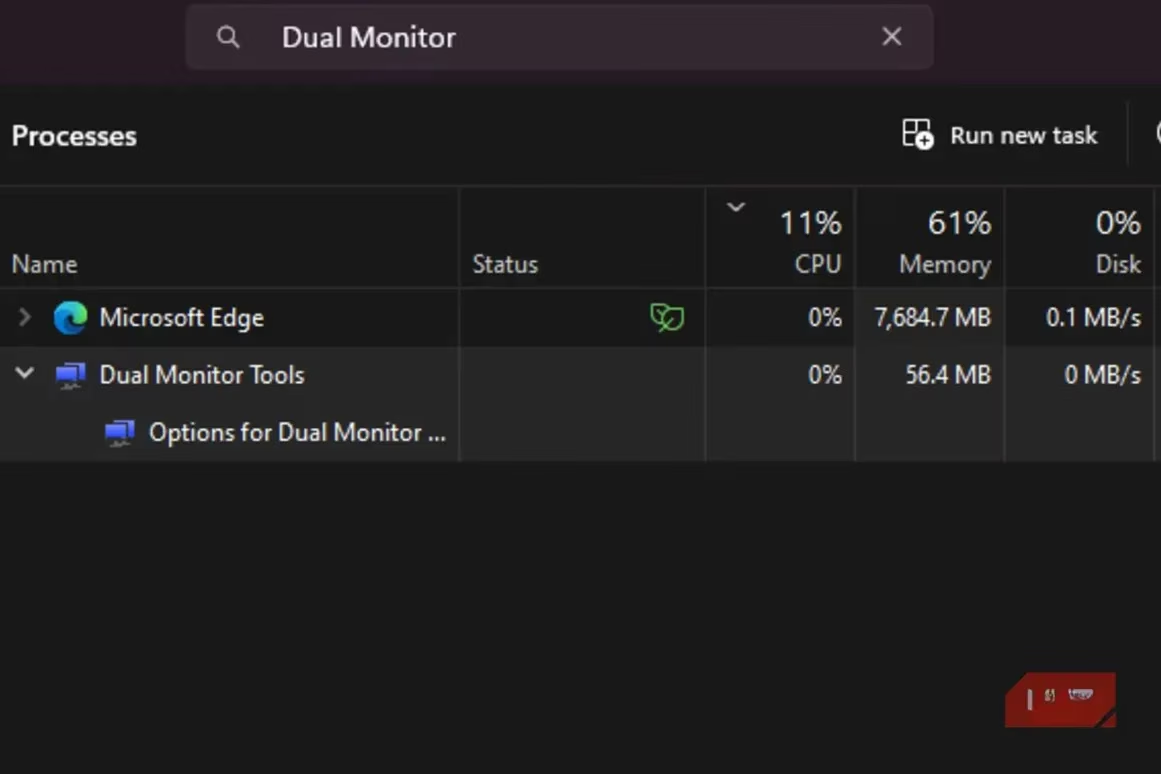
The first shock came when I peeked at its resource footprint. With my PC sporting 32GB of DDR4 RAM, I've still managed to make my system weep by just opening too many browser tabs (looking at you, Chrome). I expected any utility dealing with displays to be a bloated mess. Instead, Dual Monitor Tools barely registered in Task Manager. After hours of usage, its peak memory consumption was a laughable 50 MB. That's not a typo—fifty megabytes. To put it in perspective, it's like finding a full symphony orchestra squeezed into a matchbox. The download itself weighs around 700KB, and once installed it takes up a minuscule 1.14 MB on my SSD. In an age where a simple text editor demands 200MB updates, this program's minimalism feels like a time capsule from the floppy disk era.
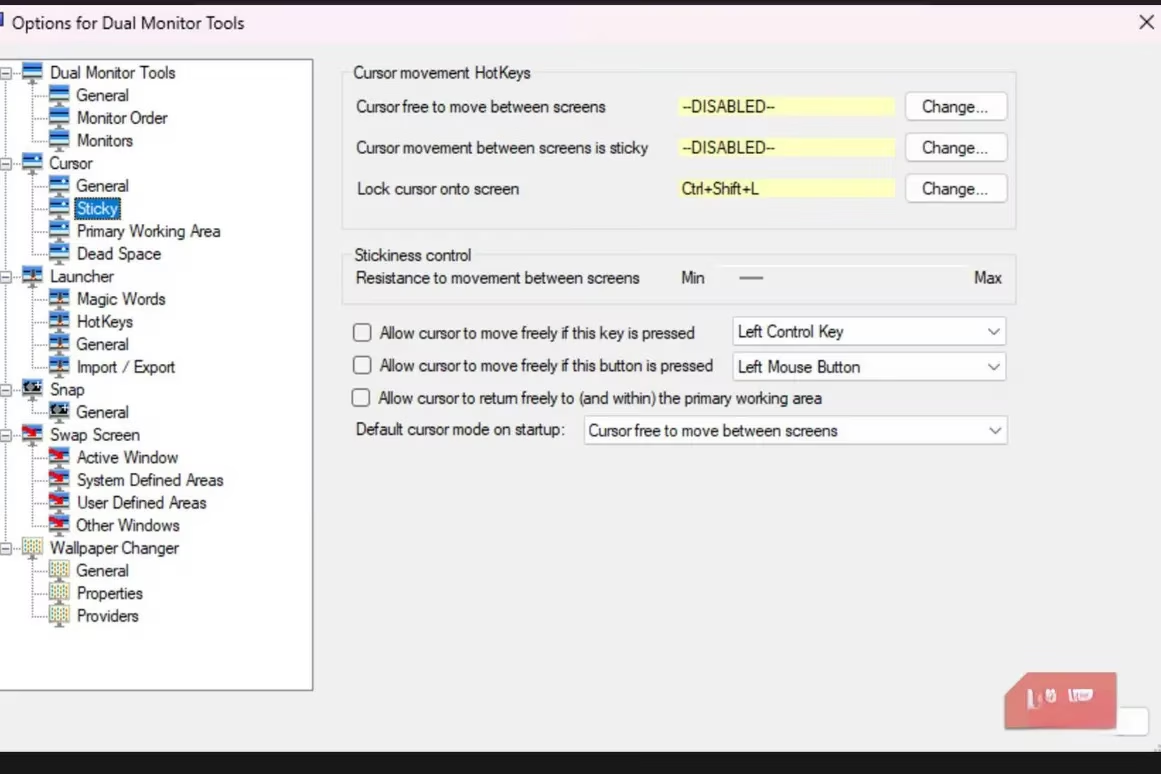
But what good is a tool that's light as air if it doesn't solve real problems? Let me paint a picture: some mornings, after my third cup of home-brewed espresso, my hand-eye coordination becomes a victim of my own enthusiasm. My cursor zooms across screens faster than my brain can track, often getting lost in the negative space between monitors like a ping-pong ball in a hurricane. Dual Monitor Tools introduced me to a feature I didn't realize I needed: cursor locking. With a simple keyboard shortcut, I can now confine my pointer to a single screen. It's like putting a digital leash on my cursor, preventing it from wandering into the abyss of my secondary display while I'm typing a critical Slack message or editing a spreadsheet. When I need to break the leash, another hotkey instantly frees it. This might sound counterintuitive for a dual-monitor enthusiast, but some tasks demand laser focus. If my second screen is just displaying a static document or a YouTube lofi stream, I don't need my cursor randomly escaping every time I flick my wrist. It's saved me from countless moments of frantic cursor-search frustration.
The customization rabbit hole goes much deeper. Have you ever struggled with mismatched monitor sizes or orientations, where dragging a window across screens feels like trying to push a square peg through a round hole? This tool lets you define virtual boundaries and adjust dead zones so your mouse moves seamlessly, even if one monitor is a 27-inch 4K beast and the other is a vertical 1080p coding sidekick. It can also launch your favorite apps directly onto a specific screen with a single hotkey—imagine hitting Ctrl+Alt+1 and having Photoshop appear on your main monitor while Spotify spawns on the secondary one.
And let's talk about wallpapers. For years I was forced to crop, stretch, or resign myself to a single image awkwardly duplicated across both screens. Dual Monitor Tools includes a wallpaper manager that automatically resizes or spans wallpapers across different aspect ratios and resolutions, making even a portrait-mode secondary screen look like part of a cohesive masterpiece. I've even set up keyboard shortcuts to swap entire screen outputs instantly, which turned out to be a godsend when sharing my screen during Zoom calls—no more frantic window dragging.
Since diving into this tool back in late 2025, my dual-monitor setup has evolved from a simple productivity booster into a finely tuned command center. The learning curve is gentle; a weekend of tweaking settings was enough to integrate these features into my muscle memory. In 2026, where many apps keep bloating like a bag of microwave popcorn, discovering something this light and purposeful feels like finding a hidden treasure. Dual Monitor Tools doesn't try to reinvent the wheel—it just puts some much-needed grease on it. If you're rocking two (or more) screens and haven't given it a spin yet, trust me, your cursor will thank you.