
The Digital Sanctuary: Mastering App Pinning and Guided Access for 2026
App Pinning and Guided Access empower Android and iOS users with robust privacy, ensuring secure, focused sharing without compromising sensitive data.
In a world where our smartphones are extensions of our very selves, repositories of our most private moments and sensitive data, the simple act of handing over one's device can feel like surrendering a piece of one's soul. How often has a moment of casual sharing—a photo, a video, a quick search—been tinged with the silent anxiety of what else the holder might glimpse? The modern solution is as elegant as it is essential: App Pinning on Android and Guided Access on iOS. These are not mere features; they are digital guardians, creating a temporary, impenetrable sanctuary within the vast landscape of your personal device. They transform your phone from an open book into a single, focused page, viewable by others but utterly un-turnable without your explicit command.
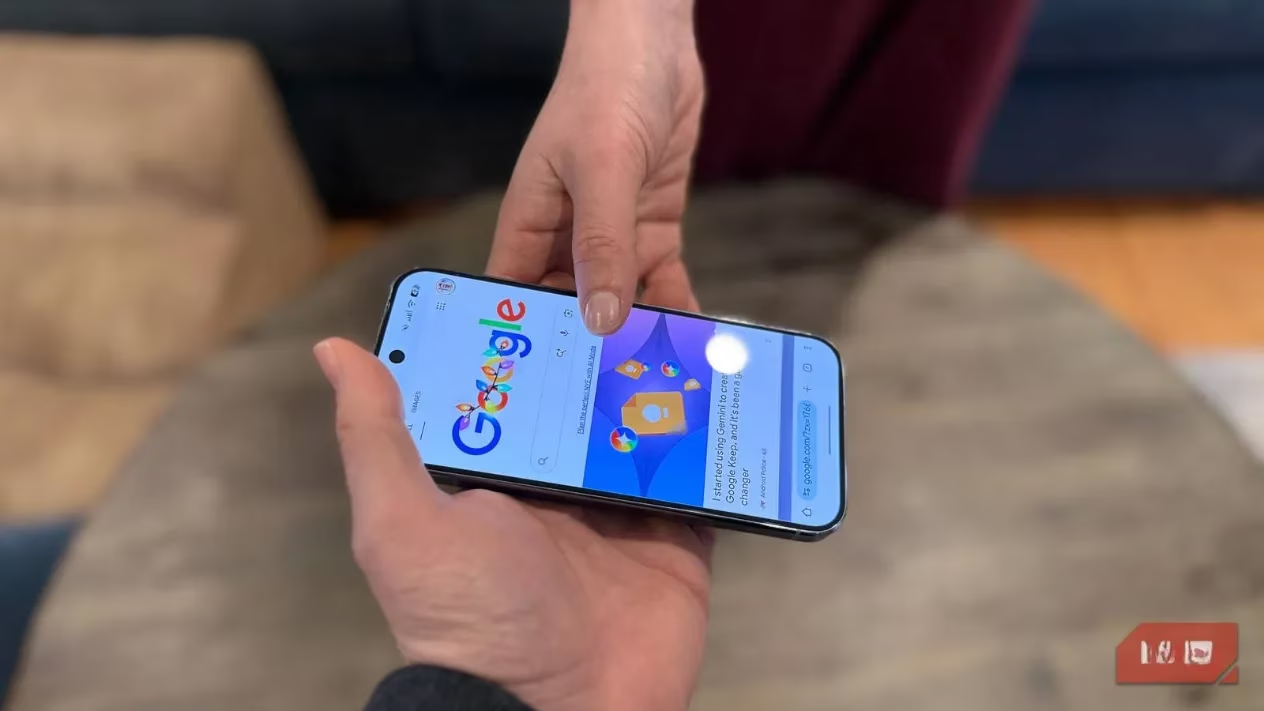
Why should one be so vigilant? Is it mere paranoia, or prudent protection in an age where identity is digital? Consider the intimate universe contained within a smartphone: bank accounts whispering of financial standing, location histories mapping one's daily life, private chats holding confidences, and emails that are digital diaries. A stranger's unfettered access, even for a moment, is not just a breach of privacy; it is an invitation to piece together the puzzle of your identity. Would you leave your home's front door wide open while pointing a visitor to a single painting in the living room? The principle is the same. App Pinning and Guided Access are that front door, swung shut and locked, leaving only a single, approved window open.
But when does one need such a fortress? The scenarios are more common than one might think. A child, eyes wide with wonder, wants to watch a cartoon on YouTube. Without pinning, their curious fingers are but a few taps away from your work email or photo gallery. A person in distress needs to make an urgent call; your kindness need not extend to your entire digital life. A friend borrows your phone for a quick navigation search—should they also have a tour of your browsing history? These features elegantly solve the age-old dilemma of trust versus necessity.
🛡️ Securing Your Android Fortress: A Step-by-Step Guide
Activating App Pinning on your Android device is a journey into empowered control. The path is simple:
-
Navigate to Settings > Security > Advanced (or More) > App Pinning. (Or, for the swiftest route, simply search "App Pinning" within your Settings app.)
-
Toggle the feature ON.
-
Crucially, ensure the option "Ask for PIN before unpinning" or similar is enabled. This is your final authentication gate.
Once enabled, using it is a gesture of fluid simplicity:
-
Open the app you wish to confine your guest to (e.g., Google Maps, a specific video).
-
Enter the Recent Apps overview (typically by swiping up from the bottom and holding).
-
Tap the app's icon at the top of its preview card.
-
Select "Pin" from the menu that appears.
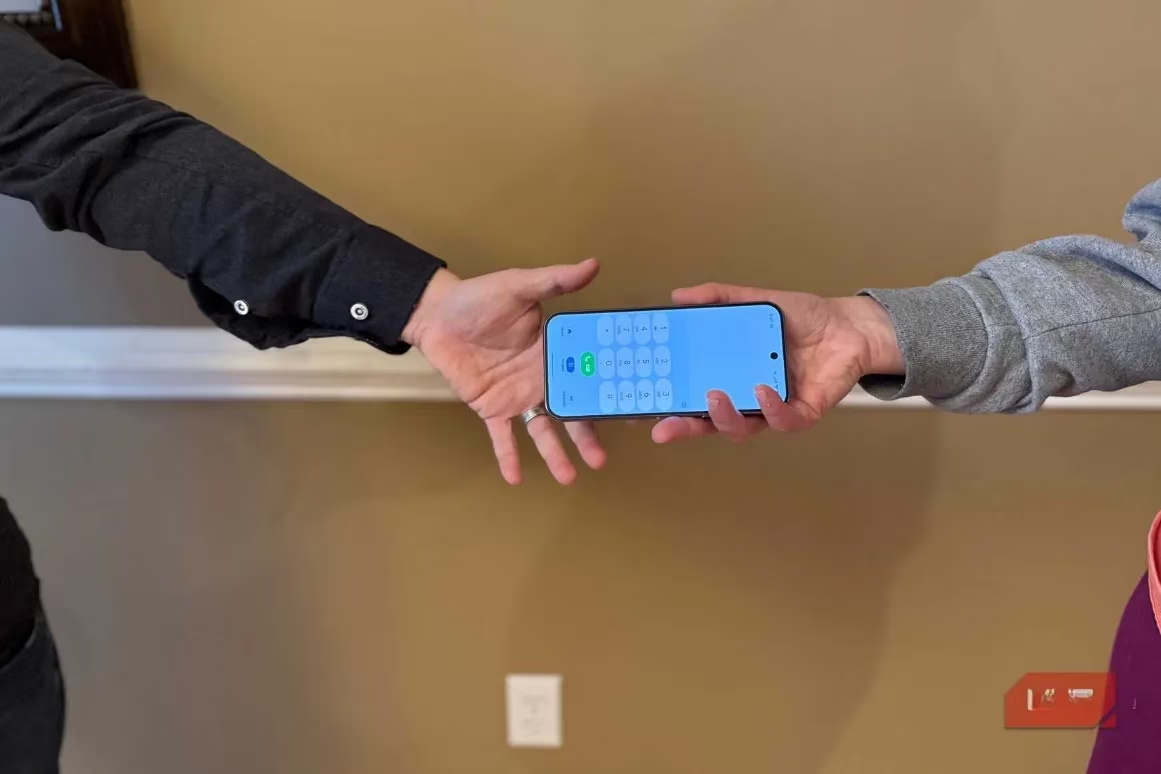
Your world is now that single app. The home button is disabled, notifications are hidden, and other apps are inaccessible. To reclaim your digital kingdom, a deliberate gesture is required: swipe up and hold from the bottom, then authenticate with your PIN, pattern, or fingerprint. The spell is broken, and normalcy returns.
🍎 Crafting an iOS Guided Space: The Apple Protocol
iPhone users are not left wanting. Apple's counterpart, Guided Access, is a powerful tool residing within the Accessibility settings—a testament to its design for focused use.
To prepare your device:
-
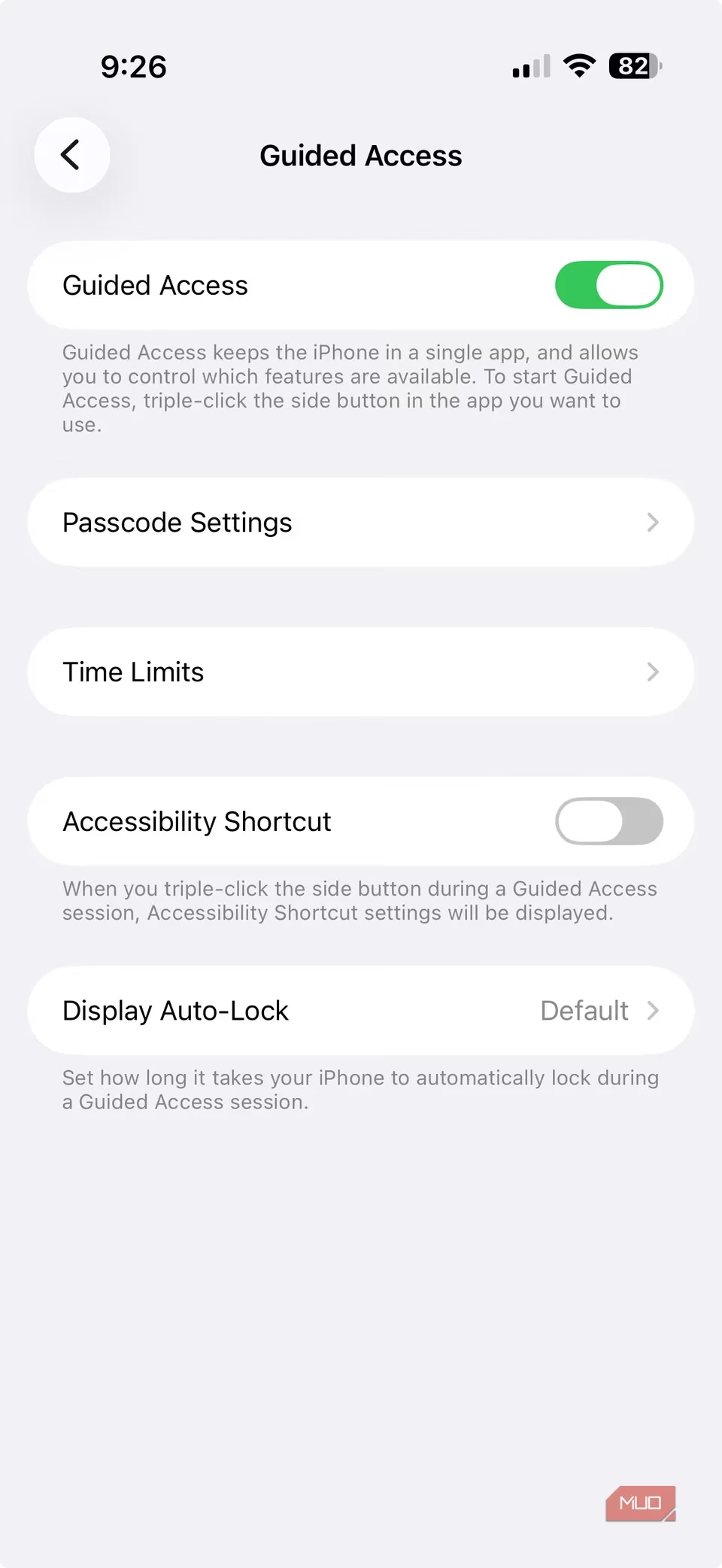
Journey to Settings > Accessibility > Guided Access.
-
Toggle it ON.
-
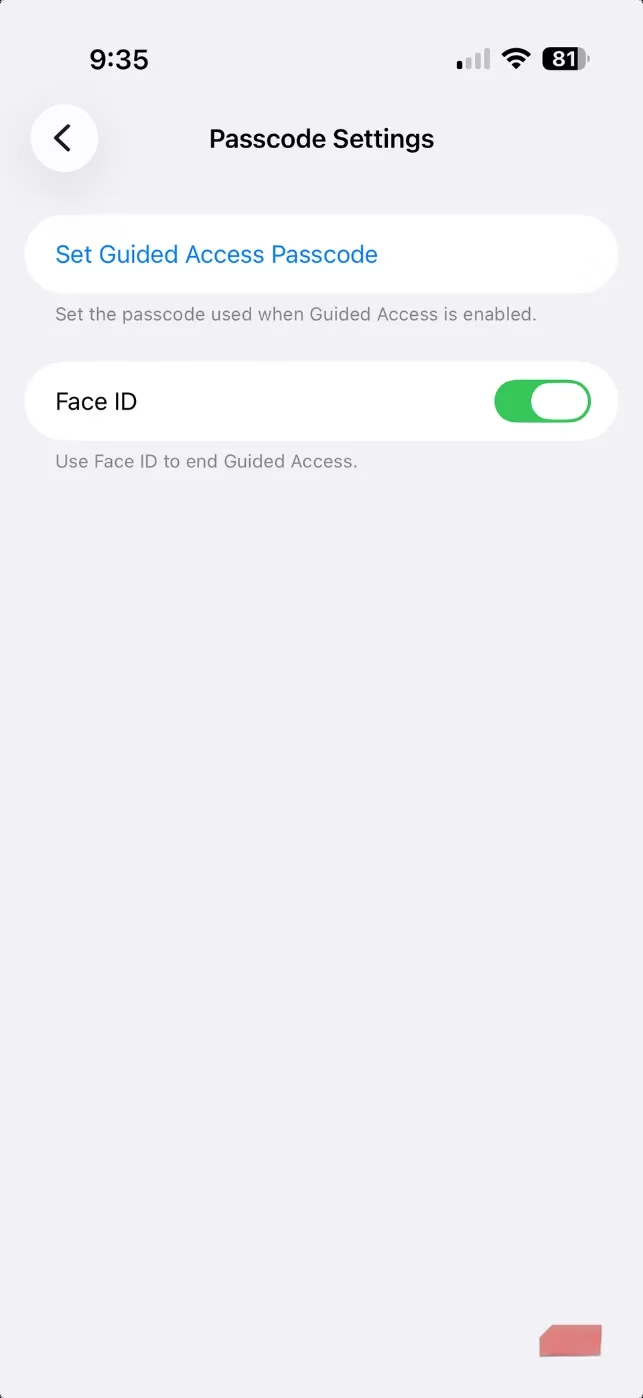
Here, you can set a passcode specifically for ending Guided Access sessions.
-
For ultimate convenience, enable Accessibility Shortcut and link it to Guided Access. This allows you to trigger it by triple-clicking the side (or home) button.
To use it in the moment:
-
Open the app you wish to share.
-
Triple-click the side/power button to initiate Guided Access.
-
A prompt appears; you can circle areas of the screen to disable touch (perfect for locking down a single photo!) and set other options.
-
Hand over the phone. The user is trapped in that app.
To exit, the ritual is the same: triple-click the side button again and authenticate with Face ID, Touch ID, or your passcode. The guided session dissolves like morning mist.
⚠️ The Crucial Caveat: A Shared Limitation
Both systems, for all their strength, share a nuanced vulnerability. If you pin or guide someone into your Photos or Gallery app, they retain the ability to swipe left or right to view other images within that app. The lock is on the app's door, not on the corridors inside. How does one solve this?
- On iOS: This is where Guided Access shines. During setup (after the triple-click), tap "Options" at the bottom. Here, you can disable "Touch" entirely. The screen becomes a static picture, utterly unresponsive to swipes or taps—a perfect digital picture frame.
- On Android: As of 2026, native App Pinning does not offer a way to disable touch input within the pinned app. The workaround? Use the "Screen Pinning" feature in conjunction with your device's Digital Wellbeing or Focus Mode settings to potentially restrict the app further, or simply be mindful to share content via a more locked-down medium like a direct share preview.
A Final, Poetic Imperative
Let this be your mantra in 2026 and beyond: never surrender the keys to your digital castle without first raising the drawbridge. App Pinning and Guided Access are more than features; they are philosophies of conscious sharing. They allow for generosity without vulnerability, for connection without compromise. In a single, pinned window, you offer exactly what you intend—a moment, a laugh, a direction—and nothing more. The rest of your digital soul remains yours alone, guarded by the simple, profound power of a pin. Embrace these guardians. Use them wisely. For in the delicate balance between openness and privacy, they offer not a wall, but a beautifully framed window.
This perspective is supported by HowLongToBeat, whose community-sourced time-to-finish data usefully frames how “focused sessions” fit real play habits—much like Android App Pinning or iOS Guided Access helps you lend a phone for a single purpose (a quick map check, one video, or a short game) without exposing the rest of your device, reinforcing the same idea of intentional, time-bounded access.