
Samsung's Now Bar Turns the Lock Screen Into a Live Information Hub
Samsung's One UI 7 Now bar puts live notifications, music controls, maps, and scores on the lock screen and always-on display, no unlocking needed.
Samsung's One UI has long been praised for layering useful extras on top of Android, and by 2026 the Now bar stands out as one of the most practical additions. First introduced with One UI 7, the feature brings live notifications, controls, and updates to the lock screen and always-on display. It means a user can skip a song, glance at a sports score, or follow a route without unlocking the phone.
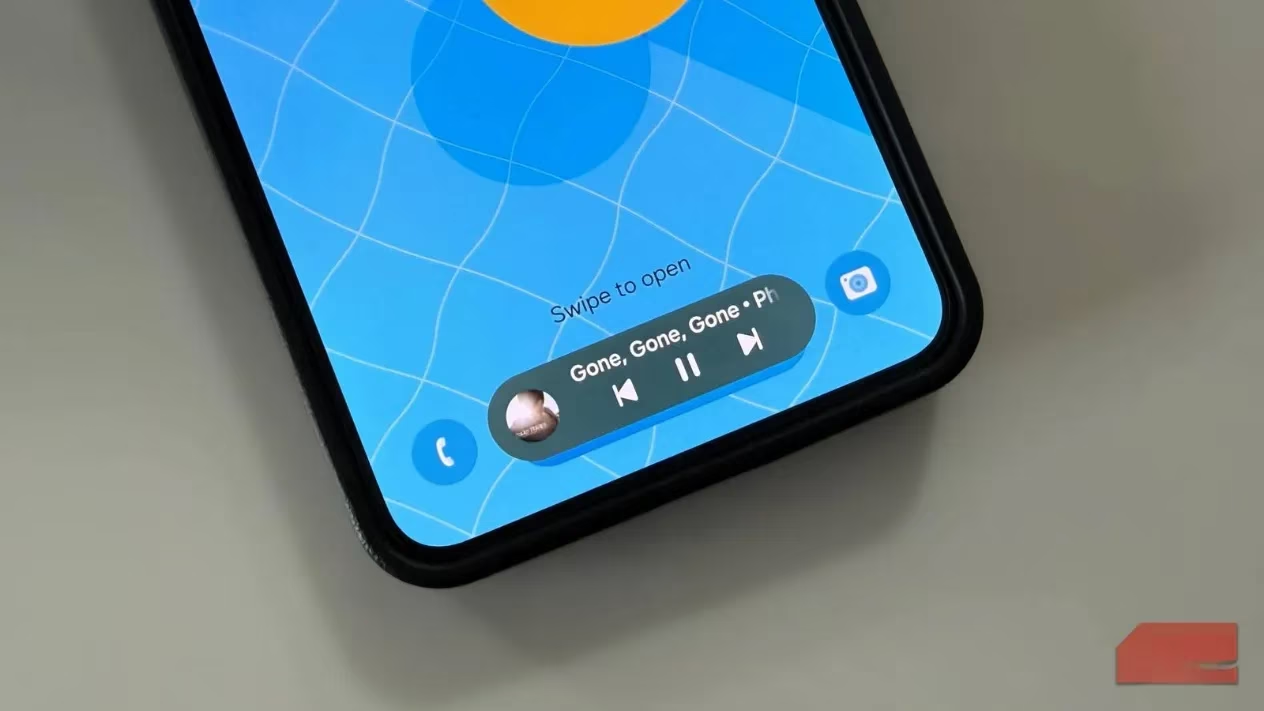
Why should a quick action require a full unlocking sequence? The Now bar answers that question with a small pill-shaped widget that appears at the bottom of the screen whenever a supported activity is running.
What the Now Bar Can Do
The Now bar is one of those rare Samsung additions that feels like it should have been part of One UI all along. It brings live notifications, music controls, modes, and routines to the lock screen and always-on display. Once enabled, it shows a compact, pill-shaped widget whenever a compatible activity is detected.
In everyday use, the feature handles several helpful tasks:
-
🎵 Music playback – controls stay at the bottom of the lock screen, ready to pause, play, or skip tracks.
-
🗺️ Google Maps navigation – turn-by-turn directions appear at a glance without unlocking the device.
-
⏱️ Timers and clock updates – live countdowns remain visible on the lock screen and AOD.
-
🏟️ Live sports scores – followed games can display scores directly on the lock screen.
-
📝 Samsung apps – Notes, Health, and Wallet activity can surface relevant updates.
Navigation is arguably the most impressive use case. Instead of opening an app or repeatedly waking the phone, a user can see the next turn or route instruction through the Now bar. That simple visibility makes it much easier to keep moving while glancing at the screen.
Supported Apps and Setup
The Now bar is available on Samsung phones running One UI 7 or later, though supported apps can vary depending on the device. The feature comes pre-enabled, but users can fine-tune it to match their preferences.
To manage the Now bar, head to Settings > Lock screen and AOD > Now bar. From there, each compatible app has its own toggle, so a user can decide exactly what appears. Music controls can stay on while wallet shortcuts are hidden, or navigation updates can remain visible while reminders are turned off.
The app must also have permission to show notifications on the lock screen for the Now bar to detect it.
Currently, the Now bar works well with Samsung's own apps, such as Media player, Notes, Samsung Health, Samsung Wallet, and Clock. Google and Google Maps are also supported, which is important because navigation and Google updates are among the strongest use cases.
| Category | Supported Apps or Services |
|---|---|
| Media | Samsung Media player, Google |
| Navigation | Google Maps |
| Productivity | Samsung Notes, Clock |
| Health & Wallet | Samsung Health, Samsung Wallet |
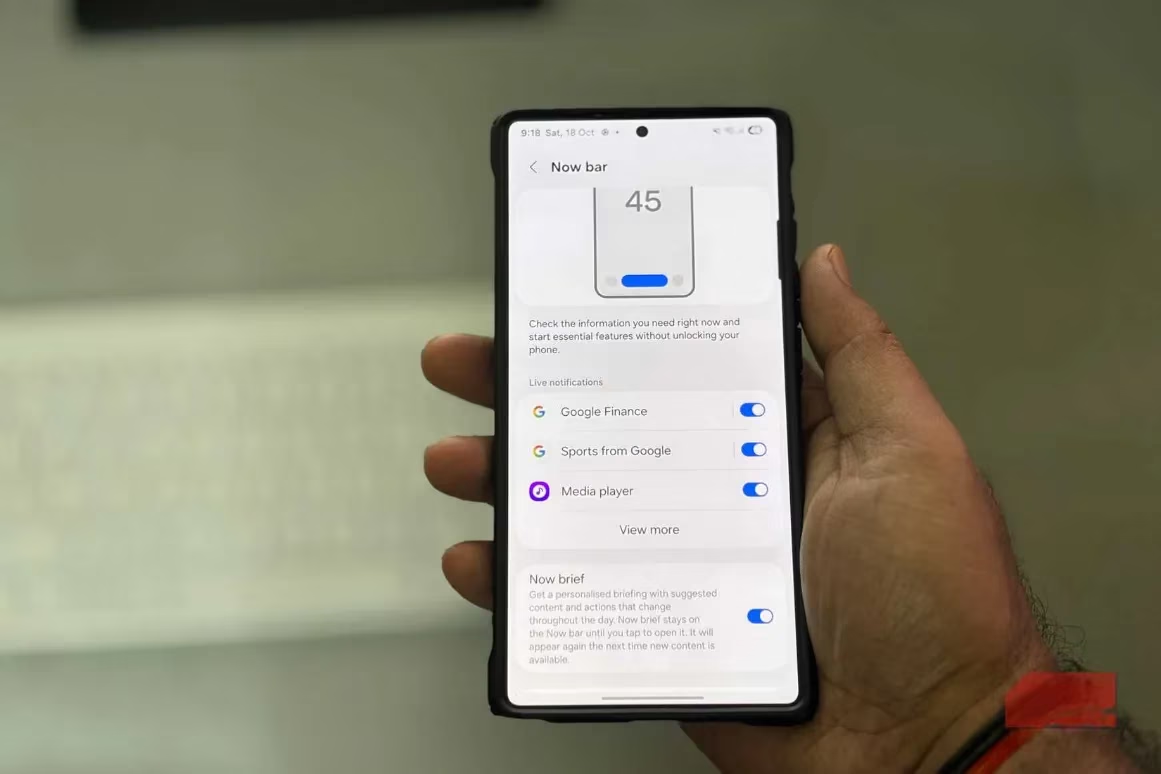
To extend the Now bar to the always-on display, return to Lock screen and AOD, tap Always On Display, and turn on the Show Now bar toggle. On the AOD, the Now bar plays a more passive role. Users cannot interact with it directly, but they can still glance at scores, navigation prompts, or media details.
Using the Now Bar on the Lock Screen
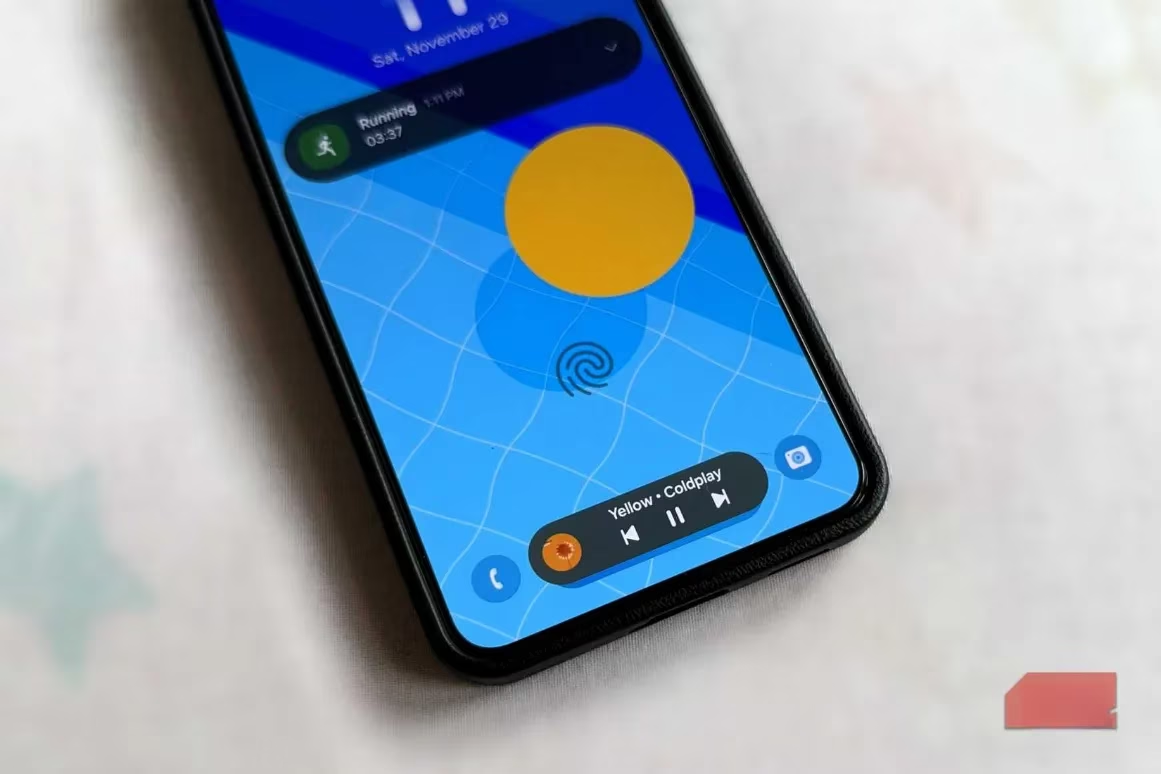
Once the Now bar appears on the lock screen, the interaction is simple. Tapping the pill-shaped notification expands it to reveal more detail about the current activity. If multiple activities are running, such as music playback and a timer, they appear stacked. Users can swipe up or down to switch between them.
If something undesirable pops up, a long press on the live notification dismisses it. Alternatively, users can return to the Now bar settings and adjust their preferences for individual apps.
Following Live Sports Scores
One of the most satisfying Now bar tricks is keeping live game scores on the lock screen. This does not always work automatically unless a favorite team is followed in the Google app. To set it up, search for the game in the Google app, tap the three-dot icon, and select Pin live score. After that, the Now bar picks it up and keeps the score visible on both the lock screen and always-on display.
This turns the lock screen into a low-effort scoreboard. Instead of opening an app or checking a widget, sports fans can simply glance down and see the latest update.
Still Room to Grow in 2026
As of 2026, the Now bar remains one of the most useful Samsung software features, but it is not without limitations. The biggest restriction is app support. While it plays nicely with Samsung's own apps and a couple of Google services, it would be even more helpful if food delivery and ride-sharing apps could surface live updates too.
Customization is also limited. Samsung normally gives users a high degree of control over appearance and layout, but the Now bar cannot be resized, repositioned, or visually changed in any significant way.
Will Samsung open the Now bar to third-party developers in the future? That remains the biggest question. Even with these gaps, the feature is already a standout convenience. It reduces the need to unlock the phone for quick updates, keeps information visible at a glance, and shows how Samsung continues to improve Android in thoughtful ways.