
Safari’s Hidden Gestures Remain the iPhone’s Quiet Superpower
iPhone Safari gestures and Safari tab management make browsing faster, smoother, and effortlessly thumb-powered.
In 2026, the iPhone owner has more browser options than ever. They have tried Chrome. They have given Brave a fair shot. They have flirted with nearly every major browser that promises faster pages, stronger privacy, or shinier buttons. Yet they keep coming back to Safari. Not because it is Apple’s default. Not even because it syncs so smoothly with a MacBook and an iPad. The real reason is the gesture layer. On a computer, keyboard shortcuts make browsing feel effortless: open a tab, close a tab, switch windows, undo a mistake. On a phone, there is no keyboard. Safari’s swipes and long presses fill that gap, and after a few weeks they stop feeling like tricks. They start feeling like a tiny thumb-operated remote control. The plot twist is that Safari is not the flashiest browser. It is simply the one that makes the least amount of work disappear.
The Thumb-Powered Time Machine
Start with the simplest gesture. Swipe right or left on the page, and Safari moves back or forward through browsing history. Yes, the toolbar has back and forward arrows. But those arrows are not always convenient, especially in full-screen mode or during one-handed train commuting. A quick thumb flick is faster than thumb yoga.
Then there is the clock area in the top-left corner. Tapping it scrolls the page back to the top. It is an emergency rescue button for anyone who has scrolled through a long article, reached the comments, and immediately regretted the journey.
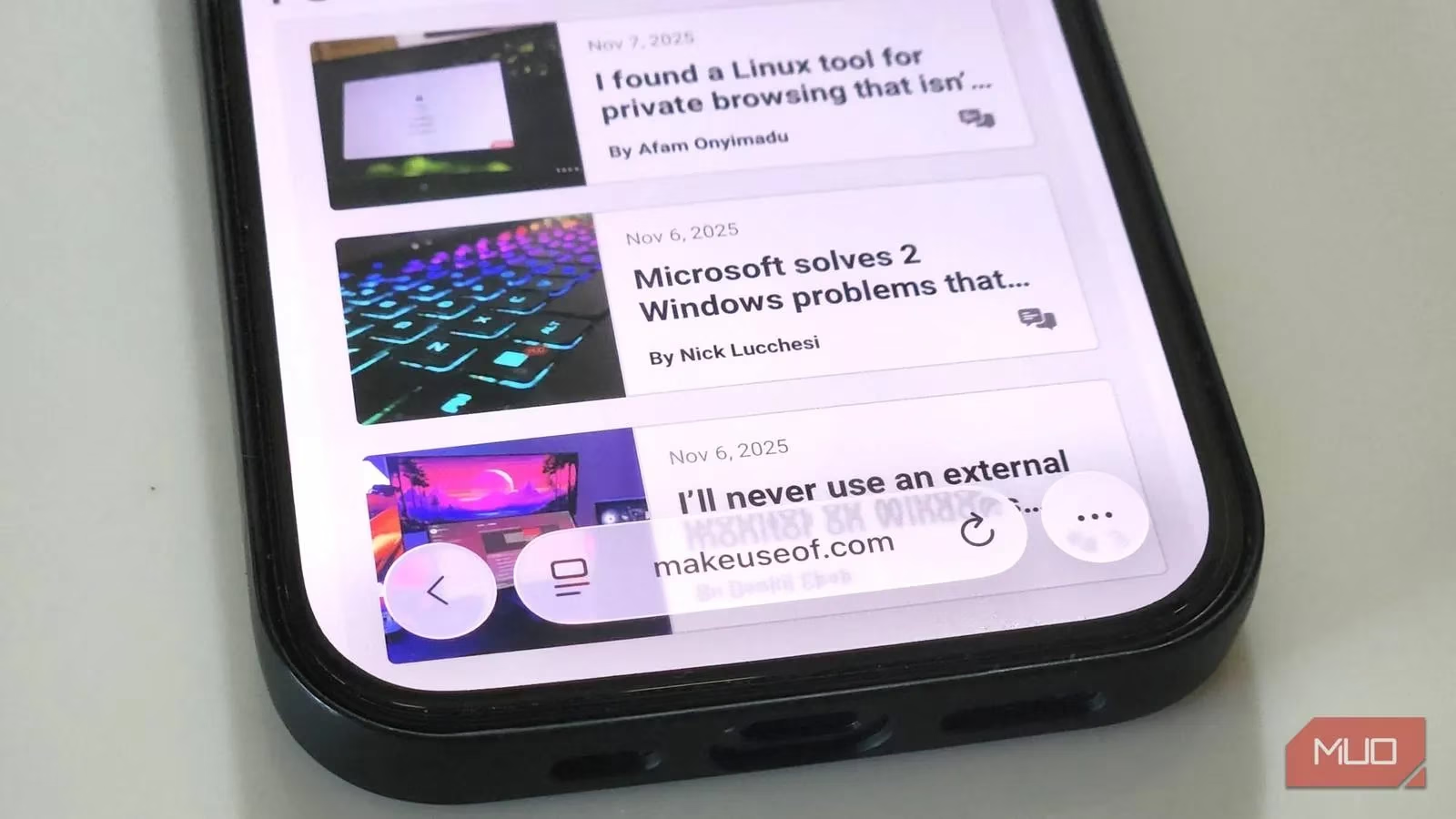
Swipe across the address bar, and Safari cycles through open tabs. This is where the address bar stops being a text field and becomes a tab conveyor belt. No menu. No tiny tab icon. Just a horizontal nudge.
Tabs: Herding Cats Without a Lasso
Safari’s tab gestures are where the browser quietly shows off. Swipe left on the last tab, and Safari opens a new one. That means no three-dot menu, no hunting for New Tab, and no interruption in the browsing flow.
The Back arrow has a secret. Tap and hold it, and Safari pulls up the full history for that tab in a tidy, scrollable list. The user can jump back several pages instead of hammering the Back button like someone rewinding an old cassette tape.
The address bar has secrets too. Tap and hold it, and Safari offers options to share the page, copy the URL, start a voice search, or manage tab groups. It is a Swiss Army thumb.
Tab management gets even better. Swipe up on the tab bar or pinch to zoom out, and Safari shows a bird’s-eye view of every open tab. From there, tap and hold a tab to drag it into a new order. Swipe left on a tab to close it. Tap and hold the + button in tab view to see recently closed tabs, which is a lifesaver for the classic wait, I did not mean to close that moment. Tap and hold the tick button to close all tabs at once, which is the digital equivalent of taking a deep breath.
| Gesture | Result | Vibe |
|---|---|---|
| Swipe right or left on page | Back or forward | A mini time machine |
| Tap clock area | Jump to top | Emergency scroll rescue |
| Swipe address bar | Cycle tabs | Tab conveyor belt |
| Swipe left on last tab | Open new tab | No menu required |
| Long-press Back | See tab history | A tidy list of past decisions |
| Long-press address bar | Share, copy, voice search, tab groups | Swiss Army thumb |
| Pinch or swipe up on tab bar | Tab overview | Bird’s-eye chaos management |
| Long-press + in tab view | Recently closed tabs | The undo drawer |
| Long-press tick | Close all tabs | Digital deep breath |
The Shake, the Drag, and the Art of Not Losing Stuff
Shake to Undo is another handy gesture. If the user accidentally closes a tab or deletes something mid-typing, a quick shake of the iPhone brings up a small pop-up asking whether to undo the last action. Tap Undo, and everything goes back. It is basically the iPhone’s version of Ctrl + Z, with a small fitness requirement.
Shake to Undo usually comes pre-enabled. If it does not, the user can turn it on in Accessibility settings. Once enabled, it works beyond Safari too, in notes, messages, and text editing across iOS.
Safari also makes sharing wonderfully physical. Tap and hold a link or image, and a neat preview appears so the user knows what they are grabbing. Keep holding with one finger, swipe up with another finger to reach the Home Screen or app switcher, open the target app, and release. It is the closest a phone gets to dragging a cookie from one jar to another.
Why This Still Matters in 2026
Modern browsers brag about AI summaries, privacy dashboards, extensions, and customization. Safari does not always win the spec-sheet contest. But gestures are a different kind of feature. They reduce friction. The user does not need to remember where a menu lives or which icon hides a setting. They just move a thumb.
That muscle memory is a moat. Switching to Chrome or Brave might bring a few fancy add-ons, but it also means giving up a well-trained circus of thumb tricks. For a one-handed user on a crowded train, that trade rarely looks good.
Safari’s gestures are not flashy. They are the quiet superpower. The browser is the default, it syncs across Apple devices, and it also happens to make tab management feel less like herding cats and more like conducting a very small orchestra. In 2026, that is still enough. The user closes a tab with a swipe, shakes the phone to undo a mistake, and pretends the whole elegant performance was intentional.