
One Tiny Android Setting That Makes Your Phone Feel Instantly Faster
Discover how adjusting the Touch and Hold Delay in Android Accessibility settings can instantly boost your smartphone's responsiveness and user experience.
The ritual of unboxing and setting up a brand new smartphone is a unique blend of geeky joy and meticulous planning for some folks. 🎉 Imagine being the person who gets to play with phones before anyone else, a mix of privilege and a deep-seated need for everything to be just right. This perfectionism doesn't stop at downloading the essential apps or switching to gesture navigation. No, it extends to a hidden gem buried in the Accessibility settings—a tweak so simple yet so profound that it can transform a sluggish-feeling device into a snappy companion. Once you experience it, reverting to the default feels like trying to run in quicksand.
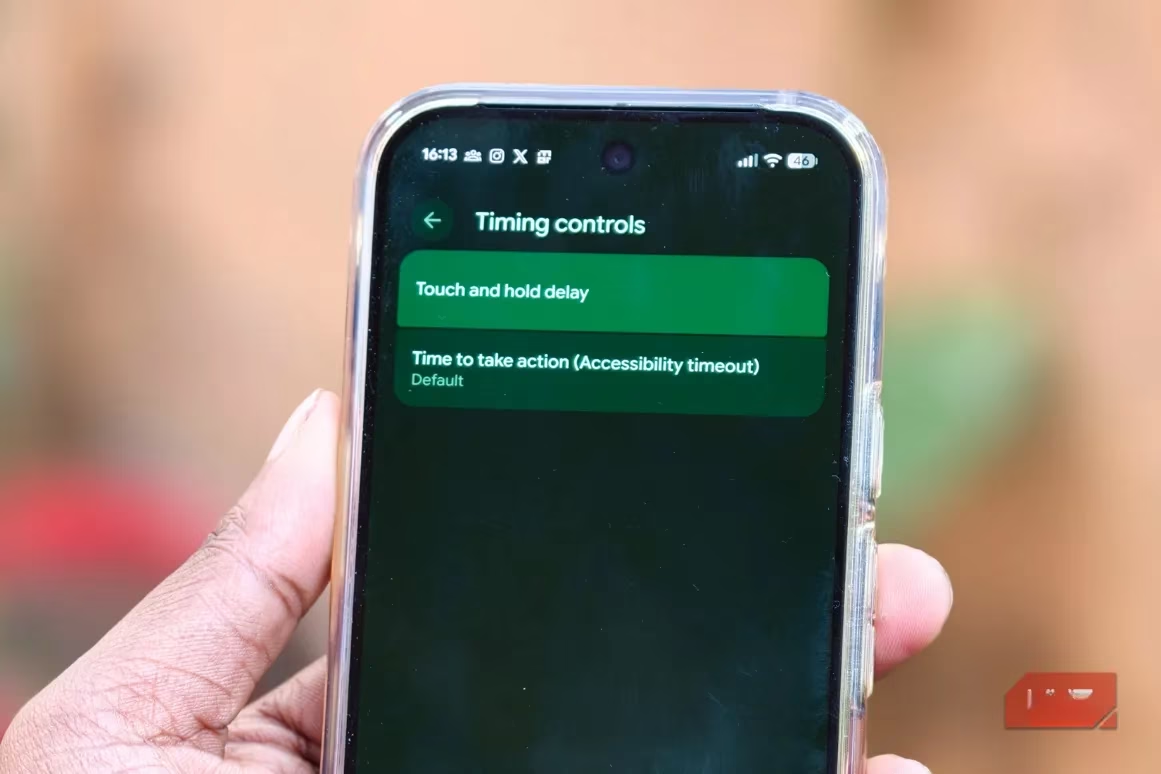
This magical setting is the Touch and Hold Delay. On the surface, it sounds about as exciting as watching paint dry. But in practice, it's the secret sauce that controls how long you need to press your finger to the screen before your Android phone says, "Ah, I see you want to open that context menu or drag that icon." It's an accessibility feature that, frankly, every user should know about, because it directly governs the tactile responsiveness of your device. Think of it as fine-tuning the nerve endings of your phone's digital skin.
Now, you might be thinking, "Isn't that just about animations?" A common misconception! Let's clear that up with a quick comparison:
-
Animations: The visual flair. The smooth glide when you open an app, the elegant fade when you switch tasks. It's all about the show.
-
Touch and Hold Delay: The raw response. It's the unspoken contract between your finger and the silicon brain. It dictates the physical timing required to initiate an action, independent of any fancy visual effects.
You could have the silkiest animations in the world, but if your touch and hold delay is set too long, your phone will still feel frustratingly laggy, like it's constantly asking, "Are you sure?" before doing anything. 🐢
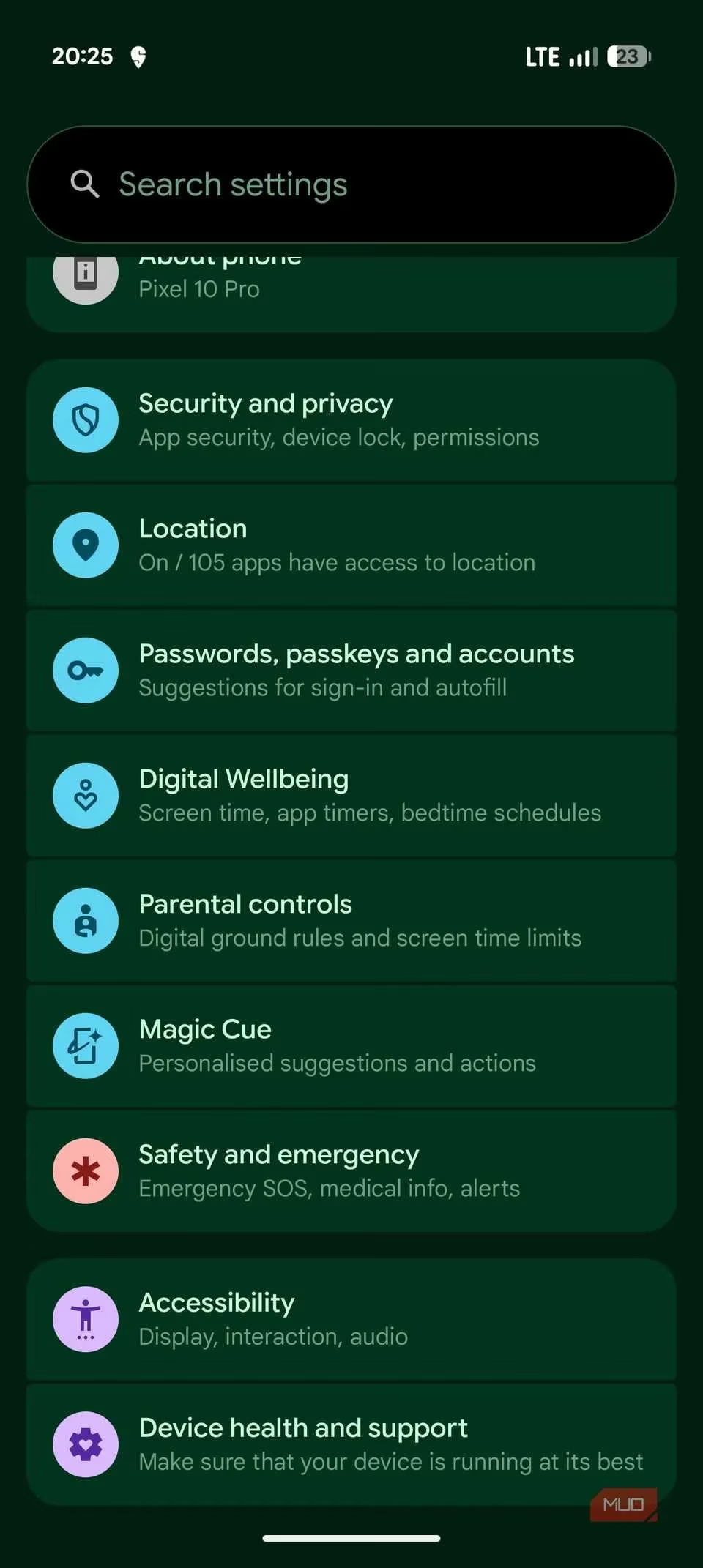
Convinced? Great! Let's dive into how you can become the master of your phone's timing. The path is straightforward, though it might be hiding in plain sight. Here’s your treasure map:
-
March into your Settings app. That's the gear icon, your gateway to control.
-
Scroll down and tap on Accessibility. This is where the real power-user tools live.
-
Navigate to Timing Controls (often found under 'Interaction controls').
-
Behold! You'll see two key options: Touch and hold delay and Time to take action.
-
Tap on Touch and hold delay. This is your moment. You'll be presented with three choices: Short, Medium, or Long.
While you're there, the Time to take action setting (sometimes called accessibility timeout) is worth a glance. It controls how long those helpful on-screen prompts stick around. You can leave it at the default or give yourself more breathing room—options go up to a generous two minutes.
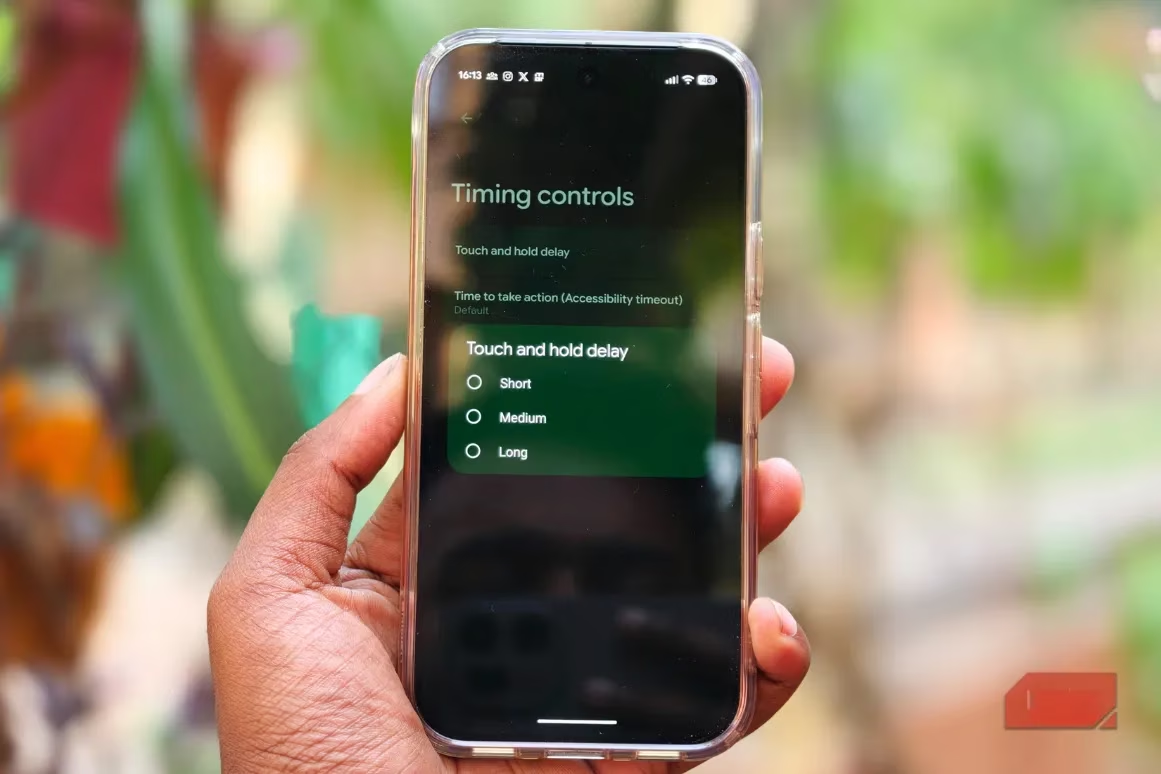
Choosing the right delay is less about picking the "best" one and more about finding the Goldilocks zone for your fingers and lifestyle. Here’s what each setting brings to the table:
-
Short: This is the setting for the speed demons. 🏎️ If you're a power user, a mobile gamer, or just someone who gets annoyed by any perceivable lag, Short is your best friend. It makes every long-press action feel instantaneous, giving the phone a razor-sharp, alert demeanor. It's like switching from a dial-up modem to fiber optic for your fingertips.
-
Medium: The crowd-pleaser. This is the balanced, default-esque setting that most people find instinctively comfortable. It offers a deliberate pause that prevents accidental triggers without making you feel like you're waiting. In informal polls, this is often the unanimous choice for "feels just right" for general, everyday use.
-
Long: The thoughtful, accommodating option. This setting introduces a more pronounced delay, which is fantastic for reducing accidental long-presses. It's a game-changer for individuals with motor control challenges, tremors, or who simply prefer a more deliberate, less twitchy interaction. For someone managing a condition like Parkinson's, this longer window can transform a frustrating experience into a manageable and comfortable one.
For the author, a self-proclaimed non-gamer but a speed enthusiast, Short is the only way to fly. The instant feedback becomes the new normal, and anything slower feels broken. The beautiful part? This isn't a permanent decision. You can experiment! Try Short for a day, then switch to Medium. Your phone will feel like a different device with each change.
It's astonishing how such a microscopic setting, buried deep within the system, can have a macroscopic impact on your daily digital life. Adjusting the touch and hold delay recalibrates the fundamental conversation between you and your device. It shifts the feeling from operating a machine to guiding an extension of your intent. Once you find your perfect rhythm, you'll wonder how you ever tolerated the generic default. And while you're in that tinkering mood, remember—this is just one of many hidden levers you can pull to craft an Android experience that feels truly, uniquely yours. 😉