
My Ultimate Guide to Mastering iPhone Focus Modes in 2026
Discover how iOS Focus modes and Do Not Disturb empower users with advanced, personalized notification control for ultimate digital balance.
Remember when Do Not Disturb was just a simple on/off switch? Those days feel like a distant memory, a relic of a less connected time. For me, the evolution into the powerful suite of Focus profiles since iOS 15 has been nothing short of a digital revolution. At first, the sheer number of options felt as bewildering as trying to conduct a symphony orchestra without a baton. But after diving in and tailoring it to my life, I can't imagine my iPhone without it. Focus has transformed from a simple mute button into a sophisticated concierge for my attention, deciding which notifications are worthy of breaking through the silence and which can wait. It's given me back a sense of control I didn't realize I'd lost to the constant pinging and buzzing.
🚦 Navigating the Core Controls: People & Apps
My journey always starts in Settings > Focus. Here, I see the various modes—Work, Personal, Sleep, and more—each a blank canvas waiting for my personal touch. The heart of any Focus mode lies in the Allow Notifications section. This is where I build my digital guest list. Tapping People presents a choice: do I want to Allow a specific group or Silence a noisy few? I've found it's much more effective to curate a small, allowed list of VIPs—like my immediate family and my boss—rather than trying to block out the entire world. It's like setting up a velvet rope at an exclusive club; only those on the list get in.
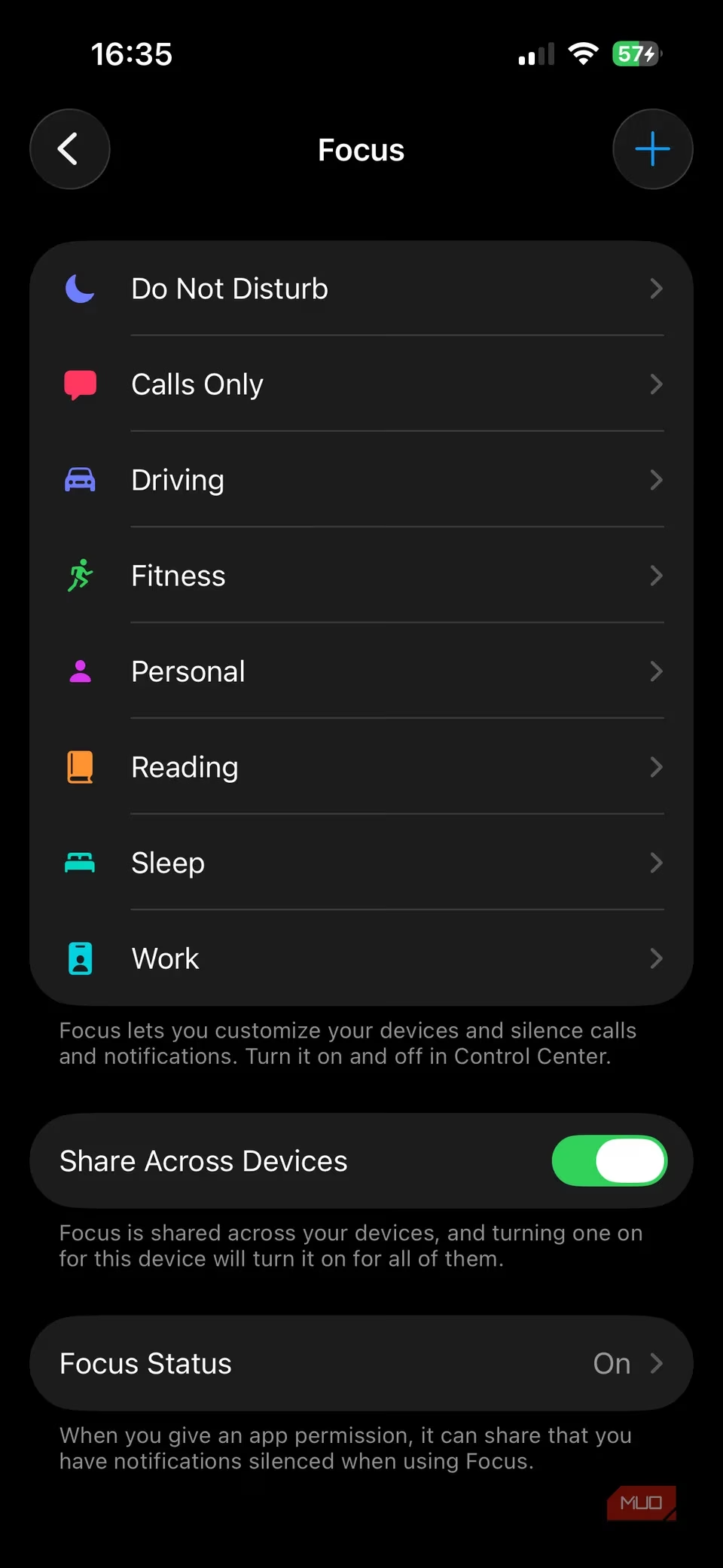
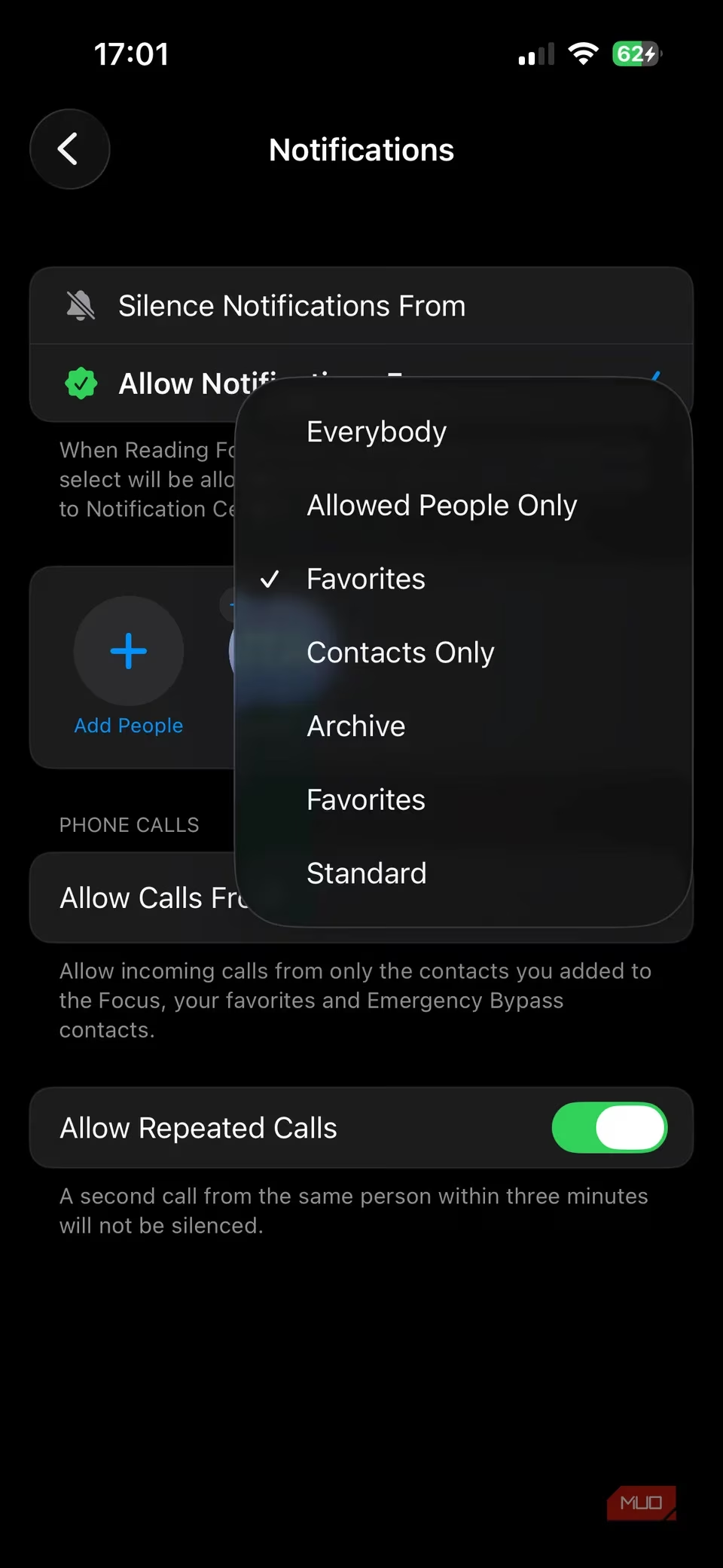
For this allowed list, I also need to set Allow Calls From. The options are straightforward: Everybody, Allowed People Only, Favorites, or Contacts Only. I usually stick with Allowed People Only for my Work Focus, ensuring my personal time isn't interrupted by client calls.
The Apps section mirrors this setup. I can allow or silence notifications from specific applications. A crucial toggle here is Time Sensitive Notifications. Enabling this lets apps send through alerts deemed urgent, even if they're otherwise silenced. However, I've learned that an app's definition of "urgent" can be as subjective as a critic's movie review. If an app abuses this privilege, I head to Settings > [App Name] > Notifications to revoke its time-sensitive pass.
🎨 Personalizing the Experience: Screens, Schedules & Filters
Once the notification gates are set, the real fun begins with personalization. Under Options, I often change Silence Notifications from Always to While Locked. This means I still see banners when I'm actively using my phone, but the moment I lock it, true silence reigns.
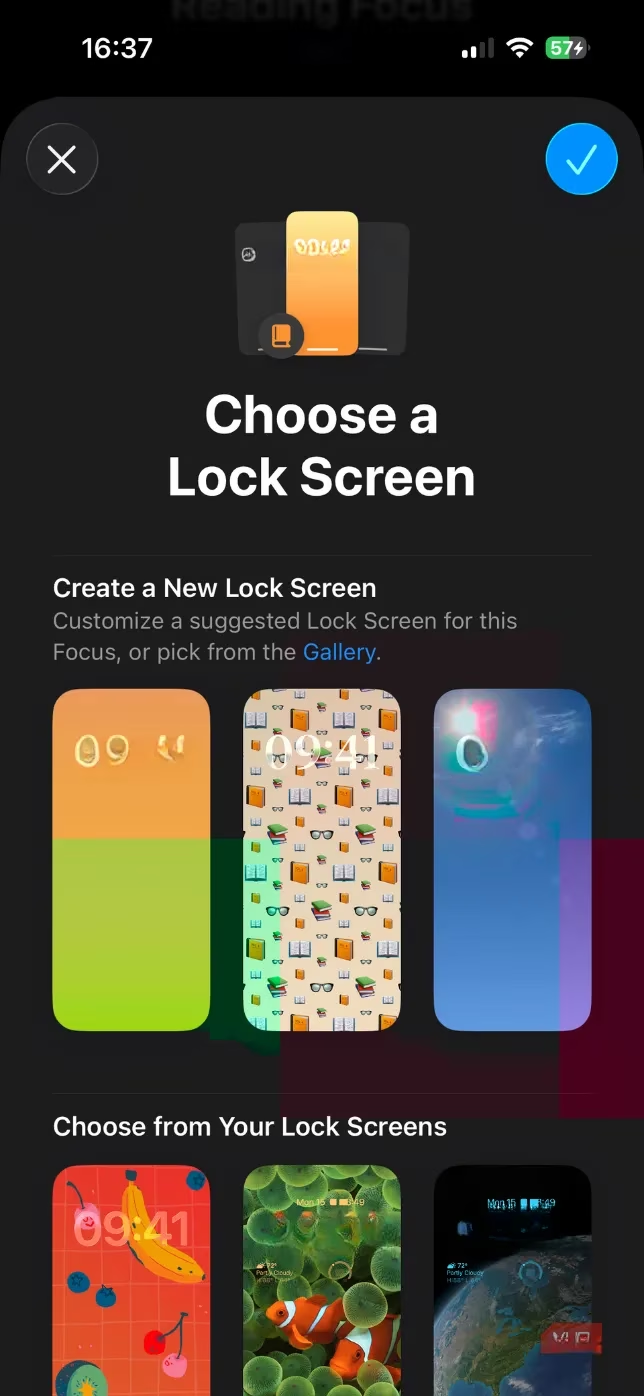
The Customize Screens feature is a game-changer for my mindset. For my "Deep Work" Focus, I pair it with a minimalist Lock Screen featuring a calming nature photo and a simplified Home Screen showing only my productivity apps. It’s like walking into a clean, dedicated study—the visual cue itself helps my brain shift gears. If you have an Apple Watch, you can even link a specific watch face to each Focus, creating a seamless ecosystem of focus.
Automation is where Focus becomes truly intelligent. Add Schedule lets me set rules so I never have to remember to toggle modes manually. I have my Work Focus activate on weekdays from 9 AM to 5 PM at my office location. My Sleep Focus kicks in based on my Health app schedule. This automatic activation is as reliable as a loyal butler, anticipating my needs before I voice them. There's also a Smart Activation option, though I find it can sometimes be as unpredictable as a cat's mood.
For deeper integration, Focus Filters are a powerful, if underutilized, tool. They let me hide specific content within apps when a Focus is on. For example, I can filter my Mail app to show only my work inbox during my Work Focus. Sadly, app support is still limited, but when it works, it's brilliantly effective.
Finally, System Filters at the bottom of the settings let me automatically enable Dark Mode or Low Power Mode when a specific Focus activates, adding another layer of environmental control.
🚗 Specialized Modes & Smart Features
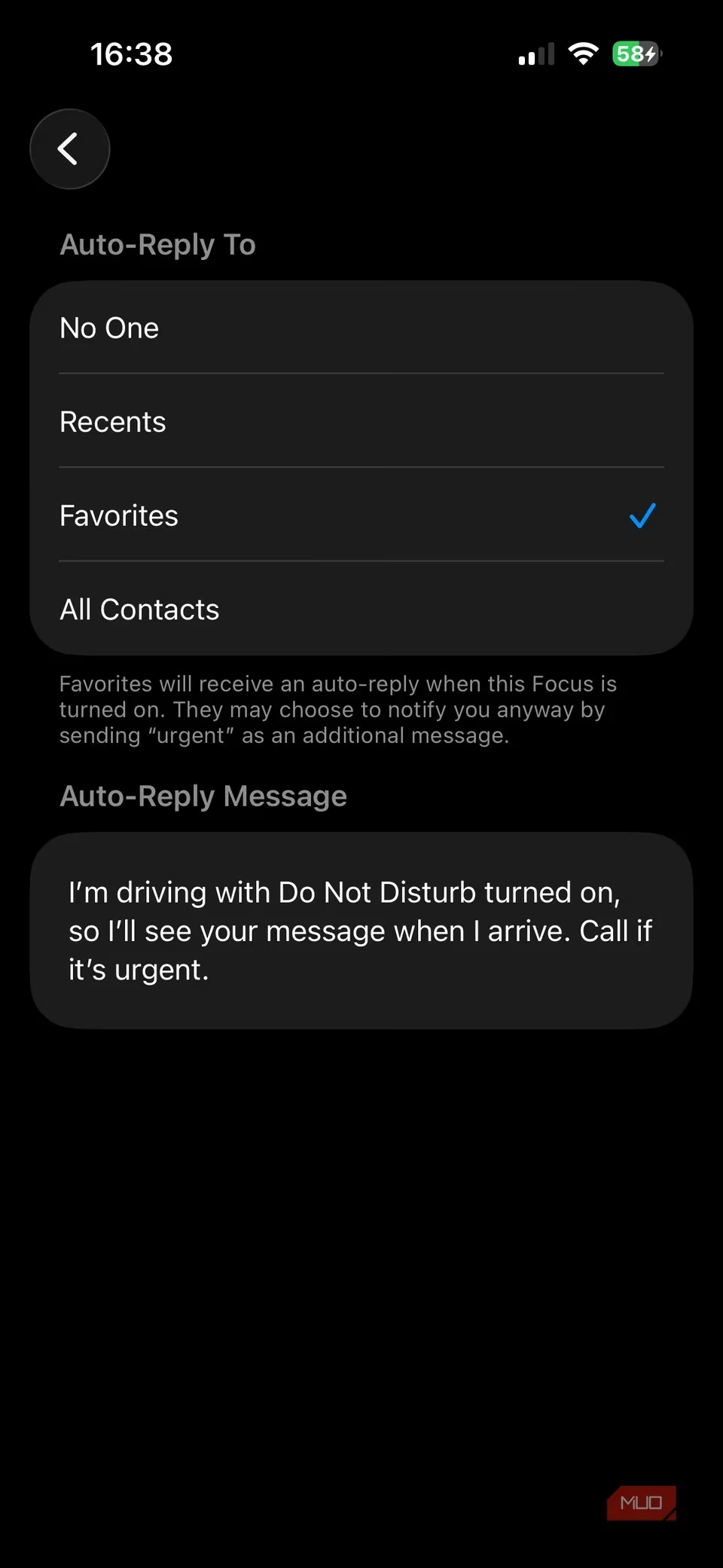
Some Focus modes come with their own superpowers. The Driving mode, for instance, can activate automatically when I connect to my car's Bluetooth. Its best feature? An Auto-Reply that sends a custom "I'm driving" message to selected contacts—a perfect safety and courtesy feature. The Fitness mode ties into my workout routines, and Sleep syncs flawlessly with my Health app schedule. The Gaming mode is a recent favorite, activating the moment I pair a controller, muting all but the most critical alerts.
With Apple Intelligence now more mature in 2026, there's a specialized Reduce Interruptions mode that uses on-device AI to judge notification importance. For all modes, the Intelligence Breakthrough & Silencing toggle refines this further. I also always enable Focus Status so people in Messages see I'm in a Focus and know not to expect an instant reply (though they can tap Notify Anyway for true emergencies). Share Across Devices ensures my Mac and iPad join my iPhone in focused harmony.
🛠️ Creating & Managing Your Focus Arsenal
The built-in modes are great, but sometimes you need something bespoke. Tapping the + icon lets you create a custom Focus. You can choose a pre-made template or build one from scratch, complete with a custom icon and color. My most-used custom creation is Calls Only, which allows calls from everyone but silences all other notifications—perfect for when I'm awaiting an important callback.
My advice? Don't go overboard. Creating a Focus for every conceivable scenario is as chaotic as a drawer full of identical, unlabeled keys. Start with 3-4 core modes that cover your major life segments (Work, Sleep, Personal, Driving) and expand only if a clear need arises.
For on-the-fly control, the quickest method is Control Center. A tap on the Focus tile and a hold lets me activate any mode or set a duration. It's my command center for instant digital solitude.
🛡️ Peace of Mind & Pro Tips
A common fear is missing something crucial. Focus has thoughtful safeguards:
-
Allow Repeated Calls: A second call from the same person within three minutes will break through.
-
Emergency Bypass: In a contact's card, under their Ringtone or Text Tone, you can enable Emergency Bypass. This is the nuclear option—calls and texts from this person will always ring through, no matter what. I reserve this for my spouse and parents.
I still keep the classic Do Not Disturb mode as my digital panic room—a true "silence all except alarms" setting for when the world gets overwhelmingly loud. The key is not to make exceptions here; its purpose is absolute quiet.
Ultimately, mastering Focus is about intentionality. It's not about shutting out the world, but about curating it. My phone now feels less like a slot machine demanding constant pulls of my attention and more like a well-organized tool. For those who want to push further, integrating Focus with Shortcuts automation unlocks even more potential, allowing you to trigger smart home scenes, play specific music, or launch workflows when a Focus begins. In 2026, in a world more connected than ever, Focus isn't just a feature; it's a essential practice for digital well-being.