
My Top 6 Must-Change Android Settings for a Smoother, Smarter Phone in 2026
Discover expert tips for new Android phones: optimize default settings for speed, storage, and a truly personalized experience.
Alright, let's talk about new Android phones. You know that feeling? You unbox a shiny new slab of glass and metal, it's all fresh and fast, and then... you start noticing little things. It's like moving into a new apartment where the previous tenant left all the lights on timers you don't understand. Most folks just restore from a backup and call it a day, but not me. I'm a from-scratch kind of person. Every time I get a new phone or do a full reset, I dive headfirst into the settings. It's a bit more work, sure, but it's like giving your phone a custom-tailored suit instead of wearing a hand-me-down. You ditch the digital bloat, reclaim precious storage, and end up with a device that truly feels like yours. And honestly, if my phone ever starts feeling sluggish or cluttered, I won't think twice—I'll wipe it and start this beautiful, meticulous process all over again.
So, what's the first thing I do after the initial setup dance? I go hunting for these six default settings that, in my very humble and slightly picky opinion, need to go. Immediately. Let's get to it.
1. Stop Wi-Fi from Having a Mind of Its Own
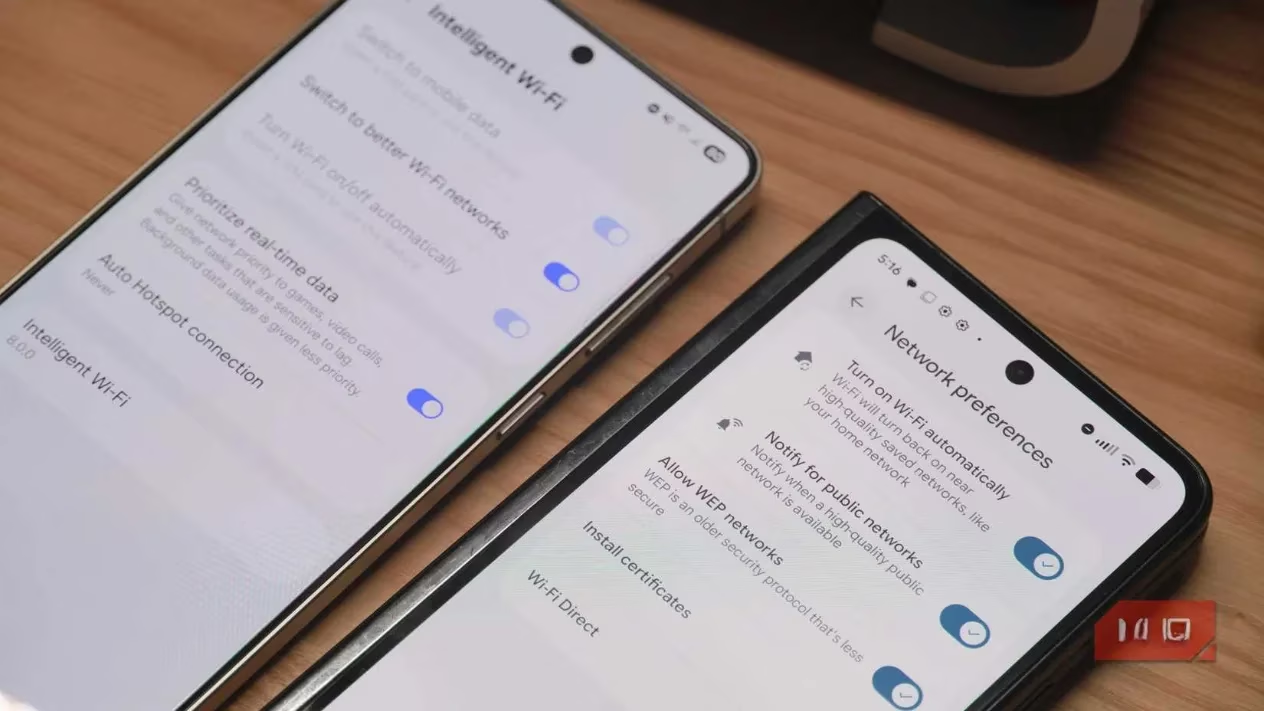
This one drives me up the wall. 🤯 You know the drill: you're out and about, you manually turn off Wi-Fi to save battery or avoid sketchy networks. You expect it to stay off, right? Like a good little toggle. But nope! On Android (and iOS, for that matter), there's a sneaky little setting called "Turn Wi-Fi on/off automatically" that's enabled by default. It thinks it's helping by turning Wi-Fi back on when it feels like it, maybe when you're near a saved network. The promised battery benefit is microscopic, but the annoyance of seeing your Wi-Fi icon pop on and off like a caffeinated groundhog is massive. I always shut this "intelligence" down.
How to Rebel:
-
On a Pixel: Settings > Network & internet > Internet > Network preferences. Tap the toggle beside "Turn on Wi-Fi automatically."
-
On a Galaxy: Settings > Connections > Wi-Fi > Intelligent Wi-Fi. Tap the toggle beside "Turn Wi-Fi on/off automatically."
2. Ditch Adaptive Brightness for Manual Control
Ah, adaptive brightness. The feature that tries to read the room—literally. It uses your phone's ambient light sensor to adjust screen brightness. Sounds helpful! In practice, it's often more of a passive-aggressive argument with your device. You're in a slightly dim cafe, you crank up the brightness to see your screen, and two seconds later your phone smugly dims it back down, whispering, "I know better." No, thank you. I prefer to be the master of my own lumens. I turn this off and manage brightness myself with the quick settings slider. My eyes, my rules.
3. Escape the Vivid/Adaptive Color Trap
Out of the box, most Android phones crank the color saturation to eleven. It's like they're trying to impress you in the store with a psychedelic pop. Pixels call it Adaptive, Galaxies call it Vivid. It makes colors scream. For a more realistic, color-accurate view of the world (and your photos), you should switch to the Natural color profile. It's available on Android 16 and One UI 8. The difference is night and day. Reds won't look like they're radioactive, and skin tones won't have a permanent sunburn hue. Both phones let you preview the modes side-by-side on a sample image. Even if you end up preferring the punchier look, at least make an informed choice!
4. Question Adaptive Battery (Seriously)
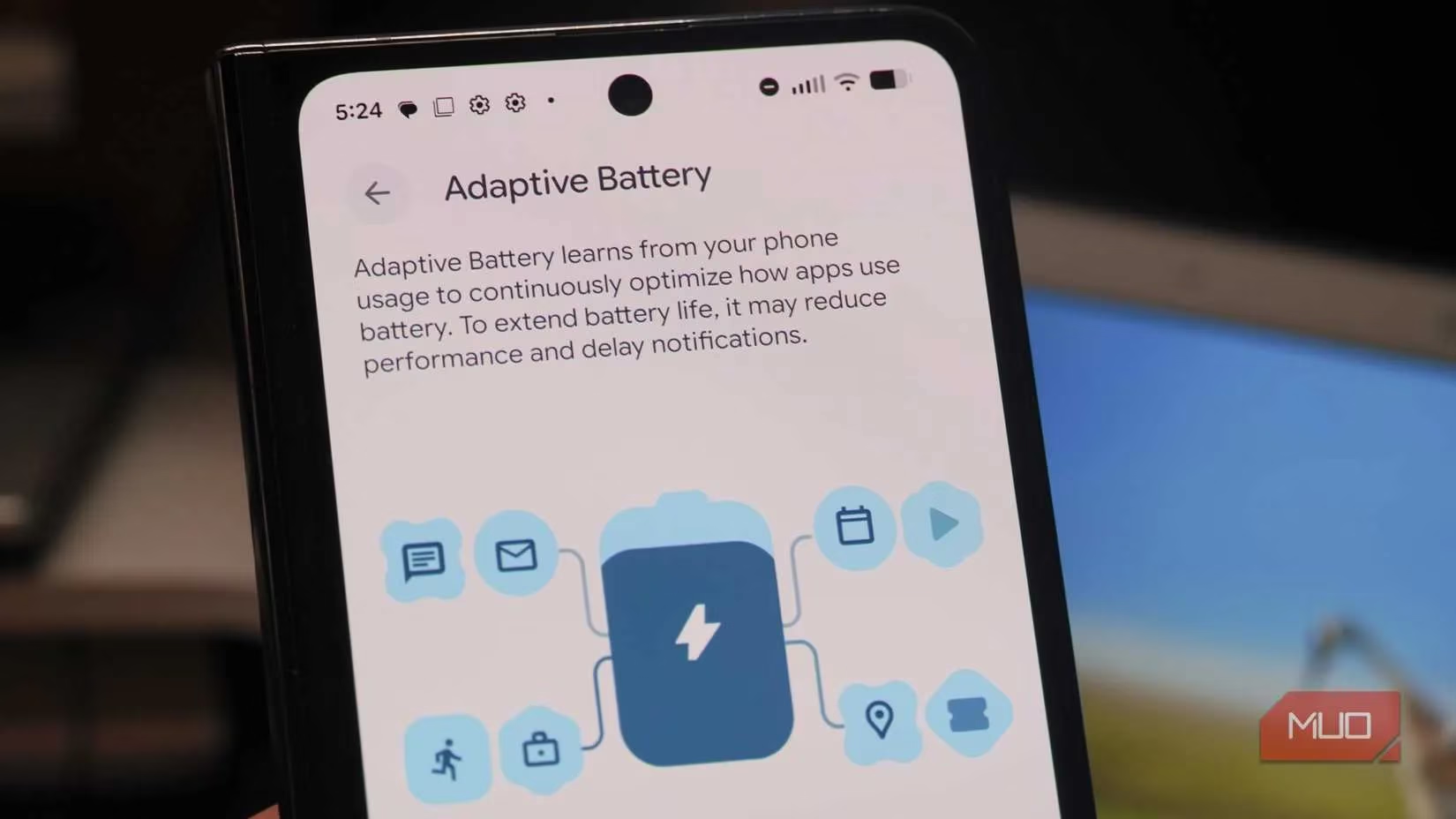
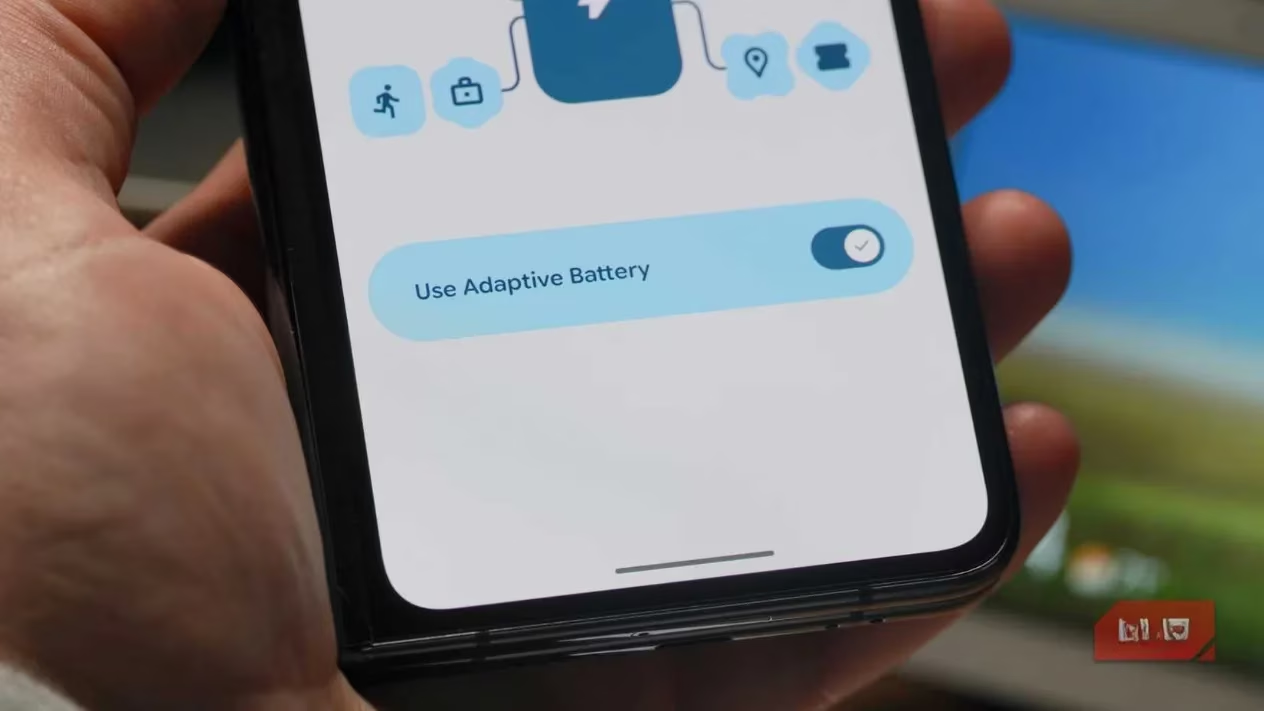
This is a controversial one. Adaptive Battery promises to learn your habits and stretch your battery life. How? By aggressively managing which apps can run in the background. The potential downside? Google's own support docs for Pixels admit it can "reduce performance and delay notifications." 🚨 For me, that's a deal-breaker. I don't want my messaging apps dozing off and missing important alerts just to squeeze out an extra 5% battery by bedtime. I'd rather have snappy performance and timely notifications. The battery savings are often minimal for the trade-off. So, I go into the battery settings and disable any advanced/adaptive battery features. I'll manage my battery myself, thank you very much.
5. Nuke Your Advertising ID for Privacy
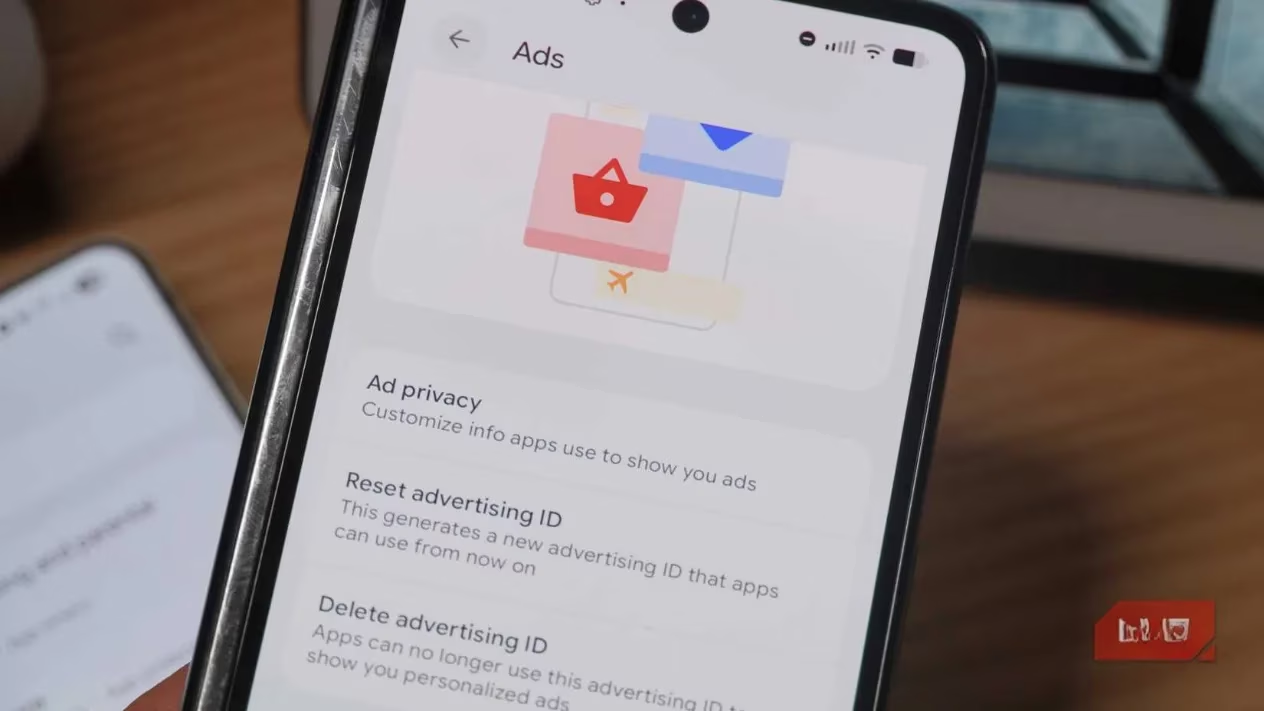
Here's a creepy default: your phone has a built-in advertising ID. It's a unique tag that lets Google (and other advertisers) track you across apps and services to serve "personalized" ads. For privacy reasons, this should be the first thing you opt out of. It won't make ads disappear, but it will make them less personally tailored and limit some tracking.
My Privacy Ritual:
-
Open Settings.
-
Go to Google > All services > Ads.
-
Here, I do two things:
-
Disable "Personalized ads."
-
Tap "Delete advertising ID" (or "Reset advertising ID") to scrap the existing tracker.
-
It's a small step for a man, a giant leap for digital privacy-kind.
6. Declutter Your Status Bar
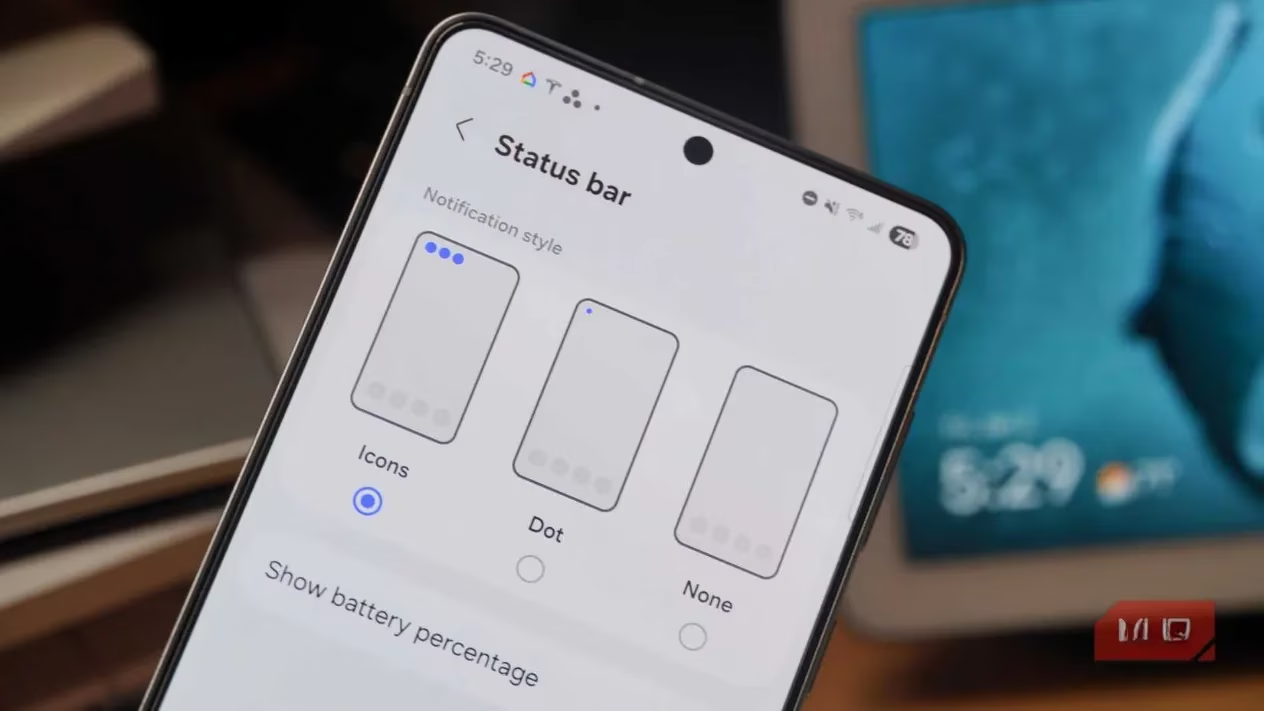
This is my personal pet peeve, and I deal with it on every new phone. By default, Android loves to clutter your pristine status bar with tiny icons for every single notification. Missed call? Icon. New email? Icon. Weather update? Icon. It's a constant, anxious ticker tape of digital life. I find it visually noisy and intrusive. I'd much rather pull down the notification shade when I'm ready to deal with things, not have my phone's forehead constantly blinking at me.
Peace and Quiet, Please:
-
Head to Settings > Notifications > Notification settings.
-
Look for Status bar or Notification icons.
-
Change the setting from showing icons (or dots) to None. Ah, blissful emptiness.
Wrapping Up: Make It Yours
Look, most default settings are fine. But Android's superpower is customization, and that only works if you actually... customize! 🛠️ Taking 15 minutes to poke around in your Settings app after setup isn't nerdy—it's smart. You might not hate adaptive brightness or status bar icons like I do, and that's cool! The point is to see what the defaults are and decide for yourself. Do you want a battery that might lag your notifications? Do you want Wi-Fi that turns itself on? Do you want ads that follow you?
By making these conscious choices, you're not just setting up a phone; you're configuring a tool that works for you, not against you. In 2026, with phones being more powerful and personal than ever, there's no reason to settle for factory settings. Go forth, open that Settings app, and build your digital zen garden. You'll thank yourself later.