
My Secret Chrome Flags That Actually Make It Faster in 2026
Chrome flags and browser speed are boosted with these hidden tweaks, making your browsing faster and smoother instantly.
Okay, let's be real. My Chrome browser was starting to feel like my grandpa's old car—a bit creaky, slow to start, and just guzzling RAM like it was going out of style. I'd installed a few too many cute extensions and messed with settings until it was basically crawling. Sound familiar? I thought so. We all just want Chrome to be faster, right? Well, turns out there's a whole secret world of hidden settings called 'flags' that Google doesn't really advertise. Think of them as cheat codes for your browser. I went digging, and these are the ones that actually made a difference for me. No magic, just smart tweaks.
1. The QUIC Flag: Greasing the Wheels for Google
Our first flag literally has 'quick' in its name, so you know it's promising! This one is all about a newer, faster internet protocol called QUIC (Quick UDP Internet Connection). Basically, it's Google's attempt to make the underlying connection to websites smoother and safer than the old standard.
Enabling this flag tells Chrome to use QUIC whenever a site supports it. And guess what? Almost all of Google's own services (YouTube, Gmail, Search) and many modern content networks do. The result? Videos buffer less, and search results just... pop up. It's like giving the most popular roads on your internet highway a fresh layer of asphalt. The coolest part? This isn't just a Chrome thing. It's an internet protocol, so you can find similar settings in other browsers too. But for us Chrome loyalists, it's a simple toggle away.
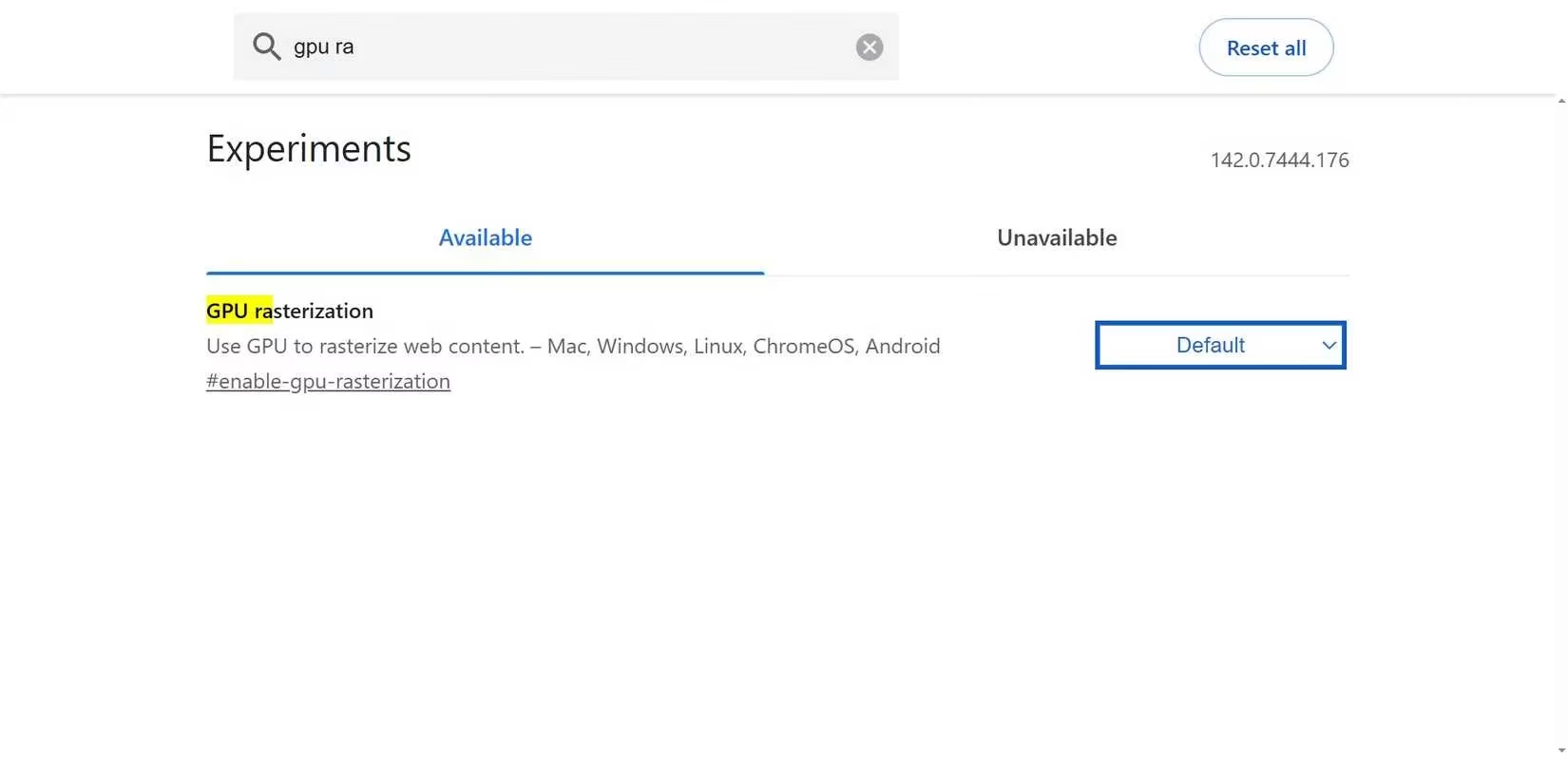
2. GPU Rasterization: Let Your Graphics Card Do the Heavy Lifting
'Rasterization' is a fancy word for the hard work your browser does to turn website code into the pictures and text you see on screen. For the longest time, this was a job for your computer's main brain (the CPU). But when you've got 50 tabs open, that poor CPU gets overwhelmed.
This flag is a game-changer. It forces Chrome to hand off this visual rendering task to your graphics card (GPU). GPUs are literally built for this—handling pixels and visuals is their whole purpose! So, enabling this frees up your CPU to manage other stuff (like those pesky background scripts), while the GPU makes scrolling buttery smooth and pages render in a blink. It's especially noticeable on media-heavy sites or if you have a fancy high-res monitor. My browser just feels... snappier. No other word for it.
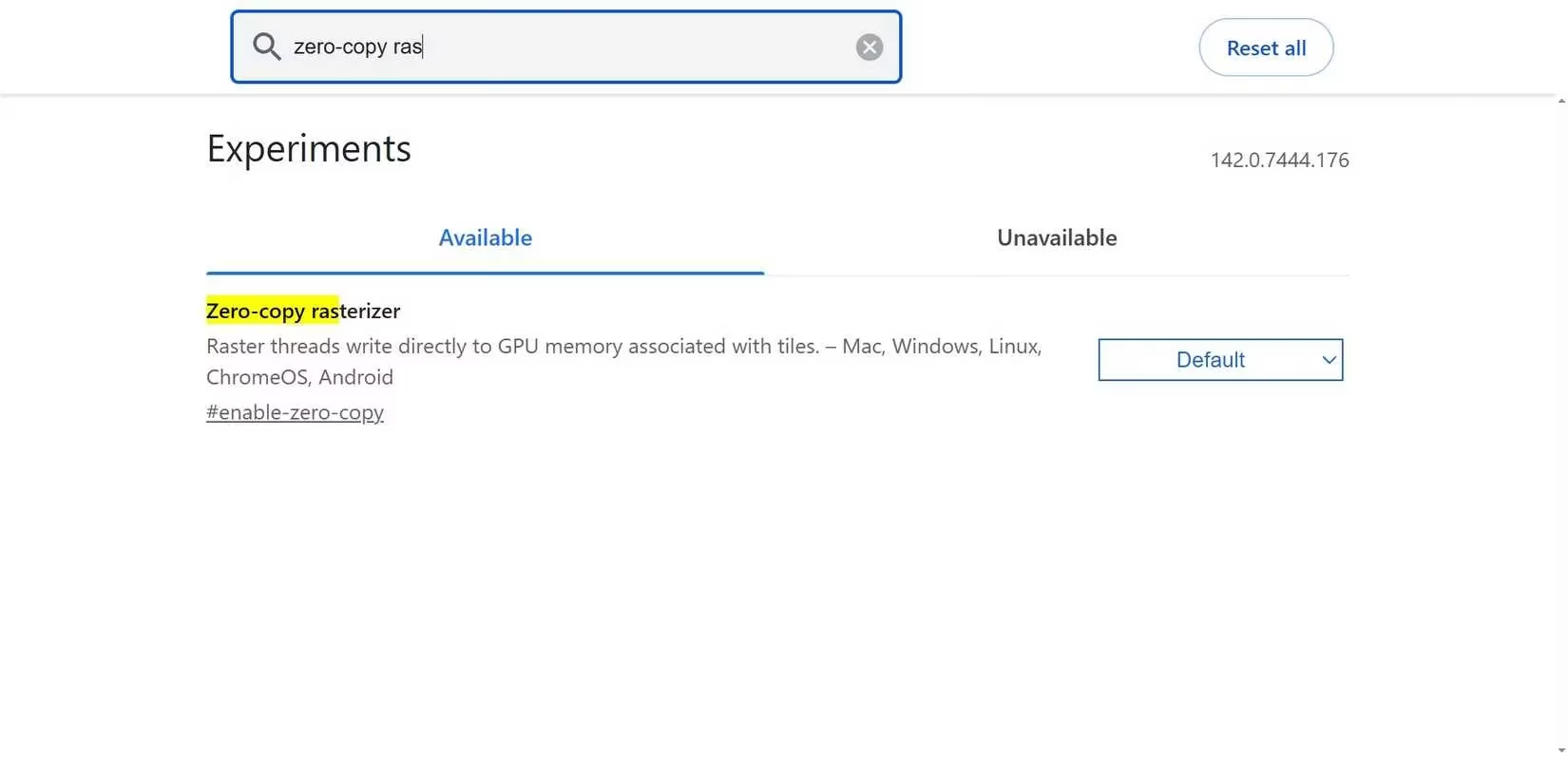
3. Zero-Copy Rasterizer: The Efficiency Buddy
Okay, so you've got the GPU doing the work. But guess what? There's a sidekick flag that makes it even more efficient. I love finding these little optimization pairs—it's like a two-for-one deal for browser speed!
Even with GPU rasterization on, there's usually an extra, tiny step where data gets copied to a temporary spot in your system's memory before going to the GPU. This 'zero-copy' flag cuts out that middleman. It lets the browser write directly to the GPU's memory. We're talking shaving off microseconds per frame, but when you add up thousands of frames while scrolling through your feed... you feel it. Pages render more instantly. And a nice bonus? On my laptop, I swear it helped my battery last a bit longer. Less work for the system means less power drain. Win-win.
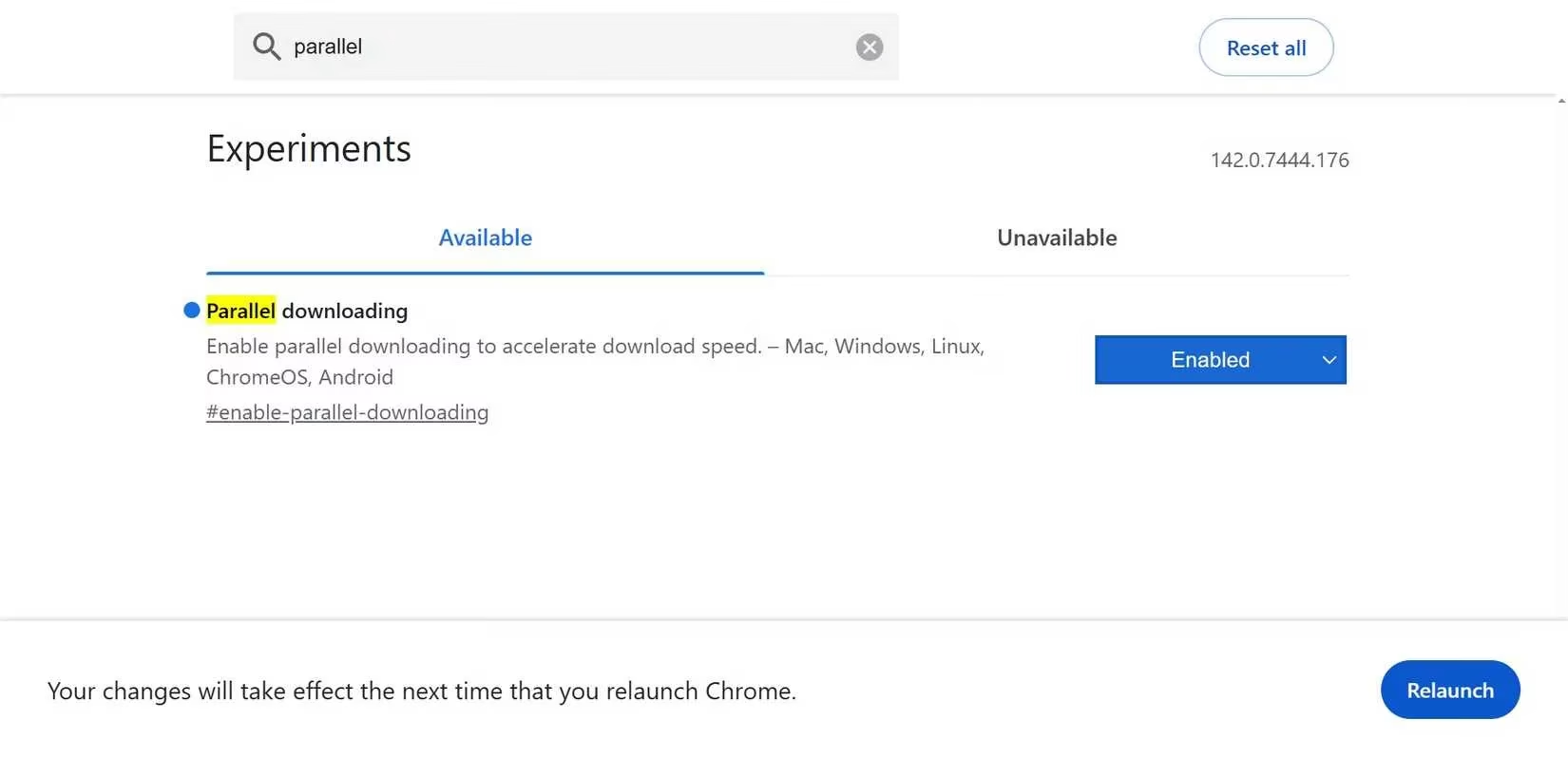
4. Parallel Downloading: Open More Checkout Lanes
Who doesn't want faster downloads? This one is straightforward but brilliant. By default, Chrome downloads a file using a single connection to the server. If that server is busy or limits speed per connection, you're stuck waiting.
Parallel downloading changes the game. It's like the supermarket opening all its checkout lanes for one customer. The browser breaks a big file into chunks and downloads them all at the same time using multiple connections. Then it stitches them back together. If you often download large files, games, or video content, this flag can seriously cut down your wait time. It maxes out your available bandwidth. Now, it doesn't make the browser itself faster per se, but getting my files quicker? That's a clear quality-of-life upgrade. If things are still slow after this... well, maybe it's time to look at your Wi-Fi, just saying.
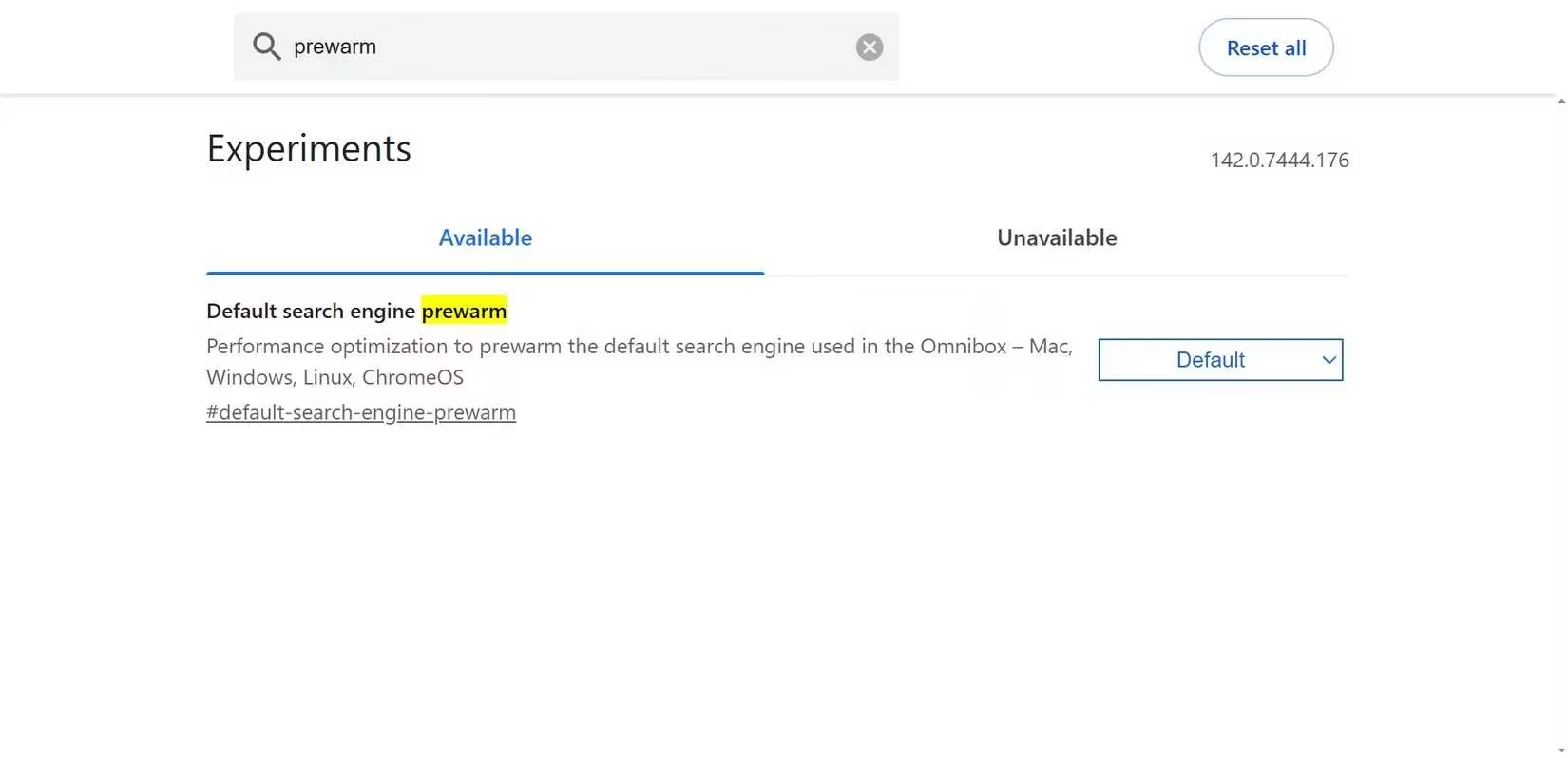
5. Default Search Prewarm: Like Preheating Your Oven
This last one is for the power users who live in the address bar (you know who you are). The omnibox is where we do everything—search, navigate, you name it. Most of the time, it's just sitting there, waiting for you to type.
The 'prewarm' flag tries to get a head start. Think of it like preheating your oven before you put the pizza in. While you're still typing your search query, Chrome is already working in the background to do the DNS lookup and establish the initial connection. This shaves off those vital milliseconds. If you're a fast typer who relies on the address bar for everything, this small optimization adds up throughout the day. The browser just feels more responsive, like it's reading your mind. A little creepy, but mostly awesome.
A Quick Heads-Up Before You Go Wild
Now, a little reality check. These are 'experimental' features for a reason. They're not guaranteed to stick around forever, and sometimes they might behave a bit... weirdly. If your favorite flag disappears one day, it could mean Google liked it so much they baked it into the main browser (yay!), or they decided it wasn't worth keeping (boo!).
But that's the fun part, right? It's like a little secret garden of speed boosts. By the time one feature leaves, there's usually a new one waiting to be discovered. So go ahead, give these a try. Your slower, RAM-hungry Chrome might just thank you for it. Mine definitely did. ✨