
My 2026 Guide to Installing and Using AA Browser on Android Auto
AA Browser unlocks web access on Android Auto after enabling Developer mode, installing via AAAD, and allowing Unknown sources.
I have used Android Auto for years, and it handles navigation, calls, and media playback beautifully. But there has always been one glaring limitation: no browser support. Google intentionally blocks web browsing to reduce distracted driving, which is understandable. Yet I often found myself sitting in my car during long waits — at a charging station, in a parking lot, or waiting to pick someone up — wishing I could use the car's larger display for something other than maps and music. That curiosity led me to AA Browser.
AA Browser is an open source browser built specifically for Android Auto. It lets you browse the web, stream videos, and access online content directly from the car's console. After reading about it, I decided to install it and see how well it actually works in 2026.
The first thing I had to do was enable Developer mode on Android Auto. I opened the Settings app on my phone and navigated to Connected devices. Then I tapped Connection preferences and selected Android Auto settings. I scrolled all the way down until I saw the Version tab and tapped it once. A version and permission info screen appeared. At that point, I tapped the version number seven times. A pop-up asked for confirmation, so I tapped OK to enable developer settings. It was surprisingly easy once I knew where to look.
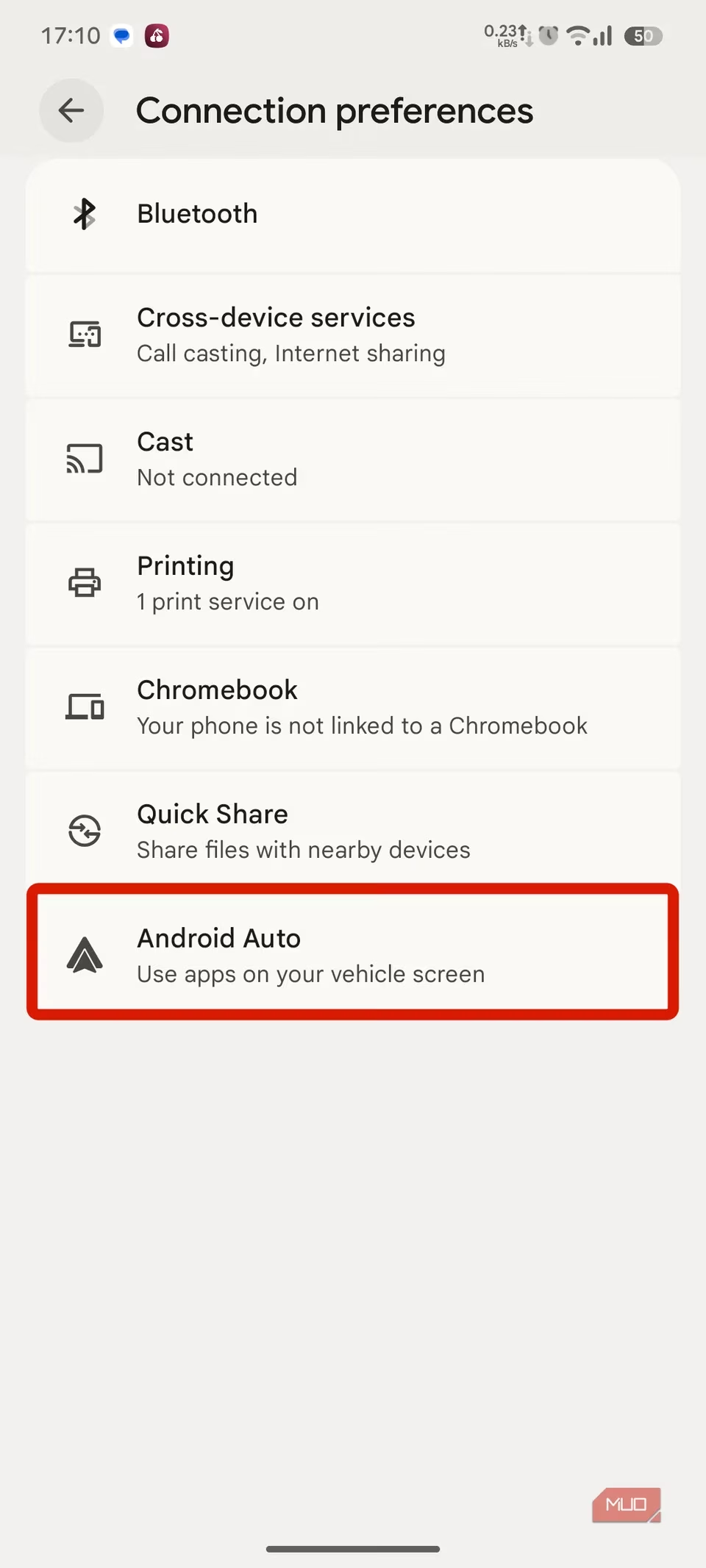
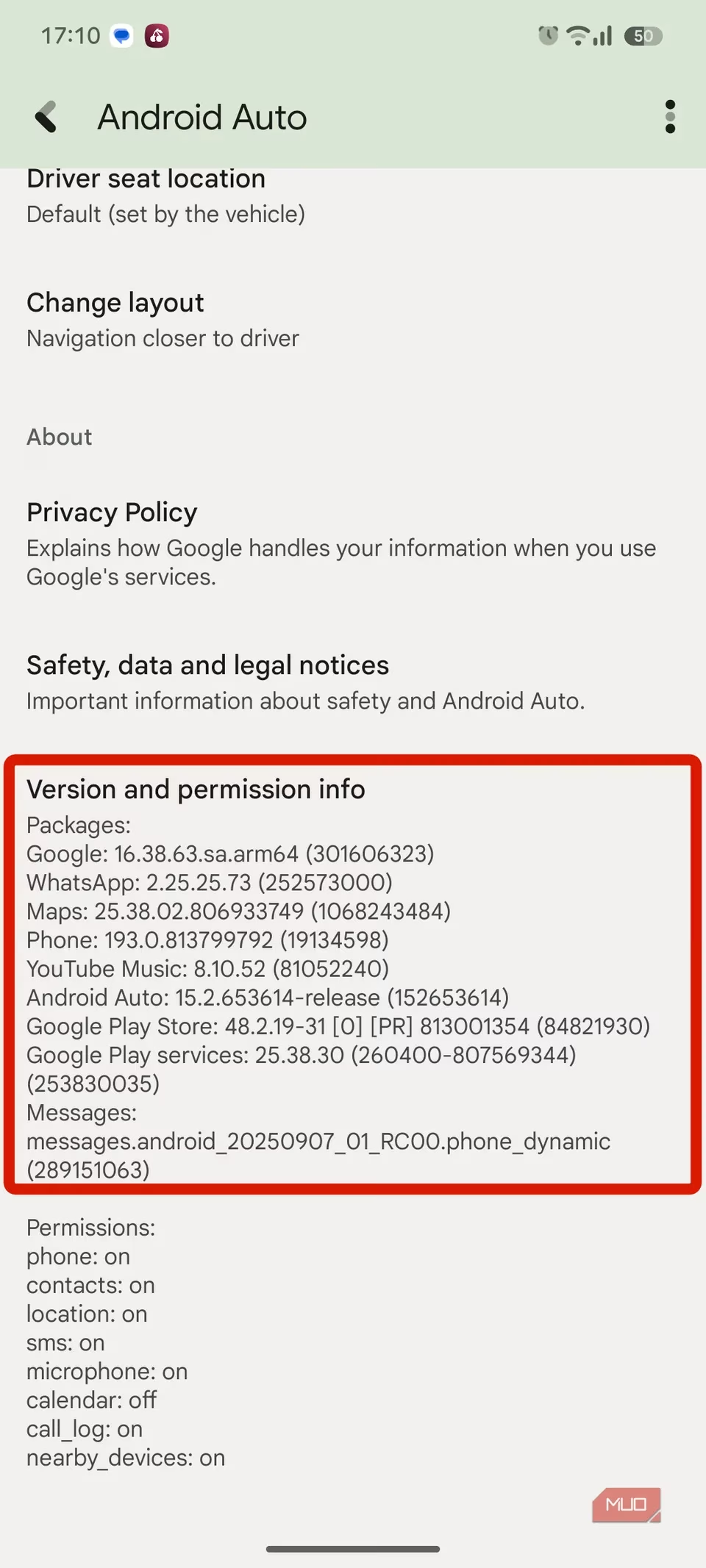
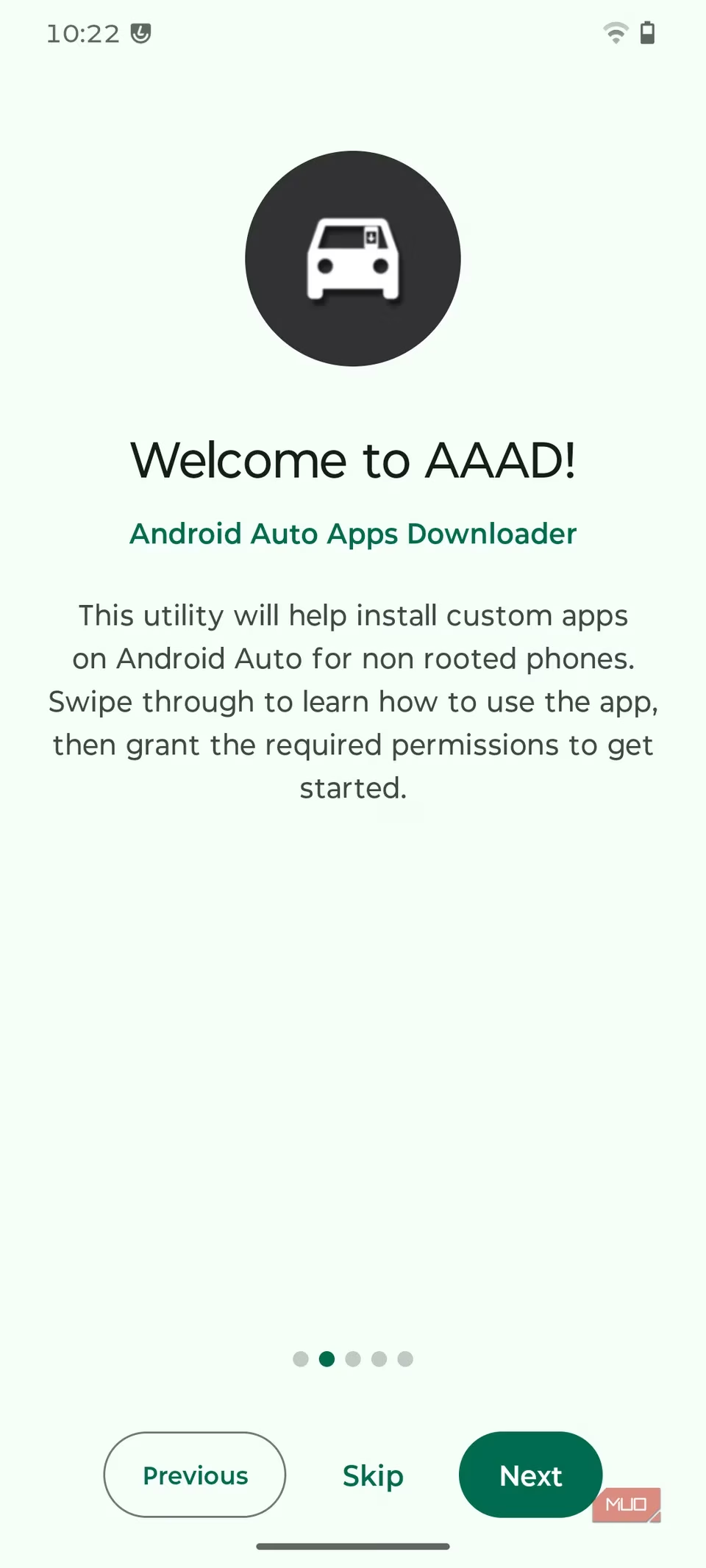
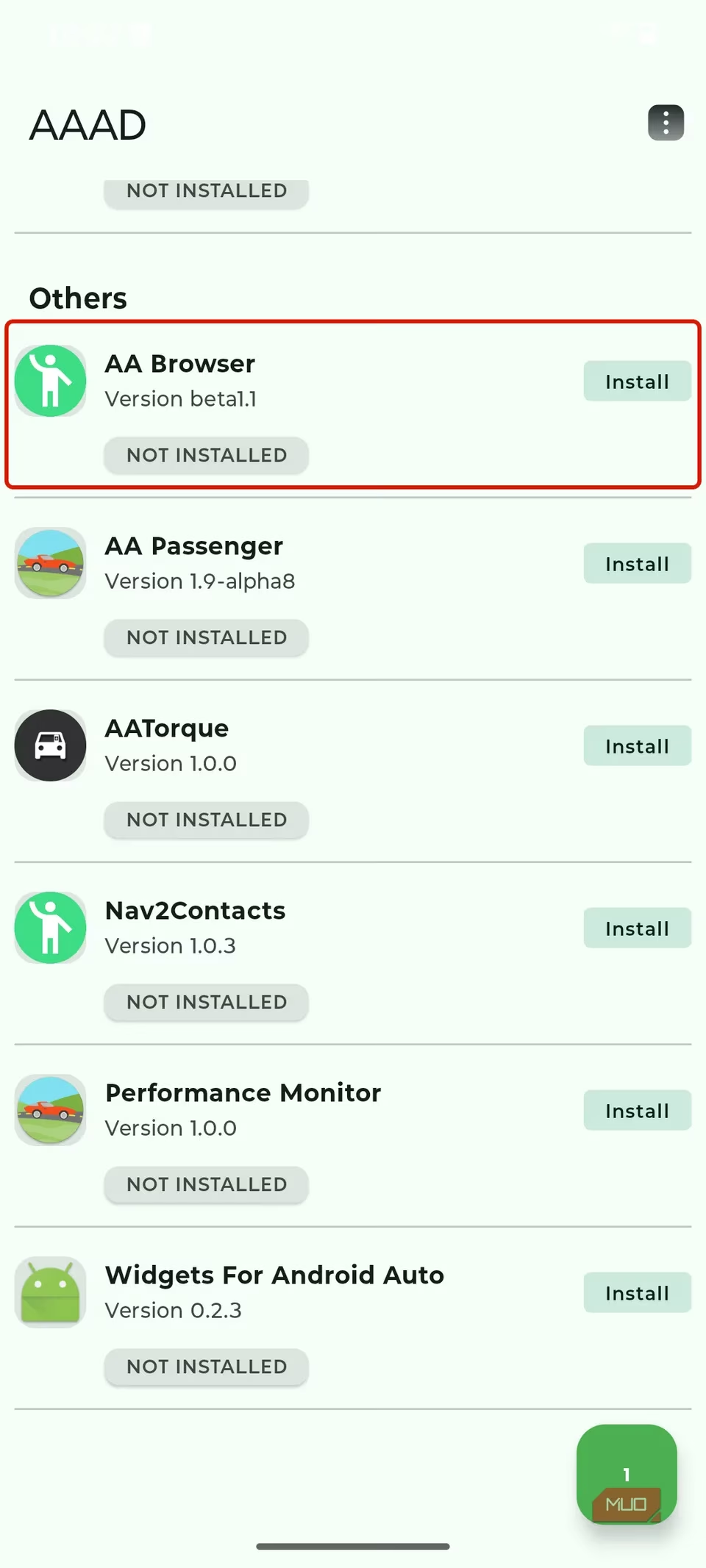
With developer mode enabled, I still needed the actual AA Browser app. This is where a companion app called AAAD comes in. I downloaded AAAD from GitHub and opened it. After getting through the welcome setup, I went to the Others tab and selected AA Browser. I tapped download and then install. The app installed quickly without any extra permissions.
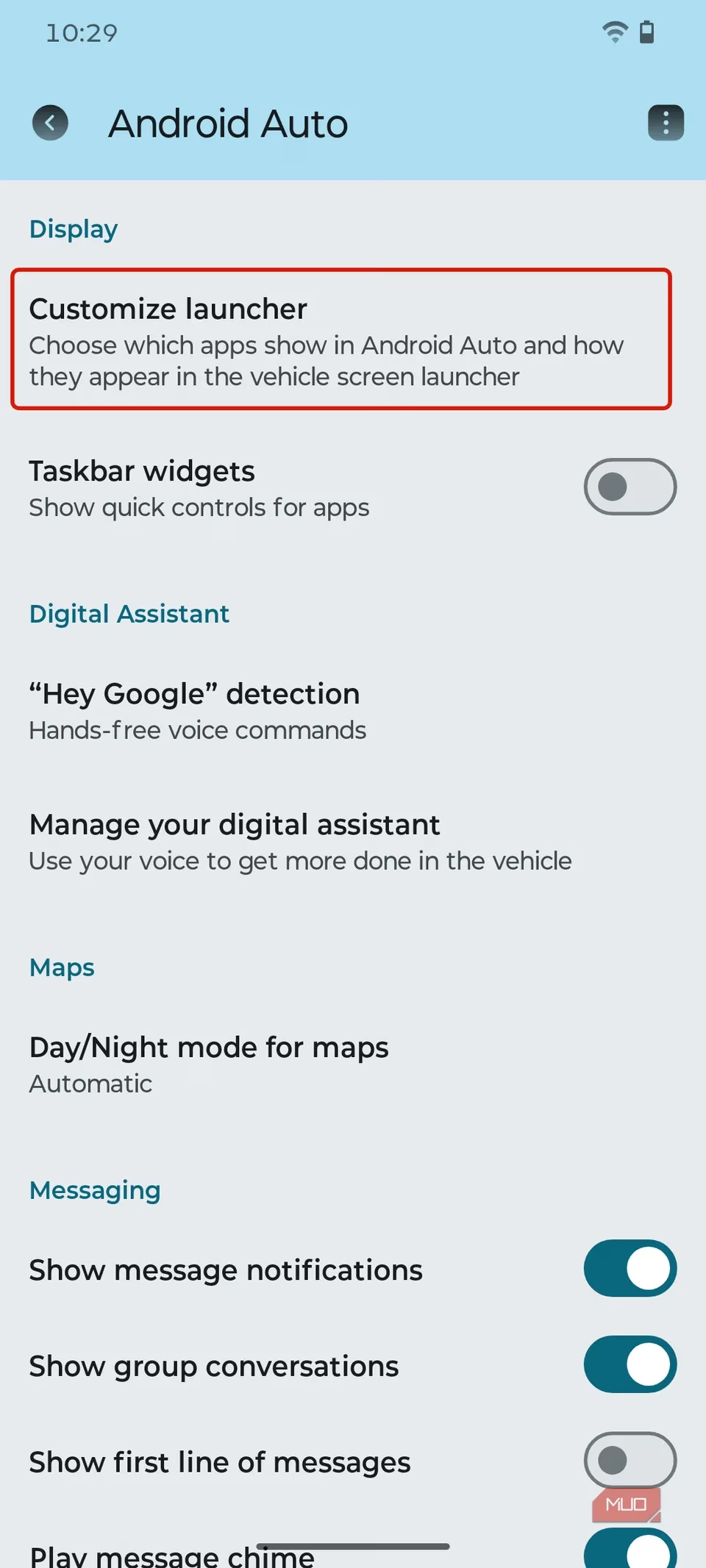
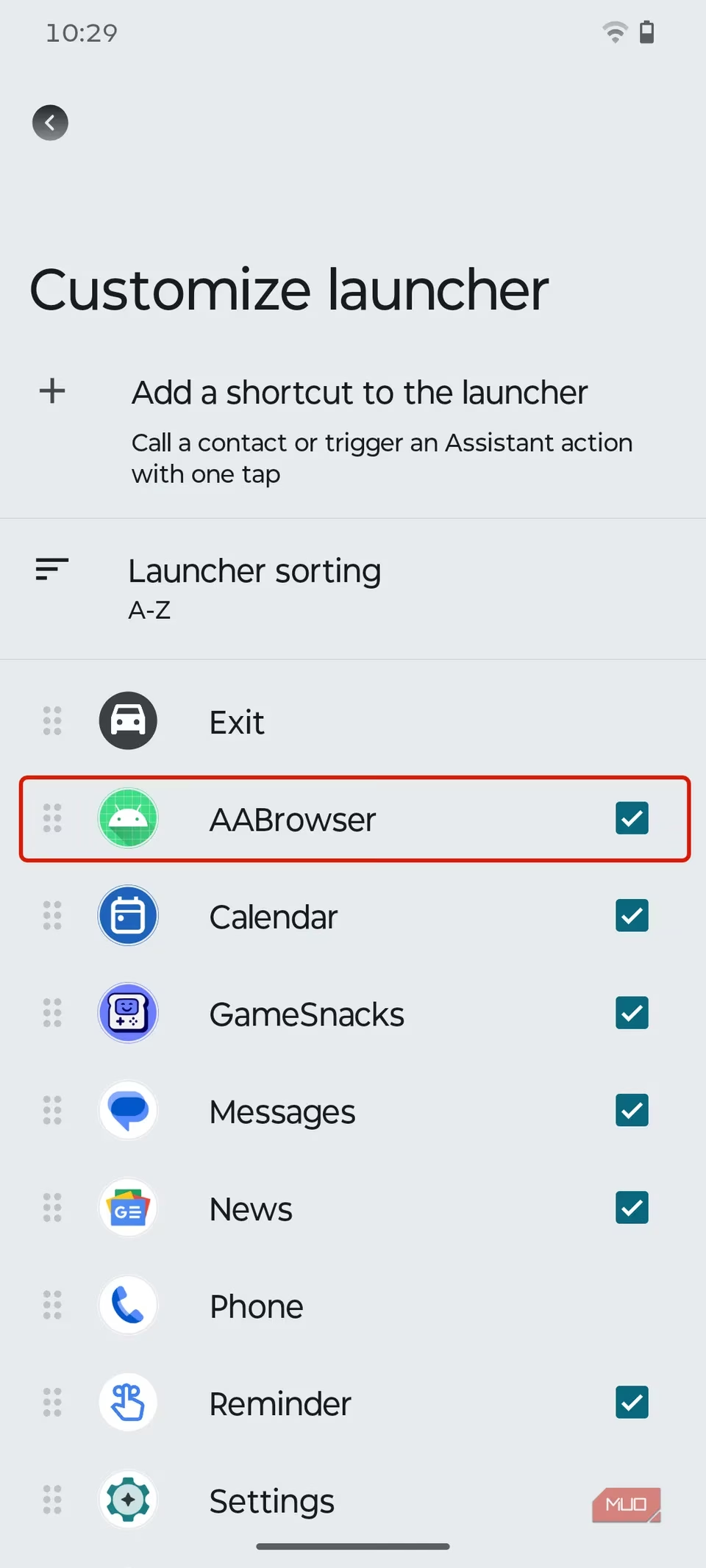
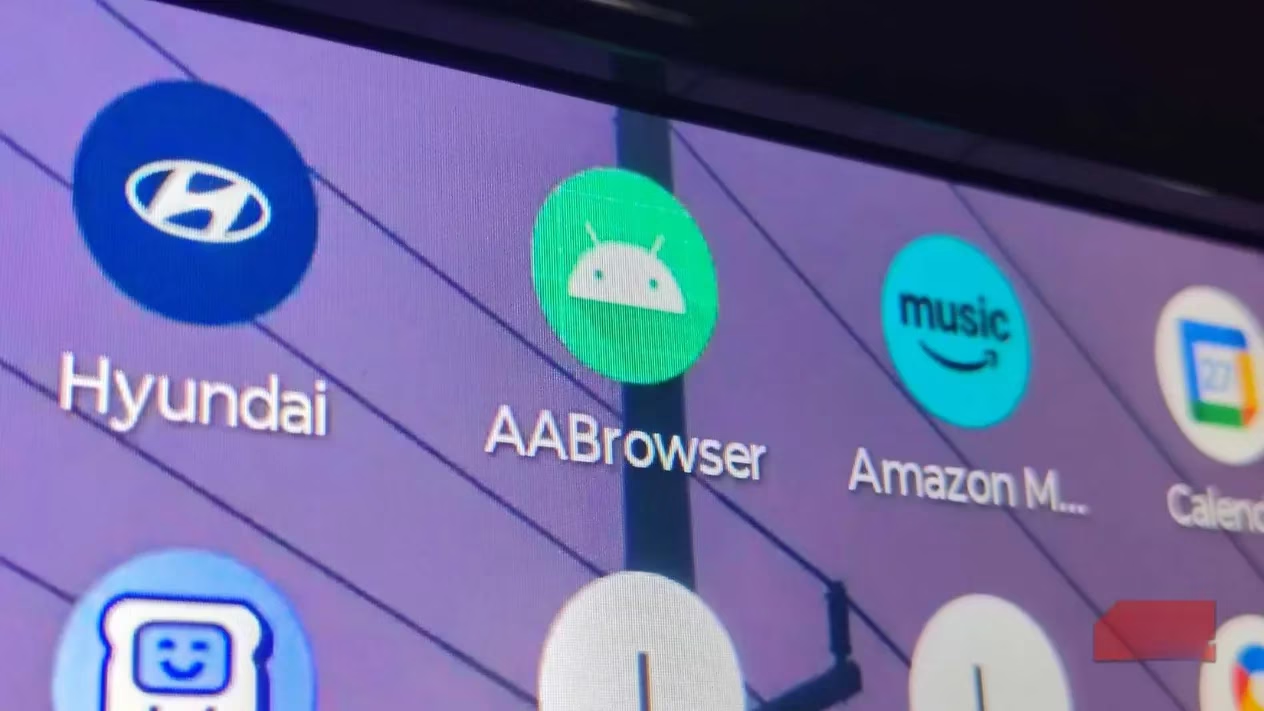
After installing AA Browser, I returned to Android Auto settings. I tapped the three-dot menu in the top right corner and opened Developer settings. There, I enabled Unknown sources. This step is important because Android Auto blocks unofficial apps by default. Then I went back to the main Android Auto settings dashboard and tapped Customize Launcher under Display settings. In the launcher customization screen, I enabled AA Browser. When I reconnected my phone to the car, AA Browser appeared right in the Android Auto launcher list on my car's console.
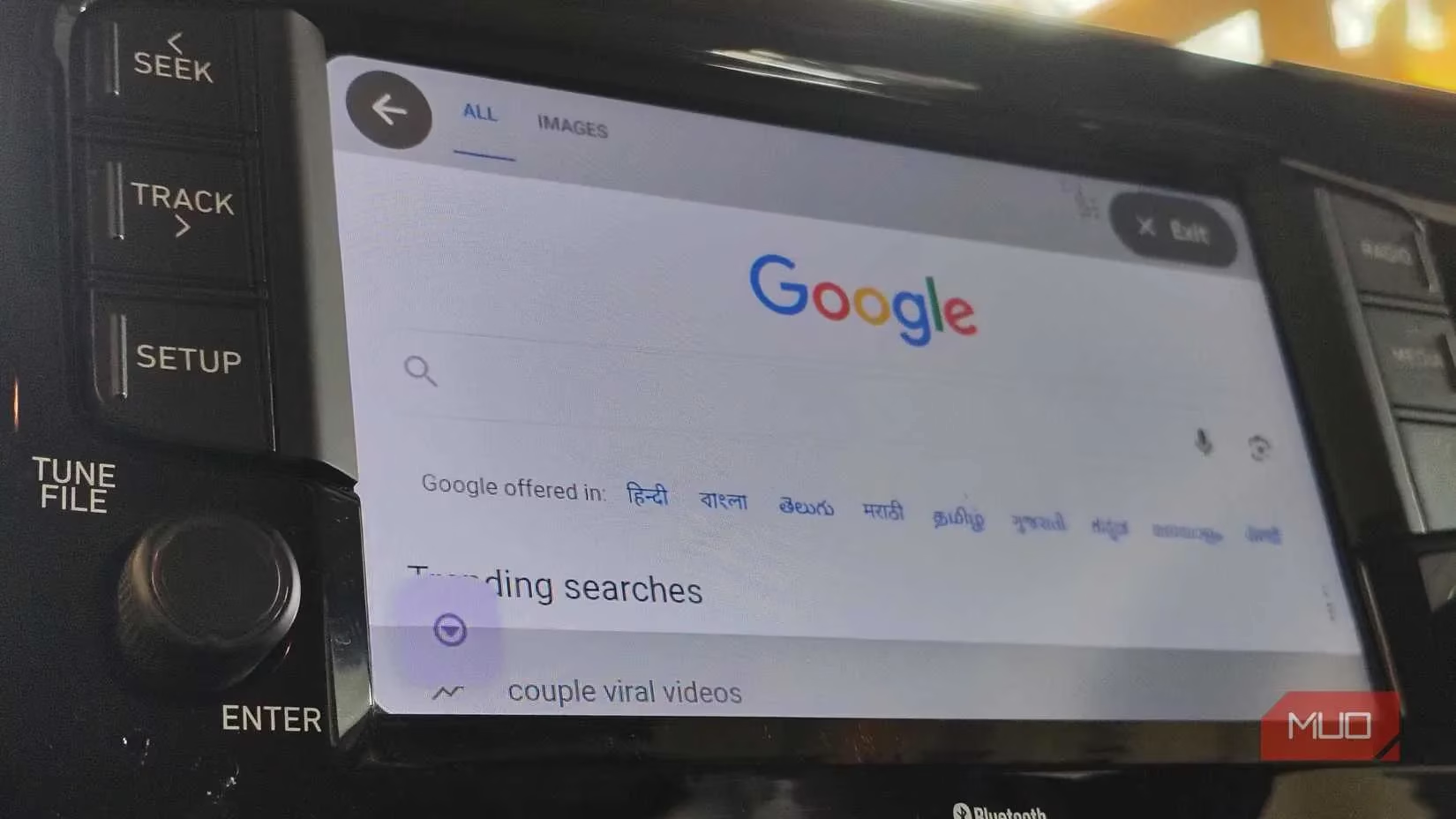
Using AA Browser from the driver's seat while parked felt surprisingly natural. The interface is designed for car displays and touch screens, which gives it a real edge over a traditional mobile browser. I tested YouTube playback, and videos ran smoothly. I also tried an IPTV site that offered free-to-air channels, and it worked nicely for passenger entertainment. Multi-tab browsing is supported as well, which came in handy during a long wait in a store parking lot. The app really is more than just a basic browser — it doubles as an online media player created specifically for Android Auto.
One feature that stood out to me was the safety behavior. AA Browser completely disables browsing and video playback while the vehicle is moving. It works over both wired and wireless Android Auto connections, but the moment the car starts rolling, everything pauses. This design choice aligns perfectly with Android Auto's core mission: keeping drivers focused on the road. When the car stops, the browser becomes available again. As of 2026, this behavior remains one of the best reasons to trust the app.
So why would anyone want a browser in Android Auto? The answer is simple: idle time. Waiting at a charging station can easily take 20 or 30 minutes. Waiting in a parking lot or for a passenger is just as common. Instead of hunching over a phone, I prefer using the car's larger, centrally placed display. A browser becomes a front-end for utility sites, video players, and streaming services that do not have native Android Auto support. The point is not to browse while driving — it is to make those inevitable idle moments more enjoyable and productive.
That said, there are some limitations I have to mention. The biggest one is AAAD itself. You can only download one app every 30 days. That means once you grab AA Browser, you cannot update it until the 30-day window resets. You also have to keep AAAD installed for AA Browser to function. Additionally, local laws matter. Some regions prohibit video playback in vehicles entirely, and traffic laws may apply even when the car is parked. I checked the rules in my area before relying on video streaming.
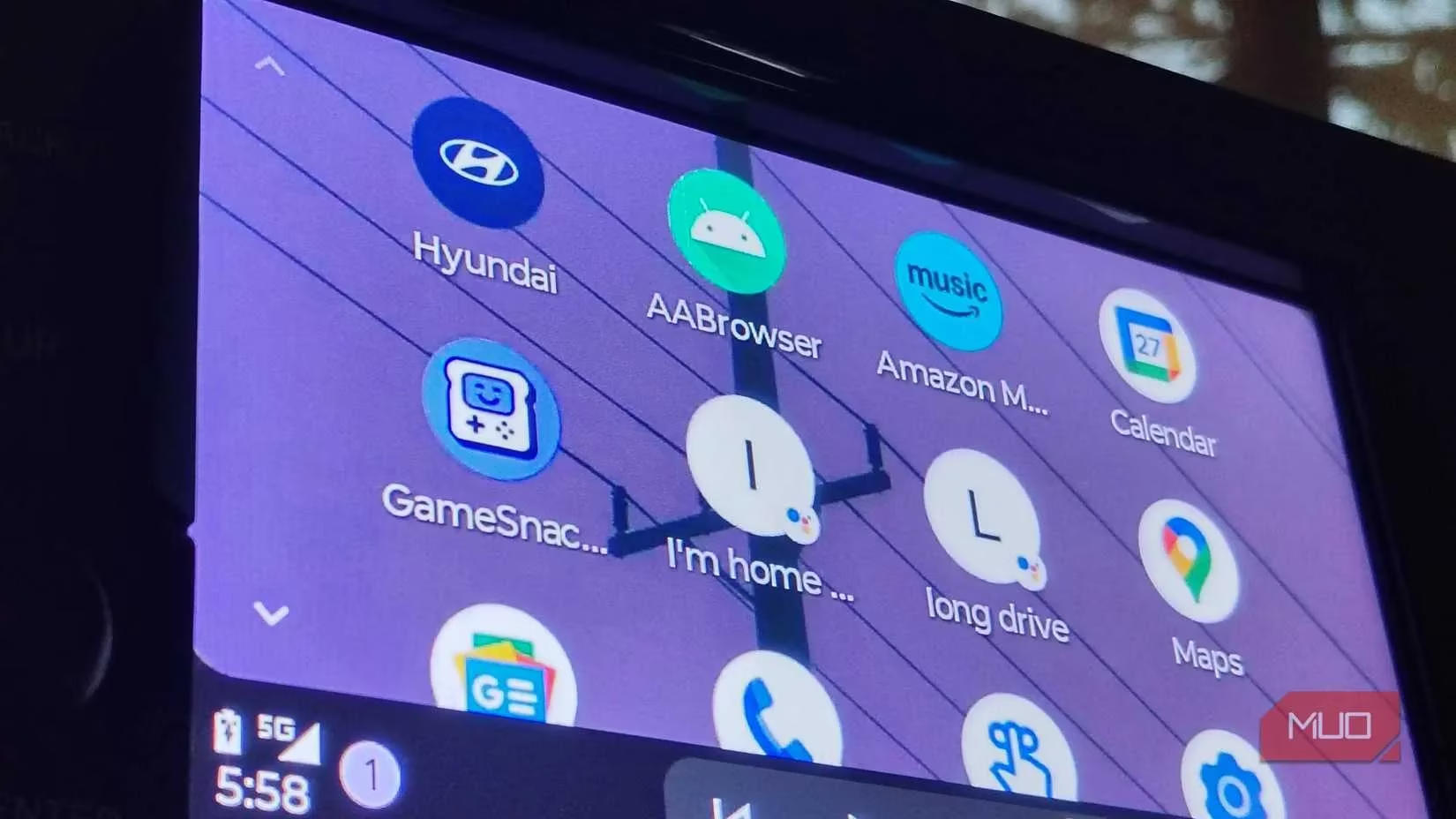
In summary, AA Browser has become a solid in-car multimedia companion for me. It adds web browsing and video streaming in a way that feels designed for safe, convenient use when the car is parked. It effectively turns the console into a flexible information hub, making idle moments far less boring. And because it shuts down completely when the vehicle moves, I can stay focused on the road. If you want more from Android Auto than navigation and music, AA Browser is well worth the setup effort.