
I'm a Lazy Genius: How Windows Clipboard History Turned Me Into a Productivity Monster
Windows Clipboard history (Windows+V) lets you pin frequently copied text for one-click pasting—declutter your workflow.
I'll be honest: I’m that person who tries to automate breathing if it saves a millisecond. We all get the same 24 hours, and I refuse to spend mine watching a loading spinner or retyping the same email sign-off for the millionth time. This obsession with shaving off seconds led me to a feature that’s been hiding in plain sight on Windows for years, yet almost nobody uses it to its full, glorious potential. I’m talking about the Clipboard history—and since 2026 is already halfway gone, I’m shocked how many people still treat it like a basic copy-paste mule.
Most folks live in Ctrl+C and Ctrl+V bliss, completely unaware that their computer has been quietly hoarding every snippet they’ve ever copied. It’s like finding out your quiet neighbor has a secret vault of useful stuff. Hitting Windows+V doesn’t just paste the last thing you copied; it opens a time capsule of your most recent 25 text blocks. Think of it as a short-term memory upgrade for your brain, one that never forgets whether you copied that killer subject line or the three paragraphs from a report you’re Frankensteining together.
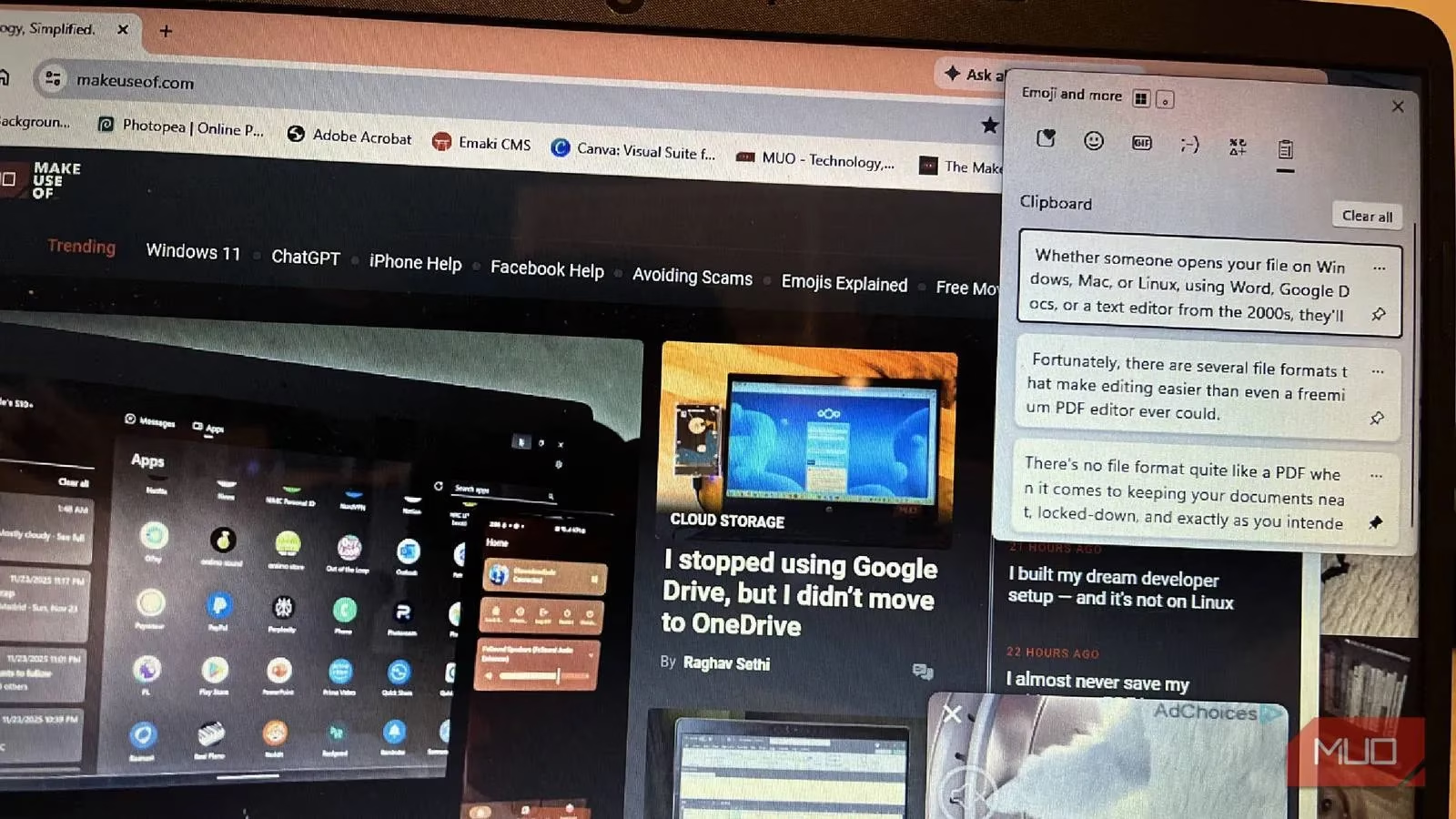
Here’s where the real magic kicks in. I used to be the kind of person who would copy one thing, paste it, then copy another, and repeat like a digital hamster on a wheel. It felt productive, but it was just busywork. Once I started using the history panel, I began treating my copy function like a shopping cart. Yesterday, for instance, I had to merge three sprawling documents into one coherent monster. Instead of hopping between windows like a caffeinated grasshopper, I copied entire sections from all three documents first. Then I opened the Clipboard history and simply clicked the chunks I needed, pasting them in the exact order I wanted. It was like arranging building blocks rather than weaving tangled threads. The new document came together in half the time, and I looked like someone who really has their act together.
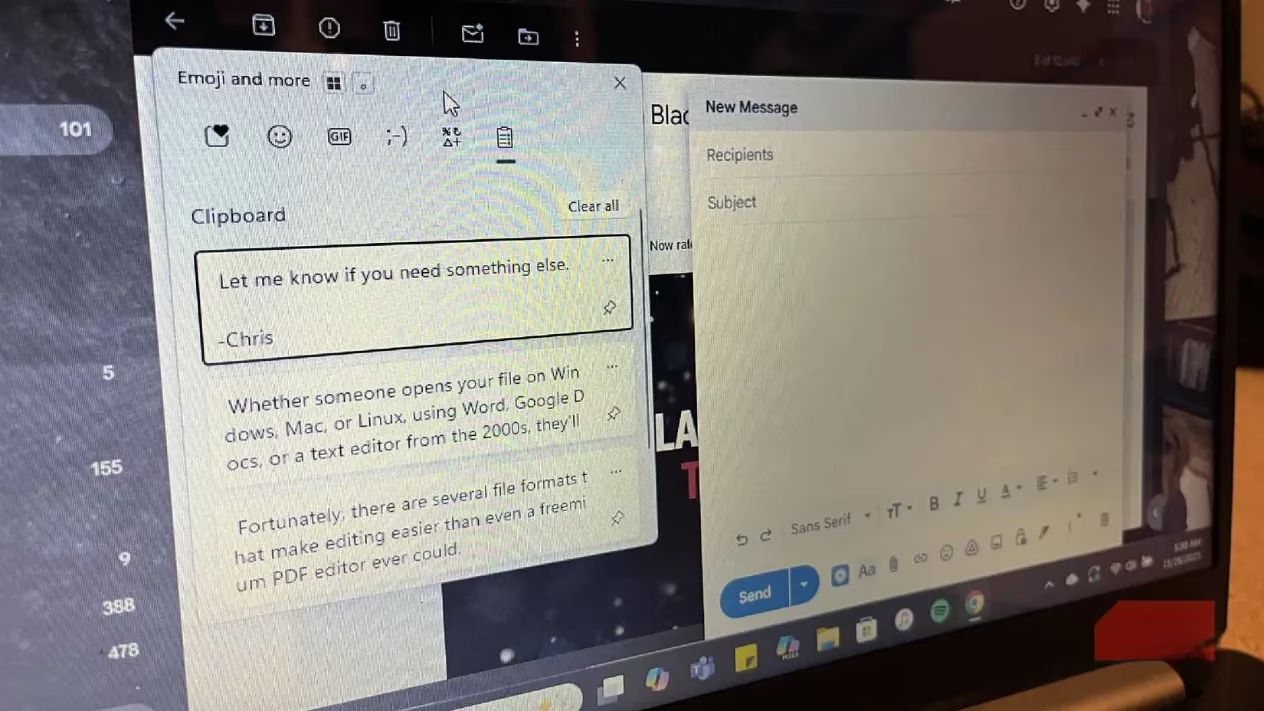
But wait, there’s more—because Windows, in its occasional brilliance, lets you pin items permanently to that history. Each snippet has a tiny pin icon, and clicking it tells the computer, “This one stays, no matter what.” The 25-item limit only applies to unpinned stuff; pinned items are immortal until you unpin them yourself. I’ve abused this for my email signatures. Instead of fiddling with Outlook’s signature menu every time I need to switch from “Cheers” to a formal sign-off with my contact details, I just keep both pinned. When composing an email, I hit Windows+V and click the one I want. It’s like having a wardrobe of closings ready at my fingertips. No more opening a draft email as a makeshift template graveyard. These pins survive restarts, updates, and probably a minor apocalypse.
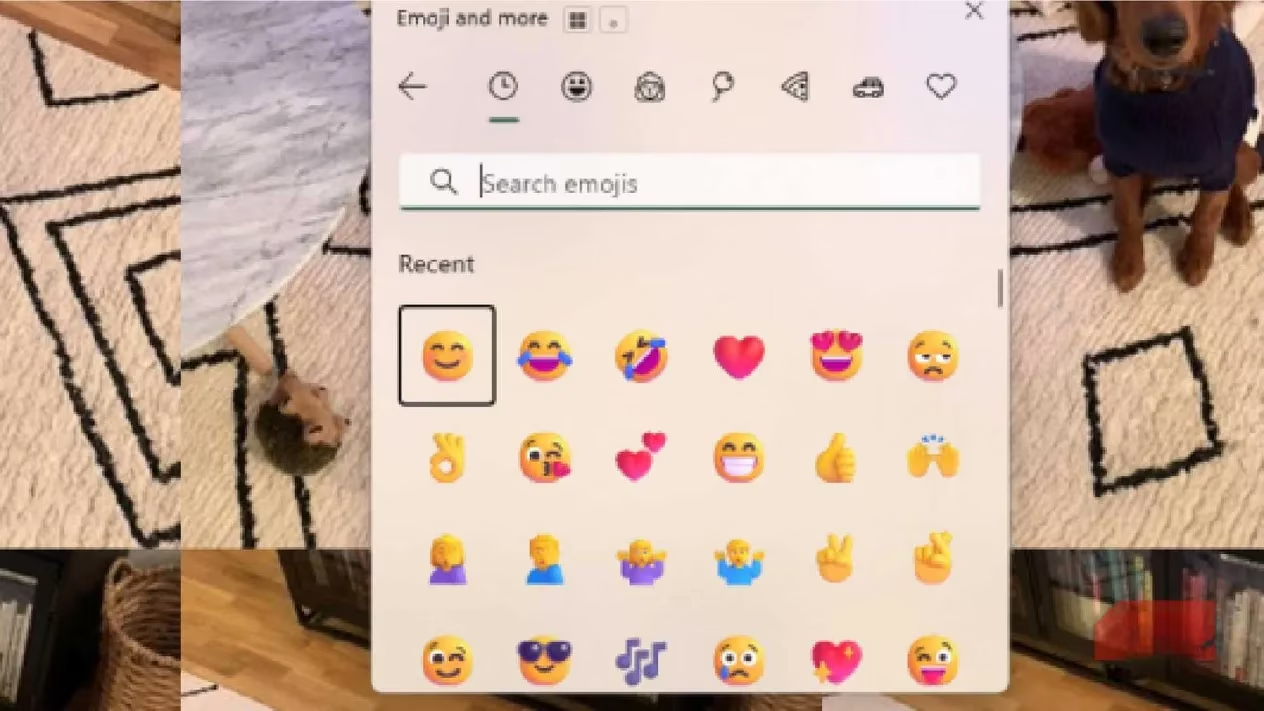
As if that weren’t enough, the Clipboard history panel moonlights as an emoji and GIF powerhouse. If you’re a traumatized Gmail user who’s wrestled with its clunky emoji inserter, you’ll weep tears of joy. Press Windows+V, and at the top of the panel there’s a row of tabs—emojis, kaomojis, GIFs—just waiting to be unleashed. I’ve turned dry project updates into mini art exhibits by dropping in the perfect GIF of a cat flipping a table. You can search for GIFs right there by keyword, with no third-party keyboard required. Whether you’re spicing up a slideshow or adding a wink to a Teams message, this little panel turns you into a master of digital expression without breaking your flow.
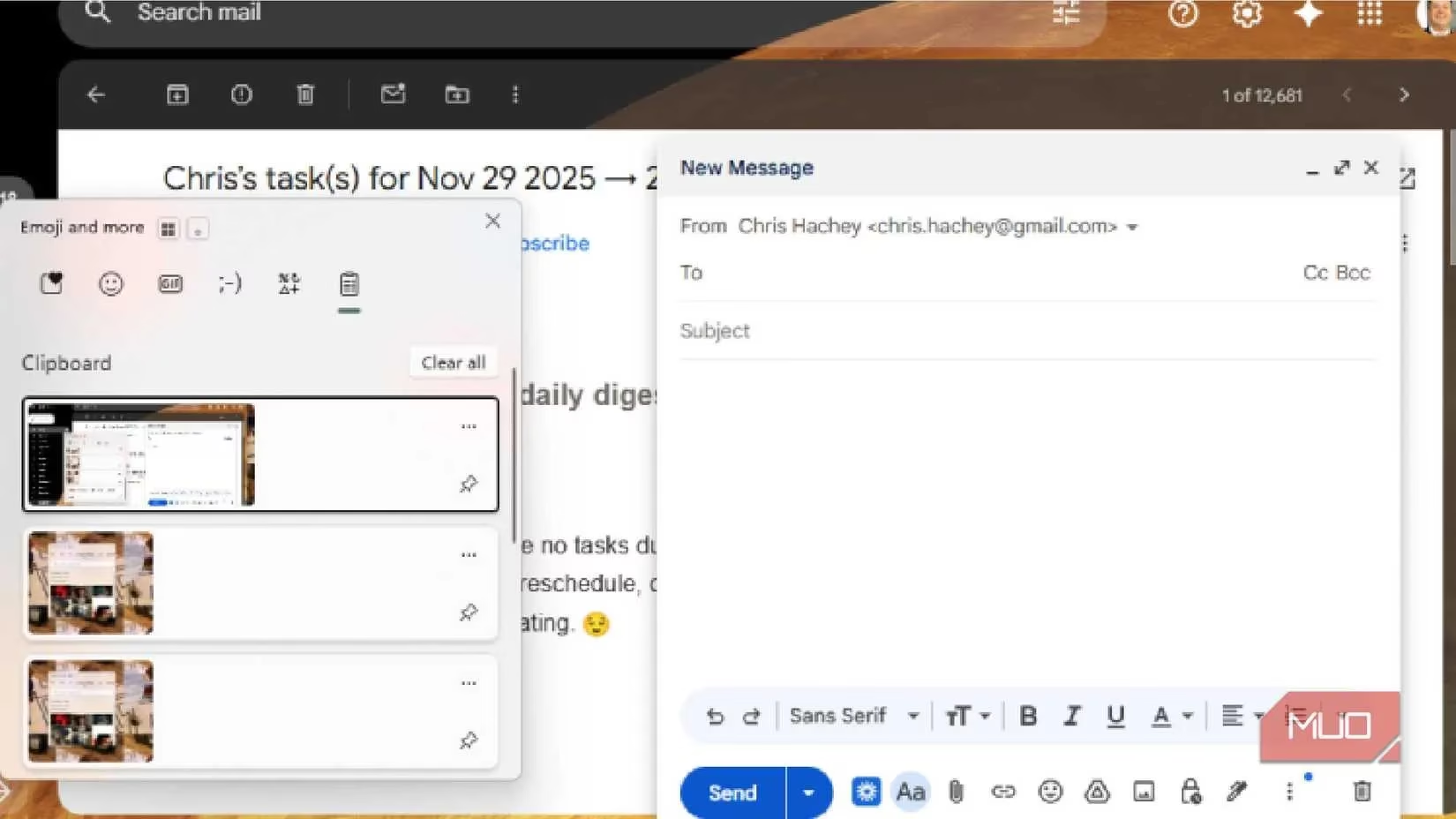
Now, let’s talk about the ultimate productivity hack that still feels like wizardry in 2026: clipboard syncing across devices. Your clipboard isn’t stuck on one machine. If you’re signed into your Windows account, those pinned and recent items can follow you to any other Windows PC you log into. I’ve drafted a huge block of text at home, pinned the crucial bits, then driven to a print shop or coworking space and simply logged in. Boom—everything was there, ready to be pasted. No emailing myself drafts, no USB stick dangling from my keychain like it’s 2015. And because there’s no character limit on what you save (yes, you can store entire documents), I’ve pinned entire project briefs without breaking a sweat.
Of course, with great power comes great responsibility. Unpinned history gets cleared on restart or when you exceed 25 items, so if you’re the kind of person who copies 50 things before remembering to paste anything, learn to pin the important ones. It takes half a second and saves you from that sinking feeling of losing a perfectly crafted paragraph to the digital void.
At the end of the day, Clipboard history is the silent workhorse that can transform you from a frantic copy-paster into a smooth operator. It’s not just about saving a keystroke here and there; it’s about freeing your brain to focus on actual creative work instead of data shuffling. I’ve become so dependent on it that when I’m forced to use a computer without this feature, I feel like I’ve been demoted to a stone tablet and chisel. The next time someone tells you they’re too busy, quietly show them Windows+V. You’ll be gifting them hours of their life back—and looking like a lazy genius all the while.