
I Fixed My Phone's Battery Drain by Changing These Display Settings
Save battery on your phone by optimizing display settings: lower brightness, enable dark mode, and shorten screen timeout for longer life.
I used to think that limiting background app refresh, turning off automatic updates, and disabling GPS were the best ways to save battery on my phone. And they do help, but nothing has made a bigger difference than adjusting my display settings. Unlike other battery-saving tricks, tweaking the display doesn't slow down my phone or limit what I can do—it just makes the screen use power more efficiently. In 2026, with phones sporting brighter and higher-resolution screens than ever, this is more important than ever.
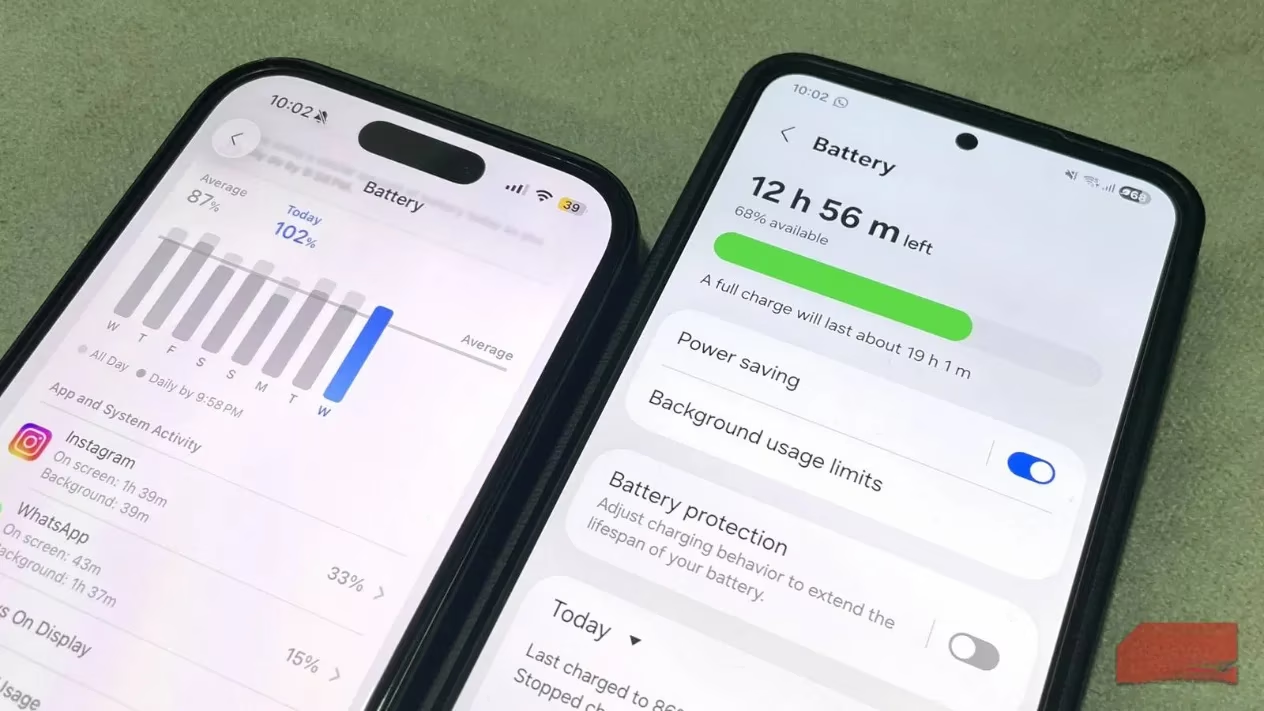
The display is the biggest energy hog in your entire device. It's like a tiny flashlight that never stops working. It has to stay bright enough to compete with sunlight, sharp enough to show every detail, and fast enough to handle smooth scrolling and video. All of that takes constant power. In fact, during daily use, it consumes more battery than the processor, camera, and apps combined. Every time I unlock my phone, millions of pixels fire up, each needing power. The always-on display keeps the screen awake even when I'm not using it. The bigger and brighter the display, the more energy it demands.
So even small changes to how your screen behaves can have a surprisingly big impact. If your battery seems to drop faster than expected, tweaking the display will make the biggest difference. Here's what I did.
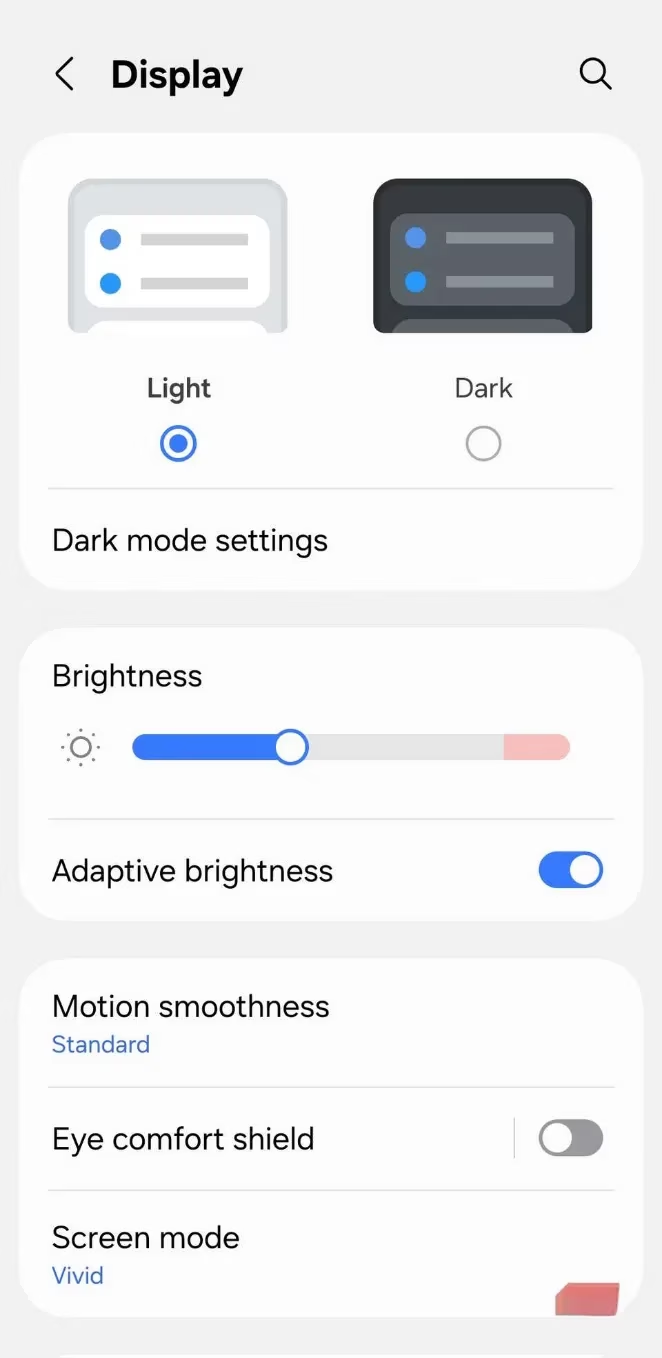
1. Turn Down the Brightness (or Use Adaptive Brightness)
If there's one thing that quietly eats your battery all day, it's screen brightness. When my screen was cranked up higher than it needed to be, my phone worked overtime to power all those glowing pixels. Even dropping the brightness slightly made a noticeable difference. But I didn't want to keep sliding that bar up and down, so I turned on adaptive brightness. It uses the phone's light sensor to figure out how bright the screen should be based on the surrounding lighting. Over time, it even learns my preferences and fine-tunes things, so the screen isn't blinding indoors or too dim outside.
2. Switch to Dark Mode
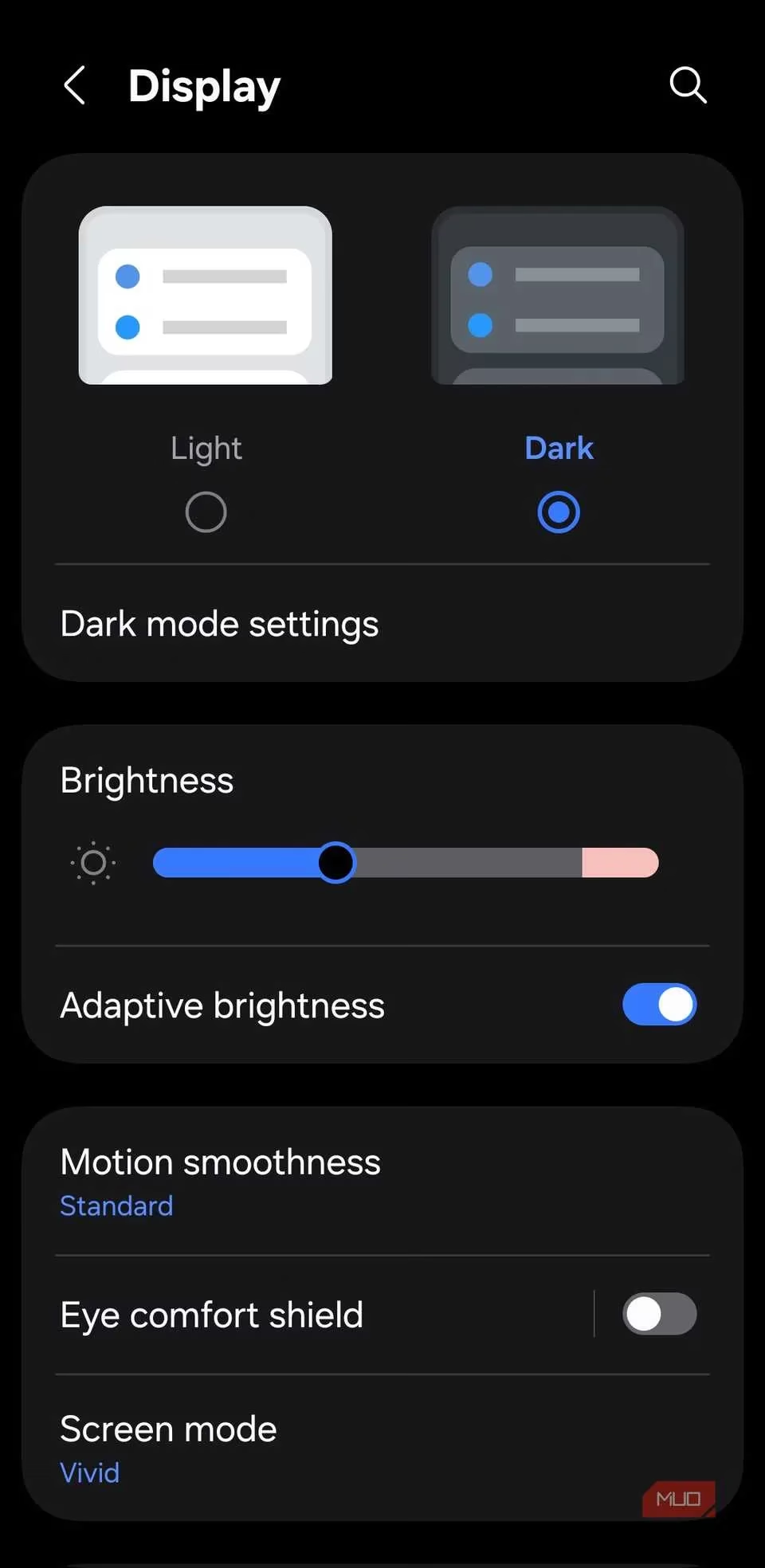
Dark mode has had the biggest impact on my battery life. Most phones nowadays have an OLED or AMOLED display, and on these screens, black pixels are not just dark—they're actually turned off. This means fewer pixels are lit at any given time, which results in better battery life. I switched my phone to dark mode permanently, and I've never looked back. It's easier on the eyes, too.
3. Shorten Screen Timeout
My phone doesn't need to stay awake as long as I think it does. Screen timeout is the amount of time the display stays on after I stop interacting with it. By default, it's set to 30 seconds on both Android and iPhone, but if you've increased it, it's best to lower it down to 15 or 30 seconds. Those extra seconds may not feel like much, but they add up when I leave my phone sitting idle dozens of times a day. Also, my phone already has a feature that can keep the screen awake when I'm looking at it, so I don't have to worry about the display turning off when I'm reading something important.
4. Disable Always-On Display
The always-on display feature comes pre-enabled on most phones, and it's quite convenient for checking the time and notifications at a glance. However, since it causes the display to stay awake, it does impact battery life. If you've checked your phone's battery usage menu, you'll probably see it sitting near the top. Even though it's more efficient than keeping the entire screen lit, it still uses power. I decided to turn it off, and I noticed a significant improvement. If you really like using it, you can prevent it from showing the wallpaper or set it to appear only at specific times.
5. Lower the Refresh Rate
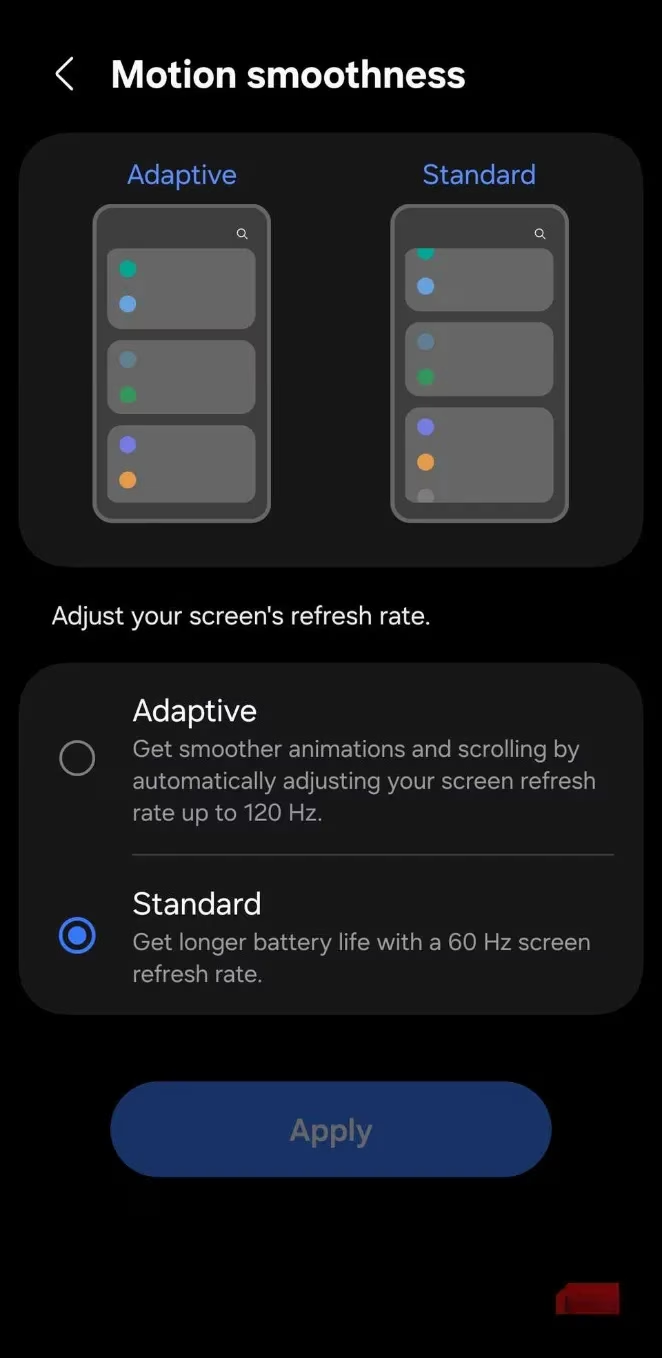
If you're using a flagship phone, it probably has a 120Hz refresh rate display. And yes, it looks fantastic. But all that smoothness comes at a cost. Higher refresh rates mean your screen is refreshing more times every second, which requires more power. For better battery life, I switched my refresh rate down to 60Hz. The difference might feel slightly noticeable at first, but once your eyes adjust, you'll barely notice it. On the other hand, if you're using a budget or older phone, you can consider reducing or turning off those animations your phone shows. To do this, you'll need to access the developer settings on Android and accessibility settings on an iPhone.
My Results
After making these changes, my phone's battery life improved dramatically. I went from charging twice a day to once every day and a half. The best part is that I didn't have to compromise on performance or notifications. My phone still feels fast, and I don't miss any alerts. Here's a quick summary of the settings I changed and the impact I noticed:
| Setting | Change | Battery Impact |
|---|---|---|
| Brightness | Adaptive brightness on | Moderate |
| Dark Mode | Always on | High |
| Screen Timeout | 15 seconds | Low |
| Always-On Display | Off | Moderate |
| Refresh Rate | 60Hz | High |
Battery life is one of the most important aspects of my smartphone, and tweaking the display settings is the best way to improve it without compromising performance. Even if you apply only one or two of the above tips, you'll definitely notice the difference. In 2026, with phones becoming more power-hungry, these tweaks are more relevant than ever. Give them a try—your battery will thank you.