
How to Stop Microsoft Edge From Hogging All Your PC's RAM in 2026
Microsoft Edge high memory usage on Windows 2026 can be fixed with built-in tools, sleeping tabs, and performance detector tweaks.
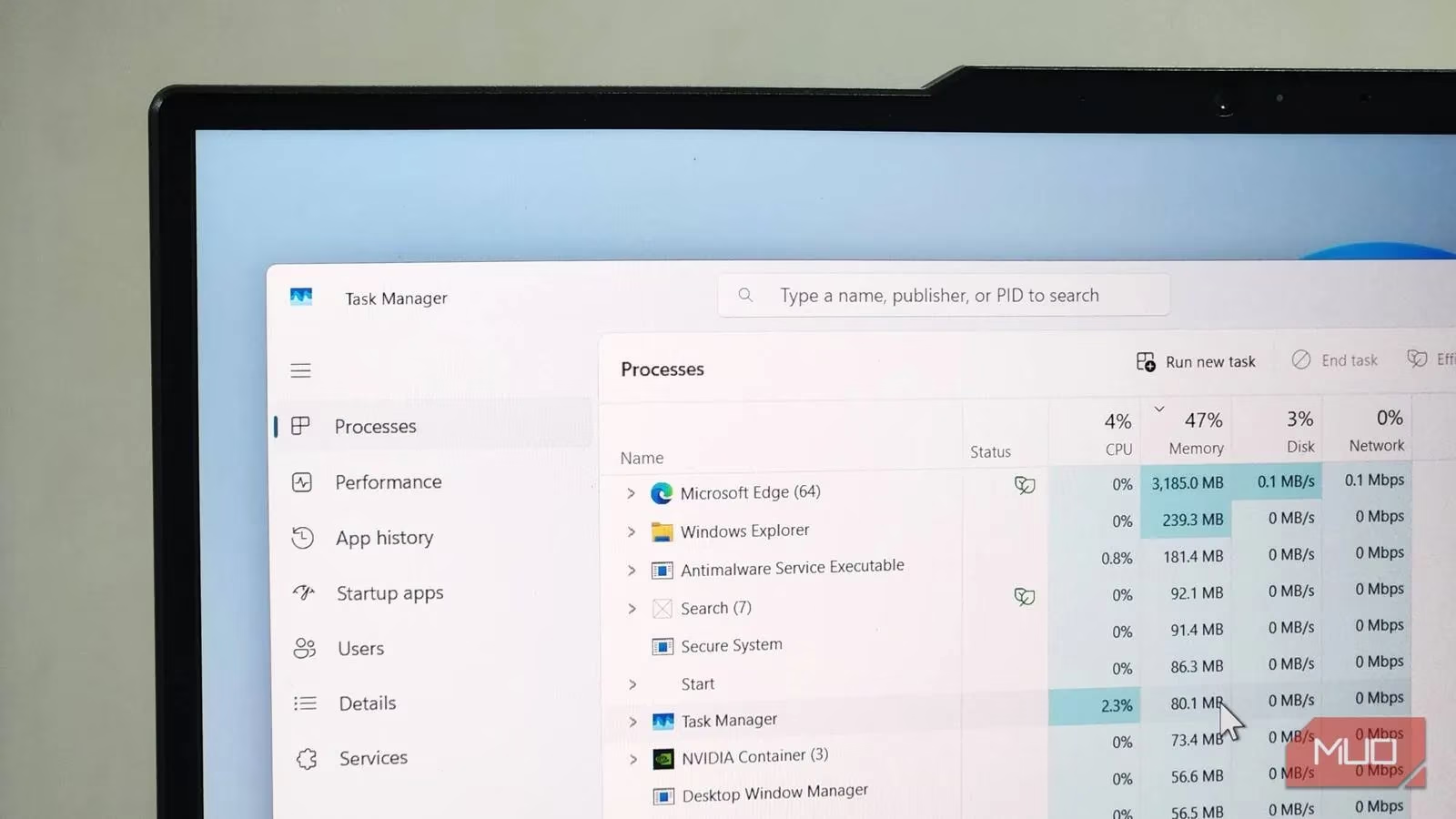
For many Windows users in 2026, Microsoft Edge has quietly evolved from a simple web browser into a system resource juggernaut. One minute everything is running smoothly, and the next the laptop fans are screaming like a jet engine. A quick peek at Task Manager often reveals the culprit: Edge sitting at the very top, devouring gigabytes of RAM. Instead of abandoning the browser entirely, many users have discovered that a few strategic tweaks can bring that memory usage back to a reasonable level.
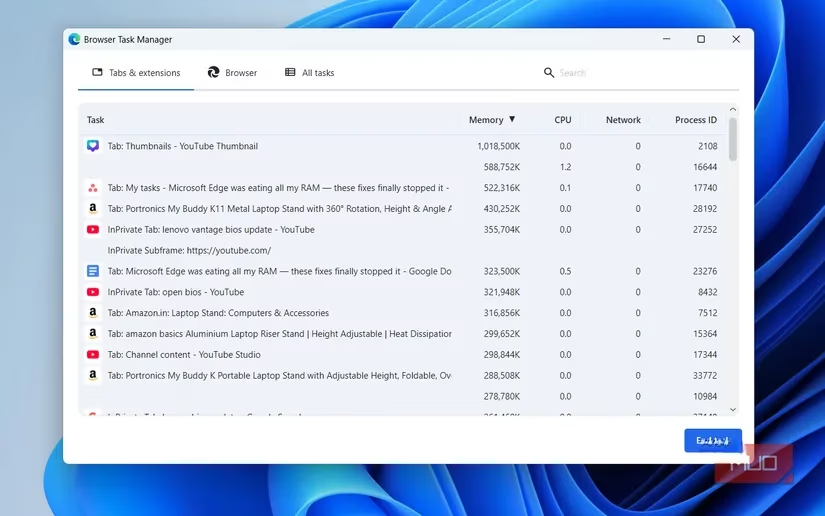
The first step in diagnosing high memory consumption is to stop blaming the entire browser. Sometimes the real troublemaker is a single misbehaving tab or a background extension. Edge’s own built-in task manager offers a detailed view that the Windows Task Manager cannot match. By pressing Shift + Esc, users can open the Browser Task Manager and click the Memory column to sort everything by RAM usage. If a single tab is hoarding far more memory than the rest, simply closing and reloading that page often solves the problem.
Extensions are just as capable of causing trouble. Some run constant background tasks and silently consume hundreds of megabytes. If an extension appears near the top of the memory list, disabling it temporarily can reveal whether it is the root cause. In many cases, turning off a single misbehaving extension is enough to bring Edge’s RAM usage back under control.
Tab hoarding is another classic habit that drives up memory consumption. Leaving dozens of tabs open inevitably causes a spike, but users no longer need to close them all manually. Edge’s sleeping tabs feature puts inactive pages into a low-power state, freeing up system resources while keeping the tab ready to resume. The setting can be found under Settings > System and performance > Performance by enabling Save resources with sleeping tabs. A customizable timer allows Edge to wait anywhere from 30 seconds to 12 hours before putting an unused tab to sleep. From the same menu, exceptions can be set for websites that must stay awake, such as streaming services or work dashboards.
Edge also includes a performance detector that acts like a vigilant watchdog. When a tab starts using excessive CPU or RAM, a red dot appears on the heart-pulse icon in the toolbar. Clicking it reveals suggested actions such as putting the tab to sleep or closing it altogether. To enable this feature, navigate to Settings > System and performance > Performance and toggle on Enable performance detector. If the heart-pulse icon is not visible, it can be accessed by clicking the three-dot menu, going to More tools, and selecting Performance. Pinning the toolbar ensures it remains visible at all times, offering a real-time snapshot of Edge’s RAM usage, how many tabs are asleep, and the amount of memory being saved.

Even with sleeping tabs and the performance detector active, Edge can still balloon in memory usage if it is allowed to grab all the resources it wants. The most effective long-term solution is to set a hard limit on how much RAM the browser can consume. Edge’s built-in resource controls provide exactly that. By going to Settings > System and performance > Performance and turning on Enable resource controls, a slider lets users specify the maximum RAM allocation—anywhere from 1 GB up to the full capacity of the PC.
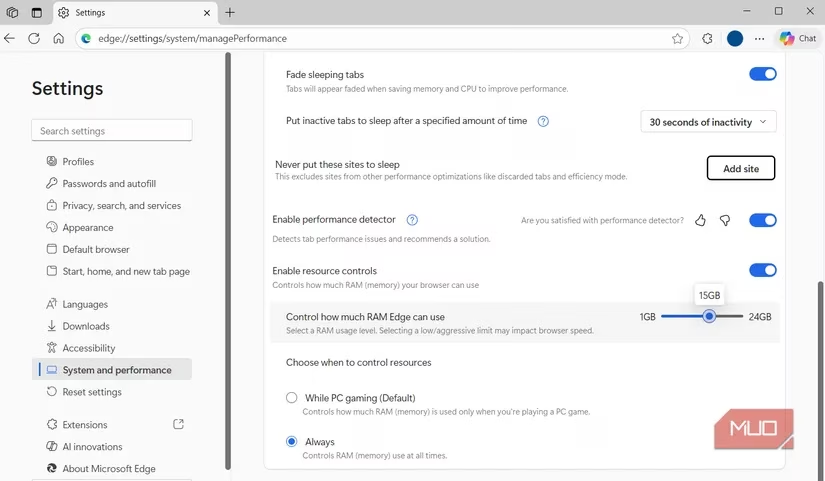
Choosing the right limit requires a balance. Slamming the slider down to an aggressively low value can starve Edge into sluggishness, but being too generous defeats the purpose. A sweet spot of a few gigabytes usually keeps the browser responsive while preventing it from running wild. For a laptop with 24 GB of RAM, setting Edge’s limit to 15 GB often proves more than sufficient for heavy multitasking. One important setting to check: by default, resource controls apply only while gaming. Changing the dropdown from When gaming to Always ensures the RAM cap remains in effect at all times.
Quick Reference Table of Settings 🛠️
| Feature | Location | What It Does |
|---|---|---|
| Browser Task Manager | Shift + Esc inside Edge |
Identifies tabs/extensions using high memory |
| Sleeping Tabs | Settings > System > Performance | Puts inactive tabs to sleep after a set delay |
| Performance Detector | Settings > System > Performance > Enable performance detector | Flags resource-hungry tabs and suggests actions |
| Resource Controls | Settings > System > Performance > Enable resource controls | Sets a hard RAM limit for the entire browser |
Key Steps to Keep Edge Lean 📉
-
Audit with Browser Task Manager – Spot the real memory culprit in seconds.
-
Enable Sleeping Tabs – Let idle pages nap while you work elsewhere.
-
Switch on Performance Detector – Get instant alerts when a tab misbehaves.
-
Set a Permanent RAM Cap – Limit Edge’s appetite once and for all.
-
Change to “Always” – Make sure the RAM limit works outside of gaming.
Since most modern workflows live almost entirely inside a browser, keeping Edge efficient is no longer optional—it is essential. The good news is that Microsoft has equipped Edge with all the necessary tools. A few minutes spent adjusting these settings can turn a memory-hungry beast into a well-behaved companion that never again sends the cooling fans into overdrive.