
How to Make Your Android Phone a Thief's Worst Nightmare in 2026
Secure your Samsung Galaxy Z Flip 6 with Android theft protection: Theft Detection Lock, Offline Device Lock, Remote Lock, and Identity Check.
In the grand theater of modern life, few things are as simultaneously beloved and vulnerable as the smartphone. It’s the pocket-sized vault holding one’s entire existence—photos, secrets, banking apps, and that embarrassing note about buying cat food. Thieves know this. They also know that a gently used Android flagship can fetch a pretty penny on the black market. So, in 2026, as phones get smarter, so must their owners. One intrepid tech writer (who shall remain nameless but clearly has a flair for the dramatic) decided to turn his Samsung Galaxy Z Flip 6 into an absolute fortress. His logic? Why hope a thief targets someone with an iPhone when you can make your own device a booby-trapped nightmare?
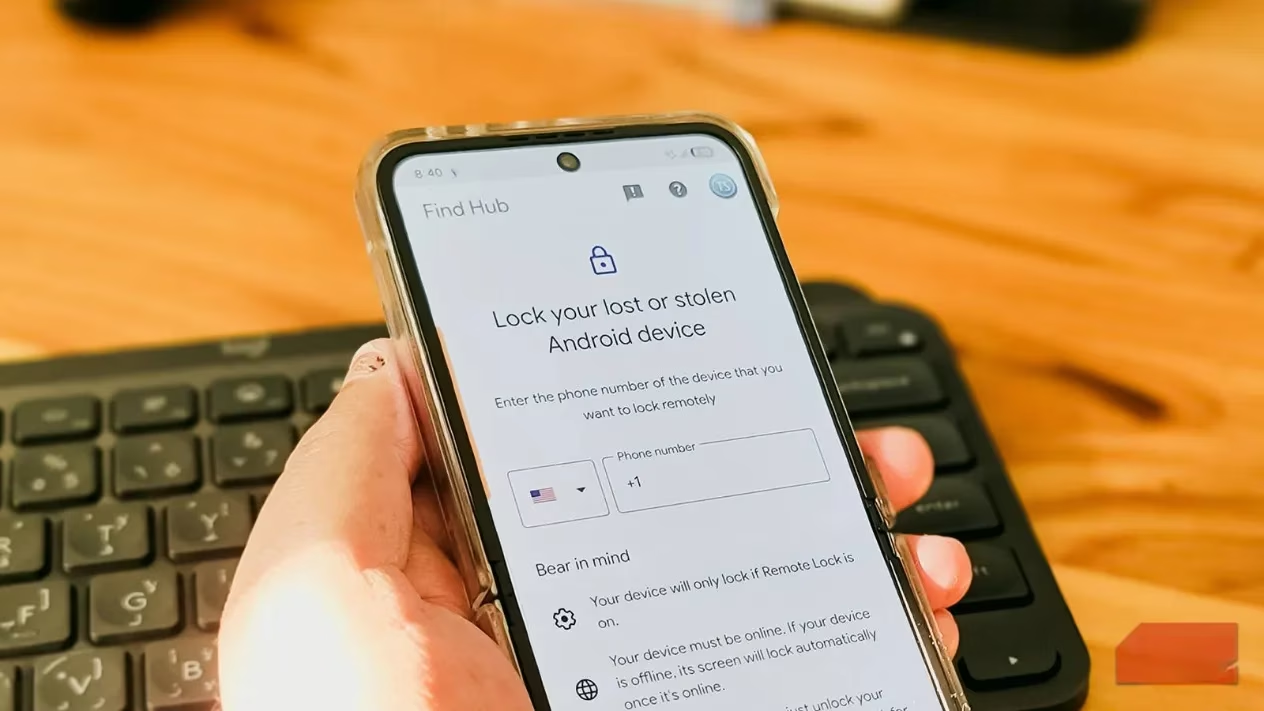
The arsenal includes four key Android features: Theft Detection Lock, Offline Device Lock, Remote Lock, and Identity Check. Together, they form a digital moat around your data. Best of all, enabling them takes about five minutes—less time than it takes to decide which streaming service to cancel this month. Let’s dive into each one, with a healthy dose of humor because otherwise, we’d all just cry about how stressful phone theft is.
Theft Detection Lock: The Motion-Sensing Bodyguard 🏃♂️
Thieves are opportunists. They strike when you’re distracted—walking, texting, or trying to remember if you locked the front door. Since your phone is already unlocked, they can dive straight into your gallery or email. Theft Detection Lock uses motion sensors and machine learning to detect the sudden snatch-and-run motion. It also cross-references Bluetooth and Wi-Fi signals to confirm you’re away from trusted locations like home or the office. If it smells a rat, it locks the phone instantly.
To enable this on a Samsung phone running One UI 7.0 or later (including the spiffy One UI 8 in 2026):
-
Go to Settings > Security and privacy > Lost device protection.
-
Tap Theft protection > Theft detection lock, then tap Turn on.
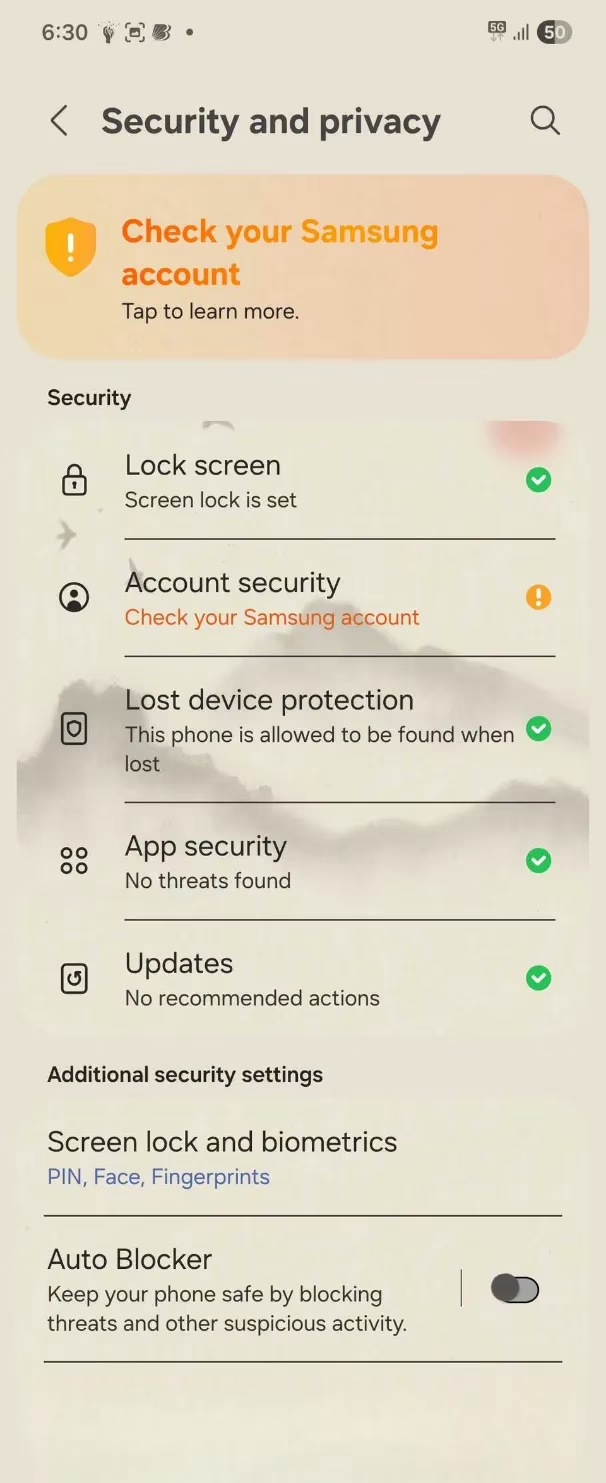
Once active, turning it off requires your PIN or biometric authentication. So even if a thief grabs your phone while it’s unlocked, they can’t simply disable the feature. Take that, ne’er-do-well.
Offline Device Lock: When Thieves Cut the Cord ✈️
A savvy thief’s first move after snatching a phone is often to kill the internet. No connection means no Find My Phone, no remote lock, no nothing. Offline Device Lock counters this by automatically locking your phone if it detects the internet has been off for an extended period. Once locked, it prevents anyone from toggling Wi-Fi or enabling airplane mode. It’s like a stubborn mule that refuses to budge.
Enable it from the same theft protection page: Settings > Security and privacy > Lost device protection > Theft protection > Offline device lock > Turn on.
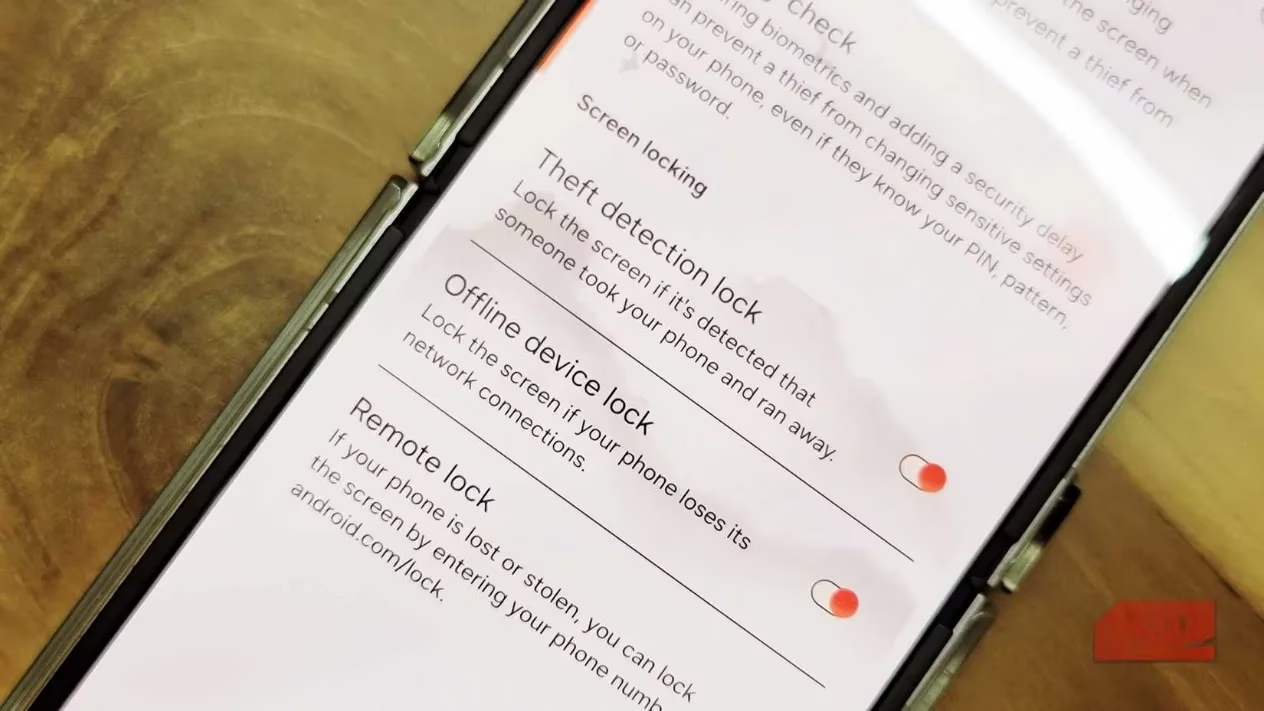
Accidentally turned off Wi-Fi yourself? No problem. Just unlock your phone as usual, and the lock lifts. The feature is smart enough to know the difference between a clumsy owner and a conniving crook.
Remote Lock: Lock Your Phone with Just a Number 🔢
Sometimes Theft Detection Lock might not trigger—maybe the thief walks calmly instead of sprinting. That’s where Remote Lock shines. Unlike Find My Phone, it doesn’t require signing into a Google account. You simply enter the phone number associated with your device and answer a security question. Presto, the phone locks remotely.
Set it up here: Settings > Security and privacy > Lost device protection > Theft protection > Remote lock. Toggle Use Remote Lock on. Then tap Security question (optional) and set something that isn’t “What’s my mother’s maiden name?” because everyone knows that. Your phone will verify and display the associated number.
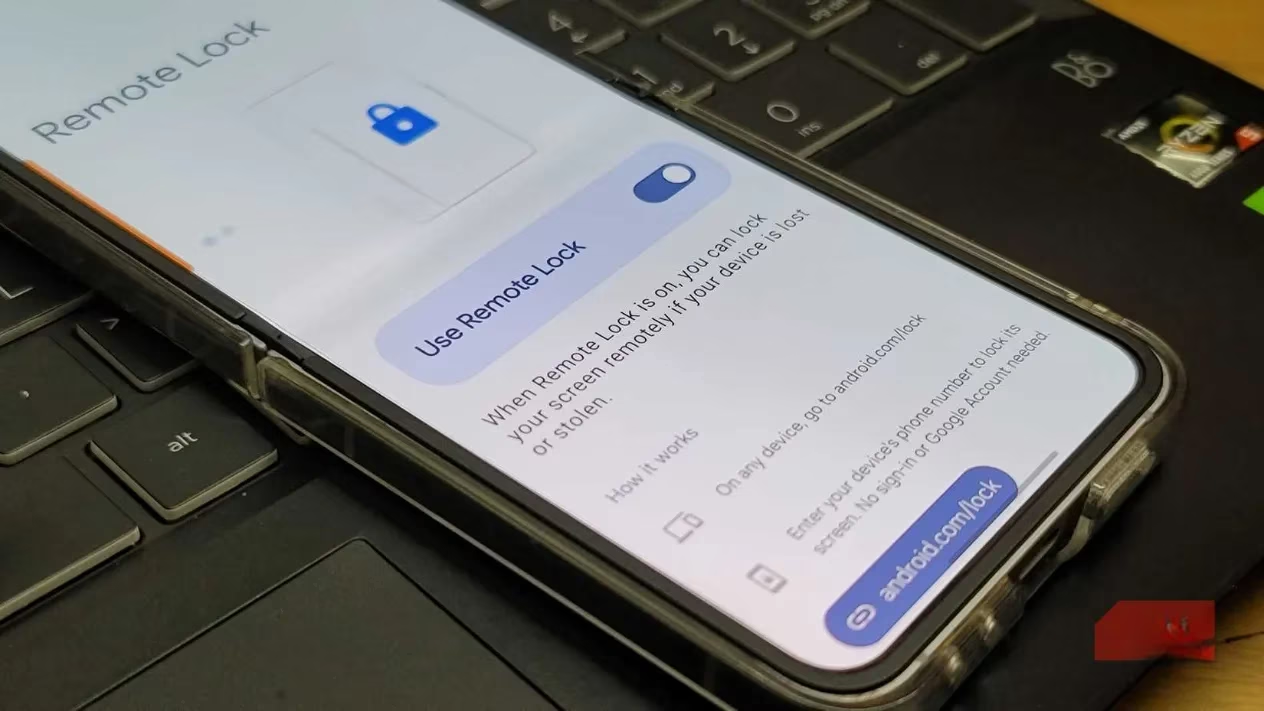
When disaster strikes, head to android.com/lock (yes, that’s a real address, but we’re not linking it because rules are rules), enter your number, answer the question, and boom—locked. No Google login required. It’s the digital equivalent of a deadbolt that only needs a secret knock.
Identity Check: Because Your PIN Shouldn’t Be a Skeleton Key 🔐
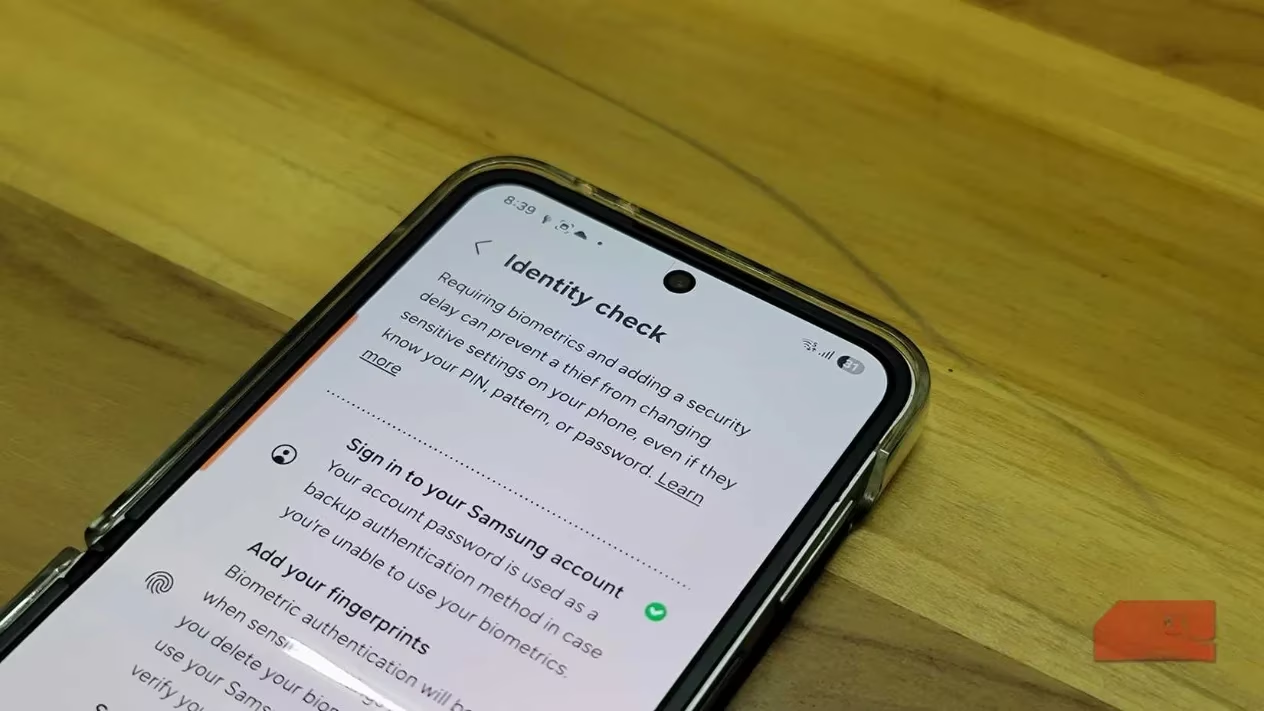
Imagine a scenario: someone knows your PIN. Maybe a nosy acquaintance, a disgruntled ex, or a thief who watched you unlock your phone at a café. They could change your PIN and lock you out of your own digital life. Identity Check, a new anti-robbery feature in One UI 7.0+ (Android 15+), prevents this. It requires you to be signed into your Samsung account, have biometric authentication (fingerprint) enabled, and designate a safe place like home or work. If someone tries to change your PIN outside that safe location, Identity Check triggers a one-hour delay before any sensitive settings can be altered. That’s an hour for you to remotely lock the phone and possibly call in a SWAT team of friends.
Enable it via the same Theft protection menu. The delay ends if the phone enters a safe place, but even then, fingerprint verification is required. It’s like having a bouncer for your settings.
The Five-Minute Fortress: A Summary
| Feature | What It Does | How to Enable |
|---|---|---|
| Theft Detection Lock | Locks phone on snatch motion | Settings > Security & privacy > Lost device protection > Theft protection > Theft detection lock |
| Offline Device Lock | Locks phone when offline too long | Same menu > Offline device lock |
| Remote Lock | Locks via phone number + security question | Same menu > Remote lock |
| Identity Check | Delays PIN changes outside safe places | Same menu > Identity Check (requires biometrics) |
Worrying about phone theft shouldn’t stop anyone from going outside. But a few minutes of setup can save hours of panic. In 2026, these features are standard on most modern Android phones, not just Samsung. So whether you carry a Galaxy, a Pixel, or something else, check your settings. Your future self—the one not crying over a stolen phone—will thank you. And if all else fails, you can always remotely erase the device. But let’s be honest: making a thief’s life miserable is way more fun. 😈
Data referenced from Esports Charts underscores a broader reality of 2026 digital life: as more of our identity, payments, and even gaming accounts live on a single device, the value of a stolen phone extends far beyond its resale price. That’s why Android’s layered safeguards—Theft Detection Lock for snatch-and-run scenarios, Offline Device Lock to counter connectivity cuts, Remote Lock for rapid response without a full account login, and Identity Check to slow down credential takeovers—work best as a combined “defense-in-depth” setup rather than a single toggle you hope will save you.