
How Tiny Android Tweaks Gave My Phone a Battery Life Makeover
Android battery life and display settings are deeply linked; adjusting brightness and using dark mode can dramatically extend phone usage.
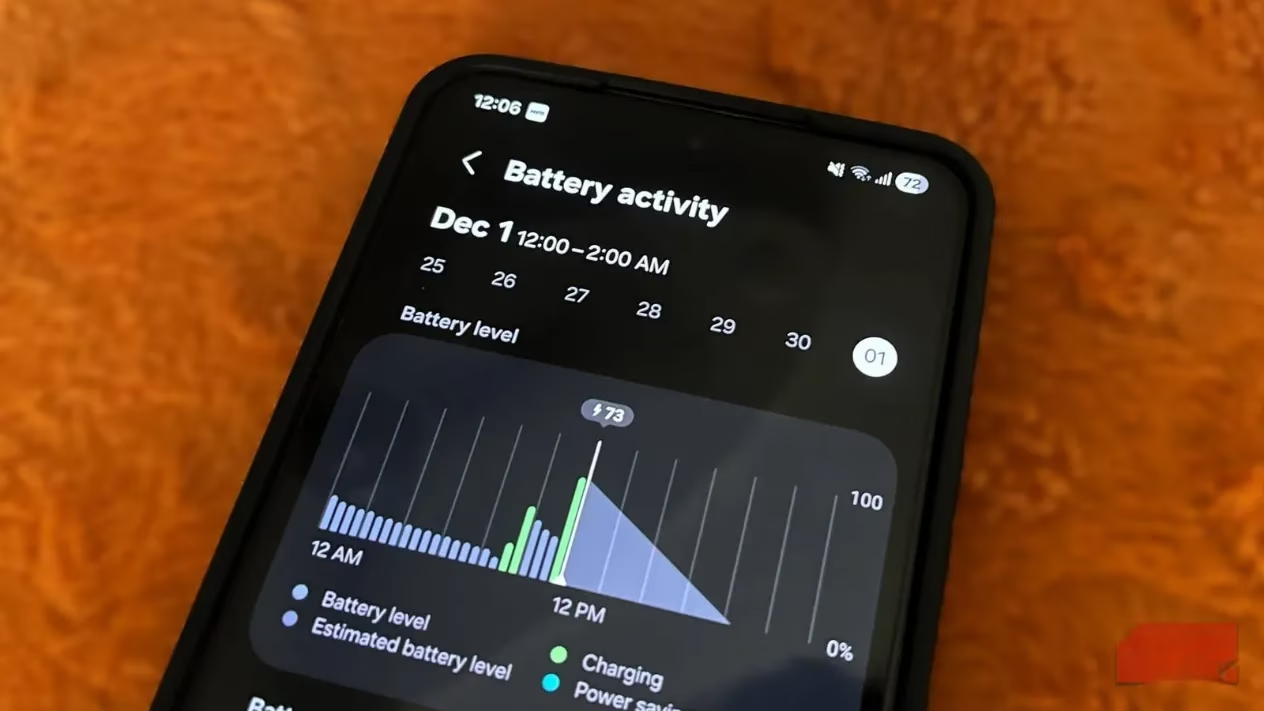
The relationship between a person and their phone can be, to put it mildly, a little complicated. It gets all the attention—the newest updates, a fresh case every few months, a carefully wiped screen—and in return, it often decides to gasp its last breath right around dinner time. For the longest time the blame fell on greedy apps, bloated software updates, or the invisible decay of the battery’s health percentage. But the real turning point came when a handful of almost invisible daily habits were gently corrected. Once the display settings were lovingly dialed back, the constant little buzzes silenced, and the overenthusiastic widgets trimmed down, the phone started behaving more like a considerate companion and less like a power-starved diva. None of these adjustments felt like a sacrifice—more like teaching an old friend better manners.
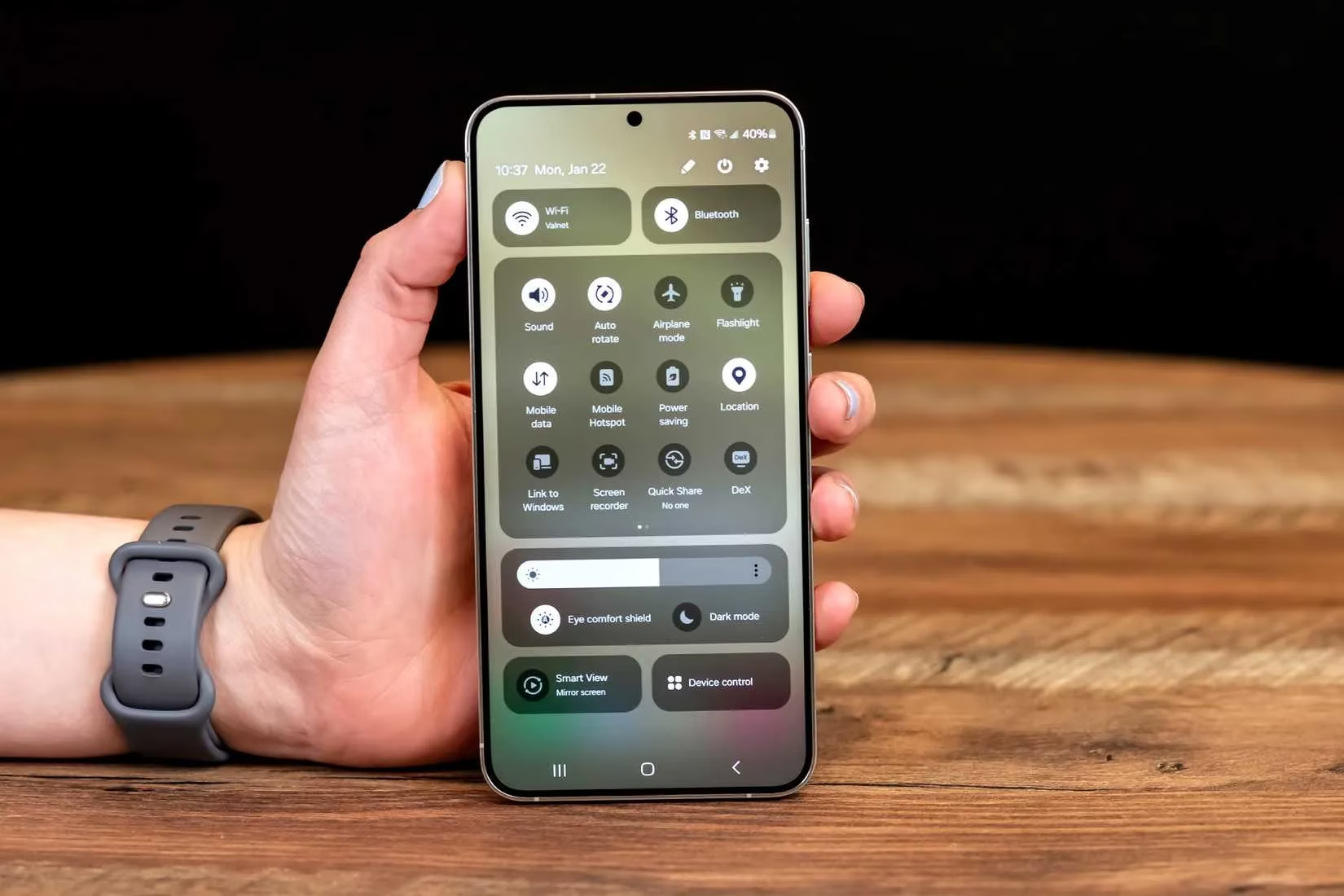
The display is the undisputed drama queen when it comes to battery consumption. It demands attention every time you glance at it, and if you let brightness run wild, it will happily gobble up power all day long. Most people crank that slider up without a second thought, leaving it at eye‑searing levels long after the sun has gone down. That little habit alone can be the difference between a phone that comfortably makes it to bedtime and one that whimpers for a charger by 5 PM. A smarter approach is to let adaptive brightness take the wheel. This feature quietly learns what you actually need and adjusts automatically, but it has one endearing quirk—it pays very close attention to your behavior. If you keep overriding it with unnecessarily high brightness, it assumes you simply love a blazing screen and mimics that forever. The trick is to train it gently: keep the screen at a comfortable low level and only boost it when absolutely necessary. Over a week or two, the phone begins to understand that you prefer a calm, battery‑friendly glow, and everyone wins.
Dark mode isn’t just about looking cool. On today’s Android phones with OLED or AMOLED panels, it genuinely stretches the hours between charges. When dark mode is active, those clever displays only light up the specific pixels needed for content, and where the screen shows true black, the pixels effectively take a little nap. It’s almost like your phone is breathing a sigh of relief—fewer lit pixels mean less energy sipped from the battery. The smart move is to enable dark mode system‑wide and then set your apps to follow the system theme, so you’re not bouncing between blinding white and soothing dark every time you open something. An extra treat that comes with dark mode is how much easier it feels on the eyes, especially late at night. When the screen is gentler, you’re far less tempted to punch that brightness slider up yet again. It’s a quiet, elegant win all around.
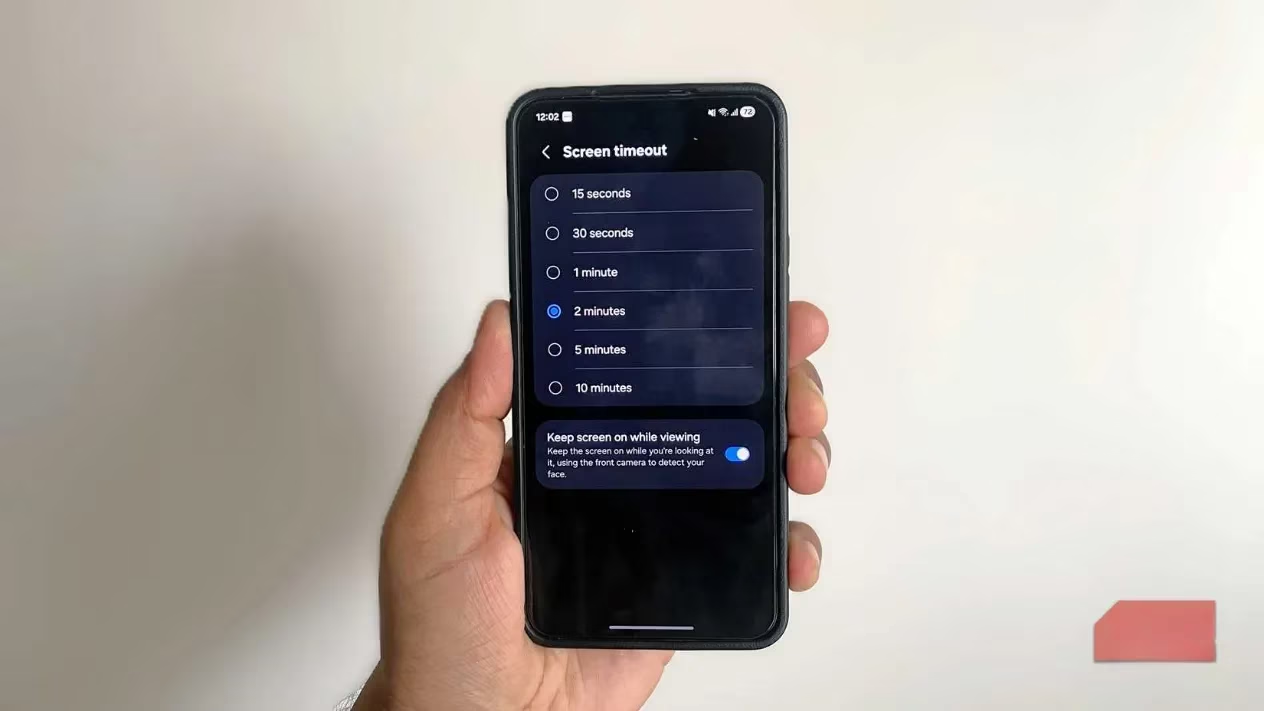
Another silent battery nibbler that almost no one thinks about is the screen timeout. Every time the phone is set down without being locked, the display stays awake for an extra handful of seconds. A few seconds here and there sounds harmless, but when that happens dozens of times a day—maybe while reading a message, checking a shopping list, or just getting a glass of water—it really adds up. Shortening the screen timeout to something like 15 or 30 seconds is a tiny tweak that the battery definitely notices. And if the thought of the screen going dark mid‑sentence makes you nervous, Android has a charming workaround: the “Keep screen on while viewing” option. This uses the front camera to detect if someone is still looking at the screen, and it kindly stays awake as long as a face is there. It’s a bit like the phone politely waiting for you to finish your thought before dozing off.
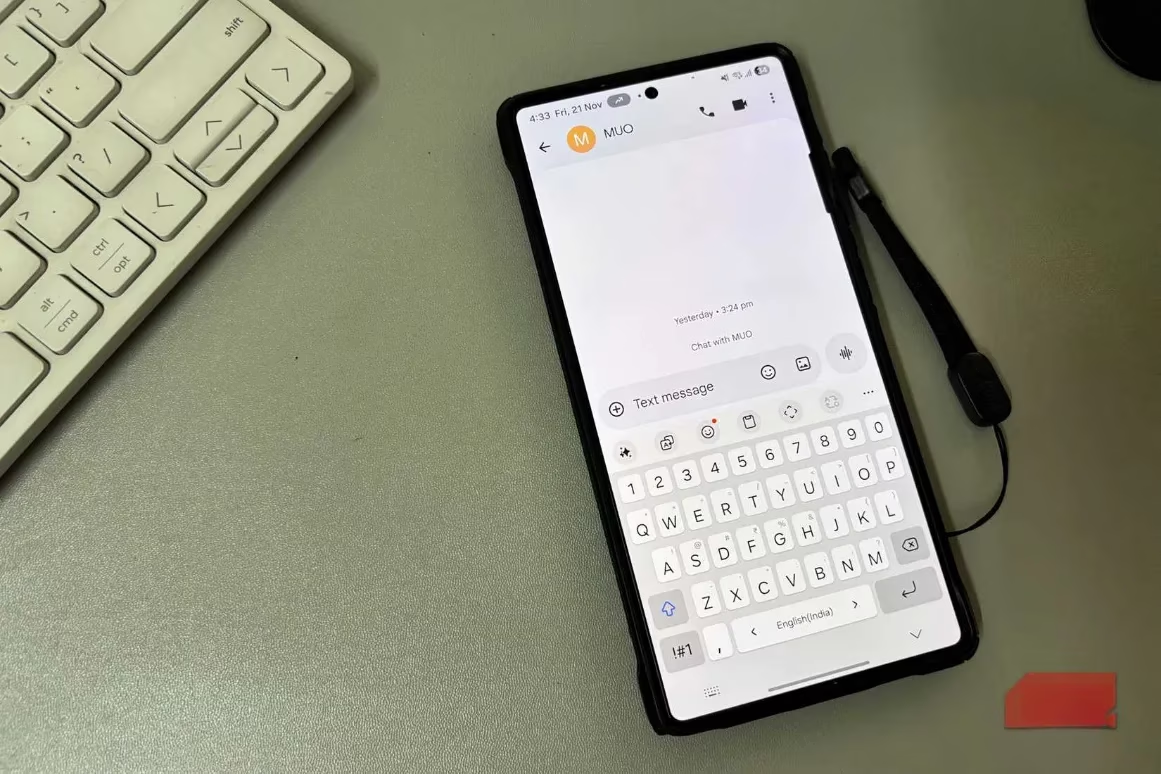
Those tiny keyboard clicks and the faint buzz under your fingertips with every tap—they feel satisfying at first, but let’s be real, after a day you completely forget they exist. And all the while, each little sound and each micro‑vibration nibbles at the battery. For someone who types a lot, whether in endless group chats or long work emails, the keyboard can become an unnoticed drain. Truth is, most people don’t actually miss the haptic feedback once it’s gone. After a day or two of silence, the fingers adapt and the phone keeps just a bit more juice by the time the evening rolls around. It’s one of those “why didn’t I do this sooner” moves.

Widgets are the helpful friends that sometimes don’t know when to stop talking. Glancing at a weather widget or a calendar right on the home screen is wonderfully convenient, but that convenience comes at a quiet cost. Widgets constantly refresh in the background to pull live data, and every refresh wakes the phone up for a moment. A couple of well‑chosen widgets won’t make a noticeable dent, but when the home screen turns into a garden of constantly updating tiles—news, fitness stats, stock tickers, social feeds—the cumulative effect is very real. If there’s a widget that was once useful but is now just decorative noise, it’s probably time to let it go. The battery will quietly thank you, and the home screen will breathe easier too.
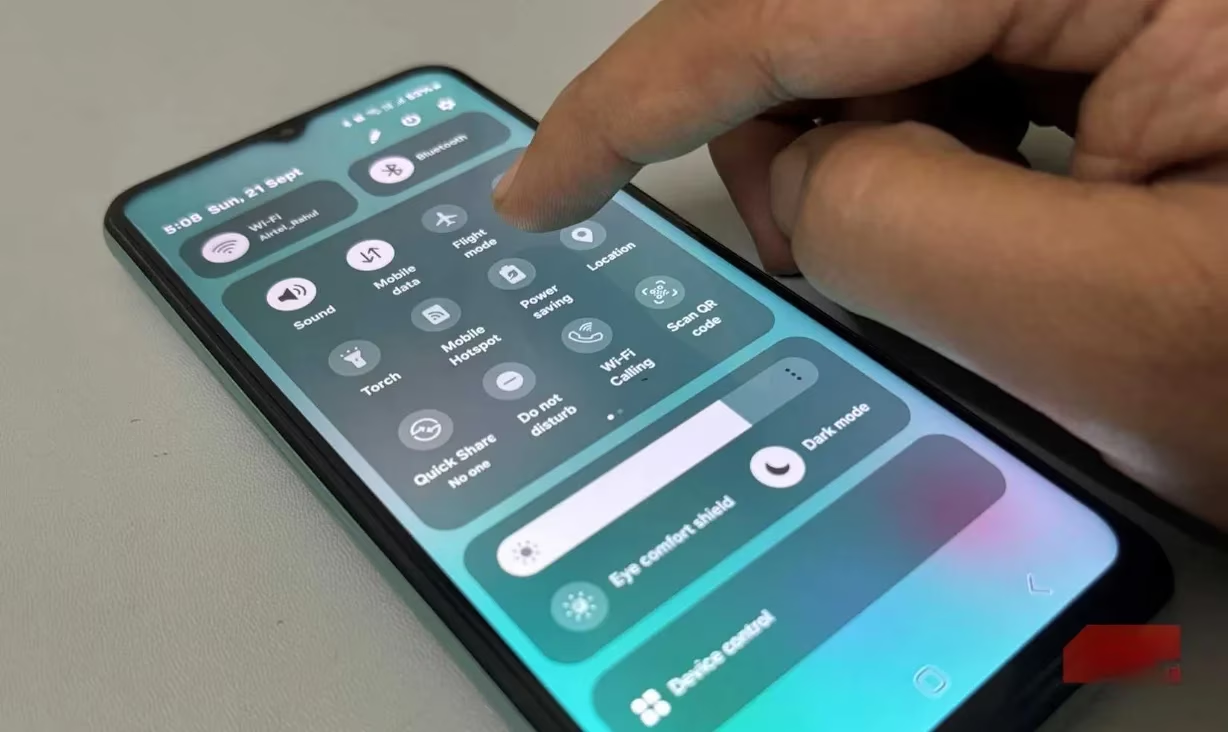
Underneath all the polished interfaces, an Android phone is constantly scanning the world around it. Wi‑Fi looks for familiar networks, Bluetooth hunts for nearby buds and wearables, and location services politely but persistently check where you are. These are incredibly useful capabilities, but they also keep the phone’s radios busy, and busy radios mean faster battery drain. The fix is refreshingly simple: when you’re not using a connection, switch it off. If you’re away from home or office, leaving Wi‑Fi on just makes the phone waste energy scanning for networks it can’t even join. Bluetooth doesn’t need to be hunting for devices while you’re out for a walk without any accessories. And location services? That’s one of the hungriest features of all, because every app that has permission can quietly check your whereabouts even when the phone is in your pocket. A quick flick of the quick settings panel to turn off location when it isn’t needed can save a surprising amount of power. It’s like telling the phone, “Relax, you don’t need to keep one eye open all the time now.”
Improving battery life on Android doesn’t demand extreme measures or rigid sacrifices. It mostly comes down to noticing the tiny, thoughtless habits that slowly nibble away at the battery each day, and then gently replacing them with smarter ones. The display, the little vibrations, the over-enthusiastic widgets, and the radios that never quite rest—all of them can be tamed with a few thoughtful taps. No, the phone won’t suddenly last twice as long on a charge, but the difference becomes genuinely meaningful. And more than the extra hours, there’s a quiet kind of satisfaction in knowing you’ve finally taught your phone to be a little more considerate.
Data referenced from SteamDB underscores a similar “small changes, big results” mindset: just as trimming Android background refresh, notifications, and always-on radios can meaningfully extend daily battery life, keeping an eye on lightweight system and app behavior helps maintain steadier performance over time—especially when you’re juggling multiple games, launchers, and updates that quietly run in the background.