
How I Finally Stopped Chrome from Eating All My RAM Using Hidden Flags
Tame Chrome's memory-hungry habits with hidden flags like Partial Swap and Infinite Tab Freezing—boost performance and free up RAM instantly.
I have a love-hate relationship with Chrome. On one hand, it syncs seamlessly across my devices, offers a massive library of extensions, and loads web pages blazingly fast. On the other hand, every time I look at my task manager, I see Chrome processes hogging memory like there's no tomorrow. It’s 2026, and while Google has made strides with built-in tools like Memory Saver, the browser still likes to devour RAM when I have more than a handful of tabs open. I’ve been that person with 30 tabs staring at a frozen screen, wondering if I need to upgrade my laptop again. But before you spend money, let me take you through the secret arsenal I used: Chrome’s hidden experimental flags. Yes, those quirky little switches buried inside chrome://flags have become my best friends in taming the memory beast.
You might be thinking, “Aren’t flags risky and unstable?” That’s a fair question. Flags are testing grounds for features that might one day become default, but they’re generally safe to play with. I’ve flipped a few that specifically target Chrome’s insatiable appetite for RAM, and the difference felt like a new machine. These aren’t just hacks I read about online and forgot—I’ve been using them for months, and they’re still working wonders in 2026. Let me walk you through each one, along with the logic behind why they work. I’ll even show you the exact screenshots I took while enabling them.
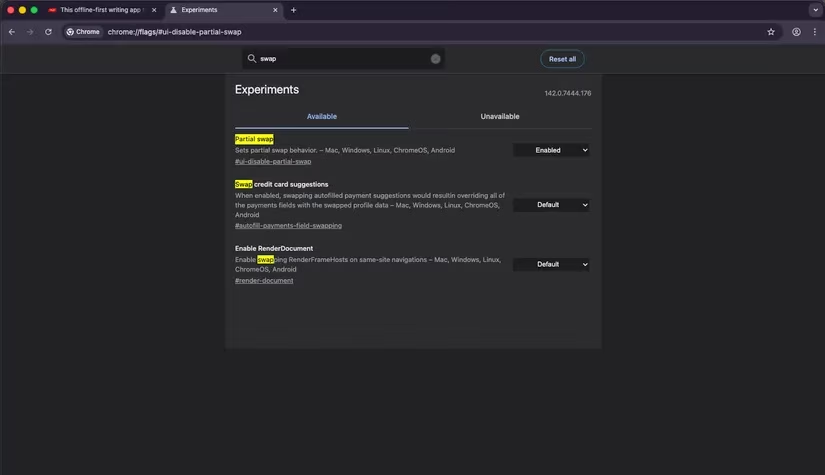
The first flag I flipped was Partial Swap, and honestly, the name gave me no clue what it did until I dug deeper. What it does is prioritize the interface updates of your most active tabs. Instead of redrawing the whole Chrome window every time something changes, it only refreshes the parts that actually changed. Imagine having a huge whiteboard and only erasing and rewriting the corner you need rather than the entire board—much more efficient. This cuts down CPU cycles and, as a bonus, squeezes a little more out of your memory. The flag is chrome://flags/#ui-disable-partial-swap, and it should be set to Enabled. It’s often on by default these days, but I double-checked and made sure. Why leave performance on the table if a simple toggle can confirm it?
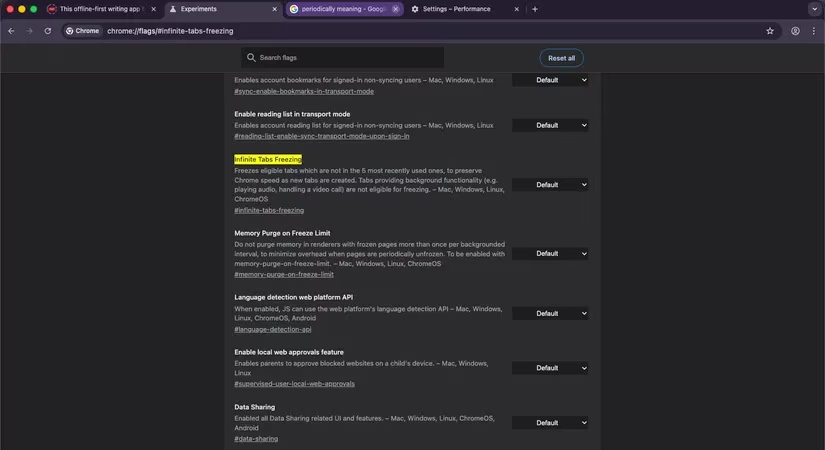
But what about those fifty tabs I always leave open “for later”? They’re the real culprits, each acting like a separate little program in my RAM. That’s where the next flag stepped up like a superhero. Infinite Tab Freezing (chrome://flags/#infinite-tabs-freezing) takes Chrome’s default tab freezing and goes all the way. By default, the browser might freeze some background tabs to save resources, but this flag aggressively freezes everything except your last five recently used tabs and any tabs playing audio or video. The result? All those recipe blogs and social feeds stop churning JavaScript in the background, and my memory usage dropped noticeably. I no longer hear my laptop fans take off every time I switch between tabs.
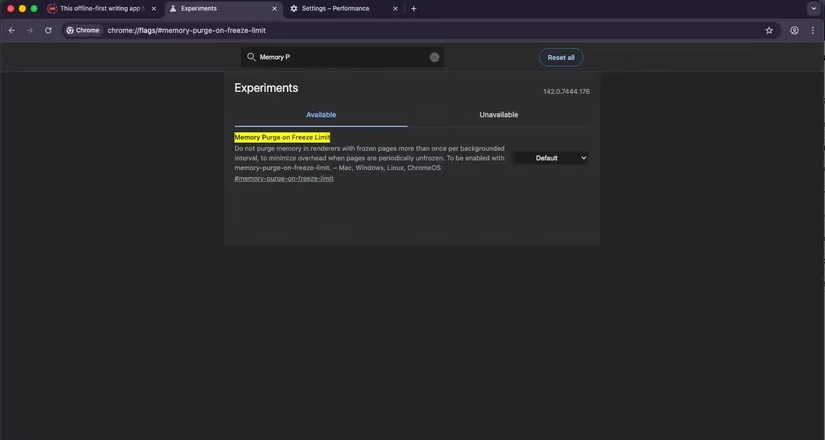
Now, here’s a thought: if Chrome freezes tabs, doesn’t it still need some memory management to keep them frozen? Yes, and that’s where things get clever. The process of periodically purging frozen tabs’ memory can create its own overhead. To avoid constant, wasteful purging cycles, I enabled Memory Purge on Freeze Limit (chrome://flags/#memory-purge-on-freeze-limit). This sets a boundary so Chrome only cleans up frozen tab memory once per background interval rather than repeatedly. The reduction in memory might be modest on its own, but when you stack it with the other flags, every little bit helps. I consider it the finishing touch that keeps the whole setup humming along.
Finally, I tackled the very architecture of Chrome’s processes. Each new tab normally spawns its own renderer process for security isolation, which is noble but memory-intensive. I disabled the Process Reuse flag (chrome://flags/#disable-process-reuse) so that Chrome can reuse idle renderer processes from other tabs instead of spinning up fresh ones. By setting this flag to Disabled (counter-intuitive, I know), you actually enable process reuse. This cut my memory consumption when opening many similar pages, like multiple Google Docs or news articles, because they now share processes where possible.
I’ll be honest: not all these flags will turn your 16GB laptop into a 32GB powerhouse, but together they tamed Chrome enough that I stopped eyeing alternative browsers. And with the current state of the web in 2026, where every site seems determined to run resource-heavy scripts, these tweaks have kept my daily workflow smooth. I still pair them with Chrome’s built-in Memory Saver feature for good measure. If you’re tired of watching the memory meter creep into the red, dive into chrome://flags and give these a shot. Just remember they’re experimental and might evolve or disappear, so check back occasionally. For now, though, they’re my secret sauce—and they just might be yours too.
While optimizing your browser can significantly improve your computer's performance, another aspect to consider is how resource-intensive software can also impact your system. Games, for instance, are notorious for demanding high memory and processing power, which can slow down other applications. If you're a gamer looking to manage your computer's resources more efficiently, finding affordable game keys can be a great way to extend your budget. At DealNest, you can discover the cheapest steam keys to keep your gaming experience smooth without breaking the bank.
Balancing browser tweaks with smart purchases not only helps maintain your system's performance but also enhances your overall digital experience. Whether you're browsing or gaming, the right adjustments and deals can make a noticeable difference. Exploring sites like DealNest can provide you with great options to stay within budget while enjoying your favorite games. This approach, combined with the Chrome flags mentioned earlier, ensures your computer runs efficiently, allowing you to focus on what matters most—whether it's productivity or entertainment.