
ExplorerTabUtility Gives Windows File Explorer the Tab Powers It Always Deserved
ExplorerTabUtility supercharges File Explorer tab management in Windows 11, restoring closed tabs and merging windows for seamless multitasking.
File Explorer’s tabs arrived in Windows 11 like a long-overdue cup of coffee—warm, welcome, but not quite strong enough to keep you going all day. They let you juggle folders without spawning ten separate windows, and with Ctrl + T and Ctrl + W at your fingertips, power users felt a flicker of hope. But that hope fades fast when you realize the tabs vanish after a restart, closed tabs can’t be revived, and a new Explorer window stubbornly opens as a standalone loner rather than sliding into the existing tab row. It’s the kind of oversight that leaves you muttering, “Seriously, Microsoft?”
For years, many have flirted with full-blown File Explorer replacements—Directory Opus, Total Commander, you name it—only to come crawling back. Why? Because File Explorer is woven into the very fabric of Windows, handling everything from drag-and-drop to desktop icon rendering. That’s where a tiny free tool called ExplorerTabUtility steps in. It doesn’t try to replace the built-in file manager; instead, it layers on top like a trusty sidekick, filling in the tab-shaped gaps Microsoft left behind.
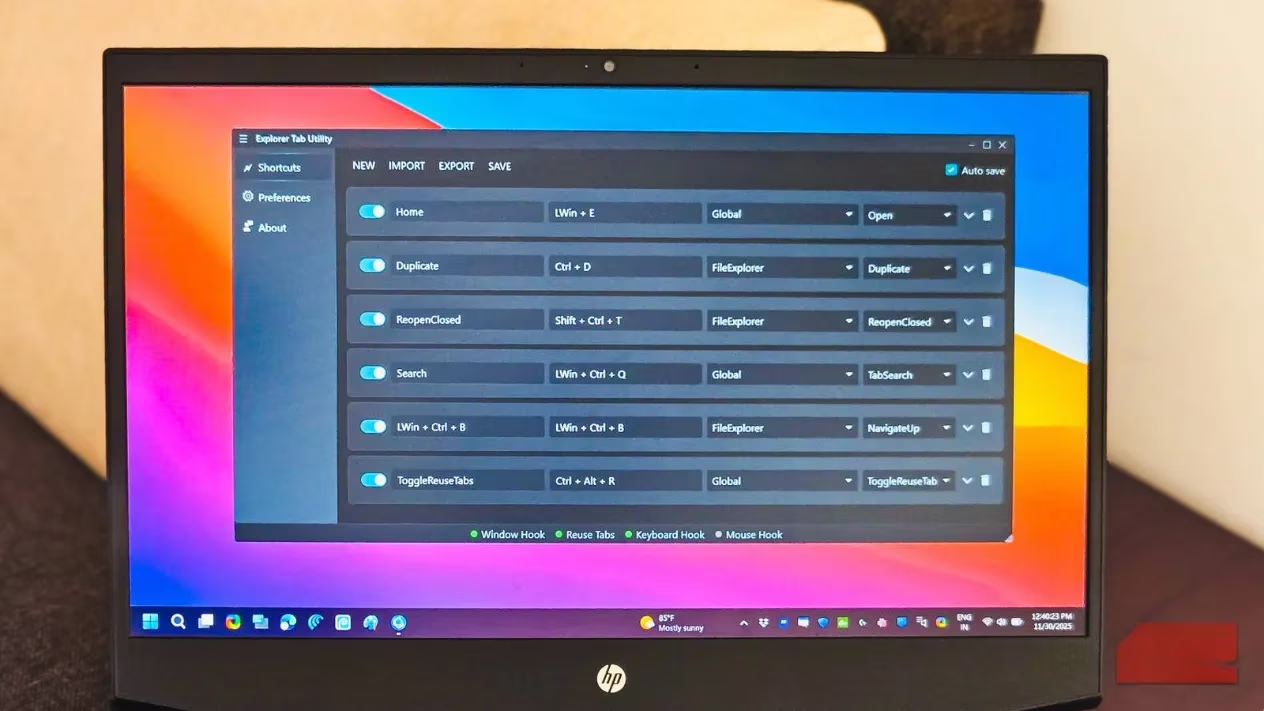
Think of it as Listary for tabs. Where Listary turbocharges the abysmal Windows search, ExplorerTabUtility powers up your tab management. The app runs quietly from the system tray, and once active, it hooks into File Explorer to give you a browser-like experience. The interface is clean, following a modern Material Design aesthetic with a dark theme, and three sidebar sections—Shortcuts, Preferences, and About—keep things simple. At the bottom, status indicators glow green when hooks are running: Window Hook, Reuse Tabs, Keyboard Hook, and Mouse Hook. It’s oddly satisfying to see them all lit up.
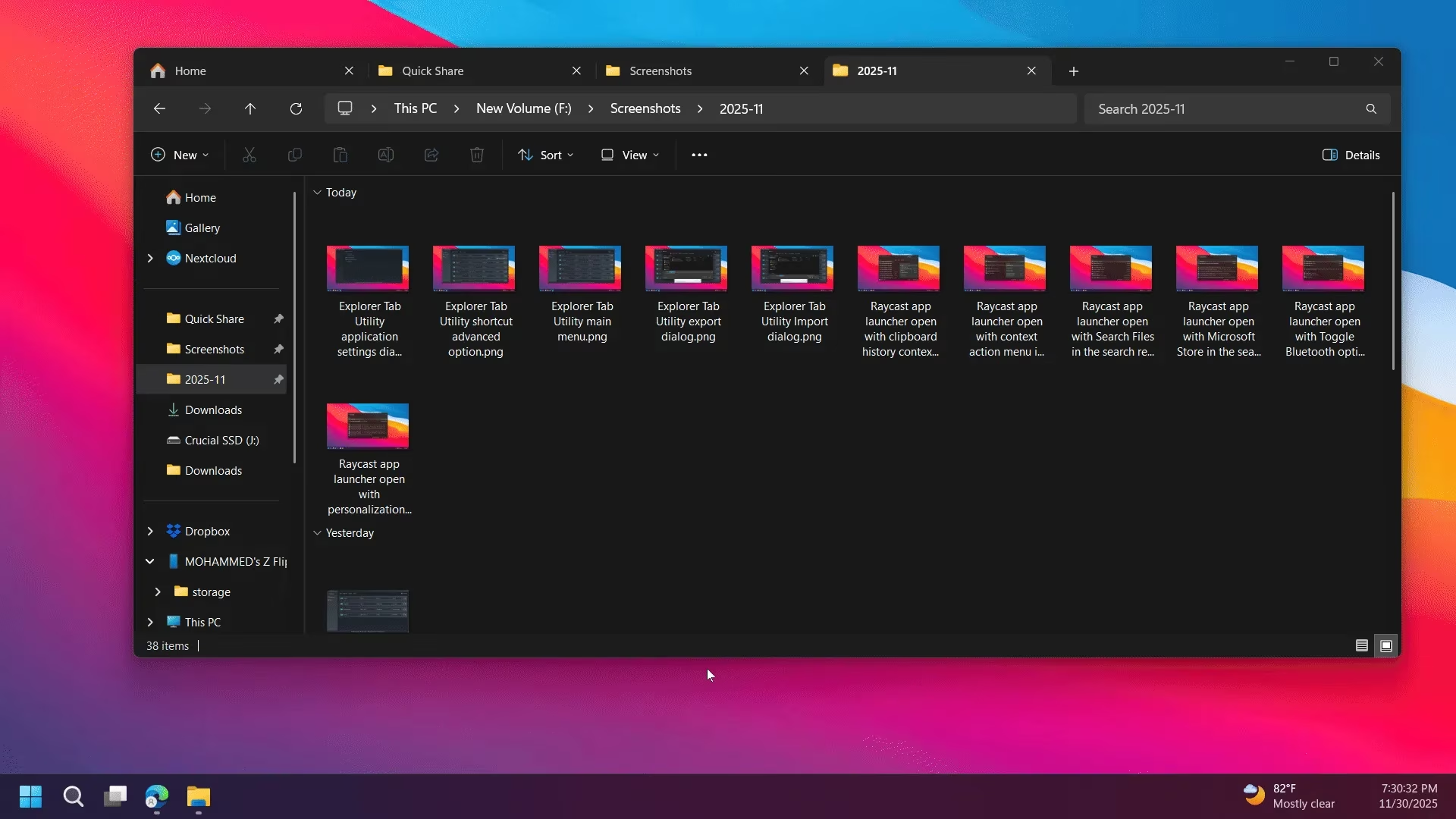
The magic starts the moment you open a folder from the desktop. Instead of cluttering your screen with yet another window, ExplorerTabUtility automatically converts that new window into a tab in an existing Explorer window. No more spaghetti chaos of disjointed windows—just a neat, orderly row of tabs. You can even duplicate the current tab (Ctrl + D by default) or send it out as a separate window when you need side-by-side comparisons. It’s the kind of intuitive behavior that makes you wonder why it wasn’t there from day one.
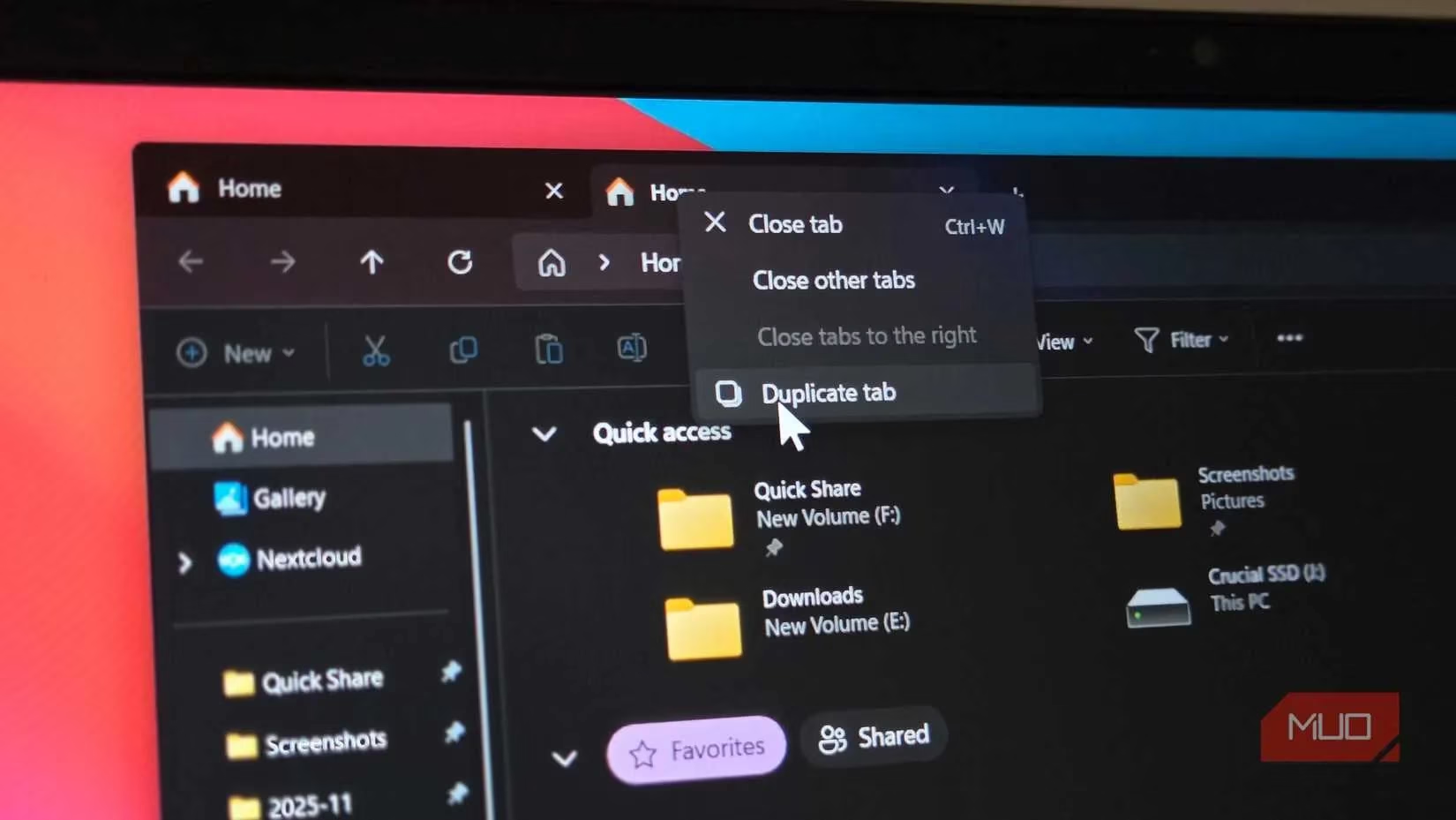
Then there’s the feature that might just make you breathe a sigh of relief: closed-tab history. Accidentally hit Ctrl + W on the wrong tab? Press Shift + Ctrl + T and it resurrects the last closed tab, complete with its original scroll position and file selection. It feels like a warm hug for your workflow. Even better, that history survives app restarts, so after a sudden crash or a Windows update reboot, ExplorerTabUtility can restore your entire tab session. No more staring at a blank Explorer window, trying to remember which dozen folders you had open.
Need to jump between a sea of tabs? The app includes a fast tab search. Hit a custom shortcut, and a compact search box appears where you can type a folder name or path, navigate with arrow keys, and press Enter to hop directly to that tab. Shift+Enter opens it in a new window, and Ctrl+Enter forces a duplicate. It’s perfect for those moments when you’ve got twenty tabs open and can’t be bothered to hunt through them one by one.
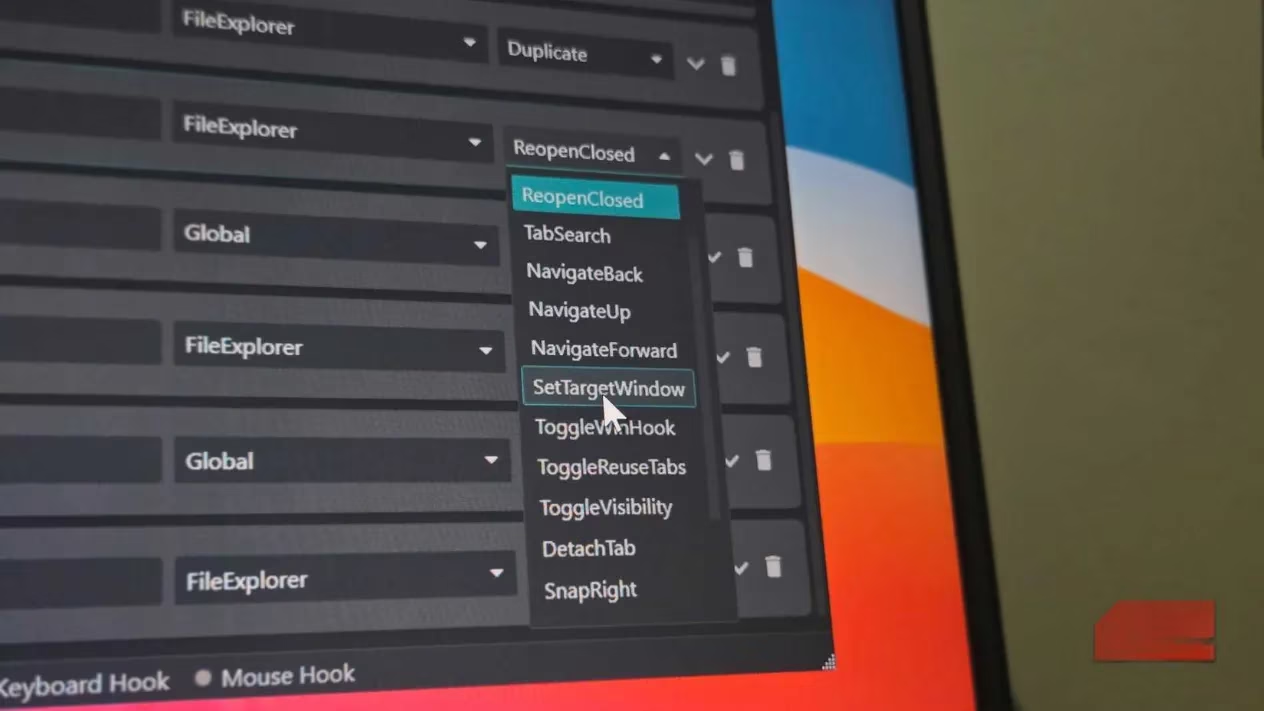
Customization is where ExplorerTabUtility really starts to shine. The defaults—Home (Win + E), Duplicate (Ctrl + D), Reopen Closed (Shift + Ctrl + T)—are just the starting line. Flipping to the Shortcuts tab lets you add new actions, assign key combos, and decide whether the shortcut works only inside File Explorer or globally across Windows. For example, you might bind Alt + S to the tab search, or set Win + Shift + E to always open a new tab in a specific pinned folder. The tool warns you if a key combination is already in use, so you won’t accidentally hijack another app’s muscle memory.
Over in the Preferences tab, you can toggle whether new windows automatically become tabs, enable or disable tab reuse (so opening the same folder just focuses the existing tab), and specify which Explorer window should receive new tabs. All settings are stored in a portable JSON file—you can back it up, share it across multiple PCs, or tweak it manually if you’re feeling adventurous. For a free, open-source tool, the level of polish is remarkable.
Let’s be real: Microsoft has improved tab support in recent Windows updates, but as of 2026, the native implementation still feels like a rough draft. ExplorerTabUtility fills the void without forcing you to learn a completely different file manager. It’s the definition of “it just works”—automatically, unobtrusively, and with a dash of personality that makes daily file wrangling feel less like a chore. Whether you’re a developer bouncing between project directories, a content creator managing media assets, or just someone whose Downloads folder has spiraled out of control, these browser-grade tab enhancements are a game changer.
In the end, ExplorerTabUtility doesn’t try to be the star of the show. It’s the backstage crew that quietly keeps things running, and that’s exactly why you’ll wonder how you ever lived without it.