
Essential Samsung Settings Overlooked by Most Users
Transform your Samsung smartphone by mastering hidden settings and granular notification controls, boosting usability and personalization.
While the default configuration on a Samsung smartphone provides a functional starting point, it often falls short of delivering the optimal experience that the hardware and software are capable of. The seemingly mundane Settings application harbors a treasure trove of powerful adjustments and hidden features that, when activated, can dramatically transform the device's performance, usability, and personalization. For the discerning user, moving beyond the out-of-the-box setup is not just a recommendation; it's a necessity to unlock the true potential of their Galaxy device. From taming intrusive notifications to reclaiming storage from bloatware and maximizing the legendary display, these tweaks represent the difference between a good phone and a great one.
Granular Notification Control: Reclaim Your Attention
Modern applications offer basic notification toggles, but these are often insufficient. For example, while WhatsApp allows users to enable or disable alerts for messages and calls, it lacks settings to silence specific background notifications, such as those for backup creation or media uploads. Android's native Notification Categories feature provides a sophisticated, granular level of control, allowing users to manage each distinct alert type an app can generate. This system breaks down notifications into individual categories, each with customizable behaviors including sound, vibration pattern, and lock screen visibility.
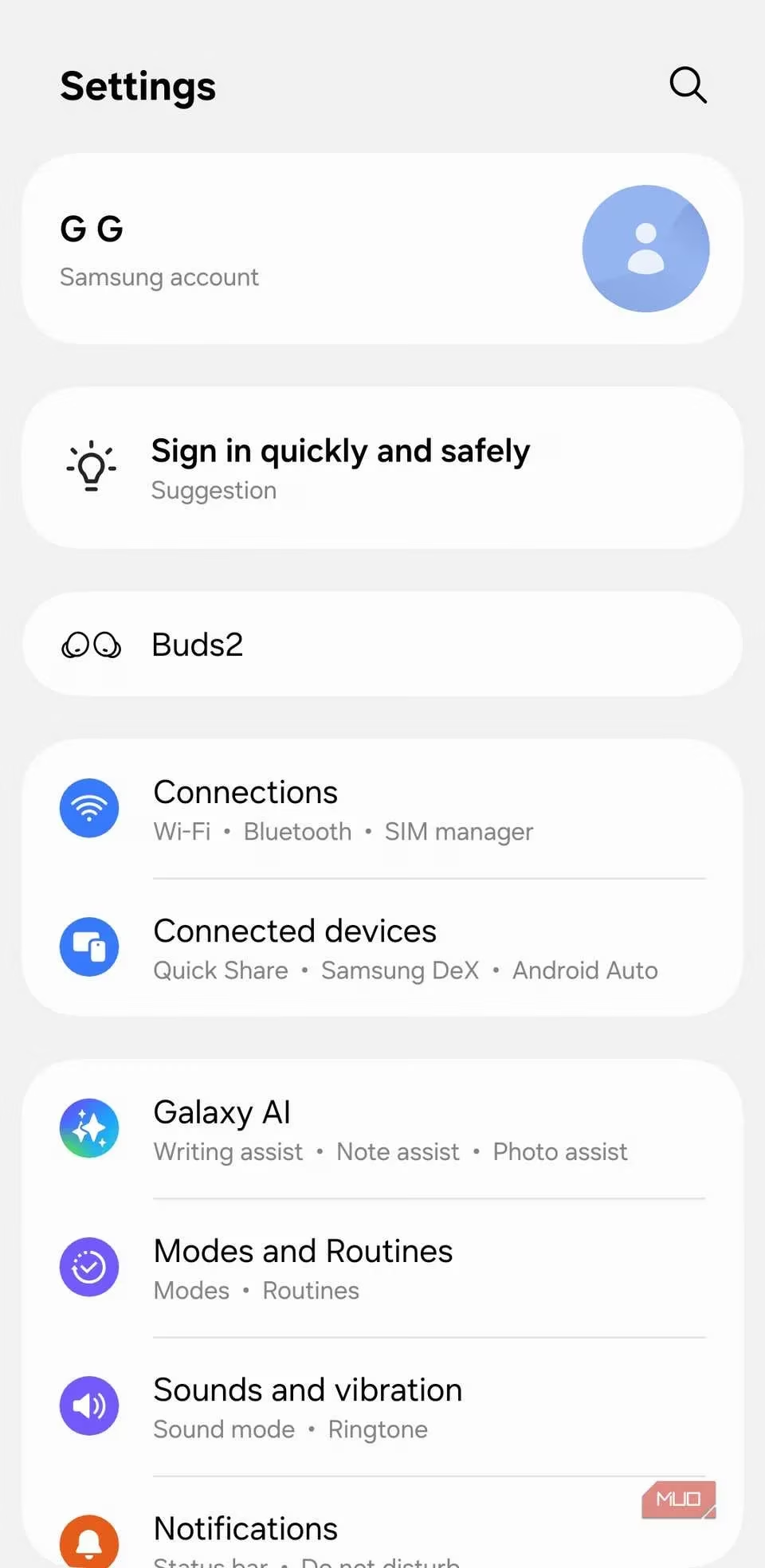
Oddly, Samsung devices obscure this powerful functionality by default, a practice not common on other Android handsets. To enable it, users must navigate to Settings > Notifications > Advanced settings and activate the "Manage notification categories for each app" toggle. Once enabled, accessing the Notifications section within any app's info page reveals the full, detailed menu of categories, putting users firmly in the driver's seat of their digital attention.
Eliminating Intrusive Ads and Promotions
One of the most persistent grievances among Samsung users, even those with premium flagship models, is the appearance of unsolicited advertisements and promotional alerts. Upon setting up a Samsung account, the system intermittently displays news and "special offer" notifications, which are essentially advertisements for Samsung's own products and services. These intrusions can disrupt the user experience, cluttering the interface with unwanted marketing.
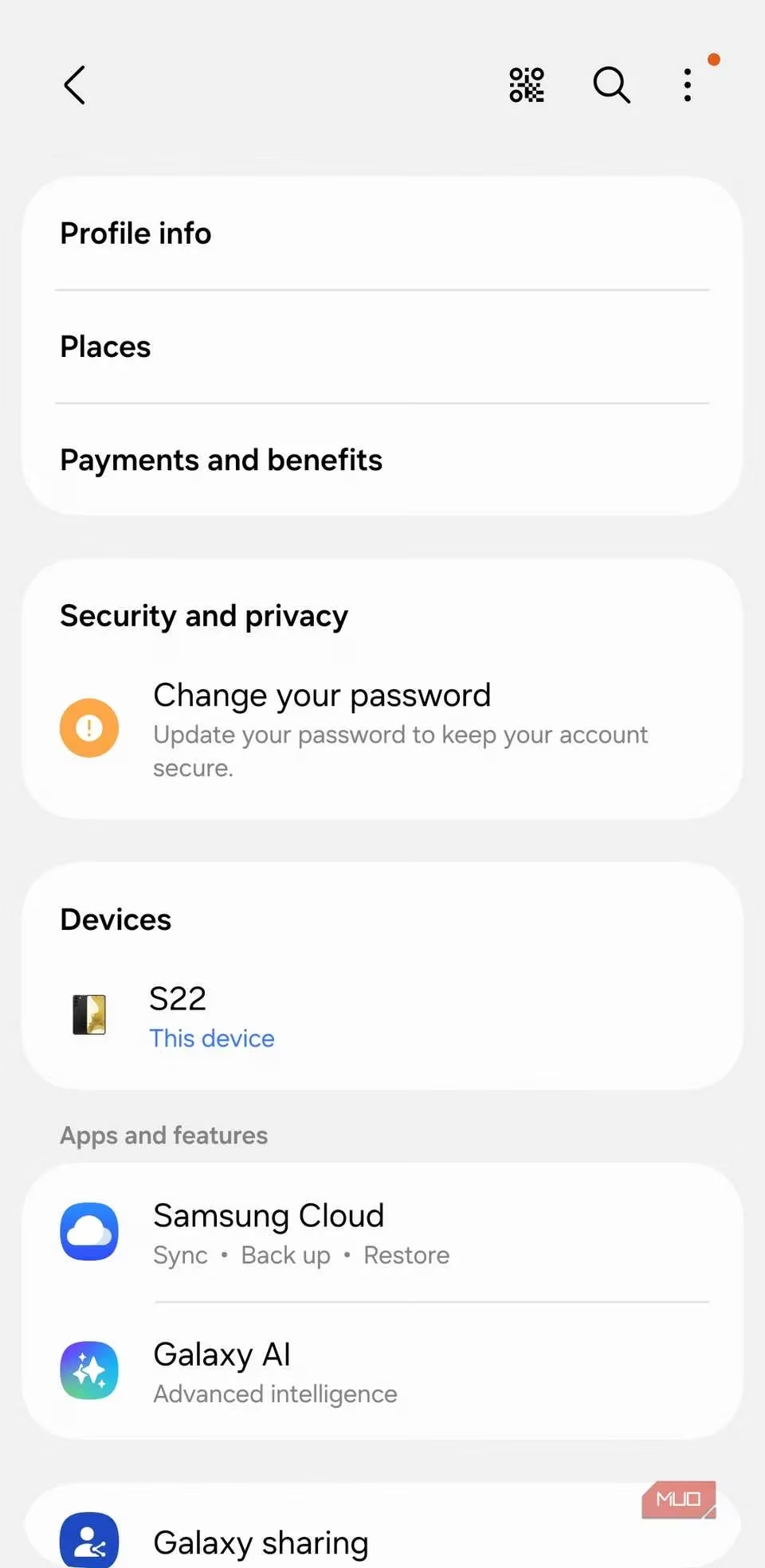
Fortunately, a permanent solution exists within the account settings. To silence these promotions, users should proceed to Settings > Samsung account > Security and privacy. Here, two key toggles must be disabled:
-
Get news and special offers on email and mobile number
-
Improve personalized advertising
Deactivating these options effectively severs the pipeline for promotional content, resulting in a cleaner, more focused user interface free from corporate solicitations.
Decluttering: Removing Pre-installed Applications
Samsung devices are notorious for arriving with a significant amount of pre-installed software, often referred to as bloatware. This includes Samsung's own suite of core applications (Gallery, Contacts, Samsung Messages, Galaxy Store), the complementary suite from Google (Photos, Contacts, Messages, Play Store), and additional apps from partners like Microsoft (OneDrive, Office, Outlook). This duplication leads to a cluttered app drawer and consumes valuable storage space with software many users never intend to open.
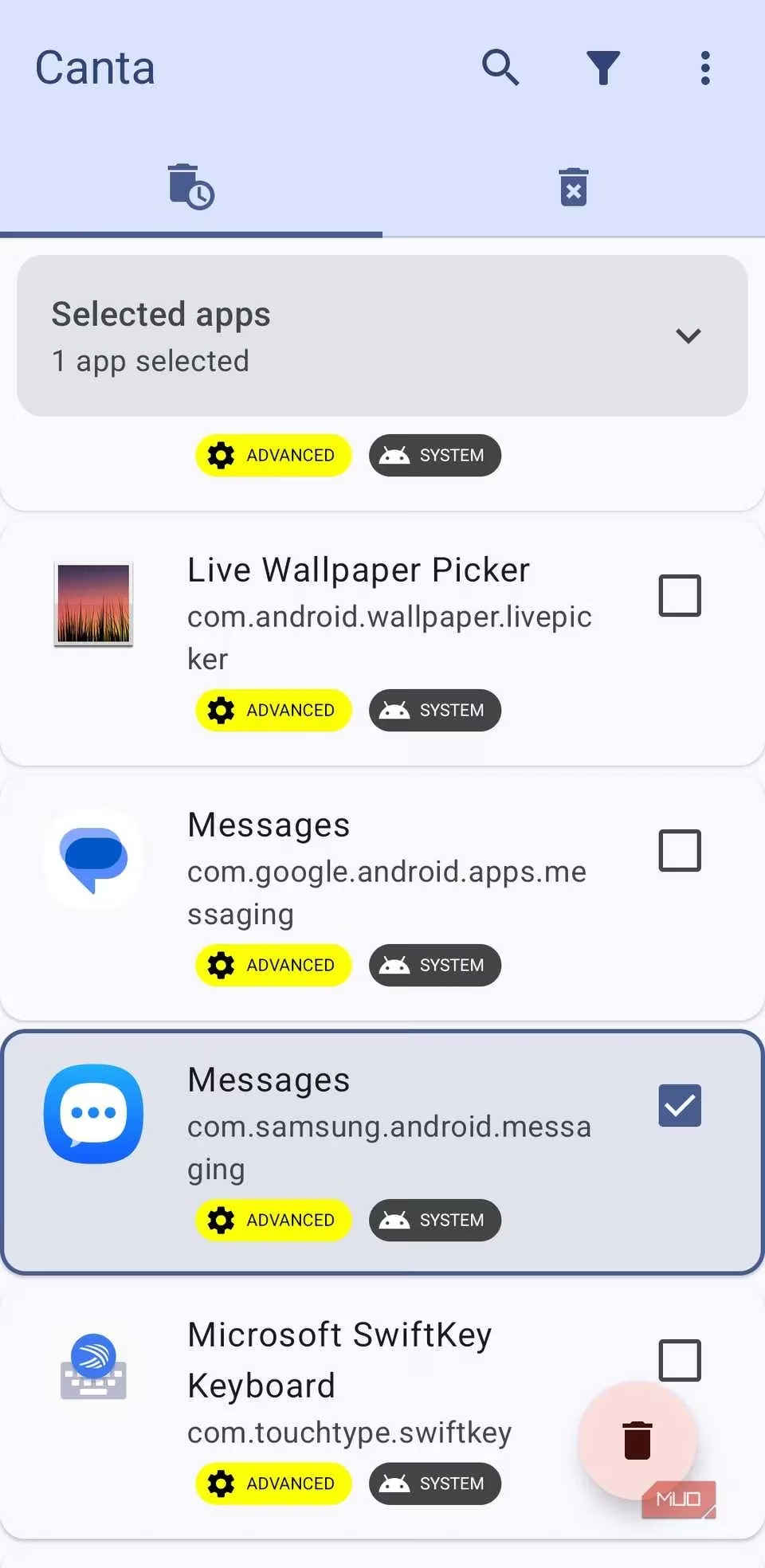
While Samsung historically made it difficult to remove some of these applications, recent iterations of One UI have provided more flexibility. Users can now uninstall or disable a wider range of pre-loaded apps without requiring advanced techniques like rooting. The process typically involves long-pressing the unwanted app icon and selecting Uninstall or, if that option is unavailable, Disable. This act of digital decluttering not only frees up storage but also personalizes the device, making it feel truly owned by the user rather than the manufacturer.
Maximizing the Display: Resolution, Refresh Rate, and Color
The display is frequently a primary selling point for Samsung's Galaxy series, renowned for its vibrant colors and sharp clarity. However, to prioritize battery longevity, One UI often employs conservative default settings that don't showcase the screen's full capabilities. Users can manually adjust several key parameters to achieve a visually superior experience.
Key Display Settings to Adjust:
| Setting | Default | Recommended | Path |
|---|---|---|---|
| Screen Resolution | FHD+ (1080p) | QHD+ (1440p) | Settings > Display > Screen resolution |
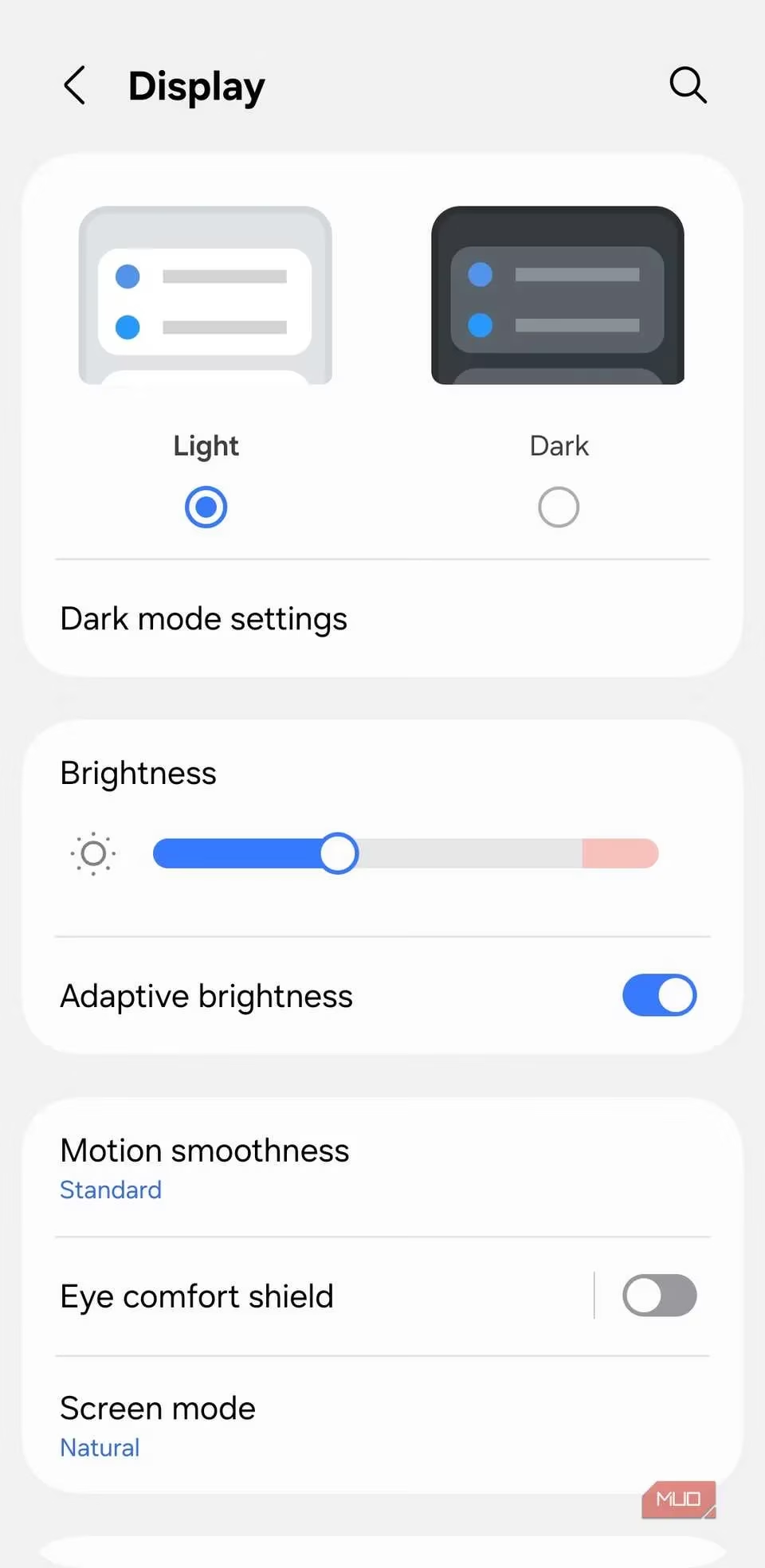
| Refresh Rate | Standard (60Hz) | High (120Hz) | Settings > Display > Motion smoothness |
| Screen Mode | Natural | Vivid (subjective) | Settings > Display > Screen mode |
-
Resolution: Switching from the default FHD+ to QHD+ delivers a noticeably sharper and more detailed image, a difference that becomes immediately apparent when viewing text, photos, or videos.
-
Refresh Rate: Elevating the refresh rate from 60Hz to 120Hz on supported models results in exceptionally smooth animations, scrolling, and overall touch responsiveness, making the interface feel fluid and instantaneous.
-
Screen Mode: While subjective, changing the screen mode from "Natural" to "Vivid" boosts color saturation and contrast, producing the punchy, vibrant visuals for which Samsung's AMOLED panels are famous.
Remapping the Side Key for Maximum Utility
The physical side button on Samsung phones comes pre-configured with actions that may not align with every user's habits. By default, a long press summons the Bixby or Gemini assistant, while a double-press launches the Camera application. For users who seldom use the voice assistant and already have a camera shortcut on the lock screen, these mappings can feel like wasted potential.
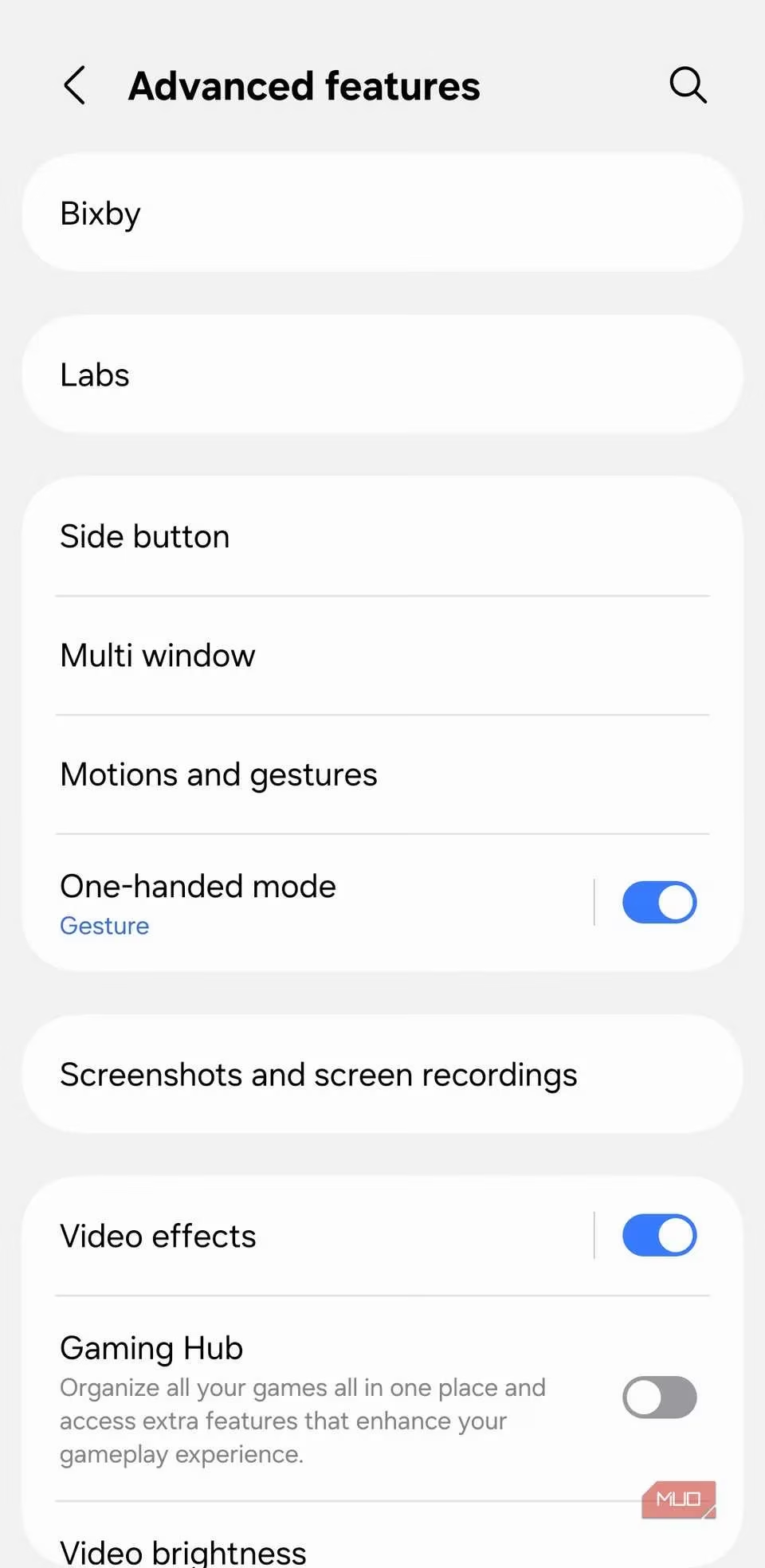
One UI includes built-in customization for this key. Navigating to Settings > Advanced features > Side key allows users to reassign these actions. A popular remap is setting the long-press action to open the Power off menu, providing quick access to restart or power down the device. The double-press action can be set to launch any application installed on the phone.
For power users seeking even more advanced automation, the Routines+ module (available via the Good Lock app from the Galaxy Store) unlocks profound customization. This tool enables the assignment of complex, multi-step routines to physical button presses. For instance, a long press could be configured to open a Chrome Incognito window, while a double-press might launch Google Maps with pre-set directions to the user's home address. This level of customization transforms the side key from a simple hardware button into a powerful productivity shortcut.
In conclusion, the journey from a standard Samsung setup to a finely-tuned personal device is paved with these often-overlooked settings. By taking control of notifications, eliminating promotional noise, removing unwanted software, maximizing the display's hardware, and customizing physical controls, users can craft an experience that is not only more efficient and pleasant but also uniquely their own. These adjustments ensure that the device works for the user, not the other way around, fully realizing the investment made in a premium smartphone.