
Effortless Magic Keyboard Setup Guide for Apple Devices in 2025
Discover how Apple's Magic Keyboards boost productivity in 2025 with seamless Bluetooth and Smart Connector setups for Mac and iPad users alike.
Apple's Magic Keyboards continue to be the silent heroes of productivity in 2025, offering that satisfying clickety-clack without the messy wires. Whether you've just unboxed one or found it buried under paperwork, getting it up and running feels like shaking hands with an old friend. The setup dance varies slightly between Mac and iPad versions, but both share Apple's signature 'it just works' philosophy – once you know the secret handshake, that is.
⚡ Powering Up Your Magic Keyboard for Mac
That slim aluminum beauty needs juice before it can work its magic! Locate the tiny power switch playing hide-and-seek in the keyboard's top-right corner – slide it until you see that reassuring green glow. Now, here's where the real conversation begins:
-
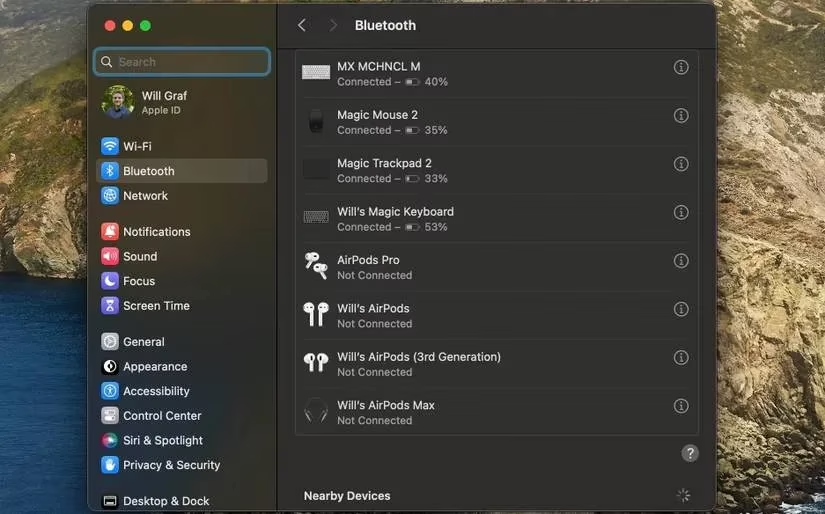
Open System Settings on your Mac
-
Click Bluetooth in the sidebar
-
Spot your keyboard under Nearby Devices like it's waving hello
-
Hover and hit Connect – no awkward small talk needed!
Pro Tip: Keep that Lightning cable handy! The keyboard sips power like fine tea – plug it into your Mac or any USB charger when the battery winks at you tiredly.
📱 Switching Partners: Mac Keyboard Meets iPad
Who says keyboards can't mingle? Your Mac's Magic Keyboard secretly dreams of iPad adventures. Power it on with that trusty switch, then on your iPad:
1. Dive into **Settings** > **Bluetooth**

2. Flip the Bluetooth toggle ON

3. Under *Other Devices*, tap your keyboard's name

4. Hear the satisfying *click* of digital handshake!
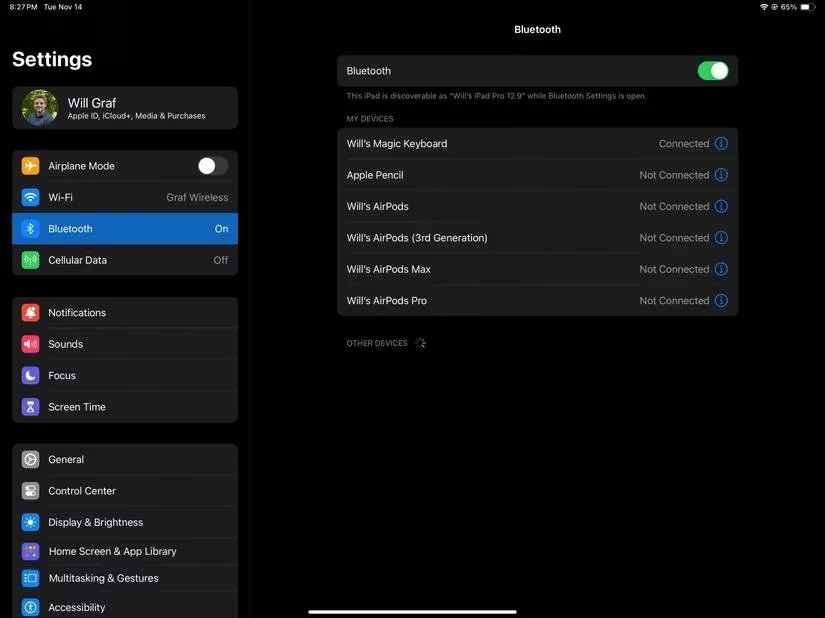
Test the connection by swiping down on your Home Screen and typing in Spotlight – if letters appear like obedient soldiers, you're golden!
🧲 The Smart Connector Magic (iPad Edition)
Now, Apple's dedicated iPad keyboard cases? They're the introverts of the accessory world – no Bluetooth small talk required! These $249-$349 folios (depending on your iPad model) work through pure magnetic attraction:
| Feature | Magic Keyboard for Mac | iPad Magic Keyboard Case |
|---|---|---|
| Connection | Bluetooth | Smart Connector |
| Battery | Internal (rechargeable) | iPad-powered |
| Setup | Pairing process | Snap-and-go |
Just align your iPad Pro/Air's camera housing with the case's cutout or snap the 10th-gen iPad into the Folio's back panel. The Smart Connector does all the whispering behind the scenes – no buttons, no charging, just woosh and you're typing.
❓ People Also Ask
- "Why won't my Magic Keyboard wake up even after charging?"
Sometimes it just needs a hard reset! Try holding power for 10 seconds while whispering sweet nothings to it.
- "Can I use the iPad keyboard case with my Mac?"
Alas, no – these keyboard cases are fiercely loyal to their iPad partners only.
- "Do I need different setups for various iPad models?"
The connection magic works the same, but double-check compatibility – 11-inch/12.9-inch iPad Pro and Air 4th gen+ for the premium case, Folio exclusively for 10th-gen iPad.
🛠️ When Magic Stumbles: Quick Fixes
If your keyboard plays dead after charging, don't panic! First, check if it's flirting with another device – Bluetooth connections can get jealous. Reset by turning Bluetooth off/on or restart both devices. Still stubborn? Might be time for a Genius Bar visit...
At the end of the day, these keyboards transform typing from chore to joy. Whether you're snapping magnets or pairing wirelessly, that first satisfying clack when keys meet fingertips? Pure Apple sorcery. Now go forth and type – your thoughts are waiting to escape!