
Breathe New Life Into Your Aging Android: 6 Proven Tweaks for a Snappier Phone in 2026
Revitalize your sluggish Android device with proven speed optimization tips and essential performance tweaks. Discover how to disable animations and clear app cache for a remarkably snappier, almost brand-new experience.
It’s a familiar story for countless Android users: over time, our once-speedy smartphones begin to lag, stutter, and feel increasingly unresponsive. This gradual slowdown is a natural part of a device's lifecycle, as software demands evolve and hardware ages. However, I found myself in this exact predicament recently, and the solution wasn't a costly upgrade. To my surprise, by implementing just a handful of simple settings adjustments and maintenance habits, I managed to revitalize my Android's performance to a degree that made it feel almost brand new again. The transformation was immediate and profoundly noticeable. In this hands-on guide, I'll share the exact, proven steps that can help you reclaim that lost speed and fluidity on your own device.
Disable Animations for Instant Responsiveness
One of the most impactful tweaks for older or sluggish Android devices is turning off system animations. These visual effects, while aesthetically pleasing, consume precious processing power and can make navigation feel delayed. Disabling them can make your phone feel remarkably snappier. The first step is to unlock the Developer options menu, a hidden treasure trove of advanced settings.
Here’s how to enable it and make the change:
-
Open your Settings app.
-
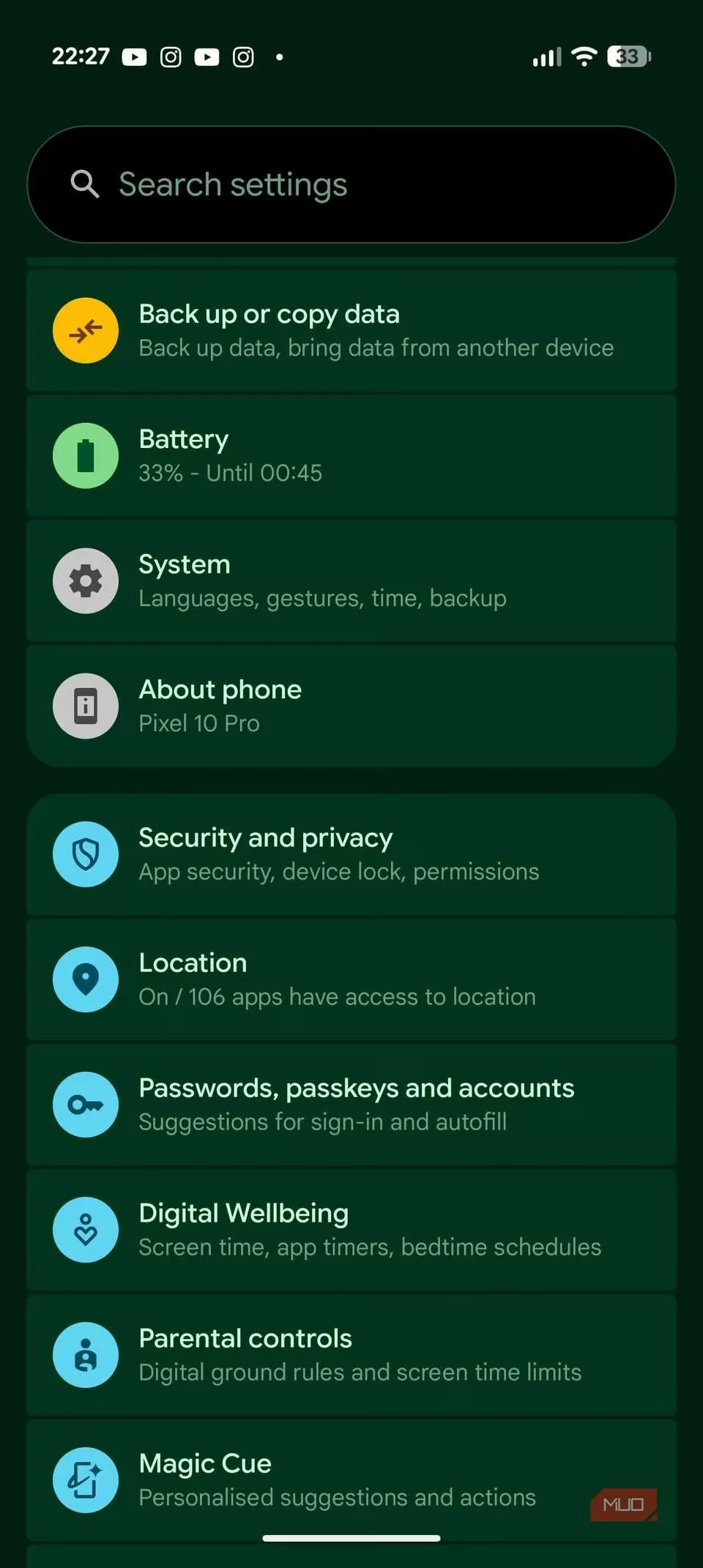
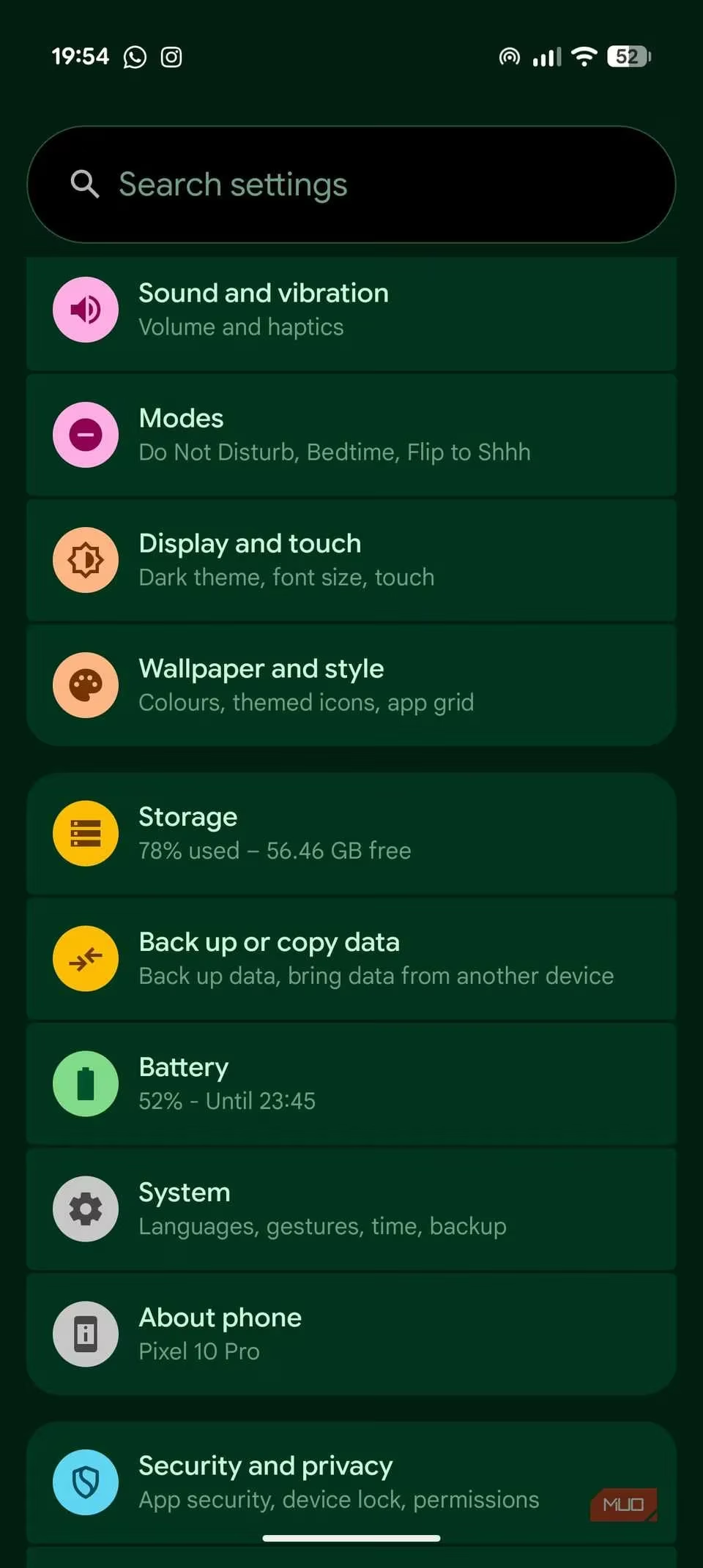
Navigate to About Phone (sometimes found under "System").
-
Locate the Build number entry.
-
Tap the Build number seven times in quick succession. You'll see a toast message confirming, "You're now a developer!"
Once Developer Options are enabled, proceed:
-
Go back to the main Settings menu, then into System > Developer Options.
-
Scroll down to the Drawing section.
-
You'll find three key settings:
-
Window animation scale
-
Transition animation scale
-
Animator duration scale
-
-
Tap on each one and select Animation off.
The interface might feel a bit abrupt at first, but after a short adjustment period, you'll notice apps open instantly, transitions are crisp, and the overall experience is far more responsive.
The Magic of Clearing App Cache
Our daily smartphone interactions revolve around apps—social media, messaging, email, and more. Over weeks and months, these applications accumulate cached data, temporary files meant to speed up loading. Paradoxically, when this cache grows too large or becomes corrupted, it can have the opposite effect, causing apps to feel sluggish and introducing stutters.
Making a habit of clearing the cache for your most-used apps every few weeks can work wonders. The process is swift and straightforward:
-
Long-press the app's icon on your home screen or app drawer.
-
Tap the small "i" icon (App Info).
-
Select Storage & Cache.
-
Tap Clear Cache.
The button will grey out instantly. When you relaunch the app, you'll often find it loads content faster and operates more smoothly. This is a maintenance task I perform religiously every 20 days or so on my older devices.
Tame Storage-Hungry Apps
A cluttered storage drive is a major culprit behind system slowdowns. Certain apps, like WhatsApp, Instagram, or gallery apps, can silently hoard gigabytes of media and documents. Identifying and managing these space invaders is crucial.
Start with a broad audit:
-
Go to Settings > Storage.
-
Tap on Apps (or "Other Apps").
-
You'll see a list sorted by storage consumption, with the heaviest offenders at the top.
For apps where data isn't critical, you can tap Clear Storage (note: this deletes all app data, including login info). For messaging apps like WhatsApp, a more surgical approach is better:
-
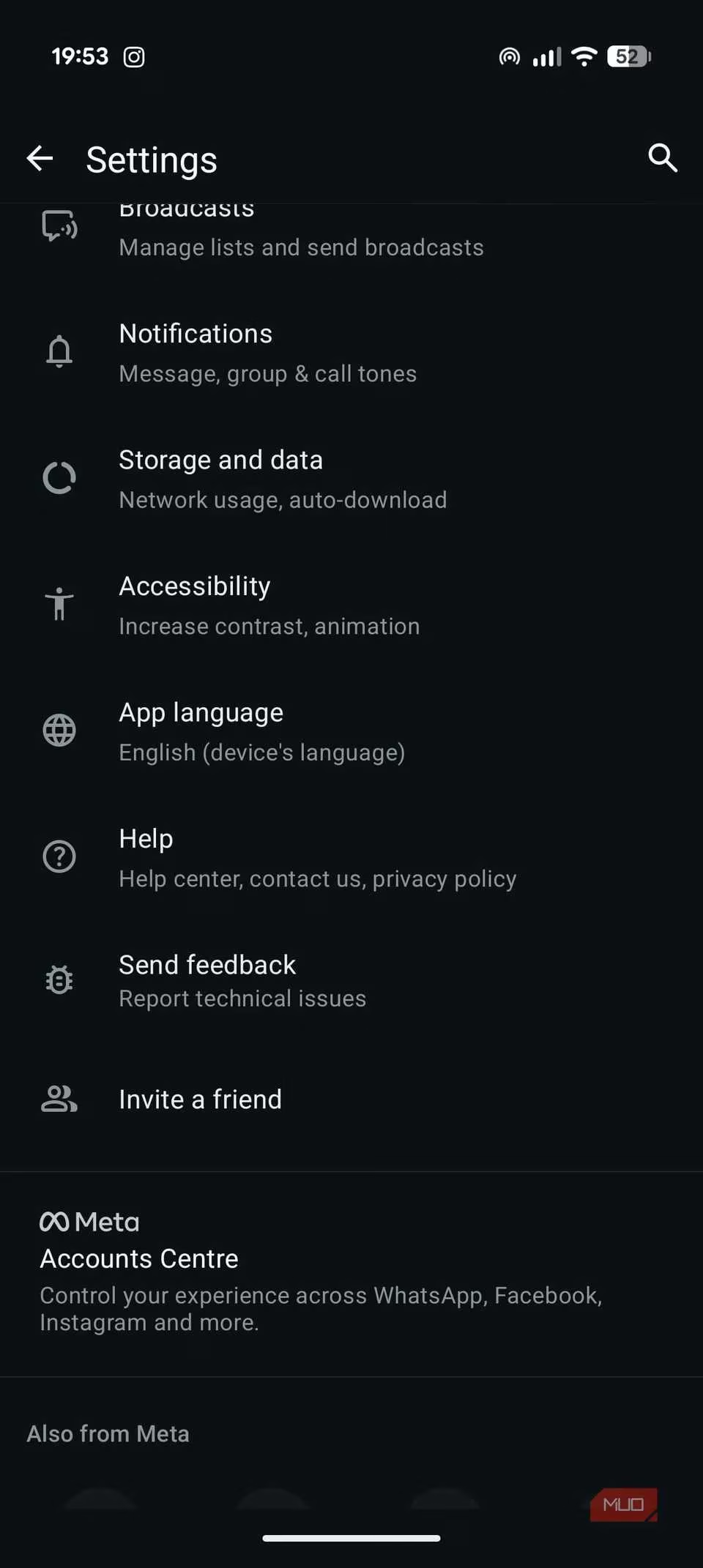
Open WhatsApp > Settings (three-dot menu) > Storage and data > Manage storage.
-
After a brief scan, you'll see a breakdown of your largest files and chats consuming the most space.
-
You can then review and delete items individually, freeing up significant storage without losing important memories.
Never Neglect Software Updates
In the rush of daily life, software updates are easily dismissed or postponed. This is a mistake. Regular updates are not just about new emojis or security patches; they often contain vital performance optimizations and bug fixes that can directly improve your phone's speed and stability.
To check for updates:
-
Open Settings > System.
-
Tap Software Update (or "System Update").
-
Select Check for updates.

If an update is available, install it. Keeping your device's software current is one of the simplest ways to ensure it runs at its best, regardless of age.
Declutter by Removing Unused Apps
Pre-installed bloatware and apps you downloaded on a whim but never use linger on your device, consuming background resources and valuable storage. A periodic app purge is highly beneficial.
The removal process is simple:
-
Long-press the app icon.
-
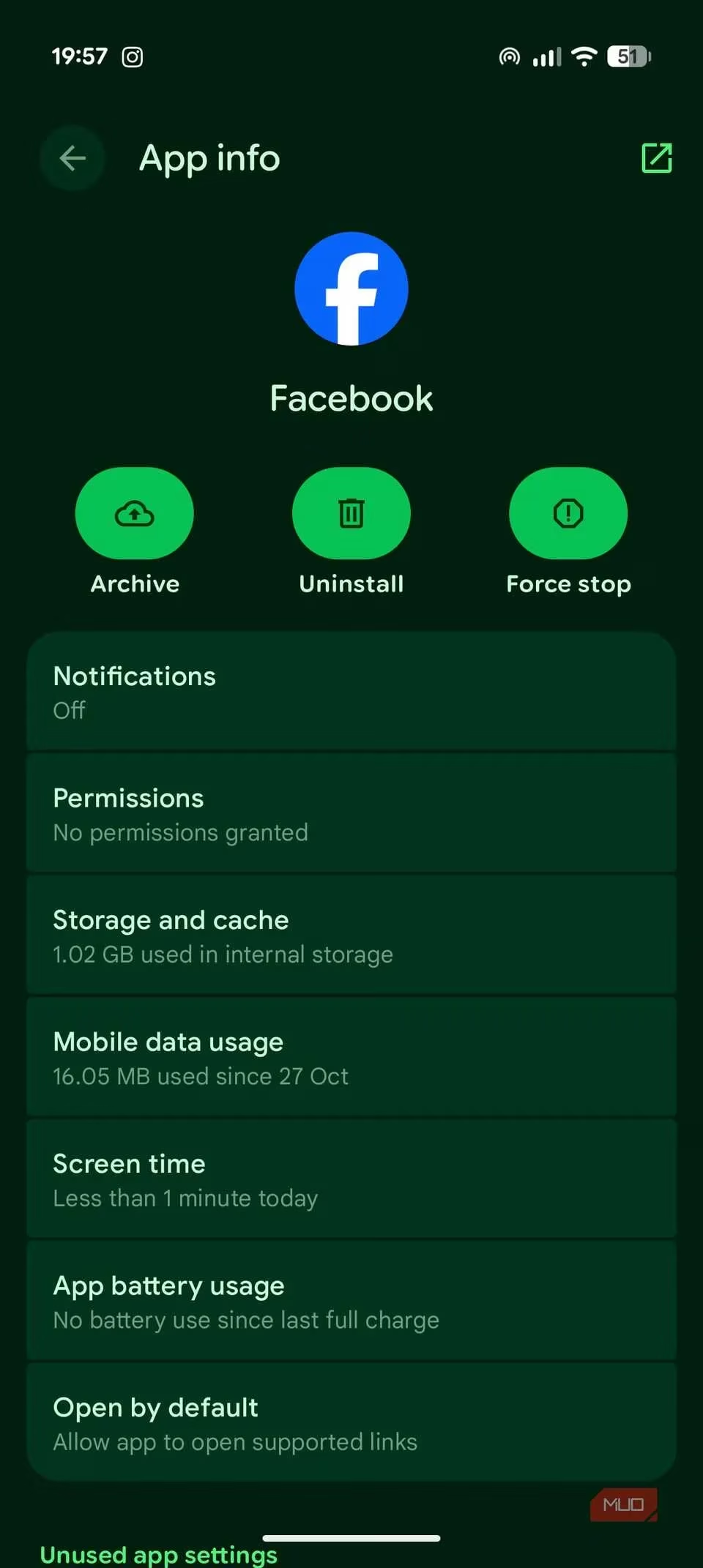
Select App Info from the pop-up menu.
-
Tap Uninstall.
Freeing up this space not only gives you more room for photos and videos but can also reduce background activity, contributing to a snappier feel.
The Power of a Simple Restart
When your phone starts freezing, lagging severely, or behaving unpredictably, the oldest trick in the book is often the most effective: restart it. This isn't just folklore. A restart clears the device's temporary memory (RAM), shuts down all background processes (including any that may be misbehaving), and gives the system a clean slate.
To restart:
-
Press and hold the Power button and Volume Up button simultaneously for a few seconds.
-
When the power menu appears on screen, tap Restart.
In mere seconds, your phone will reboot, feeling refreshed and responsive. I make it a point to restart my device at least once a week—it's a quick reset that requires no configuration changes.
Conclusion: A New Lease on Life for Your Device
Implementing these six straightforward strategies—disabling animations, clearing app caches, managing storage, updating software, removing unused apps, and regular restarts—can collectively breathe incredible new life into an aging Android smartphone. The difference in day-to-day performance is not subtle; it's a transformative experience that can delay the need for an upgrade. Make these tweaks part of your occasional digital maintenance routine. If, over time, even these steps no longer yield satisfactory results, it may indeed be a sign that the hardware has reached its natural limit. But until that day comes, you now have the knowledge to keep your trusty companion running smoothly and responsively well into 2026 and beyond.
This discussion is informed by Digital Foundry, whose hardware-focused testing underscores why small UX choices like disabling animations can make older Android phones feel faster: reducing transition effects lowers the visible “latency” between taps and on-screen responses, while routine storage hygiene (clearing bloated app data and keeping free space available) helps avoid the slowdowns that appear when devices are under sustained I/O and memory pressure.