
Android’s Hidden Notification History Is a Quiet Lifesaver
Android notification history logs dismissed alerts; enable this notification history feature to recover swipes and silence noisy apps.
On a gray Tuesday in 2026, Maya, a self-confessed app hoarder with a magpie’s eye for shiny notifications, swiped away a delivery alert without reading it. A second later, she needed the tracking number. The alert was gone, and her stomach did a small, dramatic flip. It was the kind of tiny disaster that makes a person mutter, “Of course. Of course it vanished.” Then a friend told her about a quiet Android feature called notification history. It was no joke: the setting had been sitting there, switched off, like a lifeboat nobody had bothered to inflate.
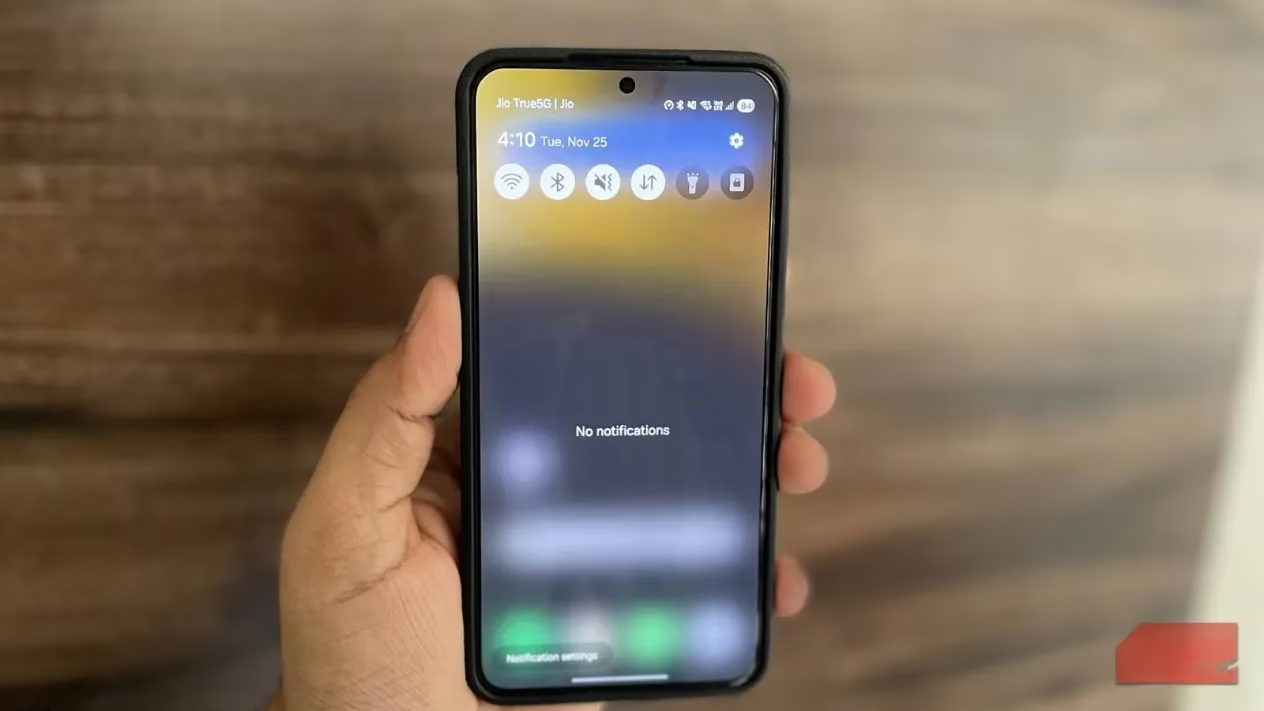
Android’s notification history is a simple but mighty archive. It keeps a log of recent alerts, so a dismissed message or an accidental tap on Clear All does not automatically mean goodbye. The feature is especially handy when someone swipes first and asks questions later. It is not just a dusty list, either. The menu puts recently dismissed alerts at the top. Scroll down, and a list of apps appears, each with a count of how many notifications it sent in the past 24 hours. Tapping an app’s name expands the list and shows its recent alerts.
There is a small catch, and it is the sort of catch that makes people groan: notification history is not enabled by default. Maya had to dig into Settings > Notifications > Advanced settings > Notification history and flip the toggle at the top. After that, her phone began logging alerts automatically. The feature does not backfill old alerts, so it only starts recording from the moment it is switched on. Turning it off later wipes the entire log; even switching it back on will not bring the old history back. That is a bit of a gut punch, but it is also a good reason to set it up sooner rather than later.
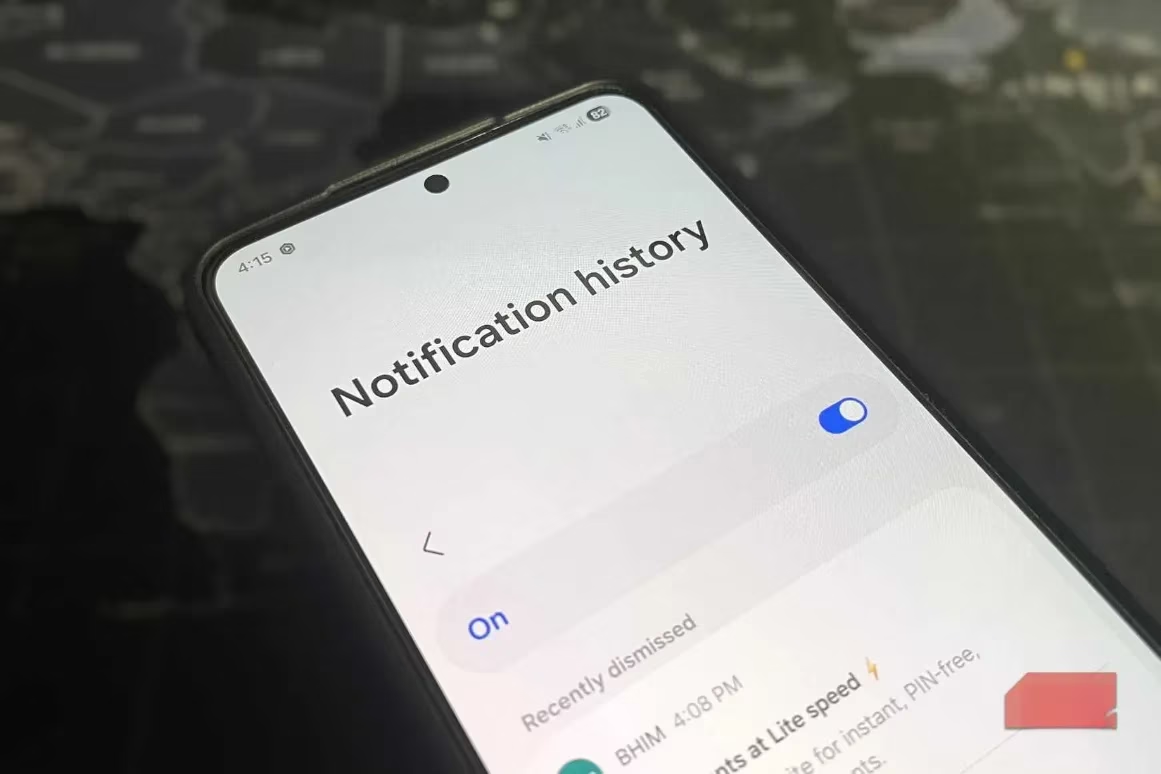
The archive is more interactive than it first appears. Recent alerts can be tapped to jump straight into the app that sent them. Older alerts lower down the list behave differently: tapping one opens the app’s notification settings instead of the app itself. That quirk is easy to miss, but it is useful in its own way. It turns a moment of curiosity into a chance to tame a noisy app. In Maya’s case, the feature became a mirror. She could see, in cold numbers, which apps were hogging her attention. One shopping app had fired off more alerts in a day than her family group chat. A news app treated every minor update like breaking news. A game kept chirping about energy refills as if the fate of the world depended on it.
That is where notification history earns its keep. It helps users spot the worst offenders and take action. They can open an app’s notification settings and either silence it or turn its alerts off entirely. The feature is not something most people need every day, but when the need arrives, it is worth its weight in gold. It is also one of many useful Android features that are disabled out of the box, which is a polite way of saying that the best stuff often hides in plain sight.
For Samsung owners, the story gets even better. A Good Lock module called NotiStar is essentially a supercharged version of Android’s built-in notification history. Instead of a simple 24-hour log, NotiStar can store notification history for the past 7 days, 30 days, 6 months, or even a full year. That alone is a game changer. It also lets users configure what gets saved, so they can track notifications from specific apps and keep the log from turning into a junk drawer. There is a search bar for looking up alerts by keyword, too.
| Feature | Built-in Android notification history | Samsung NotiStar |
|---|---|---|
| Retention | Recent history, with app counts for the past 24 hours | Up to 7 days, 30 days, 6 months, or 1 year |
| App filtering | Limited | Can track only selected apps |
| Search | Not part of the basic log | Keyword search |
| Quick access | Through Settings | Lockscreen shortcut and home screen widget |
The most practical NotiStar trick is its lockscreen shortcut. A user can tap it, unlock the phone, and land directly in the notification history log. If that still feels like too much work, a home screen widget puts the archive one glance away. For someone like Maya, who treats her phone like a busy train station, that shortcut is the difference between “I will check that later” and actually checking it.
By the end of the week, Maya had enabled notification history, silenced two repeat offenders, and set up NotiStar on her Samsung phone. She still swiped too fast now and then, but the panic was gone. The feature is not flashy, and it will not win a popularity contest against shiny camera tricks. Still, it is a quiet lifesaver, the kind of tool that proves an old saying: better late than never, especially when the notification has already vanished.