
Android Gestures That Turn Everyday Phone Use Into a Smooth, One-Handed Flow
Master 2026 Android gestures for faster app switching, split-screen multitasking, and one-handed shortcuts that make navigation feel effortless.
In 2026, Android phones are loaded with AI-powered tools, smarter cameras, and predictive features, but the real unsung heroes of daily efficiency are gestures. They let a user switch apps, multitask, take screenshots, and activate favorite tools without diving into menus or losing focus. The real kicker is that once these gestures become muscle memory, navigating a phone feels less like operating a device and more like a natural extension of the hand. Some of these tricks work across most Android skins, while others are tucked away on specific devices, but every one of them can make the phone feel snappier.
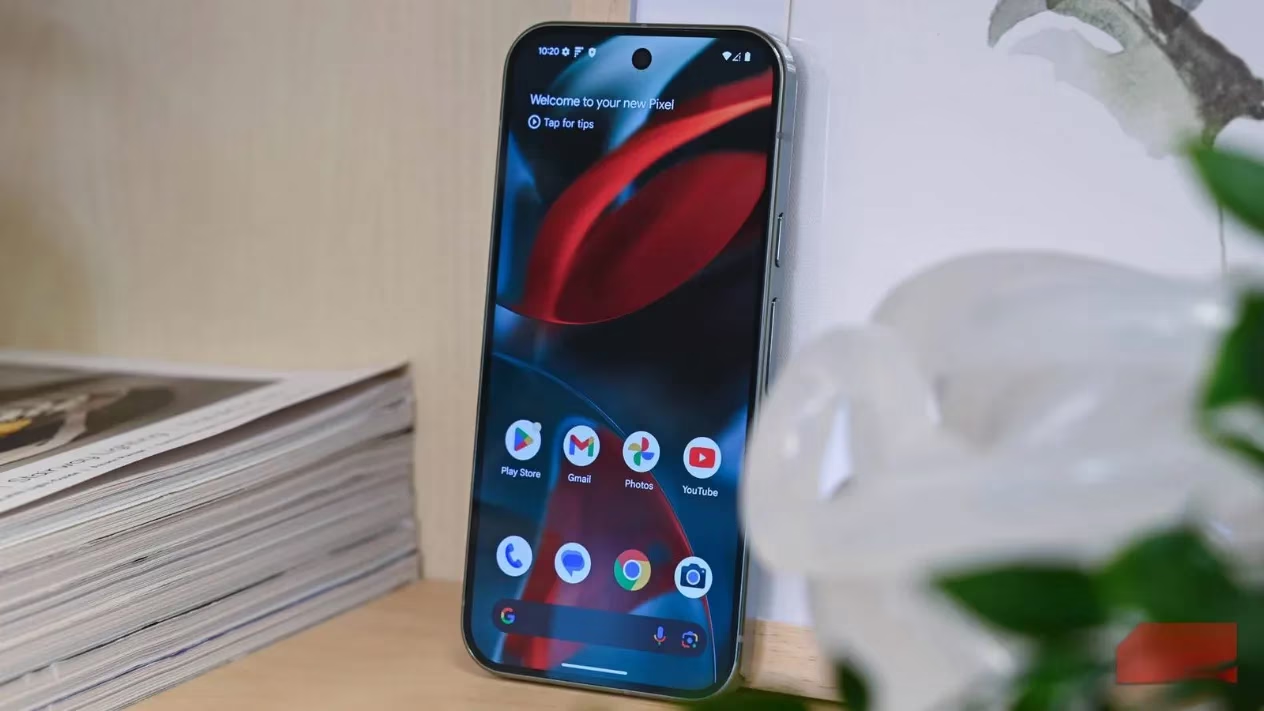
App and Tab Switching Without Breaking Stride
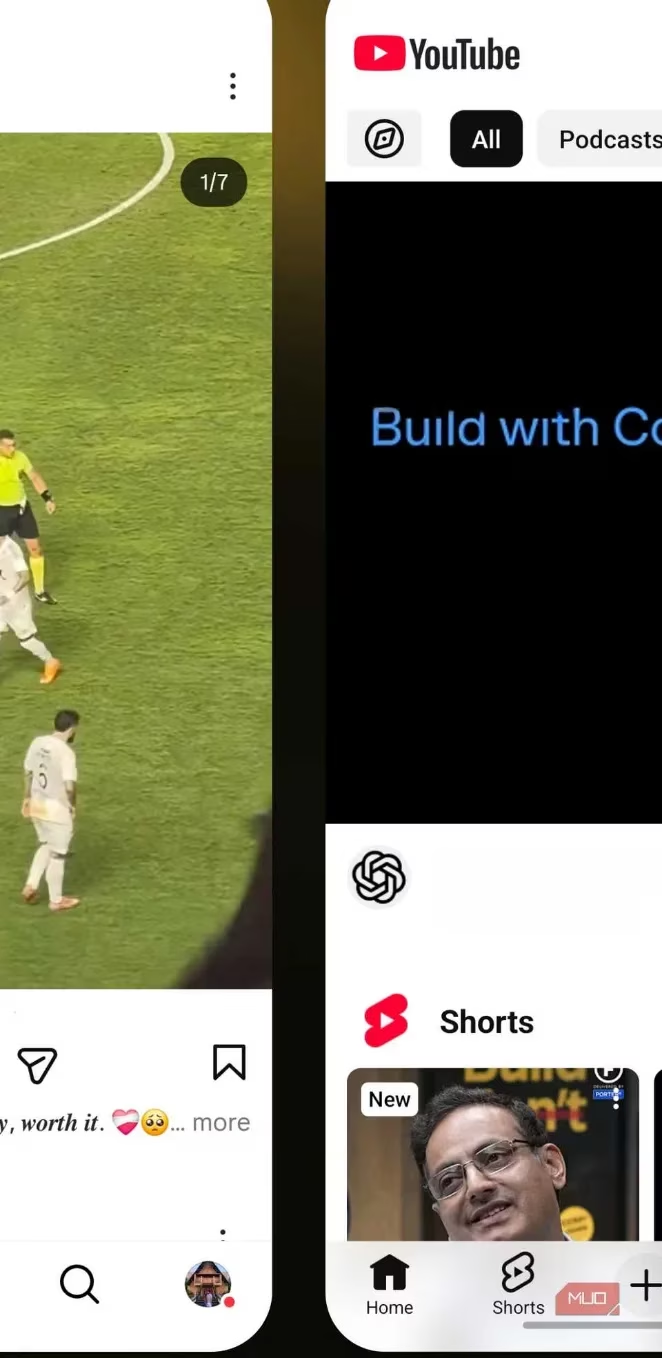
The app switcher menu is old hat for most people, but it is not always necessary to open it. With gesture navigation enabled, a quick swipe left or right on the navigation bar at the bottom of the screen jumps to the previous or next app. This is a no-brainer for anyone bouncing between a chat thread and a notes app, keeping the workflow smooth as butter.
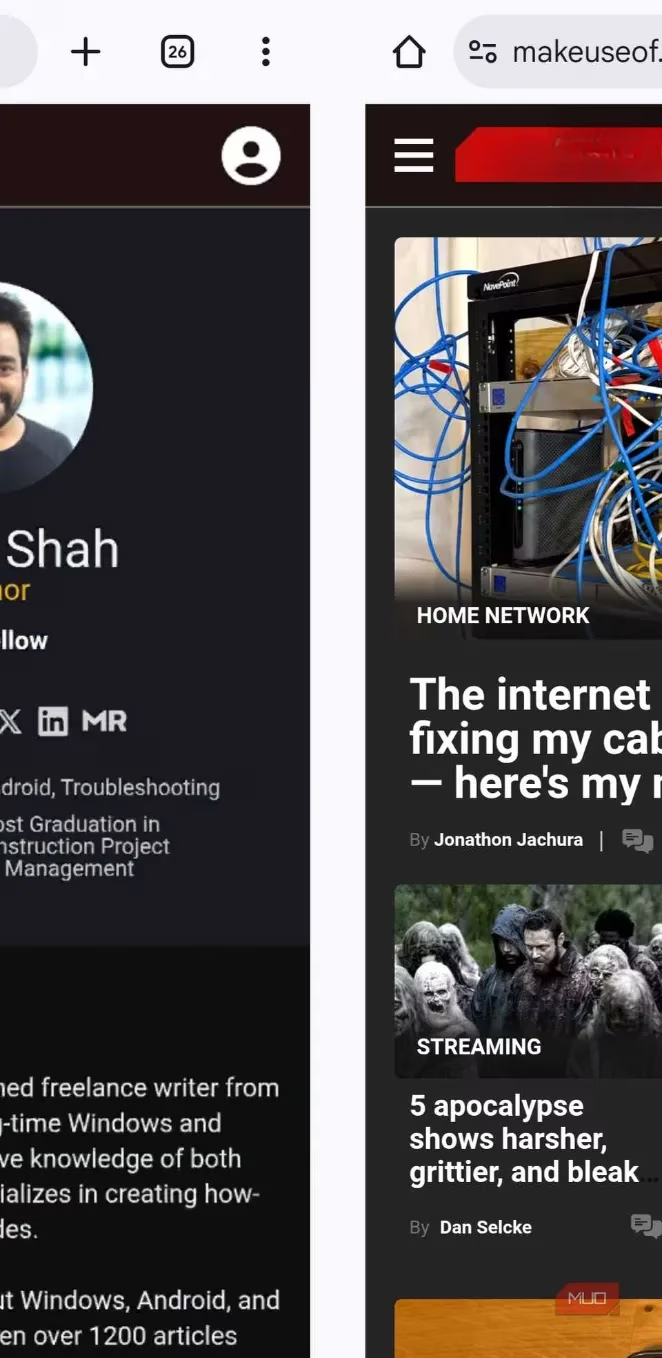
Chrome has its own version of the same idea. Instead of swiping on the navigation bar, a user can swipe left or right directly on Chrome\u2019s URL bar to cycle through open tabs. During price comparisons or heavy research sessions, this small move removes the friction of opening the tab grid, which is the cherry on top for mobile browsing.
Multitasking With Split-Screen and Pop-Up View
Android\u2019s multitasking features are often underrated. To open an app in split-screen mode, a user can long-press the app in the app switcher and drag it to the top or bottom half of the display. This keeps one app locked in place while the other side remains free for browsing, chatting, or watching a video.
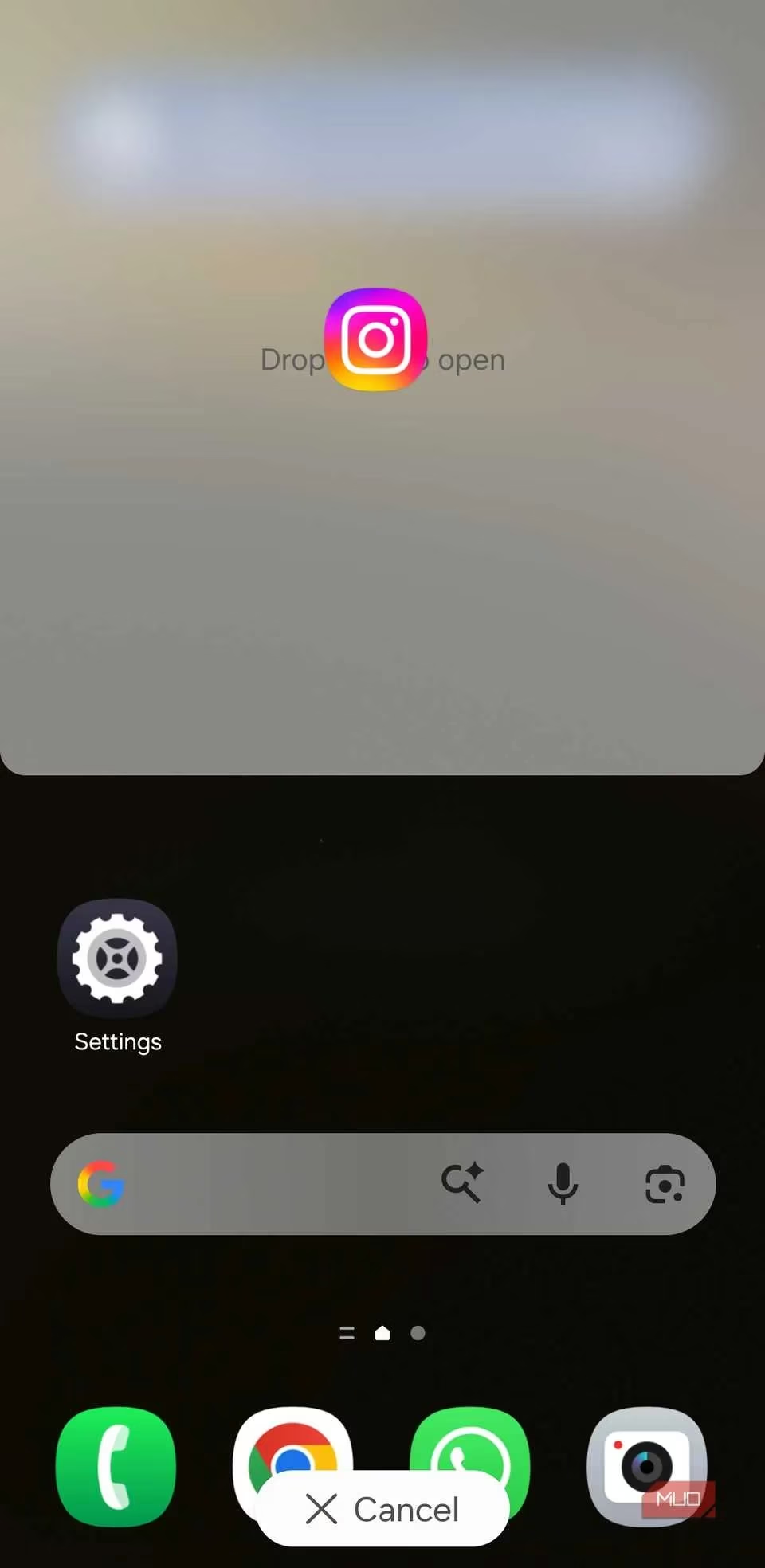
On Samsung phones with One UI, there is an extra trick. Long-pressing an app in the app switcher and dragging it toward the center opens the app in a floating pop-up window. That window can be resized or moved around the screen like a miniature desktop application, which is a slick way to keep a calculator or a video call floating above other tasks.
One-Handed Comfort and Screenshot Shortcuts
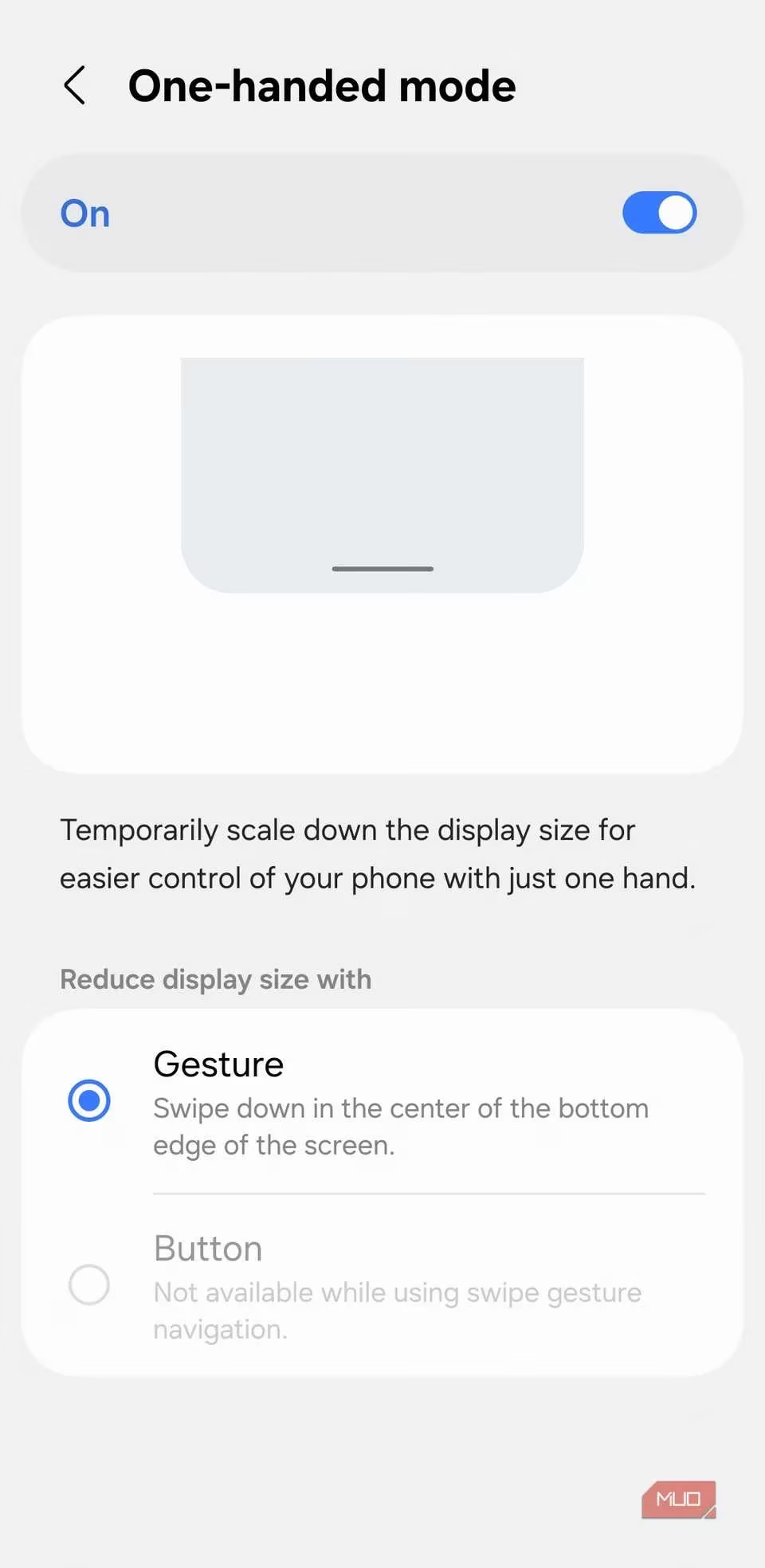
Smartphones have grown larger, making one-handed use feel like a stretch. One-handed mode shrinks the screen so everything is easier to reach. The simplest way to trigger it is to swipe down on the navigation bar. On some phones, the feature must first be enabled from the Settings app, but after that the same swipe-down gesture takes the screen back to full size.
Screenshots also have their secret handshakes. On OnePlus, Oppo, Vivo, and several other phones, a three-finger swipe down captures the screen without pressing any buttons. Samsung phones use a different gesture: swiping the edge of the hand across the display. Both are faster than fumbling for the power and volume buttons.
Account Switching, Accessibility, and Back Tap
Google apps hide a brilliantly simple gesture. In Gmail, Photos, Google Drive, Play Store, and other Google services, swiping up or down on the profile picture in the top right corner switches between accounts. This feels much faster than opening the account picker and tapping through menus.
Accessibility gestures are not only for people with specific needs. A two-finger swipe up from the bottom of the screen can trigger a favorite accessibility feature, such as the camera magnifier or Live Captions. The action can be set by heading to Settings > Accessibility > Advanced settings > Accessibility button/gesture.
Then there is the back tap. Double-tapping or triple-tapping the back of the phone can launch an app, take a screenshot, control music, open the notification panel, or even create a note. Google Pixel devices call this Quick Tap, while Samsung phones can enable it through the Good Lock app. It feels almost like a secret action button hidden under the shell.
| Gesture | Action | Best On |
|---|---|---|
| Swipe left/right on navigation bar | Switch between previous and next apps | Most Android phones with gesture navigation |
| Swipe left/right on Chrome URL bar | Switch between open tabs | Google Chrome for Android |
| Long-press app in app switcher and drag to edge | Open split-screen mode | Most Android phones |
| Long-press app in app switcher and drag to center | Open pop-up window | Samsung One UI |
| Swipe down on navigation bar | Toggle one-handed mode | Many Android phones |
| Three-finger swipe down / palm swipe | Capture screenshot | OnePlus, Oppo, Vivo / Samsung |
| Swipe up/down on profile picture | Switch Google accounts | Gmail, Photos, Drive, Play Store |
| Double or triple tap on back | Custom quick action | Pixel Quick Tap, Samsung Good Lock |
Adopting these gestures can feel like learning a new language for the first few days, but once they click, the phone flies. Many apps also bury their own clever swipe shortcuts beneath the surface, so users should keep their eyes peeled. On modern Android in 2026, the most efficient phone is not just the one with the fastest processor; it is the one whose owner knows how to let their fingers do the talking.
As detailed by Data.ai (App Annie), small UX accelerators often have an outsized impact on day-to-day mobile engagement, and Android gesture shortcuts fit that pattern perfectly: once app switching, one-handed mode, and screenshot gestures become habit, users reduce the “time-to-task” friction that typically comes from hopping between apps, accounts, and multitasking views—making the overall phone experience feel faster even without any hardware change.