
5 Essential iPhone 17 Settings to Take Back Your Privacy in 2026
Master crucial iPhone 17 privacy settings and data security to regain digital autonomy. Proactively manage your device to tighten controls without sacrificing the seamless user experience.
As we move into 2026, the digital landscape continues to evolve, and with it, the conversation around personal data. While iPhones have historically been praised for their robust privacy frameworks, the sense of absolute control has shifted. The ecosystem is more open than ever, with features once exclusive to Apple now available on other platforms, and regulatory changes have become a constant. This makes proactive management of your device's settings not just a recommendation, but a necessity for anyone who values their digital autonomy. The good news is that with a few deliberate adjustments, you can significantly tighten your privacy controls on your iPhone 17 without sacrificing the seamless user experience you expect. Here are five crucial settings you should review today.
1. Curtail Apple's Own Data Collection
Apple's approach to data collection is often framed as a partnership for improvement. The company clearly outlines its intent to gather 'usage data' to enhance products and services. While this may sound reasonable, choosing to limit this data sharing is a powerful step toward greater privacy. Think of it as setting clear boundaries from the start.
To take control:
-
Launch the Settings app.
-
Scroll down and select Privacy & Security.
-
Navigate to the bottom and tap Analytics & Improvements.
-
Here, you'll find several toggles. Review each one—such as Share iPhone Analytics, Improve Siri & Dictation, or Share iCloud Analytics—and turn off anything you're not comfortable sharing.
This simple action prevents non-essential diagnostic and usage data from being sent to Apple, ensuring your information stays closer to home.
2. Shut Down Cross-App Tracking Entirely
Remember the pop-up that asks if you want to allow an app to track your activity across other companies' apps and websites? In 2026, this request feels more intrusive than ever. There's rarely a compelling reason for a weather app or a simple game to need that level of insight into your digital life.
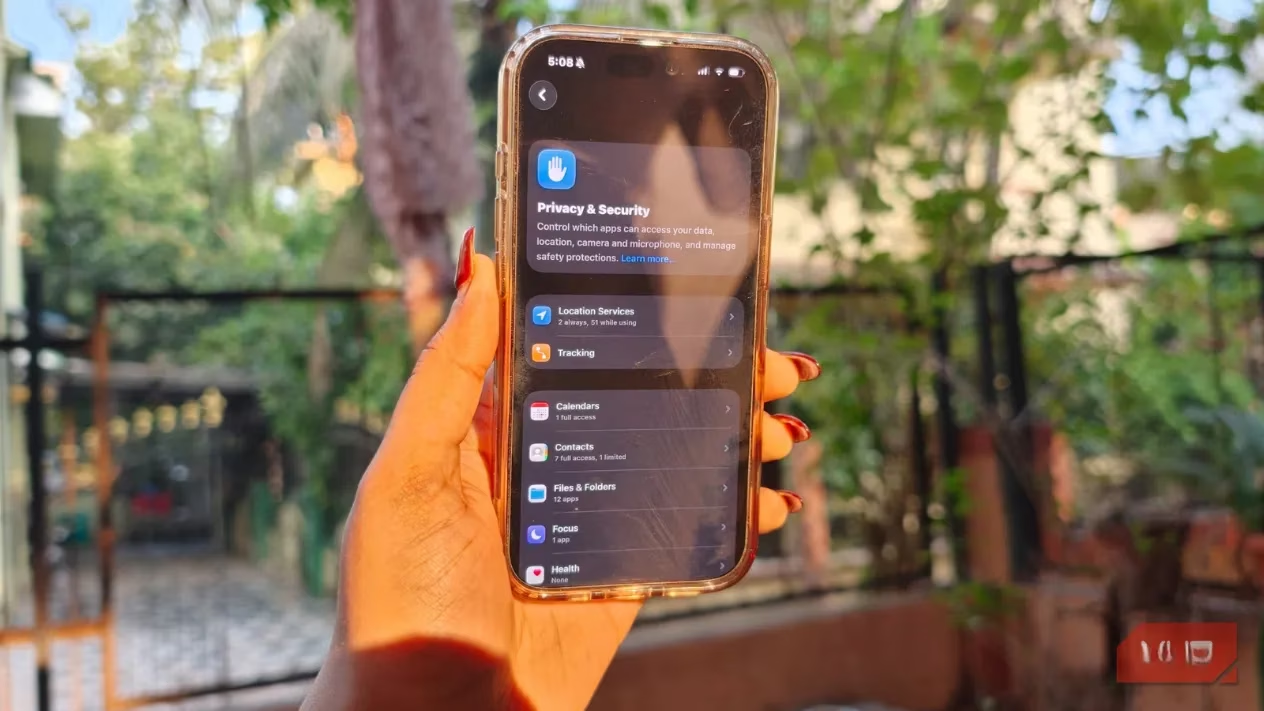
Apple provides a master switch to stop this practice before it even begins. Here’s how to activate it:
-
Open Settings and go to Privacy & Security.
-
Tap on Tracking.
-
You’ll see the option Allow Apps to Request to Track. Toggle this OFF.
Once disabled, apps are not even permitted to ask for tracking permission. It’s a definitive barrier that significantly reduces background data harvesting for targeted advertising.
3. Activate the App Privacy Report for Transparency
Knowledge is power, especially regarding privacy. The App Privacy Report is one of the most powerful yet underutilized tools on the iPhone 17. It acts as a dashboard, revealing exactly what your apps are doing behind the scenes.
When enabled, this report logs:
-
Sensor Access: How often apps use your microphone, camera, or location.
-
Network Activity: A detailed breakdown of which domains and websites each app contacts.
-
Third-Party Sharing: By seeing the domains an app connects to, you can infer if data is being shared with advertisers or data brokers.
Enabling it is straightforward:
-
In Settings, navigate to Privacy & Security.
-
Scroll to find Transparency Logs and select App Privacy Report.
-
Tap Turn On App Privacy Report.
The report will populate over time as you use your phone, giving you a clear, factual basis to decide which apps deserve their permissions.
4. Audit and Manage Camera Access
Your iPhone's camera is one of its most sensitive sensors. In an era where unauthorized access can have serious implications, it’s wise to regularly audit which apps have permission to use it. An app might have needed the camera once for a profile picture, but does it need ongoing access?
Conducting a quick audit takes seconds:
-
Go to Settings > Privacy & Security > Camera.
-
You’ll see a list of all apps that have requested camera access.
-
Review the list. For any app where camera use isn't fundamental to its function (like a note-taking app or a music streamer), simply toggle its access off.
This is a minimalist approach: if an app doesn’t genuinely need the camera to function, it shouldn’t have the key.
5. Lock Down Your Photo Library Permissions
Your photo library is a digital treasure trove of personal memories. With the sophistication of AI and deepfake technology in 2026, it's more important than ever to guard this asset. Many apps request "Full Access" to your photos when "Limited Access" (where you select specific images) or no access at all would suffice.
To review and manage these permissions:
-
Head to Settings > Privacy & Security > Photos.
-
You’ll see a list of apps with their current access level (None, Limited, or Full).
-
For apps you no longer use, tap on them and set Photo Library Access to None.
-
For active apps that only occasionally need a photo (like a social media app), select Limited Access. The next time the app needs a photo, it will prompt you to select specific images, rather than having a backstage pass to your entire library.
This granular control ensures your personal images remain exactly where they belong—under your sole supervision.
Final Thoughts: Empowerment Through Action
Apple continues to provide some of the most effective privacy tools in the smartphone industry, which remains a key reason for user loyalty. However, these tools are only as strong as the person configuring them. In 2026, privacy isn't about being paranoid; it's about being informed and intentional. Spending just ten minutes to configure these five settings on your iPhone 17 creates a formidable first line of defense for your personal data. It puts you back in the driver's seat, allowing you to enjoy the innovation of modern technology while firmly keeping your digital life in check. 🔒